1
2-8
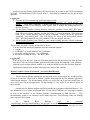
like a right arrow. You should see a list consisting of references to the four symbol icons. The four
symbols include the two deMorgan equivalent symbols for a two input NAND gate and the IEEE or
ANSI standard symbol as well as an old Mentor symbol included for compatibility with previous
versions of the tools. Return to the parent by clicking on the left arrow button. Click on the up arrow
navigator button to return to the library.
Return to your original directory by clicking on the goto button and specifying $MGC_WD in the
change directory to: box. As you can see, the navigator window forms a convenient way to navigate
through a hierarchical design as well as for obtaining all sorts of information about a design object.
Entering a Schematic with Design Architect
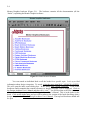
Now we'll bring up Design Architect (called da) which is the schematic capture program. You'll
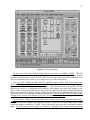
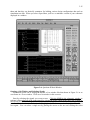
use da to construct a schematic model of four basic TTL gates like that shown in Figure 2-4.
Starting DA
Start da by typing "da" at the csh command prompt. A window will pop up that looks something
like that in Figure 2-4 without the circuit of course.
Opening a New Sheet
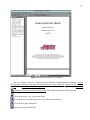
Open a schematic sheet by hitting the F1 function key. This will bring up the Open Sheet dialog
box. Type in the name 4parts in the Component Name box. Make sure the rest of the box looks like
that shown in Figure 2-5. Leave the sheet name as sheet1 and make sure Editable is selected. OK
the dialog to create and open the new schematic. The first time you do this da will bring up an empty
schematic sheet window. The next time you use Open Sheet you'll get your existing schematic back
assuming you save it.
Selection Count
Notice the line just under the main menu bar and just above the schematic sheet. It should read
something like:
Sel: 0 (W|dae) (4parts|schematic|sheet1) () ().
The Sel field is the selection count. We'll get back to that later after you place some parts.
The symbol window, schematic palette, and context window
The da main window looks a lot like other Mentor applications. Along with the window elements
you've seen in dmgr there are three new windows along the right hand side of the screen: the active
symbol window, schematic palette, and context window. Click the RMB (menu button) in each of
these three windows to see what kind of popup menu is available in each. The symbol window is
where part symbols from a library will appear during placement, the palette window contains a
variety of command icons that are useful shortcuts for various menu commands, and the context
window shows the relative position of the schematic window on the overall schematic. The session
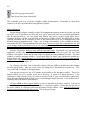
palette has an Open Sheet icon which does the same as the F1 function key used earlier. Use it if you
wish but do NOT use the similar looking but totally different Open Design Sheet icon, command,
menu item, or function key. This command uses an object called a viewpoint and can cause all sorts
of subtle problems unless you know what you're doing.