1
Inventory management
143
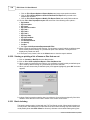
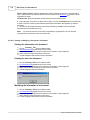
Reset Group field.
DBtext
Links an empty field to a field in the Data tab.
1
2
3
4
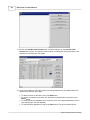
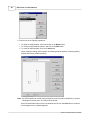
Click on Inventory->Report from the Main Window.
Click on the Edit button
Double-click on the report to open it.
Click on the Design tab.
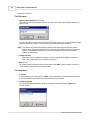
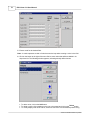
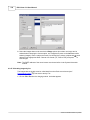
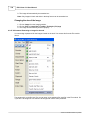
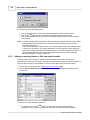
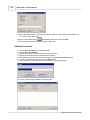
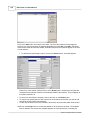
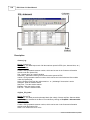
5 Click on the DBtext icon
and click on the location of your choice in the report (it is
often in the detail section).
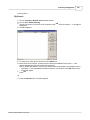
6 Select a Data Pipeline and a Data field from the toolbar.
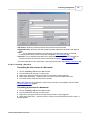
DBBarcode
Converts the data from a database field to a bar code symbol.
1
2
3
4
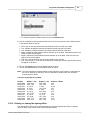
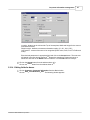
Click on Inventory->Report from the Main Window.
Click on the Edit button
Double-click on the report to open it.
Click on the Design tab.
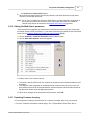
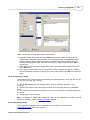
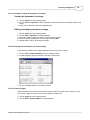
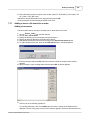
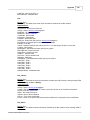
5 Click on the DBBarcode icon
and click on the location of your choice in the report
(normally it is in the detail section).
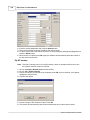
6 Select a Data Pipeline and a Data field from the toolbar.
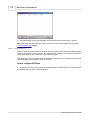
Adding a sub-report
A sub report is used when a relationship of one to many is present - this kind of relationship can
also be called master detail relationship, it's when for example an order is associated to many
order items or when a box is associated to many notes. Many sub-reports can be included in the
same report.
1
2
3
4
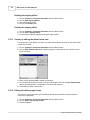
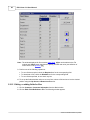
Click on Inventory->Report from the Main Window.
Click on the Edit button
Double-click on the report to open it.
Click on the Design tab.
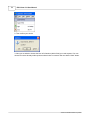
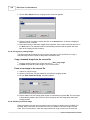
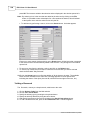
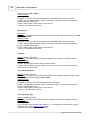
5 Click on the SubReport icon
and click on the location of your choice in the report
(normally it is in the detail section).
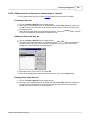
6 Select a Data Pipeline from the toolbar.
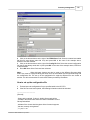
Adding a group
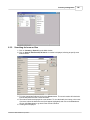
A group is used to gather information that is similar in order to separate it from the other data.
Groups are usually used to facilitate the sorting and the calculation of certain fields. For example
one could group a report by department in order to start a new page every time a new department
appears in the data. Another example would be to facilitate the calculation of totals for every price
code encountered.
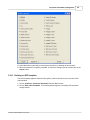
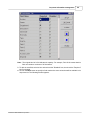
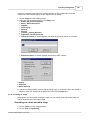
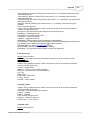
1 Click on Inventory->Report from the Main Window.
© 2007 DocuData Software Corporation