1
COLUMNS
HACK AND /
(such as when you add new sites), you also can use
the following commands.
To restart Apache by forcibly stopping existing
processes and starting them again:
$ sudo apache2ctl restart
To start Apache if it is completely stopped:
$ sudo apache2ctl start
To stop Apache hard (kill all of the current processes
even if they are still processing a user request):
$ sudo apache2ctl stop
To stop Apache gracefully (it will kill processes only
after they are finished with their current request):
$ sudo apache2ctl graceful-stop
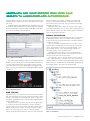
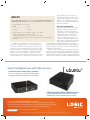
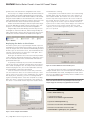
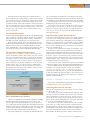
Figure 1. The
Default WordPress
Configuration Page
VirtualDocumentRoot, so I can more easily manage multiple WordPress sites. Unfortunately, the module to allow
that feature isn’t enabled by default, so I also need to
enable the vhost_alias module so that feature works:
$ sudo a2enmod vhost_alias
The way I have set up WordPress, each WordPress
site you host from this server will have its own document
root under /var/www/<domainname>. When you add a
new site, you need to create a symlink under /var/www/
named after your domain name that points to the
installed WordPress software. In my case, I want to
create a site called www.example.org, so I would type:
Configure MySQL for WordPress
Like with many dynamic sites these days, WordPress
gets its data from a database back end: in this
case, MySQL. The wordpress package includes a
nice little shell script you can use to set up your
MySQL database automatically for your site at
/usr/share/doc/wordpress/examples/setup-mysql.
All you have to do is pass it the -n option and tell
it the name of the MySQL user you want to use
and the name of the database. In my case, I use
the user name “wordpress” and name the database
after my site, www.example.org:
$ sudo bash /usr/share/doc/wordpress/examples/setup-mysql
$ sudo ln -s /usr/share/wordpress /var/www/www.example.org
Instead of www.example.org, put the fully qualified domain name you are going to use for your site.
While you’re at it, if you haven’t already set up an A
record on your DNS server that points to your new
site, now would be a good time. If you followed the
steps in my previous column to set up a DNS server
of your own, you already should have an entry in
place for www. Simply change the IP address to
point to the external, public IP address you will use
for your Web server and reload the bind9 service.
After the symlink is created, I use the apache2ctl
Apache management tool to reload Apache:
$ sudo apache2ctl graceful
Note: the apache2ctl program is the main
command-line program you will use to manage the
Apache service on your machine. In addition to the
graceful argument, which tells Apache to reload
any new configuration you have changed safely
3 0 | may 2011 w w w. l i n u x j o u r n a l . c o m
¯-n wordpress www.example.org
Note: this command attempts to ping the domain
name that you list, so if you haven’t set up the domain
in DNS yet, you will want to do it before you run the
above command. Again, make sure your domain points
to the public IP address you will use for your site.
Once you get to this point, your blog actually
should be ready to use. All you need to do is visit
http://www.example.org (in your case, you would visit
the URL you set up for your blog), and you should be
greeted with the initial WordPress configuration page
as shown in Figure 1. From that point, all you have
to do is enter the title for your blog and the contact
e-mail you’d like to use. WordPress will present you
with the admin user name and a temporary password.
From there, you can log in and start tweaking, creating
posts and changing your theme.I
Kyle Rankin is a Systems Architect in the San Francisco Bay Area and the author of
a number of books, including The Official Ubuntu Server Book, Knoppix Hacks and
Ubuntu Hacks. He is currently the president of the North Bay Linux Users’ Group.
















































![Tester Bench [BETA] User Manual](http://vs1.manualzilla.com/store/data/005798606_1-651c3b6b51a13c0d6f27995a84bd9cc4-150x150.png)








![webcademie-programme [720.99 Ko]](http://vs1.manualzilla.com/store/data/006420325_1-1b6a730fdb186f5d646e70ec3bf998e1-150x150.png)