1
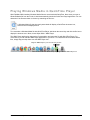
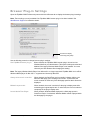
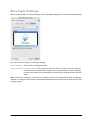
Advanced.
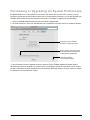
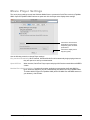
Click to display the Import Files Completely panel.
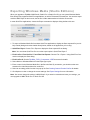
By default, when you import a file using WMV in any supported application (Final Cut Pro
or QuickTime Player, for example), it is opened and imported in the background, and
immediately begins to play as the file is opened.
In cases where you just want to play the file (QuickTime Player, for example), this
functionality is usually best and provides the fastest playback response. However, if you
want to scrub the file, you have to wait until import is complete.
In applications which allow you to scrub, edit, or export the file, you may want access to
the entire file. Applications in this list load local files immediately and optionally display a
progress window before providing playback access. While this may cause a slight delay
as the file opens, it ensures that the entire movie is available for scrubbing, editing, or
export, and the file usually loads in significantly less total time than when loaded in
background mode.
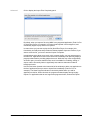
Use the Plus button (located at the bottom-left of the window) to add a new application to
the list of applications that you want to import files immediately (Final Cut Pro, for
example). The Show Progress indicator is checked by default when you add an
application to this list. When checked, the progress windows displays during lengthy
imports. For applications that do not support the progress window, uncheck this option.
Windows Media Components for QuickTime
Page 18