1
TeleTrader Software GmbH
Marc-Aurel-Straße 10-12, 1010 Vienna, Austria
E-Mail [email protected]
Internet http://professional.teletrader.com
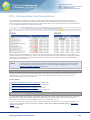
Creating New Studies
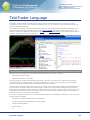
You can create your own studies using the TeleTrader Language, which is an easy programming language designed
especially for this purpose. When creating a new study, you have to enter the complete program code used for the
calculation and drawing of your study.
You can find in-depth explanations about the TeleTrader Language in the following sections:
▫
If you are new to writing custom studies, we provide several examples with step-by-step instructions in the
section Creating Custom Studies on page 460.
▫
If you are already familiar with
the TeleTrader Language, you might still want to look up specific commands in the Language Reference on page
472.
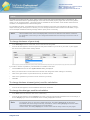
To create a new study
▪
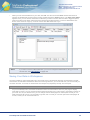
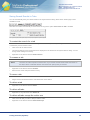
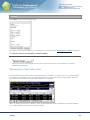
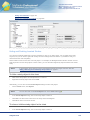
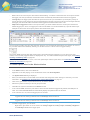
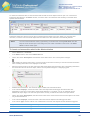
On the Tools menu, click on Study Editor.
▪
On the File menu of the Study Editor, click New.
▪
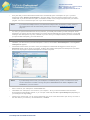
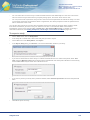
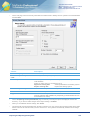
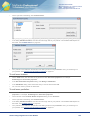
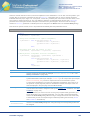
In the Name field, enter the name of the study as it should appear in the study list (for example in the Insert
Study dialog).
▪
In the Function Name field, enter the name of the function that you will write to calculate the study. Pay attention
to the Naming Conventions on page 486.
▪
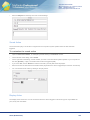
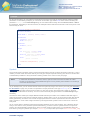
Click OK. The Source Code tab of the new study is shown.
▪
Enter the source code for the new study. Refer to the Language Reference on page 472 for details.
To save the new study
▪
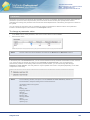
On the File menu of the Study Editor, click Save.
Note
All custom studies are saved in the file UserStudies.xml. This file is saved in the folder that is
specified for User Data under Tools > Options > File Locations.
Deleting Custom Studies
You can of course delete a study that you have created yourself. The studies that are provided with Professional
cannot be deleted – they can only be reverted (reset) to their original settings.
To delete (or revert) a study
▪
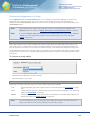
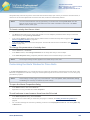
On the Tools menu, click on Study Editor.
▪
In the study list on the left side, click on the study that you want to delete.
▪
On the File menu of the dialog, click Delete for custom studies, or Revert to Default for studies provided by
TeleTrader that have been changed.
Importing, Exporting and Sharing Studies
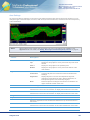
You can export studies and later import them into another TeleTrader Professional installation. This way, you can
share your studies with other Professional users.
If you have created your own study, you might have invested a lot of time and research into writing the source code of
this study. Perhaps you want to let others use the study that you created, but you do not want to let everyone see (or
edit) the source code of your study. To prevent others from accessing the source code of your study, you have two
possibilities:
Analysis Tools
318