1
VISUAL AUTOMATION, INC.
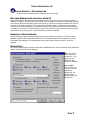
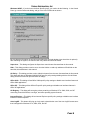
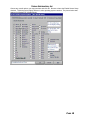
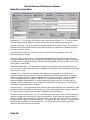
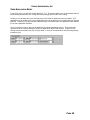
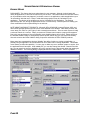
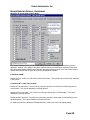
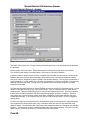
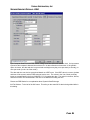
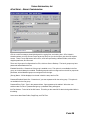
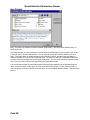
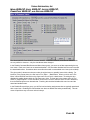
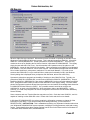
When this dialog is first loaded, the application specified in the command line field is launched, listing all
of the menus found in the System Menu and the Main Menu of the application. Each of these menu items
may be picked for deletion or graying, using the "Del >>" or "Gray>>" buttons, in which the item appears
in the corresponding deletion or gray list box. The values that are important here are the menu type, and
the co-ordinates of the menu. There are three types of menus, SYS, MAIN, and SUB. Co-ordinates start
at zero for the first menu. For instance, the SUB 00 09 E&xit, found in the Menus to Delete list,
represents a sub menu under the first menu in the Main Menu, in this case &File. The 09 represents the
10th menu item, including seperators. You may also enter this values manually, by specifying the type of
menu, the first co-ordinate, and the second co-ordinate if it's a SUB type. Menu descriptions are
displayed for visual reference, but are not used in the actual menu deletion or graying operation. The
type of menu and co-ordinates are the important part.
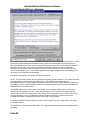
Some applications do not load all of the description names, or add all of the menus into the menu list,
until they are "touched". If you pull down each of the items in the application, then click on the Re-read
Menus button, a more accurate representation of the menus will be displayed. Many applications display
the last 4 files that were opened, under the file menu above the exit menu. This may cause differences in
co-ordinates, so be careful with this.
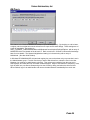
After you have hit OK in this dialog, for a given icon configuration, once, the window titles are brought in
from the "stored" configuration. If you wish to re-read these titles from the main window of the
application, select the Re-read Titles button.
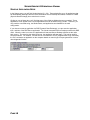
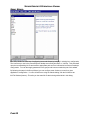
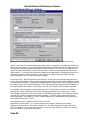
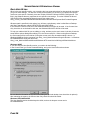
Whatever is in the Menus to Delete or Menus to Gray list are saved in the VISUAUTO.INI file when you
hit the OK button, to be loaded and executed by the Visual Automation Secure Desktop when the
application is launched. You may change the window title to whatever you want. The test button
provides the ability to see what these changes would look like, immediately. Clicking on the OK button or
the Cancel button will close the application that was launched at when the dialog was opened, provided
the Window menu information was actually found. The CAUTION button is just a reminder for people to
read this help topic before proceeding with this feature.
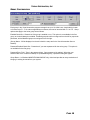
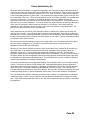
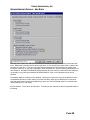
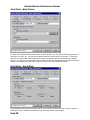
To prevent a second instance of an application starting, Secure Desktop looks to see if a task is already
running. This is done by looking for the Window Title. Most applications specify both the application
name and the document name in the title. In Windows, the Application name as first, and the document
name was second. In Windows 98/ME/NT4/2000/2003/XP, they are reversed. This is why we have
provided flexibility on searching for either half of the title. We also had a request for something other than
a dash seperating the title, in case an application uses a colon or some other character for seperation.
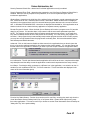
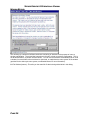
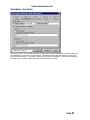
The Time Delay before Applying Changes provides the time necessary for an application to load before
modifying the title or menus. In most cases the "Infinite" parameter should suffice, waiting until steady
state. If you have problems with this function, you may want to experiment with the number of seconds in
this parameter.
PAGE 21