1
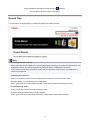
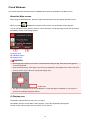
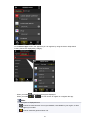
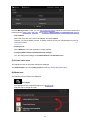
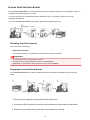
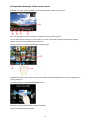
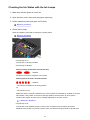
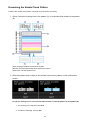
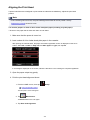
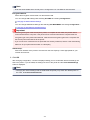
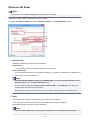
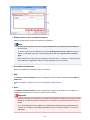
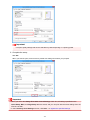
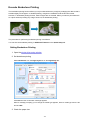
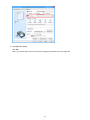
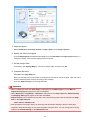
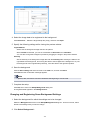
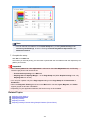
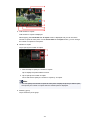
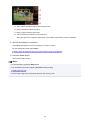
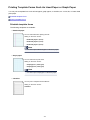
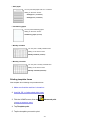
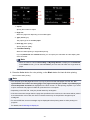
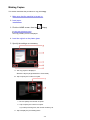
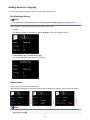
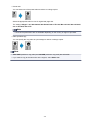
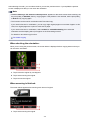
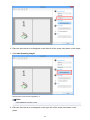
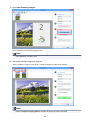
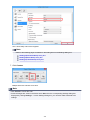
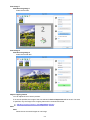
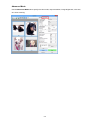
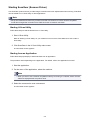
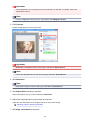
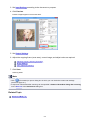
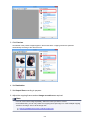
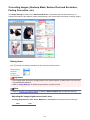
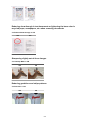
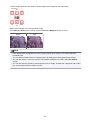
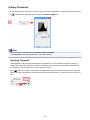
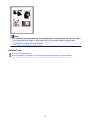
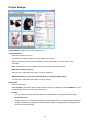
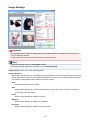
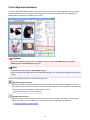
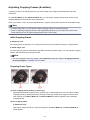
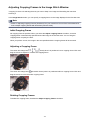
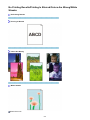
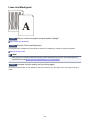
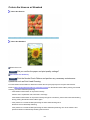
In whole image view:
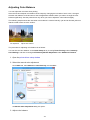
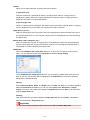
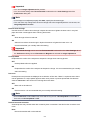
Represents an unselected cropping frame. The settings on the Basic Mode tab or Advanced Mode
tab will not be applied.
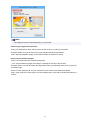
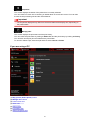
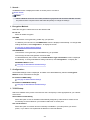
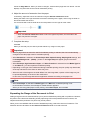
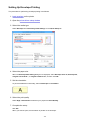
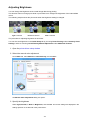
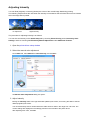
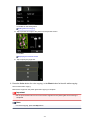
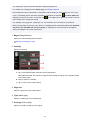
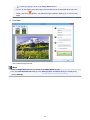
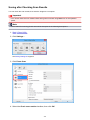
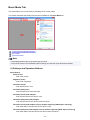
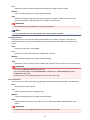
Adjusting a Cropping Frame
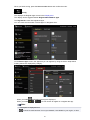
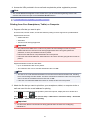
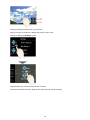
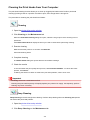
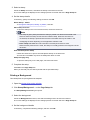
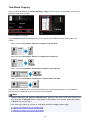
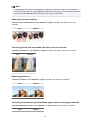
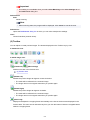
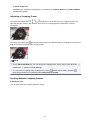
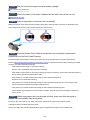
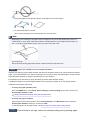
The cursor will change into
(Arrow) when it is positioned over a cropping frame. If you
click and drag the mouse in the direction of the arrow, the cropping frame will expand or contract
accordingly.
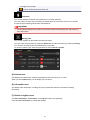
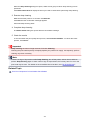
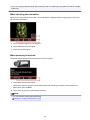
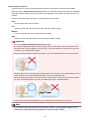
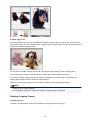
The cursor will change into
(Crosshair Arrow) when it is positioned within a cropping frame. Click and
drag the mouse to move the entire cropping frame.
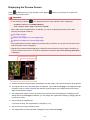
Note
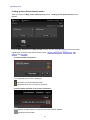
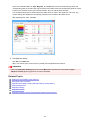
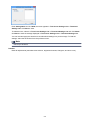
• On the Advanced Mode tab, you can specify the cropping frame size by entering the values into
(Width) and
(Height) in Input Settings.
(Switch Aspect Ratio). However,
• You can rotate a cropping frame 90 degrees by clicking
(Switch Aspect Ratio) is not available when Output Size is Flexible.
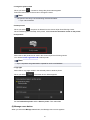
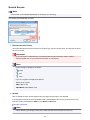
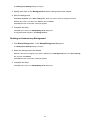
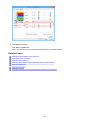
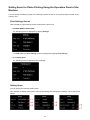
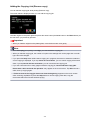
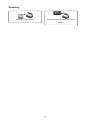
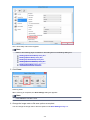
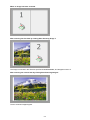
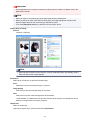
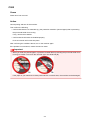
Creating Multiple Cropping Frames
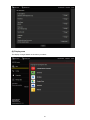
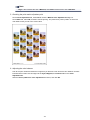
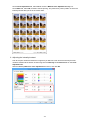
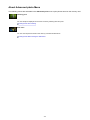
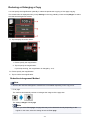
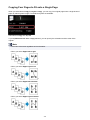
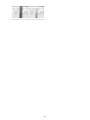
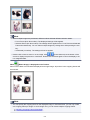
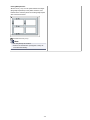
In thumbnail view:
You can only create one cropping frame per image.
713