1
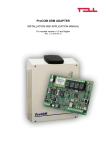
GSM-Pager Installation and User Manual v1.2 2 Table of contents 1. Technical information 2. The main characteristics of the device 3. How to install the panel 3.1. Installation of the inputs 3.2. Installation of the outputs 3.3. Serial connection 3.4. GSM antenna, SIM card 3.5. Installation of power supply 4. The meaning of the panel’s LED signals 5. Deleting the central memory 6. How to program the module 6.1. Checking module status 6.2. How to set the module’s parameters 6.3. Setting zone parameters 6.4. Setting event parameters 6.5. Setting relay outputs 6.6. Setting telephone numbers and other parameters 6.7. Choosing arming/disarming mode 6.8. Changing identifier code 7. Functions that can be reached through a telephone 3 1. Technical information Power supply: Maximum power consumption: Operating temperature: Size: Accessories: 12V DC 500 mA -20°C .. +60°C 70x100mm GSM antenna (900/1800 MHz) Inputs: 4 pcs of contact inputs Installation methods: Short-circuit activated Activated by circuit opening Outputs: 2 pcs of relay outputs (independent, closing/opening) Program connector: RS-232 serial connector for PC programming GSM transmitting device: SONY-ERICSSON GM47-R5 industrial GSM module 2. The main characteristics of the device - 4 zone transmitting device with built-in GSM communicator Signalling to monitoring station (Contact-ID) Sending SMS to each event with separately adjustable text 4 telephone numbers for the alarm calls and SMS 2 telephone numbers for Contact ID signals Distinguishing event and restore on the zone inputs Arming/disarming by telephone, enquiry on state, relay control Power control, it signals to the monitoring station/owner in case of decreasing voltage Enclosed PagerRemoter program for PC for the functions as follows o Programming the module on serial port or by remote download o Complete remote diagnostics, monitoring inputs and outputs, battery voltage control 4 3. How to install the panel 3.1. Installation of the inputs Two different installation methods can be used (they can be set by each input): • activated by short-circuit, • activated by circuit opening (The necessary settings can be done according to 6.3. Setting zone characteristics) 3.2. Installation of the outputs The module has 2 pieces of freely-programmable relays with independent outputs (NO/COM/NC). Maximal load of relays 12V~0.5A The relays can be assigned to events with set timing or can be controlled through a telephone. (The necessary settings can be done according to 6.5. Setting relay outputs) 3.3. Serial connection Standard serial port (RS232) to PC connection. It is used for PC programming and for control. (Connection is done by means of a standard “9-pin mouse extension cable”). 3.4. GSM antenna, SIM card Any kind of SIM card can be inserted into the SIM case, where call and SMS functions are allowed. IMPORTANT NOTE: The request for a pin code has to be disabled before you insert the SIM card into the module! Note: With the help of the supplementary PC program (PagerRemoter.exe), the module can also be reached remotely, through a mobile phone in data call mode; the settings can be checked and modified. In case of certain SIM cards and services the service provider does not enable receiving data calls; therefore, it is not possible to get connected to the module through the phone. If you need this function and it does not operate, ask the service provider to allow the function of receiving data calls. 3.5. Installation of power supply Power supply: 12V DC It is necessary for the module to have a continuous power supply by an accumulator to work appropriately. Make sure to power on the device only after everything has been installed and there are no hanging cables. Ascertain that there are no metallic contacts or litter on or under the panel. The module continuously checks the power supply. If the voltage decreases under 11V the module generates an ’Accu low’ event. In case the voltage increases above 12V again, it is signalled by an ’Accu ok’ event. The module can inform the monitoring station and/or the owner about these events. 5 4. The meaning of the panel’s LED signals Green LED is countinuously on: Yellow LED is continuously on: Yellow LED blinks: Red LED blinks slowly: Red LED blinks quickly: the system is under power supply GSM connection is all right, field strength is appropriate error in GSM connection, weak field strength or fault of card module is armed alarm is in process 5. Deleting the central memory If the installer code is lost, entering the system can only take place if the whole central memory is deleted. You can do the complete delete as follows: • Power down the module • Keep the push button of the panel pressed and this way turn the power supply on • In 10 seconds yellow and red LEDs start blinking. When you can see it, you should release the button within 4 seconds • In a few seconds the above mentioned two LEDs signal that delete is completed with another short blinking The module has returned to default settings, and the installer code has changed to 1111 again. 6. How to program the module The module can be programmed by means of ’PagerRemoter.exe’ program through the serial (RS-232) port. Connect the module to the computer then power it on. Starting the program you will see the following window. Choose the serial port where the module has been connected. Some Laptops do not have a serial connector, in this case a serial/USB converter is necessary. Installing the converter’s program a ’virtual serial port’ will be created e.g. COM5. You need to choose this port in this window. Enter the installer code (default setting is 1111, chage it after installation). Click on ’Creating serial connection’ button. The existence of the connection can be checked e.g. in the window that opens by clicking on ’Monitoring module’s state’ button. 6 6.1. Checking module status Click on ’Show module status’ button. You will see the following window. When serial connection is established, the details about the module’s actual state will appear in a few seconds: - Inputs’ state - Relay outputs’ state - Accumulator voltage - GSM field strength - List of last 16 events By means of the appearing information you can track the module’s operation. 6.2. How to set the module’s parameters Click on ’Set module parameters’ button in the main window and the following window will appear. You can read settings-memory from the module then write them back after the necessary settings. It is also possible to save the settings-memory on the computer (’Save to file’) then reload them („Load from file”). First click on „Read parameters from module” button. In a few seconds the computer loads the settings from the module. (The green colour of Block1…Block3 signals that loading has been successful. In case you see a block turning red, some kind of error has occured, e.g. cable has been disconnected. In this case check the cable then try again. 7 After reading the parameters from the module, click on ’Edit parameters’ button to review the settings. You will see the window shown in the next chapter. (If “Module status” window is open, first you need to close it and only after this can you open the new window with the „Edit parameters” button. 6.3. Zone settings The following parameters can be set to each zone: Installation of zone: o Activated by short-circuit o Activated by circuit opening Zone sensitivity (in tenth seconds 0-25,4 sec): You can set the time that the module does not take note of if the change is shorter than the determined time on the given zone input. Entry delay (in seconds 0-254 sec): The user has this time to disarm the system after entering this zone, otherwise the procedure of alarm will start. Exit delay (in seconds 0-254 sec): After arming, the module does not monitor the zone for this time period. (The user has this time to leave the zone after arming the system.) 8 6.4. Setting event parameters In ’Edit parameters’ window by clicking on ’Events’ tab you can see the page about parameters of the events. Here you can set the below mentioned parameters to each zone. - - Contact-ID event code: 3-digit event code containing 0..9,A,B,C,D,E,F characters to signal to the monitoring station. (e.g. 130 = alarm, however this code can be used for restore, since the module will indicate whether it is a new event or restore in the appropriate part of CONTACT-ID report. T1: whether a call is to be initiated to the first telephone number as a result of the event … T4: whether a call is to be initiated to the fourth telephone number as a result of the event S1: whether an SMS is to be sent to the first telephone number as a result of the event … S4: whether an SMS is to be sent to the fourth telephone number as a result of the event Central: whether the monitoring station is to be informed about the event SMS message: the text of SMS that is to be sent if the event occurs 9 6.5. Setting relay outputs In ’Edit parameters’ window by clicking on ’Relay outputs’ you will see the page for setting the parameters of the relays. In the row ’Control via phone call’ at the very beginning of the coloumn you can set whether the relay is allowed to be controlled through the telephone. In the further lines the following events appear in order and you can set whether the occurance of the event should activate the first or the second relay. 01. IN1 Alarm 02. IN1 Restore … 08. IN4 Restore 09. Test report 10. Accu low 11. Accu ok 12. Field strength error/GSM power error 13. Arm 14. Disarm Any of the above mentioned events or more events can be chosen at the same time and the occurrence of any of them will turn on the relays. It can be set for both relays how long they should be activated after being turned on by an event (or through the telephone). (0-254 seconds). In case of specifying number 255, the relay gets into bistable mode, that is if the relay turns on, then it will not turn itself off, it only gets deactivated directly through the telephone. The first relay can be chosen to give out a short signal at arming/disarming. (If a sounder is connected, one and two beeps signal arming and disarming.) 10 On the “Relay outputs” parameter sheet you can choose for both relays separately whether the relay should turn off (e.g. stop sirening) in case the device is disarmed. 6.6. Setting telephone numbers and other parameters In ’Edit parameters’ window by clicking on ’Phone numbers & other settings’ you will see the settings below. The following parameters can be set here: 1.telephone number : The first telephone number to be initiated a call or SMS if an event occurs. By entering e.g. *31# before the telephone number the “Caller ID” function will be enabled (the phone number will be shown at the receiver party) and by entering #31# before the number, you can disable this function. - Mode of acknowledgement for 1.telephone number: The following options exist in case of acknowledgement: - No acknowledgement - *=Acknowledgement - *= Acknowledgement, #=Stop In the first case, when an acknowledgement is not requested, at the alarm call, the module after a short siren signal automatically disconnects the line. It considers the telephone call successful if the call has been accepted. In the second case (* = acknowledgement), the module gives out a siren signal then waits for the customer to press * on his/her telephone. If * is not pressed, that is the call is not acknowledged, the module hangs up the line within a few seconds. This 11 case the call is considered to have been unsuccessful, therefore the module will try to call this number again in the next cycle. If * is pressed during the time of siren, siren is ceased and the line will be hung up. In this case the call is considered to be successful and no further calls will be directed to this telephone number because of this event. However, occurring other events needs to be reported to the same phone number will initiate a new call. The third case (* = acknowledgement, # = Stop) coincides with the previous case with an addition that if * is pressed the module will not disconnect the line immediately but waits for a few seconds. During this time if # is pressed the module stops reporting the event. No further telephone calls, SMS messages and calls to the monitoring station will be directed to or sent because of this event. However, if other events have occurred , notification about them will start independently. - - - - - 2.Phone number … 4.Phone number: Telephone number and acknowledgement are to be set the same way as described above. 1.Central phone number, 2.Central phone number Two telephone numbers of monitoring stations can be set. The module tries to inform these numbers until notification is successful to either number. (In case of successful call it does not try to notify the other number.) User ID: Here you can specify the four-digit (0..9,A,B,C,D,E,F characters) customer identification that is necessary for the Contact-ID signal. Maximal Alarming time: It can be set in minutes, between 5 and 25 minutes, how long an event should be valid after its occurrence. If this time is over and if all calls have not been initiated and all SMS not sent, etc. the module will stop the alarm procedure, no further notification will be started to signal the event. It refers to only the specific event, it does not influence telephone calls and SMS messages about other events. Maximal number of alarms from one zone: It can be set between 1 and 25 how many signals a zone can maximum send. This way we can avoid that a faulty detector shall cause alarm processes permanently. The device being disarmed then armed again, the zone will be allowed again, which means that it can forward alarms (however only as it is maximally allowed). Value zero means that the number of alarms is not limited. If “Always armed” is chosen at arming/disarming mode, this function cannot be used. Alarms are not limited. Frequency of test event: (in hours, 0-255 hour) The frequency of test reports can be set, that is in how many hours interval shall the module send a test report. Value zero means that the module does not send a test report. 6.7. Choosing arming/disarming mode You can arm and disarm the module from some external unit (code switch, key switch, radio control, etc.) and through a telephone. Depending on the switch circuit, one (4. input) or two (3. and 4. inputs) inputs can be used to arm or disarm the module from an external unit. You can choose from the below arming/disarming modes by clicking on the ’Modify’ button next to ’Arm/disarm methode’ in page ’Phone numbers & other settings’. 12 - 0 – Always armed: If you use the module only as a transmitter, there is no need for arming/disarming. In this case choose this mode, and all four inputs can be used to accept signals. - 1 - By switch (or controlled by relay) Arming and disarming can be done by a switch (e.g.. key switch), or a correspondent relay, e.g. the relay output of a code switch. One position of the switch signals armed mode and the other position signals disarmed mode. Short circuit of IN4 input arms the device and its circuit opening disarms the device. IN4 cannot be used as a zone in this case. - 2 - By switch (or controlled by relay) It corresponds to the previous mode, but it operates completely inversely due to short circuit and circuit opening. - 3 – By one kind of short-circuit impulse We arm and disarm the module with the same short-circuit impulse (to IN4 input), that is the module gets armed as a result of one impulse and gets disarmed as a result of the next impulse. - 4 – By two kinds of short-circuit impulses It might be necessary to have a kind of installation method where arming is done by a short-circuit impulse and disarming is done by another short-circuit impulse that comes in through another, independent contact. It is e.g. the receiver part of RF Remote Control module, where as a result of the activating push button, the relay of it closes for a short time and as a result of the deactivating push button, this procedure happens with another relay. If a situation like this occurs, choose this mode. Short-circuit impulse to IN3 arms the module and short-circuit impulse to IN4 disarms it. In this mode only IN1 and IN2 inputs can be used for zone functions. - 5 – By two kinds of (circuit opening) impulses It corresponds to the above mentioned mode with the difference that arming and disarming occur as a result of circuit opening of IN3 and IN4 inputs. Note: Arming/disarming through telephone is not available if mode 1 or 2 selected. 6.8. Changing identifier code You can set the new identifier code on page ’Edit parameters’ window by choosing ’Phone numbers & other settings’ After ’Store changes’ go back to ’Parameter setting’ window and write the new details to the module. (with ’Write parameters to module’ button). After write, the new password will become valid and to keep up serial connection, you have to change to the new password in the program’s main window. 7. Functions that can be reached through the telephone 13 To reach the device through a telephone you have to do the steps as follows: - Call the phone number of the module The module accepts the phone call and with a beep it signals to be ready to accept commands Enter user identification in the form of *9password# e.g. in the case of identification 1234 you should enter *91234# (default password 1111 ) The module signals with three beeps if the password is correct and with a deep beep if it is not. According to the below table now you can set the requested commands. At last disconnect the call. COMMAND Entering password Arming Disarming Is it armed ? Relay1 OFF Relay1 ON Enquiry on relay 1 Relay2 OFF Relay2 ON Enquiry on relay 2 CODE *9password# *1# *0# *2# *310# *311# *319# *320# *321# *329# REPLY 3 beeps = ok, 1 deep beep = invalid password 6 beeps = ok, Buzzing = invalid password 3 beeps = ok, Buzzing = invalid password 6 beeps = armed, 3 beeps = disarmed 3 beeps = ok, Buzzing= not authorized / invalid password 3 beeps = ok, Buzzing = not authorized / invalid password 6 beeps = Relay is on 3 beeps = Relay is off 3 beeps = ok, Buzzing= not authorized / invalid password 3 beeps = ok, Buzzing= not authorized / invalid password 6 beeps = Relay is on 3 beeps = Relay is off If a command is wrong, the module signals it with 1 deep beep. 14