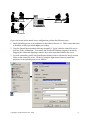
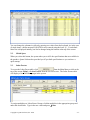
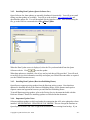
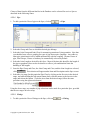
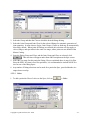
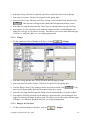
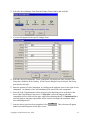
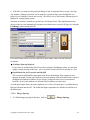
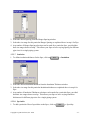
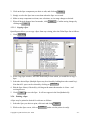
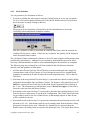
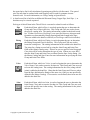
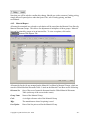
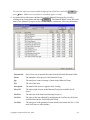
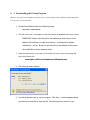
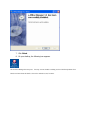
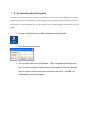
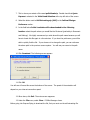
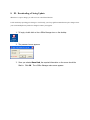
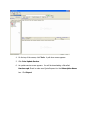
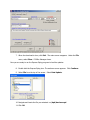
1
QuoteExpress Piping Reference Manual Copyright © 2006 Quote Software Inc. All Rights Reserved Information in this document is subject to change without notice and does not represent a commitment on the part of Quote Software Inc., Inc. The software, which includes the information contained in any databases, described in this document is furnished under a license agreement or nondisclosure agreement and may be used or copied only in accordance with the terms of the agreement. It is against the law to copy the software except as specifically allowed in the license or nondisclosure agreement. No part of this manual may be reproduced or transmitted in any form or by any means, electronic or mechanical, including photocopying and recording, for any purpose, without the express written consent of Quote Software Inc., Inc. Companies, names, and data used in examples herein are fictitious unless otherwise noted. Trademarks This document contains names of hardware and software products, including those manufactured by companies other than Quote Software Inc. Unless otherwise noted, it is not the intent of Quote Software Inc. to claim these trademarks • QuoteExpress is a trademark of Quote Software Inc. • Virtual Tablet Interface™ is a trademark of Digitizer Technology Company. • TabletWorks is a trademark of GTCO Calcomp, Inc. • HPHQuick™ is a trademark of Harris Publishing House. • Microsoft and MS-DOS are registered trademarks Microsoft Corporation. • Windows is a trademark of Microsoft Corporation. • IBM and PS/2 are trademarks of International Business Machines. • Pentium is a trademark of Intel, Inc. • Wintab is a trademark of LCS/Telegraphics. Table of Contents Copyright © Quote Software, Inc. 2006 -2- INSTALLATION.................................................................................................................................................5 1. 1.1. QUOTEEXPRESS PIPING BASE SYSTEM – NEW INSTALL......................................................................................5 1.2. DIGITIZER TABLET .............................................................................................................................................7 1.2.1. Virtual Tablet Interface (Optional)............................................................................................................7 1.3. SHARED DATA ACCESS OVER LOCAL AREA NETWORK (OPTIONAL).................................................................7 2. MAIN MENU.....................................................................................................................................................10 2.1. DATABASE........................................................................................................................................................10 2.1.1. Viewing Items ..........................................................................................................................................11 2.1.2. Adding Items ............................................................................................................................................13 2.1.3. Copying Items ..........................................................................................................................................13 2.1.4. Linking Items ...........................................................................................................................................13 2.1.5. Removing Items........................................................................................................................................14 2.1.6. Editing All Items ......................................................................................................................................14 2.2. GLOBAL SPECS .................................................................................................................................................15 2.3. LABOR FACTORS ..............................................................................................................................................15 2.3.1. Adding/Renaming/Removing Labor Groups............................................................................................16 2.3.2. Naming/Changing Group Factors...........................................................................................................16 2.4. MATERIAL MULTIPLIERS ..................................................................................................................................17 2.4.1. Adding/Renaming/Removing Discount Groups .......................................................................................18 2.4.1.1. 3. Naming/Changing Group Multipliers................................................................................................................... 18 JOB FILE SCREEN..........................................................................................................................................19 3.1. WORKING WITH JOBS .......................................................................................................................................19 3.1.1. Adding a New Job....................................................................................................................................19 3.1.2. Editing Job Information...........................................................................................................................20 3.1.3. Copying a Job..........................................................................................................................................20 3.1.4. Deleting a Job..........................................................................................................................................20 3.1.5. Printing the Job File screen ....................................................................................................................21 3.1.6. Exporting and Importing Jobs .................................................................................................................21 3.1.7. Archiving jobs..........................................................................................................................................21 3.2. FOLDERS...........................................................................................................................................................22 3.3. CONFIGURATION ..............................................................................................................................................23 3.4. SOFTWARE AND DATA UPDATES ......................................................................................................................28 3.4.1. Installing Software Updates ....................................................................................................................28 3.4.2. Installing Data Updates (Quote Software Inc.) .......................................................................................29 3.4.3. Installing Data Updates (Harrison Publishing House)...........................................................................29 3.4.4. Important Update Notes ..........................................................................................................................29 3.5. SPECS ...............................................................................................................................................................30 3.5.1. Creating a Spec .......................................................................................................................................30 3.5.1.1. 3.5.1.2. 3.5.1.3. 3.5.1.4. 3.5.1.5. 3.5.1.6. 3.5.1.7. 3.5.1.8. 3.5.2. 3.5.2.1. 3.5.2.2. 3.5.2.3. 4. 4.1. Pipe....................................................................................................................................................................... 32 Fittings.................................................................................................................................................................. 32 Valves................................................................................................................................................................... 33 Flanges ................................................................................................................................................................. 34 Hangers & Excavation.......................................................................................................................................... 34 Hanger Spacing .................................................................................................................................................... 36 Insulation.............................................................................................................................................................. 37 Specialties ............................................................................................................................................................ 37 Other Spec Features ................................................................................................................................38 Renaming a Spec .................................................................................................................................................. 38 Editing a Spec....................................................................................................................................................... 38 Copying a Spec..................................................................................................................................................... 39 JOB SCREEN ....................................................................................................................................................40 SPEC TAB .........................................................................................................................................................41 Copyright © Quote Software, Inc. 2006 -3- 4.2. ZONE TAB ........................................................................................................................................................41 4.2.1. Creating a Zone .......................................................................................................................................42 4.2.2. Copying Zones .........................................................................................................................................43 4.2.3. Taking Off Zones .....................................................................................................................................44 4.2.3.1. 4.2.3.2. 4.2.3.3. 4.2.3.4. 4.2.3.5. 4.2.3.6. Fittings, Valves, Flanges, and Specialties Takeoff............................................................................................... 44 Pipe Takeoff ......................................................................................................................................................... 47 Fittings, Valves, Flanges, and Specialties Takeoff (with Digitizing Tablet) ........................................................ 48 Pipe Takeoff (with Digitizing Tablet) .................................................................................................................. 49 Job Items .............................................................................................................................................................. 50 Other Takeoff Features......................................................................................................................................... 51 4.3. JOB ITEMS TAB .................................................................................................................................................53 4.4. REPORTS TAB ...................................................................................................................................................54 4.4.1. Job Calculation........................................................................................................................................55 4.4.2. Re-Calculation By Pattern.......................................................................................................................58 4.4.3. Re-Calculation By Selected Zones...........................................................................................................59 4.4.4. Re-Calculation Using Quoted Prices ......................................................................................................59 4.4.5. Material Report .......................................................................................................................................60 4.4.6. Labor Report............................................................................................................................................63 4.4.7. Exception Report .....................................................................................................................................65 4.5. QUOTES TAB ....................................................................................................................................................68 4.6. WORKSHEETS TAB ...........................................................................................................................................69 4.6.1. Worksheet Operational Design................................................................................................................71 4.6.2. Excel™ Version Considerations..............................................................................................................72 5. 5.1. 5.2. 5.3. 5.4. PROGRAM MAINTENANCE ........................................................................................................................73 BACKUPS ..........................................................................................................................................................73 DISPLAY RESOLUTION ......................................................................................................................................73 PERFORMANCE .................................................................................................................................................74 TABLET MAINTENANCE ....................................................................................................................................74 6. I. DOWNLOADING THE PRICING PROGRAM .......................................................................................81 7. II. DOWNLOADING INITIAL PRICING DATA........................................................................................84 8. III. DOWNLOADING A PRICING UPDATE ..............................................................................................88 Copyright © Quote Software, Inc. 2006 -4- 1. Installation The Express Piping software and database are distributed on CD-ROM. This system requires the following hardware and software components: • 1500MHz (1.5GHz) processor speed • 256mb of RAM (512MB recommended) • Hard drive with at least 200MB of available disk space • XVGA color graphics display monitor • Microsoft® Windows® 2000 or XP 1.1. QuoteExpress Piping Base System – New Install To install QuoteExpress base system, please call a Quote Software Technician at 800-813-7020. If you must install before or after regular business hours, please perform the following steps (this setup assumes you have the 1.3 version CD): 1) Insert the Express Piping CD into your CD-ROM drive. A window showing you the contents of the CD should appear. If, after 10-15 seconds, it does not appear, go to step 2. Otherwise, skip step 2 and continue to step 3. 2) Follow these directions to start the Express Piping installation if your CD does not AutoRun: a. Click on your Windows Start button. b. Click on My Computer. c. Find and select your CD-ROM drive (usually drive D:) to display the contents of the disc. 3) Double-click the file labeled Qxp_Piping_Server.exe. This starts the installation program. 4) To install to the default folders, click Next each time it appears. When installation program is finished, be sure that the box is checked for Launch Workstation Installer and then click on the Finished button. Skip to step 2 of the Workstation Installation. Copyright © Quote Software, Inc. 2006 -5- 1.1.1 Workstation Installation To install the Workstation portion of the Express Piping program, you need to know the location of the QpipeServ folder that contains the data files that you would be using. Most commonly, this folder is located in C:\Program Files\. However, if this is a networked installation, the QpipeServ folder may be located on your network. You should contact your network administrator for information on the exact location of this file. Once you have located this folder, follow these steps: 1) Find the Installers folder (C:\Program Files\QpipeServ\Installers) and locate and double-click the file labeled QXP Piping Workstation.exe. 2) To install to the default folders, click Next each time it appears. When the Finish button appears, click it to finish the installation. You should now have an Express Piping icon on your desktop. Launch QuoteExpress by selecting it through the menu or by double-clicking on the desktop icon. The QuoteExpress Title screen will appear as follows: Copyright © Quote Software, Inc. 2006 -6- 1.2. Digitizer Tablet QuoteExpress supports input from most large-format digitizing tablets (such GTCO) that have Wintab-compliant drivers. Depending on the type of tablet you are using, you may elect to use the manufacturer’s supplied drivers or optional Virtual Tablet Interface drivers from Digitizer Technology Company. The following steps outline how to configure both the Virtual Tablet Interface and GTCO TabletWorks drivers for best use with QuoteExpress. 1.2.1. Virtual Tablet Interface (Optional) QuoteExpress is compatible with software from Digitizer Technology Company, which supports a wide range of new and existing digitizer tablets. If you intend to use the Virtual Tablet Interface drivers, you must first install the driver software. Once successfully installed, it is recommended that you configure the mouse pointer for relative positioning by unchecking the Absolute option (Pointer tab) and locking it by checking the ;Positioning option (Locking tab). This configuration allows the digitizer cursor to “double-up” as both a mouse and a cursor, reducing the amount of motion required while using the system. Refer to Section 2.1 for additional information regarding the configuration and setup of the digitizer tablet. 1.3. Shared Data Access Over Local Area Network (Optional) QuoteExpress supports workgroup configurations where multiple personal computers share access to a common set of job data (typically located on a file server that is accessed over a highspeed local area network.) This feature not available in Piping LT. Copyright © Quote Software, Inc. 2006 -7- LAN LAN Workstation Workstation File Server Workstation If you wish to run in this shared access configuration, perform the following steps: 1. Install QuoteExpress on each workstation as described in Section 1.1. Make certain that each workstation is fully operational before proceeding. 2. Copy the QuoteExpress database directory (normally C:\Qpipe) onto the central file server from one of the workstations. You can use the Windows® Explorer program to do this by dragging this folder and dropping it onto the drive letter associated with the file server. 3. On each workstation, modify the QuoteExpress desktop icon to reference the newly created folder on the central file server. Do this by using the right mouse button to modify the properties of the QuoteExpress icon as follows: ⇒ Copyright © Quote Software, Inc. 2006 -8- For example, if your file server is referenced as drive E:, modify the QuoteExpress properties as illustrated (additional information is highlighted). 4. (Optional) You may delete the local database directory (C:\Qpipe) from each of the workstations to free up disk space. Please note the following regarding the use of QuoteExpress in a shared access configuration: ∇ Shared Access To Data In a shared access configuration, QuoteExpress performs file locking to insure that only one workstation is performing updates on a specific Job. Periodically, you may receive a message indicating that a Job is in use by another workstation. This is normal and serves to protect integrity of the QuoteExpress database. Additionally, if any user is currently updating a Job, the Master Catalog will be locked from updates (preventing accidental changes to data in the middle of a takeoff or recalculation.) It is strongly recommended that all Master Catalog and/or program updates be performed after-hours when using the shared access configuration. ∇ Performance QuoteExpress maintains a large amount of information in the database and the shared access performance will be heavily influenced by the speed of the Local Area Network (LAN) and central file server. It is strongly recommended that the shared access configuration only be used with LANs that provide a minimum of 10Mbit (mega-bit) transfer rates! Copyright © Quote Software, Inc. 2006 -9- 2. Main Menu The first screen you will see after logging in will be the Main Menu. This truly is the center point for navigation throughout QuoteExpress. This screen will allow you to access the sections of QuoteExpress Piping. Be sure to watch for new information! Quote Software will send you messages about program updates and other issues through the Main Menu viewer. The Job File button gives you access to the list of Job in the program. This is where you add and select jobs. You can access the list of Jobs two ways: you can select from the Main Menu or you can click on the Job Tab at the top of the screen. The Job File screen is explained in detailed later in this Reference Manual. 2.1. Database The Database screen manages over 70,000 unique items used in the mechanical trade! For rapid lookup, each item is classified by having a unique Family, Group, Class, and optional Type genealogy. You can access the Database screen two ways: click Main Menu or click from the from the Job List screen. NOTE: When you first open the Database screen, only the Family is shown. The following screen is an example of how to access the Group, Class, Type, etc. Copyright © Quote Software, Inc. 2006 - 10 - Across the top bar of the Item screen appears a genealogy of the item as follows: Item[Class, Group, Family, (Type)] Once inside the Item screen, the next and previous Items (within the same Family, Group, Class, and Type) can be accessed by selecting and respectively. 2.1.1. Viewing Items To select an item, (e.g. a 1/2" 150# black malleable tee), select the Family (Fittings), Group (Black Malleable), Class (150# Black Mall Threaded), Type (Tee), and Size (1/2"). All database items are accessed in this manner, although some may require a different number of selections. Copyright © Quote Software, Inc. 2006 - 11 - The Item screen contains the following fields: Description Size and description of item as it will appear in printouts Piece Count Quantity per item (Usually this is one) Size Up to four sizes for an item Show Checked box means size will be displayed Joint Group From the Joint Family in the Catalog1 Joint Class A subset of the Joint Group1 List Price Per the manufacturers' list shown2 (Enter ‘Q’ for Quoted) Part Number Per the manufacturers' list shown Units LF = lineal feet or Each Material Multiplier Group Name of group where list prices are discounted Manufacturer Company that publishes list price Last Update Date of manufacturer's published list Lock Item from Updates Check to protect user modified items Supplier Code Supplier code (used by Quote Software Inc. for pricing updates) Accounting Code Optional user code (will not be affected by updates) Shipping Weight (lb.) Available for most items Labor Hours Per unit labor rates (Enter ‘N’ for N/A) Labor Factor Group Name of group where labor rates are discounted Copyright © Quote Software, Inc. 2006 - 12 - Picture 1 2 Available for most items When SPEC is displayed as the Joint Group or Joint Class, the joints remain undefined until set up into a Global or Job Spec. When QUOTED is displayed, price will require a quoted value at the time of job recalculation. 2.1.2. Adding Items New items can be added using the Database screen as follows: 1. Select the Family to which the item belongs. (Note that new Families cannot be created.) 2. Select the Group to which the item belongs. Select to create a new one. When creating a new Group, you are prompted to enter the Description. to create a new one. When 3. Select the Class to which the item belongs. Select creating a new Class, you are prompted to enter the Name. (Some Families may also require a Joints to be entered.) 4. Select the Type to which the item belongs. Select to create a new one. When creating a new Type, you are prompted enter the Description and optional Takeoff Position. to add the new item. Enter the item data and click 5. Select the Description is a required field that MUST be filled in.) . (Note that 2.1.3. Copying Items If items already exist in the same Family, Group, Class and Type as the new item, then the new item can be copied from one of these as follows: 1. Select the appropriate Family, Group, Class, and Type from the Database screen. 2. Select to add the new item. From the Item screen, select the Copy From button, enter the size of item to copy, and select . 3. Modify the Sizes, List Price, Labor Rates, etc. as appropriate and select new item. (Note that the size must be modified before saving.) to save the 2.1.4. Linking Items QuoteExpress contains a special link feature used to place an existing item multiple locations within the Database. This is done as follows: Copyright © Quote Software, Inc. 2006 - 13 - 1. Select the new Family, Group, Class, and Type location from the Database screen. 2. Select and enter the Sizes and Piece Count for the new item. from the Item screen and choose the Family, Group, Class, Type, and Size 3. Select and a new item created which is a link to the of an existing item to link with. Select existing item (with the Sizes and Piece Count modified as in step #2.) The primary purpose of linking items is to allow multiple size references to the same item (such as hangers, bolts, joints, etc.) Under normal circumstances, you will not have to use this feature in routine maintenance of the data. 2.1.5. Removing Items Items you add to the Database can be removed as follows: 1. Select the Family, Group, Class, Type, and Item from the Database screen. 2. Select from within the Item screen. (You will be asked to confirm the removal.) Exercise caution when removing items. Once an item has been removed, it cannot be restored. Note that those items installed by Quote Software Inc. are permanent and cannot be removed. 2.1.6. Editing All Items QuoteExpress contains a special feature that allows you to rapidly change the price and/or labor hours of all items within a single Family, Group, Class, and Type. To use this feature, select from the Database menu. A grid will be displayed that allows you to change information for all items from a single screen. Copyright © Quote Software, Inc. 2006 - 14 - You can change the columns in yellow by entering new values from the keyboard. As in the case of single items, a dollar amount of QUOTED can be entered using the letter ‘Q’. Your default labor rate is displayed initially, but can be changed using the buttons at the top of the screen. 2.2. Global Specs When you select this button, the system takes you to ALL the specifications that are available in the product. Quote Software has provided you 45 pre-built specifications so you can have a quick startup. 2.3. Labor Factors from the Main Menu or click at the To access the Labor Factor table, click top of the screen Global ⇒ Labor Factors from the Job List screen. The Labor Factors table will display a list of all labor groups in the system. To assign multipliers to Labor Factor Groups, click the multiplier in the appropriate group and under the desired title. Type in the new value and press ↵Enter. Copyright © Quote Software, Inc. 2006 - 15 - The following information is contained about each group: Group Name The name of the Labor Factor Group as it appears in the Master Catalog Code A six-digit reference code used in some printouts. Labor Factors One of up to four factors for each of four different sets of labor rates, which are applied to all items within the Labor Factor Group 2.3.1. Adding/Renaming/Removing Labor Groups New Labor Factor Groups can be added to the database to accommodate data added to the . Fill in the desired Discount Group system. To add a new Labor Factor Group, click and Code and then click . The new group will be added at the end of the list. Labor Factor Groups added by the customer can be renamed as desired. To rename an existing group, select the Group Name and click to save your changes. . Edit the Discount Group or Code and click Labor Factor Groups you add can also be removed if required. To remove an existing group, select the Group Name with the mouse and click confirmation prior to removal. . The program will require 2.3.2. Naming/Changing Group Factors QuoteExpress contains room for up to four (4) factors for each of four (4) sets of labor rates for each Labor Factor Group. This allows you to have different multipliers for different size jobs, different crews, different types of jobs, etc. Upon receipt of your system, all multipliers are 1.0. It is your responsibility to find and enter the appropriate factors to reflect the labor rates for your firm and for your area. When the Labor Factor Group screen is first opened, it will display the Labor Factors for Quote Software Inc. labor rates. To change to another set of labor rates, click the name of the current set and select the desired set. (Your system may have less than four sets of labor depending on how it was ordered.) To assign names to the lists of factors, click and change the names of the titles. To exit the Labor Factor Groups table, click changes. and confirm whether or not to save your Copyright © Quote Software, Inc. 2006 - 16 - 2.4. Material Multipliers To access the Material Multiplier Groups screen, click from the Main Menu or click Global ⇒ Material Multipliers from the Job List screen. The Material Multiplier Groups screen will display a list of all material groups defined in the system. To assign multipliers to Material Multiplier Groups, click the multiplier in the appropriate group and under the desired title. Type in the new value and press ↵Enter. The following fields are provided for each group Group Name The name of the Material Discount Group as it appears in the Master Catalog Code A six-digit reference code used in some printouts Manufacturer The manufacturer, whose list prices are used for all items in the group Update The date of the last change to prices in the group (usually the date of the manufacturer’s list prices) Supplier The name of the supplier for the group name. User Updated Copyright © Quote Software, Inc. 2006 - 17 - Multipliers One of up to four discount factors, which are applied to all items within the Material Discount Group 2.4.1. Adding and Renaming Multiplier Groups New Material Multiplier Groups can be added to accommodate data added to the system. To add a new Material Multiplier Group, click and enter the Multiplier Group, Code, Manufacturer, Last Update, Supplier, and Date. The new group will be added at the end of the list. Material Multiplier Groups you add can be renamed (or updated) as required. To rename or . Change the Group Name, update an existing group, select the Group Name and click Code, Manufacturer, and/or Date as required. 2.4.1.1. Naming/Changing Group Multipliers QuoteExpress contains room for up to four (4) multipliers for each Material Multiplier Group. This allows you to have different multipliers for large jobs, small jobs, out-of-town jobs, etc. Upon receipt of your system, all multipliers are 1.0. It is your responsibility to find and enter the appropriate multipliers to reflect the market conditions for your firm. You may also assign names to the lists of multipliers by clicking on To exit the Material Multiplier Groups table, click your changes. Copyright © Quote Software, Inc. 2006 and entering the desired names. and confirm whether or not to save - 18 - 3. Job File Screen The QuoteExpress Job File screen allows you to create, modify, and delete jobs. This is also one place where you can access the Database screen. 3.1. Working with Jobs Each job in the QuoteExpress system consists of a Name (1-16 characters), Description (1-50 characters), Bid Date, Bid Time, Created (which notes when the job was created), and Last Modified. Note that the Job File screen (and most other screens in the QuoteExpress system) will display help information in a small pop-up box (e.g. Select a job). If you need a quick reminder of the purpose of a button or control on the screen, simply position the mouse cursor over the area in question and the appropriate text will appear next to the mouse cursor. 3.1.1. Adding a New Job from the Job File screen and enter a Name for the new job, (e.g., To create a new job, click JOB00001.) You should also enter a meaningful Description for the job (e.g. State Office Building Phase 1.) The space for this description will allow up to 50 characters. Copyright © Quote Software, Inc. 2006 - 19 - Once you have entered this information, click . The new job will be created, and the system will automatically take you to the Spec screen (discussed in Section 2.7.) Specs are used to define pipe, fittings, valves, etc. for a particular piping system. The system takes you to the Spec screen because that is the next logical step after setting up a job. To learn more about Jobs, return to the Job File screen by clicking on the Jobs tab. 3.1.2. Editing Job Information To change the information for an existing job in the Job File screen, select that job name with the mouse and click . The existing job will be opened to the Edit Job Information screen. Change the information as needed and then click . 3.1.3. Copying a Job To make a duplicate copy of a job in the Job File screen, select that job name and click Enter the new Name and Description fields and click . . 3.1.4. Deleting a Job To remove a job from the Job File screen, select that job name and click . Note that all data associated with the job will be permanently removed, so QuoteExpress requests that you confirm the removal. Copyright © Quote Software, Inc. 2006 - 20 - Note that the Confirm screen is a safety mechanism displayed throughout the QuoteExpress system whenever there is a risk that you could loose critical data. To confirm your request, click or to cancel the request, click . 3.1.5. Printing the Job File screen Finally, to print the current Job File screen, click information. . You’ll print a list of jobs and related 3.1.6. Exporting and Importing Jobs If you would like to transfer jobs from one computer to another, use the Export Job and Import Job commands. Highlight the job you would like to export, and select . The system brings up a browse screen where you can select where you would like the exported job to go. At this time, you can select your portable drive, i.e. thumb drive, or you can use Windows Explorer to back up your job onto a portable drive. When you are ready to import a job into QuoteExpress from another computer, use the Import Job command. Either use Windows Explorer to copy the job from a portable drive to your hard drive OR import directly from your portable drive. Select . QuoteExpress opens a screen where you can select the folder/file you would like to import. The system tells you when the import is complete. NOTE: Keep in mind that when you import, the system does not delete the job from the original location. We recommend that you delete the imported job from the portable drive so any confusion is eliminated in the future. 3.1.7. Archiving jobs Archive a job when you are done working with the job. Highlight the job you would like to archive. Select . Copyright © Quote Software, Inc. 2006 - 21 - You can retrieve the job using the Import Job button. Browse to the QpipeServ\JobArchive\ to locate it. If you archive a job from the Home directory it will be in JobArchive. If you archive a job from within a sub folder, ie Temp, it will be in JobArchive\Temp\. 3.2. Folders QuoteExpress allows you to store one or more jobs in a folder allowing you to organize your jobs based on your business needs. Active folder names are displayed on the left-hand side of the Job List screen as illustrated below. Folder List HVAC Assemblies Plumbing Assemblies User Cabinets Note that the active (selected) folder is always highlighted and the jobs for that folder are displayed in the Job List to the right. The following folders are shipped with your system HVAC Folder containing HVAC Assemblies. QuoteExpress ships with over 143 HVAC assemblies that are ready-to-use in your takeoffs. These include the hookups for boilers, pumps, coils, steam traps, etc. Plumbing Folder containing Plumbing Assemblies. QuoteExpress ships with over 65 plumbing assemblies that are ready-to-use in your takeoffs. These include lavatories, sinks, water coolers, toilets, water heaters, etc. Copyright © Quote Software, Inc. 2006 - 22 - Templates Folder containing Template Jobs. When creating a new job, QuoteExpress allows you to pre-copy the information from any job stored in the templates folder. There are two different kinds of folders: System and User. System folders appear in purple while User folders appear in yellow. System folders always sort to the top of the lists, reducing the time it takes to copy information. When you create a new folder, you will be asked which kind of folder you would like to create. Under normal circumstances, you will want to create User folders that appear at the bottom of the list so that the system and template folders are always readily accessible. To create a new folder, select File ⇒ New Folder from the Job List screen. You will be asked to provide a name (up to 16 characters) and a type (System or User). These types are functionally identical except that System folders sort to the top of the list for quick access when copying specs, Zones, or job items. They are also displayed in purple to simplify screen visibility. A folder is removed by selecting File ⇒ Delete “Name of Folder”. Note that you MUST delete or move all jobs from the folder before deleting it. This is a safety precaution to prevent accidentally deleting a large portion of a user’s work. A folder is renamed by selecting File ⇒ Rename “Name of Folder”. You may change the name or type of a folder. To move a job to a folder, click on the job name (under Job List), hold down the left mouse button, and drag it over the folder name in the left-hand column. When you have it over the correct folder (highlighted), let go of the mouse button and the job will be moved. To copy a job to a folder, use the same procedure as moving a job to a folder, but hold down the control key (Ctrl on most keyboards). You will see a small plus sign (+) by the mouse arrow to indicate that the job is being copied, rather than moved. 3.3. Configuration The Configuration screen allows you to establish parameters and personal preferences within the QuoteExpress program. You access the Configuration screen from the Job List screen by clicking on File ⇒ Configuration. Copyright © Quote Software, Inc. 2006 - 23 - The fields on this screen are initially assigned by Quote Software Inc. and are defined as follows: Workstation Tab (Digitizer Tablet Section): Device, Version, Size Indicates the device, driver version, and working area size of an installed digitizer tablet. Note that you must have the Virtual Tablet Interface™ installed in order to use a tablet. Scale Indicates the initial (default) scale that will be used when creating a Zone for takeoff. A large range of choices are available. Note that a value of default is equivalent to the scale of 1/8” = 1’. You should select a value that is most common for your business since it will reduce the need to change the scale during takeoff. Use Template Indicates that you will be using the Quote Software Inc. digitizer template installed along the lower edge of the tablet. Use Visual Audit Trail Indicates that you will use a visual audit trail. Workstation Tab (Security Section): Key Server Address Code Allow Network Key Select this option if your system is set up for a Network. Management Station This option will be selected if your system is set up for the Management Station. Copyright © Quote Software, Inc. 2006 - 24 - Digitizer Station This option will be selected if you are using your system with a digitizer. Workstation Tab (Server Location Section): Browse Workstation Tab (General Section): Sound Mode Specifies sound options and may be Disabled (no sound), PC Speaker (uses beeps from the internal speaker), or Multimedia (uses sounds generated from external PC speakers.) It is highly recommended that the Multimedia option be selected provided that your system has the appropriate speakers installed. Size Display Chose from Standard or Metric Default Material Multiplier Family Chose from Default, 1, 2, 3, or 4 Default Material Set Default Labor Set Chose from Factor #1, #2, #3, or #4 DisAllow On the fly MacroUpdates to old excel reports Allow MainMenu Web Browser Copyright © Quote Software, Inc. 2006 - 25 - System Tab (Customer Section): Customer Name Customer name used on reports. License Number Customer license number (No modification allowed). System Tab (Default Labor Rate Section): Default Labor Rate Names of labor rate sources Quote Software Inc., MCAA, PHCC, and User. The last entry (User) is for customer-supplied labor rates and is the only field that may be changed. The radio box indicates the default labor rate source used when recalculating jobs. System Tab (Printer Margins Section): Printer Margins The left and top printer margins. These are normally set to 0.2” but may need to be set to 0.0” for certain printers with hardware margins. System Tab (General Section): Enable Database Checkout Functionality ?? Do not include Job Item Code in Job Item Description for reports. ?? System Tab (Size List Section): Default Sizes Provides the sizes that will be displayed whenever a list of sizes is displayed. It is strongly recommended that this list not be altered! Copyright © Quote Software, Inc. 2006 - 26 - Setup Tab (General Section): Division Title/Default Divisions SubzoneTitle/Defau lt Subzones Area Title/Default Areas Phase Title/Default Phases System Title/Default Systems Setup Tab (Job Info Section): Titles for Fields ? Setup Tab (Assembly Variables Section): Default Titles ? Copyright © Quote Software, Inc. 2006 - 27 - Login & Security Tab: Set Security Settings 3.4. Use the information on this tab to set up your users and their passwords. Software and Data Updates When you enter into a maintenance agreement with Quote Software Inc., you will periodically receive updates for your QuoteExpress system. Two types of updates are provided Software Updates New program enhancements for the QuoteExpress estimating system. Data Updates New items of data and/or revised list pricing from Quote Software Inc., or pricing updates from Harris Publishing House. 3.4.1. Installing Software Updates Software updates are available electronically from the Quote Software Inc. website: www.quotesoft.com (contact your sales representative or technical support for additional information.) Software updates are typically delivered with release notes that specify: • Installation procedures • New features, functionality, helpful hints and suggestions Be certain to carefully read the release notes before installing any software updates! It is also strongly recommended that you make a full data backup prior to running these updates. Copyright © Quote Software, Inc. 2006 - 28 - 3.4.2. Installing Data Updates (Quote Software Inc.) Quote Software Inc. data updates are normally distributed electronically. You will get an email telling you that updates are available. You will go to the website: www.quotesoft.com and download the update file. You will download it to the QpipServ folder. After downloading the file, go to the Job List screen and select File ⇒ Data Update. When the Data Update screen is displayed, select the file you downloaded from the Quote Software website. Click to start the update. When data updates are installed, a list of new and revised data will be provided. You will need to carefully review this information carefully and adjust your Global Discount tables as required (see the Global Discounts screen.) 3.4.3. Installing Data Updates (Harrison Publishing House) QuoteExpress supports pricing updates from the Harrison pricing system. Note that these updates are obtained directly from Harrison Publishing House via the Internet and require a separate contractual agreement between you and Harrison Publishing House. To install Harrison pricing updates, refer to the Pricing Service document included with this Reference Manual. Details for installing updates are included in that document. 3.4.4. Important Update Notes Software and data updates are delivered under the assumption that ALL prior updates have been installed. NEVER INSTALL UPDATES OUT OF ORDER! This can corrupt the Database or QuoteExpress Software and cause a significant downtime when restoring from backup. If you Copyright © Quote Software, Inc. 2006 - 29 - have any questions regarding an update, please contact Quote Software Inc. or your local sales representative! 3.5. Specs In QuoteExpress, Specs are used to define pipe, fittings, valves, etc. for a particular piping system. This information is used later during job takeoff. QuoteExpress allows you to either build customized specs or copy specs from the existing jobs (or the global Spec list.) from the Main Menu or click on To view the Global specs, either click Global ⇒ Specs from the Job List screen. The Global Specs window for this job will appear showing existing Specs. 3.5.1. Creating a Spec To create a new Spec, click on and provide a Name and Description for the new Spec. Names for Specs can be up to 8 characters long (letters and numbers only). Descriptions can be up to 30 characters long. When the Name and Description are entered, click with the name of the Spec at the top. Copyright © Quote Software, Inc. 2006 and the Spec screen will appear - 30 - 3.5.2. Changing the Information in a Spec From the main Global Spec screen, there’s two ways to open a spec you would like to edit: either highlight the spec and click or double click on the spec you would like to edit. Sizes can be added or deleted to conform to desired Spec requirements. To add a size, click on . Key in the desired size as shown in the Size box. To delete a size, click and select the size to be deleted. Note that it is not recommended that the size NA ever be deleted, as it may be required for specialty items. Copyright © Quote Software, Inc. 2006 - 31 - Classes of data from the different families in the Database can be selected for use in a Spec as described in the following Zones. 3.5.2.1. Pipe 1. To add a particular Class of pipe to the Spec, click on ⇒ Pipe. 2. Select the Group and Class to which the desired pipe belongs. 3. Select the Joint Group and Joint Class for automatic generation of joint quantities. Note that you should always select a coupling for types of pipe that require couplings. Any solder or other pipe joint material will be added automatically with the coupling. In some classes of pipe, Joint Groups, Classes or both may be automatically selected by default. 4. Select the Joint Length as desired for this Spec. Most of the time this should be the length of the pipe as purchased, but can also be shorter to reflect a job condition that limits the handling of full lengths. 5. Once the Pipe Group and Class, the Joint Group and Class, and the Joint Length are selected, OK click . This selection will appear under Item and Description on the Spec screen. 6. Select the size range for this particular Pipe Class by clicking on the first size in the desired range, and while holding the left mouse button down, slide the mouse to the last size in the range and release the button. (To delete sizes from the desired range, follow the same procedure using the right mouse button.) Using the above steps, any number of pipe selections can be made for a particular Spec, provided that the size ranges do not overlap. 3.5.2.2. Fittings 1. To add a particular Class of fittings to the Spec, click on Copyright © Quote Software, Inc. 2006 ⇒ Fitting. - 32 - 2. Select the Group and then the Class to which the desired fittings belong. 3. Select the Joint Group and Joint Class for the selected fittings for automatic generation of joint quantities. In some classes of pipe, Joint Groups, Classes or both may be automatically selected by default. When joints for fittings are selected, this selection will also apply to valves, flanges, and specialties in the same size range, whose joints are not defined in the Master Catalog. 4. Once the Fitting Group and Class, and the Joint Group and Class are selected, click OK . This selection will appear under Item and Description on the Spec screen. 5. Select the size range for this particular Fitting Class as explained above in step 6 for Pipe. Since the SPEC for joints is used for specialties, it is recommended to include NONE as a size for one of the fitting Specs. 6. Any number of fitting selections can be made for a particular Spec, provided that the size ranges do not overlap. 3.5.2.3. Valves 1. To add a particular Class of valves to the Spec, click on Copyright © Quote Software, Inc. 2006 ⇒ Valve. - 33 - 2. Select the Group, Subclass (if required), and Class to which the desired valves belong. 3. Select any accessories, if desired, as required for this piping Spec. 4. Once the Valve Group, Subclass, and Class, and any accessories have been selected, click OK . This selection will appear under Item and Description on the Spec screen. 5. Select the size range for this particular Valve Class as explained above in step 6 for Pipe. 6. Any number of valve selections can be made for a particular Spec, provided that the size ranges for each type of valve do not overlap. This allows you to select many different types of valves, i.e. ball, gate, globe, etc., in a single piping system. 3.5.2.4. Flanges 1. To add a particular Class of flanges to the Spec, click on ⇒ Flange. 2. Select the Group and then the Class to which the desired flange belongs. 3. Select any Bolt Sets and/or Gaskets, if desired, as required for this piping Spec. 4. Once the Flange Group, Class, and accessories have been selected, click selection will appear under Item and Description on the Spec screen. OK . This 5. Select the size range for this particular Flange Class as explained above in step 6 for Pipe. 6. Any number of Flange selections can be made for a particular Spec, provided that the size ranges for each type of flange do not overlap. This allows you to select many different types of flanges, i.e. weld neck, threaded, blind, etc., in a single piping system. 3.5.2.5. Hangers & Excavation 1. To add a particular hanger to the Spec, click on Copyright © Quote Software, Inc. 2006 ⇒ Hanger. - 34 - 2. Select the desired Hanger Form from the Hanger Form window and click OK. 3. A screen will appear for the specific Hanger Form. 4. Select the desired Components. Some components will require an extra selection if the Group has a Subclass in the Catalog. (If the Generic Hanger Form is selected, the Group must also be selected.) 5. Enter the quantity of each Component, by clicking on the up/down arrow to the right of each component. (A quantity of one will automatically be entered for each component. 6. Once all of the Components have been selected, select the Hanger Size in the box at the lower right of the Hanger Form screen. If Pipe Size is selected, hangers and other components will be sized to fit the pipe, when selected during takeoff. If Insulation Size is selected, hangers and other components will be sized to fit outside the insulation, when selected during takeoff. 7. Once the above steps have been completed, click under Item and Description on the Spec screen. Copyright © Quote Software, Inc. 2006 OK . This selection will appear - 35 - 8. Select the size range for this particular Hanger Form as explained above in step 6 for Pipe. Any number of Hanger selections can be made for a particular Spec, provided that the size ranges for each Hanger Form do not overlap. This allows you to select many different types of hangers for a single piping system. Note that excavation is treated as a special case of a Hanger Form. This implementation was chosen so that you can automatically estimate excavation costs as you take off pipe (by using the FastHanger option during takeoff). Excavation hanger forms are nearly identical to other hanger forms with the following exceptions ∇ No Hanger Spacing Required If you select to automatically takeoff excavation using the FastHanger option, you need not supply a hanger spacing in the spec. All excavation is assumed to have a spacing of 1 foot. ∇ Depth Dimension for Excavation and Backfill The excavation and backfill components of the Excavation hanger form support an extra quantity for depth. During job calculation, the total quantity of the associated item is equal to Width times Depth times number of feet of pipe (giving total cubic feet of excavation or backfill). Items in the database are defined using cost/hours per cubic foot). As with other hanger forms, the same graphical view of the excavation spec is available during both specification and takeoff. The width and depth components are included to add clarity to the dimensions. 3.5.2.6. Hanger Spacing 1. To define hanger spacing for the Spec, click on Copyright © Quote Software, Inc. 2006 ⇒ Hanger Spacing. - 36 - 2. Select the desired spacing from the Hanger Spacing window. 3. Select the size range for this particular Hanger Spacing as explained above in step 6 for Pipe. 4. Any number of Hanger Spacing selections can be made for a particular Spec, provided that their size ranges do not overlap. This allows your Spec to have varying spacing for different pipe sizes for a single piping system. 3.5.2.7. Insulation 1. To define insulation thickness for the Spec, click on New ⇒ Insulation. 2. Select the desired insulation thickness from the Insulation Thickness window. 3. Select the size range for this particular Insulation thickness as explained above in step 6 for Pipe. 4. Any number of Insulation Thickness selections can be made for a particular Spec, provided that their size ranges do not overlap. This allows your Spec to have varying insulation thicknesses for different pipe sizes for a single piping system. 3.5.2.8. Specialties 1. To add a particular Class of specialties to the Spec, click on Copyright © Quote Software, Inc. 2006 New ⇒ Specialty. - 37 - 2. Select the Group, the Subclass (if required), and then the Class to which the desired specialties belong. 3. Select any available accessories, if desired, as required for this piping Spec. 4. Once the Specialty Group, Subclass, and Class, and any accessories have been selected, click OK . This selection will appear under Item and Description on the Spec screen. 5. Select the size range for this particular Specialty Class as explained above in step 6 for Pipe. 6. Up to 16 specialty selections can be made for a particular Spec, provided that the size ranges for each type of specialty do not overlap. This allows you to select many different types of specialties in a single piping system. Once all of the components desired for the Spec are selected, you can go back to the Specs list Exit . A window will appear to confirm that you want to save any screen by clicking Yes Spec changes. Do so by clicking on . 3.5.3. Other Spec Features QuoteExpress contains features that enable you to easily copy, edit, and/rename Specs. Your system is also equipped with several Specs to get you started in building an easily maintainable catalog of Specs. 3.5.3.1. Renaming a Spec Any Spec can be renamed as follows: 1. Select the Spec you desire to rename. Click on it and click Rename . OK 2. Make revisions to the Name or Description as desired, and click . 3.5.3.2. Editing a Spec Any existing Spec can be changed using the following steps. 1. Select the Spec you desire to edit. Click on it and click Copyright © Quote Software, Inc. 2006 Open . - 38 - 2. Click on the Spec component you desire to edit, and click on Change . 3. Simply re-select the Spec item as was done when the Spec was created. 4. Make as many component revisions, new selections, or size range changes as desired. 5. When all desired changes have been made, click Yes clicking on . Exit . Confirm saving changes by 3.5.3.3. Copying a Spec QuoteExpress allows you to copy a Spec from any existing job to the Global Spec list as follows: 1. Click Copy From . 2. At the Copy Spec window, select the folder and job from which you would like to copy a Spec. 3. Select the desired Spec (Multiple Specs may be selected by holding down the control key). Note that ALL specs can be selected by clicking on Select All 4. Edit the Spec Name (if desired) by clicking on the name shown under As Name... and revising the text. 5. Click OK to save the Spec. It will now appear in the list alphabetically. 3.5.4. Printing a Spec A Spec may be printed as desired for reference as follows: 1. Select the Spec you desire to print, click on it and click 2. While on the Spec screen, click on Copyright © Quote Software, Inc. 2006 Print Open . (make sure the printer is ready). - 39 - 4. Job Screen All Spec data, Takeoff, Calculation, and Reports for a particular job are accessed from the Job screen. To go to the Job screen for a particular job, select the job from the Job List and click Open Job . (If a new job is created, the program will automatically go to the Job screen for that job.) A QuoteExpress job is comprised of Specs, Takeoff (Zones), Job Items, Reports (Material & Labor), Quotes (Price quotes provided by a supplier), and Worksheets (used for final reports). Each of these components is listed across the top of the Job screen on tabs from left to right. To access a specific component, simply click on the appropriate tab and the page for the corresponding components will be displayed (in the above display, the Takeoff tab is selected). Note that you can exit the Job screen at any time by clicking Close Job from within any component tab. Copyright © Quote Software, Inc. 2006 - 40 - 4.1. Spec Tab The first step to estimating a job with QuoteExpress is to set up Specs specifically for that job. Specs can be created from scratch, copied from Global, or copied from the Specs list of any other job in the same manner as shown above. It is usually easier to copy Specs and modify them than to set them up from scratch. It is also helpful to rename the Specs to reflect the actual systems for a particular job. It is even acceptable to have exactly identical Specs with different names and descriptions to help organize your Takeoff. The amount of detail and the number of valves and specialties you put into a Spec will affect Takeoff speed and the usefulness of your Specs for ordering materials and figuring change orders. 4.2. Zone Tab QuoteExpress gives you the ability to break a job takeoff into as many Zones as desired. Jobs can be taken-off by piping system, area, plan pages, drawing details, or installation conditions. Zones can also be used to designate alternate bids and change orders. Copyright © Quote Software, Inc. 2006 - 41 - 4.2.1. Creating a Zone A Zone can be created at the by clicking on . A dialog box will appear requesting information about what Zone you are taking off. Copyright © Quote Software, Inc. 2006 - 42 - Select the Spec by clicking on the down arrow (or colored bar) and the name of Spec. Define an Area Name by clicking on the box and typing in a name. Finally, list any remarks by clicking on the box and typing in comments you wish to apply to this Zone. Note that for each Zone you create, a Spec and Area Name must be filled in, while any remarks are optional. The multiplier (which is normally one) can be increased for Zones with identical piping, such as heating water coils, pumps, or domestic water drops to fixtures. Once all of the OK appropriate Zone information is complete, click to move into the Takeoff Screen for Close this Zone. (Click to return to the Job screen.) Zone headers can be edited by selecting the desired Zone and clicking on Header . You can then edit the Multiplier, Spec, Area Name, or Remarks as desired. (Zone numbers cannot be changed.) Zones can be removed by clicking on File ⇒ Remove Zone. The program will require confirmation prior to removing any Zone. 4.2.2. Copying Zones One of the most useful features of QuoteExpress is the ability to copy Zones from the current job, another job, or one of the assembly jobs provided by Quote Software Inc., Inc. When Zones are copied, any takeoff data associated with that Zone is also copied. This allows you copy piping details from previous jobs to save time in estimating. To copy a Zone, do the following: 1. Click on Copy . 2. Select the Folder and Job Name of the job from where you desire to copy a Zone. 3. Select the Zone that you wish to copy and click selected by holding down the control key). OK . (Multiple Zones may be 4. Edit the Header or the Takeoff as desired. Copyright © Quote Software, Inc. 2006 - 43 - Note that Quote Software Inc., Inc. assemblies are stored in assembly folders named HVAC and Plumbing. Assemblies are broken down by job name within these folders based on the type of equipment (e.g. Boilers, Chillers, etc.) These assemblies have graphical diagrams to assist you in selecting the correct components during the copy. You may also wish to build your own collection of piping details to simplify the takeoff procedure. We recommend creating a personal or company-wide assembly folder with one or more jobs to store these details. You can use the Remarks in the Header to clearly define the contents of each assembly Zone. 4.2.3. Taking Off Zones To access the Takeoff screen for a particular Zone, click on that Zone and click Takeoff . You may return to the Job screen at any time prior to or following the takeoff of items by Exit . The system will ask you if you want to save any changes to the original clicking Takeoff. The Takeoff Screen for a Zone is built using the Spec for that Zone. The information in the Header of the Zone is in the upper left hand corner of the screen. The sizes, types of pipe, fittings, valves, hangers, and specialties displayed on the screen are from the Spec for the Zone. 4.2.3.1. Fittings, Valves, Flanges, and Specialties Takeoff Using the QuoteExpress Computerized Estimating System, it is easiest (but not necessary) to take off fittings, valves, and specialties first, and then take off the pipe. These items can be taken Copyright © Quote Software, Inc. 2006 - 44 - off with the mouse and keyboard, or with the Digitizing Tablet (optional). Marking items as they are taken off is recommended. Take off the fittings, valves, flanges and specialties for a Zone as follows: 1. Click on the size (when taking off the first item of a given size.) 2. Click on the desired type of fitting, valve, flange, etc. Note that information about the item from the Spec appears in the Information Box in the upper right hand corner of the screen. When there is more than one of a select item in the Catalog with the same first size, a list of the sizes available will appear on the screen. The proper size must be selected before a count can be taken. 3. [Mouse and Keyboard] Count up the quantity of item in one of the following ways: ∇ Type in the count using the keyboard and press ↵Enter or click on Save Quantity or the next item to be taken off. ∇ Click on the keypad at the lower right hand of the Takeoff screen and press ↵Enter or click on Save Quantity or the next item to be taken off. ∇ Click the right mouse button and press ↵Enter or click on either Save Quantity or the next item to be taken off. Note that it is not important where the mouse cursor is positioned on the Takeoff screen when counting with the right mouse button. The count is logged in the blue box of the keypad at the lower right hand corner of the screen. Copyright © Quote Software, Inc. 2006 - 45 - 4. [Digitizer Tablet] Count up the quantity by clicking on Tablet . Once the digitizer takeoff screen is displayed, you may count items by clicking on the left mouse button. Once you have counted the necessary items, terminate digitizer takeoff mode by clicking on the right mouse button (or pressing the Esc key on the keyboard.) 5. You can move on to the next item by clicking on that item. The previous item will be logged into the Takeoff List in the lower left hand corner of the screen. A beep will sound to confirm that the previous item was inserted into the Takeoff List. (You can also enter an item into the Takeoff List by clicking on Save Quantity ). 6. Change sizes by clicking on the new size. (The screen may pause briefly to reload Spec definitions for this new size.) Copyright © Quote Software, Inc. 2006 - 46 - 4.2.3.2. Pipe Takeoff Pipe can be taken off with the mouse and keyboard, or with the Digitizing Tablet (optional). Details of using the Digitizing Tablet are in the following Zone. Even with the Digitizing Tablet, you will use the mouse when taking off risers, “not to scale” details, and other times when scale is not available. Do the following to take off a length of pipe: 1. Click on the size to be taken off and then click on Pipe. Note that the Information Box now contains Pipe Info from our Spec. As was the case for fittings, this information includes the Group and Class of the pipe. But the takeoff of pipe also has the following additional features: FastJoint - The system will automatically include the joint defined in the Spec at the spacing shown as pipe is taken off. FastJoint will automatically be engaged when you click on pipe, but can be disabled by clicking on the check box on the screen (or OFF on the digitizer template). When activated FastJoint will provide for calculation as many joints required for the length of pipe taken off. FastHanger - The system will automatically include a hanger contained in the Spec at the spacing shown as pipe is taken off. The type of hanger is shown in the window inside the Information Box. If a Spec contains more than one type of hanger for a given size, you can choose the hanger you wish to have automatically taken off by clicking on the down arrow button and selecting from the list. FastJoint will automatically be engaged when you click on pipe, but can be disabled by clicking on the check box (or OFF on the digitizer template). When activated FastJoint will provide for calculation as many hangers (rounded to the nearest hanger) required for the length of pipe taken off. 2. To continue with pipe takeoff, enter the desired length in feet. This can be done in the following ways: ∇ Type in the length using the keyboard and press ↵Enter or click on Save Quantity or the next item to be taken off. ∇ Click on the keypad at the lower right hand of the Takeoff screen and press ↵Enter or click on Save Quantity or the next item to be taken off. Copyright © Quote Software, Inc. 2006 - 47 - ∇ Click the right mouse button and press ↵Enter or click on either Save Quantity or the next item to be taken off. (This method will only be good for short lengths of pipe, since each click will only enter one foot of pipe.) 3. Once a length of pipe is taken off, it will be logged into the Takeoff List in the lower left hand corner of the screen. A beep will sound to confirm that the previous item was inserted into the Takeoff List. When FastJoint is activated, a circle with a J in it will appear in the Takeoff List following the pipe taken off. When FastHanger is activated, a circle with an H in it will appear in the Takeoff List following the pipe taken off. (Do not be alarmed that the length is not long enough to require a hanger and/or joint; the calculation of this feature occurs later and will generate a joint quantity of 0.) 4.2.3.3. Fittings, Valves, Flanges, and Specialties Takeoff (with Digitizing Tablet) When furnished with the Digitizing Tablet, QuoteExpress allows takeoff of items using the digitizer template. Takeoff fittings with the Digitizing Tablet as follows: 1. Select the size using the digitizer cursor (if the cursor is the pen type, just press the tip on the desired size. If the cursor is the mouse type, line up the cross hairs on the desired size and press the left mouse button). There should be a short beep to acknowledge successful selection. 2. Select the item (such as 90 Ell) to be taken off using the cursor. The computer will beep to acknowledge your selection. When there are multiple items in the catalog with the same first size, the system will generate a unique tone indicating that you will need to specify the additional sizes (in order) to fully define the item. Once the item is fully defined, the system will beep to acknowledge successful selection. 3. Count the desired number of the selected item by using the cursor in the area. Each beep (mouse click) will increase the quantity by one. 4. The quantity can be logged in to the Takeoff List by selecting the size or type of the next item for takeoff or by selecting the Save Quantity button on the template. Alternatively, you may also press the ↵Enter key on the keyboard. Copyright © Quote Software, Inc. 2006 - 48 - 5. Any time you wish to return to using the mouse on the screen, click with the right button on the digitizing mouse. Your mouse will now again control the cursor on the screen. Continue takeoff by selecting a catalog item, changing the scale, etc. 4.2.3.4. Pipe Takeoff (with Digitizing Tablet) When furnished with the Digitizing Tablet, QuoteExpress allows takeoff of pipe on scale drawings without the use of the mouse. This can increase pipe takeoff speed and accuracy. Takeoff pipe with the Digitizing Tablet as follows: 1. Define the scale as follows: a. Determine the scale of the drawing from which you are going to takeoff. b. Using the mouse, select the desired size and click on Pipe. c. In the Information box, click on Scale . d. Either select from the list of pre-loaded drawing scales or create a customized scale by clicking on Custom . e. If a custom scale is chosen, you must set up the scale based on a known dimension from the drawing from which you are going to takeoff. Click on the beginning point and then the ending point of this known straight length. Then with the keyboard, enter the known distance (in feet) to establish the scale. The scale will be shown as 1” = x’. Copyright © Quote Software, Inc. 2006 - 49 - 2. Once the scale is established, choose the desired size and select with the digitizer cursor. The window shown below will appear. The digitizing tablet is active and you are ready to takeoff pipe. (Your digitizer mouse will no longer control the cursor on the screen.) 3. Using the digitizer mouse, click on the starting point of a straight length of pipe. Then click on the ending point. The length will be logged into the Takeoff List. 4. Continue in this manner to takeoff as desired. The total length will be displayed in the window on the screen, while each length will be logged into the Takeoff List. It is important to note that each segment of pipe from fitting to fitting should be taken off individually for accurate counting of hangers and joints. For example, a 60’ length of piping with 6 tees in it may not require any couplings. 5. Any time you wish to return to using the mouse on the screen, click with the right button on the digitizing mouse. Your mouse will now again control the cursor on the screen. Continue takeoff by selecting a catalog item, changing the scale, etc. 4.2.3.5. Job Items stPIPE gives you the ability to create items that are unique to each specific job. Normally, these items are fixtures such as water closets, floor drains, etc. If you have defined Job Items (see next Zone), they will be displayed in the lower right-hand corner of the takeoff screen. Copyright © Quote Software, Inc. 2006 - 50 - To begin takeoff, simply click on a Job Item from the Quick-Pick list and and begin counting in the same way you would for fittings, valves, flanges or specialties. Additionally, you can enter new job items by clicking on Job Items at the top of the screen. You will be presented with a list of all items currently defined for this job. If you forget a job item, you can also add one “on-the-fly” by selecting New . 4.2.3.6. Other Takeoff Features Note the following features, which can be used during takeoff. 1. If an item or items are taken off by mistake, they can be removed by clicking on the line item in the Takeoff List and then clicking on Remove . Copyright © Quote Software, Inc. 2006 - 51 - 2. If you wish to take off an item not in the Spec for this Zone, click on . Simply select the Family, Group, Class, Type, and Size of the item desired for takeoff. The Catalog Item Info will be shown in the Information Box. Enter the quantity in the same way described for fittings above. 3. When items are defined in the Spec, but not available in the Catalog in a certain size, their title will dim to a gray shade. This will prevent the takeoff of items not available from vendors. 4. When there is not enough room on the Takeoff screen to list all the types of a certain Family, a series of buttons (a, b, c, etc.) will appear to the right of the Family title. By clicking on one of those buttons, you can see the remainder of types in that family arranged alphabetically. Note that we have attempted to place the most commonly used items on the front of the Takeoff screen. 5. Valves and Specialties that are taken off will automatically include any accessories defined in the Spec. 6. Flanges that are taken off will automatically include gaskets and bolt sets as defined in the Spec. 7. Hangers that are taken off will include all components as defined in the Spec. To view the hanger, click on the View Hanger button in the Hanger Info box. 8. The takeoff can be printed at any time by clicking on Copyright © Quote Software, Inc. 2006 Print . - 52 - 4.3. Job Items Tab QuoteExpress gives you the ability to create items that are unique to each specific job. Normally, these items are fixtures such as water closets, floor drains, etc. To define these items, select Job Items from the Job Screen. Within this screen, you can define the Size, Code, Description, Unit Price, and Unit Hours associated with each job item by selecting New Item or Change . Copyright © Quote Software, Inc. 2006 - 53 - Copy You can also copy job items from other jobs you have already created by selecting . Once you have defined these job items, they are available as part of your normal takeoff process. 4.4. Reports Tab Select the Reports tab to calculate the material and labor costs associated with a job. Copyright © Quote Software, Inc. 2006 - 54 - 4.4.1. Job Calculation You can generate a job calculation as follows: 1. It is best to calculate the entire project using the Catalog Pricing to review any exceptions. To do so, click on the rightmost down-arrow of the Recalc button and select All (note that this is the same as simply clicking on Recalc). The progress of the calculation is illustrated by the blue band that moves across the Calculating Labor and Material Summaries window. First, the calculation of labor is performed on each individual Zone; then, the materials are calculated for the job as a whole. If there are any exceptions, the quantity will be displayed on the Exception Status window. The calculation of labor and materials estimates is one of the most complex (and important) steps performed by QuoteExpress. Although it is not essential to understand this process in detail, each step is documented here in order to aid in understanding how the estimates are computed. The following steps are performed for each Zone included in the calculation to determine material costs and quantities of labor hours: 1. All Zone takeoff items (from the Takeoff Screen) are sorted and merged into a single list. Common items (such as Pipe, Fittings or Valves) having the same size are combined and quantities are summed up in order to reduce the overall computation time. This is done for each Zone. 2. Each item in the merged takeoff list from Step #1 is converted into a detail record by pulling information from both the Spec and Master Catalog. For instance, if the takeoff item was 1" 90 Ell, the system will look in the Spec for that Zone for the Group and Class of fittings in the 1” size. The information you entered there (such as Wrot/Cast Copper) will be read to locate the exact item from the Master Catalog. 3. Each detail record created in Step #1 is processed to determine the total labor hours for each Zone for the active labor source as set up in the Configuration. The Global Labor Discounts are provided for each of four sets of labor factors, so that multiple options of labor factors will be available for the job. 4. Each detail record created in step #1 is processed to determine the total material cost for each discount set (#1..#4). Note that the material cost is normally taken from the Master Catalog, but quoted costs may also be used. When the Use Quoted Prices is selected (from the Reports menu), all catalog items are copied to the quoted price list. The system then refers to Copyright © Quote Software, Inc. 2006 - 55 - the quoted price list for all calculations (bypassing any global or job discounts). The quoted price list may then be updated with actual supplier costs in order to compute accurate material costs. For more information, see Using Catalog or Quoted Prices. 5. A detail record list is built for each Material Discount Group (Copper Pipe, Steel Pipe ...) so that these may be viewed or printed. Each type of takeoff item in the Takeoff List is converted to a detail record as follows: Pipe Each takeoff item, which is Pipe, is resolved against the spec to determine the Group and Class of Pipe in this size. This Group and Class are used to locate the specific catalog item. The catalog information is added to the detail record list. If either FastJoint or FastHanger were specified, these are also processed. Quantities are determined by Hanger Spacing and Joint Length in the Spec. These are added to the detail record list (see FastHanger and FastJoint below). Fitting Each takeoff item, which is a Fitting, is resolved against the spec to determine the Fitting Group and Class for that size. This Group and Class are used to locate the catalog item. The catalog information for this added to the detail list. The joints for a fitting are resolved by using the Joint Group and Joint Class fields of the fitting's catalog entry. If these are set to a specific Joint Group and Class, this will be used to determine the type of joint. If these are set to SPEC, then the Joint Group and Joint Class are taken from the Spec for the fitting. See the Master Catalog and Spec Zones for more information on specifying the Joint Group and Joint Class fields. Valve Each takeoff item, which is a Valve, is resolved against the spec to determine the Valve Group, Class, and accessories for that size. This Group and Class are used to locate the catalog item. The catalog information for the valve (along with all joints) is added to the detail list. (Note that the Joint Group and Class are taken from the Spec definition for fittings of the same size, if they are not specifically defined in the Master Catalog). If accessories were defined, these items are also added to the detail list. Joint Each takeoff item, which is a Joint, is resolved against the spec to determine the Joint Group, Class, and accessories for that size. This Group and Class are used to locate the specific item in the catalog. The catalog information for the joint is added to the detail list. Copyright © Quote Software, Inc. 2006 - 56 - Flange Each takeoff item, which is a Flange, is resolved against the Spec to determine the Flange Group, Class, and accessories for that size. The catalog information for the flange (along with all joints) is added to the detail list. (Note that the Joint Group and Class are taken from the Spec definition for fittings of the same size, if they are not specifically defined in the Master Catalog). If accessories were defined, these items are also added to the detail list. Specialty Each takeoff item, which is a Specialty, is resolved against the spec to determine the specialty Group, Class, and accessories for that size. The catalog information for the Specialty (along with all joints) is added to the detail list (Note that the joint Group and Class are taken from the Spec definition for fittings of the same size, if they are specifically defined in the Master Catalog). If accessories were defined, these items are also added to the detail list. Hanger Each takeoff item, which is a Hanger, is resolved by searching the Spec for the Hanger Form (i.e., Suspended, Base Mount,...) corresponding to the size taken off. Each component, as defined in the Spec, is resolved against the Master Catalog based on the component Group. For components in hanger groups Base Plate, Base Stand, Base Support, Dbl Rod Hanger, Guides/Anchors, Hanger, J-Hooks, Pipe Extension, Saddle Support, and Shield/Saddle, the takeoff size plus insulation thickness (if required by the Spec) is used when searching the Master Catalog. In order to assure that an adequate sized hanger component is chosen, the system will select the first catalog item that is at least as large as required for the given size. If more than one catalog item has the same size, then the item having a second size at least as large as the pipe size is chosen. For the remaining hanger groups (such as Rod, Coupling,...) the takeoff size without the insulation thickness is used when searching the Master Catalog. Again, in order to assure that an adequate sized hanger component is chosen, the system will select the first catalog item that is at least as large as required for a given size. FastJoint The joints for a Zone of pipe are resolved by using the Joint Group and Joint Class fields of the pipe's catalog entry. If these are set to a valid Joint Group and Class, this will be used to resolve the specific type of joint. If these are set to SPEC, then the Joint Group and Joint Class are taken from the Spec for the pipe. The quantity of Joints is determined from the Joint Length defined in the Spec for this size and length of Pipe. If the joint for a pipe connection is a coupling, which requires joint material for installation, both the coupling and associated joints will be added to the detail list. Copyright © Quote Software, Inc. 2006 - 57 - FastHanger The FastHangers for a Zone of pipe are resolved in the same method as normal Hangers (see above), except that the pipe size is used as the takeoff size and the quantity of Hangers is determined from the Hanger Spacing defined in the Spec for this Hanger Size and Hanger Form. Catalog Items When items (not in the Spec) are taken off from the Catalog, they also are added to the detail list. NO joints associated with these items will be taken off. 4.4.2. Re-Calculation By Pattern Reports in QuoteExpress can be calculated for the entire job or for any portion of job as follows. 1. Click on the rightmost down-arrow of the Recalc button and select By Pattern... 2. 3. To select the pattern desired, we can select by Zones, Specs, Areas, or Remarks. ∇ If selecting a Pattern by Zone, click on one or more of the Zones. ∇ If selecting a Pattern by Specs, click on one or more of the Spec Names. ∇ If selecting a Pattern by Area, click on one or more of the Areas. ∇ If selecting a Pattern by Remarks, click on one of the blank provided and key in text common to the desired pattern. A Zone will be included in the pattern if the text is contained within the Remarks of that Zone. Note that if multiple selections are made within one category (e.g., Specs), all Zones with any of the selected Specs will be included in the calculation. If selections are made across two or more categories, all Zones that satisfy all selected categories will be included in the calculation. Copyright © Quote Software, Inc. 2006 - 58 - OK 4. When the selection has been made, click only the Zones that meet the selections made. . The program will now Re-Calculate 4.4.3. Re-Calculation By Selected Zones Reports in QuoteExpress can be calculated for selected Zones within a job. This provides a convenient method of selecting a small group of Zones for recalculation. 1. Select (check mark) the desired Zones using the left-hand column of the job screen 2. Click on the rightmost down-arrow of the Recalc button and select Selected Zones... The program will now Re-Calculate only the Zones that have check marks in the left-hand column of the job display. 4.4.4. Re-Calculation Using Quoted Prices Under normal circumstances, you will recalculate each job using pricing provided in the Catalog. However, if you would prefer, QuoteExpress can also force all items in the job to a Quoted Price list that will allow you to enter exact prices from your supplier (See Quotes Tab Zone below). To force all items to a Quoted Price list, select Quoted (rather than Catalog) Copyright © Quote Software, Inc. 2006 - 59 - Note that you will be asked to confirm this change. Should you wish to return to Catalog pricing, simply delete all quoted prices under the Quotes Tab, select Catalog pricing, and then recalculated. 4.4.5. Material Report All materials contained in a selected re-calculation will be sorted into the Material Cost Sheet by Material Discount Groups. This allows for adjustment of multipliers of these groups. Material lists can be printed by groups or in an itemized list. To view exceptions, click on the Material button of the Reports Tab All materials for the job are arranged on the Material Cost Sheet by Material Groups, which are stored in Global Material Discounts Table. Listed on the Material Cost Sheet are the following: Discount Set One of four sets of material discounts from the Global Material Discounts Table (at the top of the screen in the center) Group Name Name of the Material Group Code A six-digit reference code of the Material Group Mfgr The manufacturer whose list pricing is used Last Update Date of the list price used for the Material Group Copyright © Quote Software, Inc. 2006 - 60 - Qty Total piece count or footage of items in this Material Group Gross Wt Total weight of items in this Material Group (Weights are not available for all Catalog items.) List Total Total cost of all items in the Material Group based on using list prices. (The total of all groups is at the bottom.) Matl Disc Multiplier of the list prices in the Material Group Net Total Total net cost of all items in the Material Group based on list prices multiplied by the Material Discount. (The total of all groups is at the bottom.) Features of the Material Cost Sheet are as follows: 1. The Discount Set can be changed to one of four stored in the Global Material Discounts Table. 2. Material Discounts (Matl Disc) for a Material Group can be adjusted by simply clicking on the appropriate Matl Disc and keying in a new factor. This is a factor, or multiplier, of the list prices in the Material Group used to obtain the Net Price. Once a Material Discount has been overridden, then the value in the box will be followed by an asterisk. This value will be retained for later calculations. 3. The Material Cost Sheet has three print options which can be viewed by clicking Print . ∇ The Material Summary Report will print the Material Cost Sheet arranged by Material Group (similar to what appears on the screen). ∇ The Material Detail Report will print each and every item from every group in the list. ∇ The Material Detail Report can be printed with prices for each item or with blanks for quotations from vendors. Copyright © Quote Software, Inc. 2006 - 61 - To select the reports you want, enable the appropriate check boxes and click press ↵Enter. (Make sure your printer is on and the paper is ready.) OK or 4. An itemized list of the items contained in a specific Material Group can be viewed by Detail . The Material Detail Screen shows the clicking on the Group Name and then on name of the Material Group across the title bar and also contains the following information: Discount Set One of four sets of material discounts from the Material Discounts Table Factor The multiplier of list prices for this Material Group Qty The total piece count or footage of items in this Material Group Size The size of the item Description The name of the item as it appears in the Catalog Gross Wt The unit weight of items in this Material Group (not available for all items.) List Price The unit cost of the item based on using list prices Net Price The price of the item obtained by multiplying the List Price by the Factor from the Discount Set for this Material Group Net Total The total price of the quantity of items shown based on the Net Price. (The total of all items is at the bottom.) Copyright © Quote Software, Inc. 2006 - 62 - The values on the Material Detail Screen can be viewed, but cannot be altered. Click Print to get a printed Report of the Material Detail Screen. (Make sure your printer is Exit on and the paper is ready.) To return to the Material Costs Screen, click . 4.4.6. Labor Report All items contained in a selected re-calculation will be sorted into the Labor Hours Sheet by Zones. This allows for adjustment of labor factors of any Zone on a job. Labor Reports can be printed by Zones or any Zone can be printed as an itemized list. To view the labor report, click Labor on the button of the Reports Tab The Labor Hours Screen contains the following information: Source Source of labor rates from the Catalog. These can be changed in the Configuration file. Set One of four sets of labor factors from the Global Labor Factors Table Sect Zone number from the Job Screen Spec Name of the Spec for this Zone Area/Remarks Area and any Remarks for this Zone Mult Multiplier for this Zone Base Hours Total hours for all items in the Zone based on the source labor rates. (Total of Base Hours is at the bottom.) Copyright © Quote Software, Inc. 2006 - 63 - Adjust Hours Total net hours for all items in the Zone based on the source labor rates multiplied by the factors in the set shown above. (Total of Adjusted Hours is at the bottom.) Job Factor Adjustment factor to reflect job conditions, such as working up high, in tunnels or crawl spaces, etc. (The Job Factor for all Zones is at the bottom.) Job Hours Total hours of the Zone based on Adjusted Hours multiplied by the Job Factor. (Total of Job Hours is at the bottom.) Features of the Labor Hours Sheet are as follows: 1. The discount set can be changed by clicking on the Set name or down arrow and selecting the appropriate set. 2. Both the Job Factor and Job Hours can be adjusted by clicking on the appropriate box and keying in either a new factor or the total hours. The Job Factor is always 1.0 unless changed on this screen. This factor can be adjusted upward or downward to reflect job conditions. The Job Hours can also be changed by overriding the quantity of hours. When either value is adjusted, the other is automatically recalculated. Total values at the bottom of the screen are also revised. 3. The Labor Hours Sheet can be printed by clicking and the paper is ready.) Print . (Make sure your printer is on 4. An itemized list of the items contained in each Zone can be viewed by clicking on the Zone Detail and then on . The Labor Detail Screen shows the name and number of the Zone across the title bar and also contains the following information: Labor Source Source of labor rates from the Catalog. These can be changed in the Configuration file. Set One of four sets of labor factors from the Global Labor Factors Table Qty Total piece count or footage of items in this Zone Size Size of the item Description Name of the item as it appears in the Catalog Labor Group Six-digit reference code of the Labor Factor Group Unit Hours Unit hours based on using the source labor rates. Global Factor Multiplier of the unit hours from the Labor Factor Group. Adjust Hours Net hours of the quantity of items shown based on the source labor rates and the Global Labor Factors. (The total of all Adjusted Hours is at the bottom.) The values on the Labor Detail Screen do not reflect any Job Adjustments on the Labor Hours Screen. The values on the Labor Detail Screen can be viewed, but cannot be altered. Click Print to get a printed Report of the Labor Detail Screen. (Make sure your printer is on and the paper is ready.) Copyright © Quote Software, Inc. 2006 - 64 - 4.4.7. Exception Report During calculation, exceptions may occur resulting from the takeoff, Spec, or catalog items. When this occurs, the system will flag the offending takeoff item and continue on with the remaining items. To view exceptions, click on the button of the Reports Tab. You exceptions will be displayed in Summary form or By Zone based on your preference. WARNING! No data for exceptions will be incorporated into the Material Cost Sheet and Labor Hours Sheet until they are resolved. The following is a list of possible exceptions and steps required to correct them. Copyright © Quote Software, Inc. 2006 - 65 - ∇ Material price quote required An item was encountered that requires a quoted material price. These items are automatically added to the Quoted Price List. Resolution: Enter the quoted material price using Price Quote Sheet option of the Reports menu. ∇ No spec definition for size A takeoff size was encountered that did not have a definition in the Spec. The takeoff screen will not allow takeoffs of invalid sizes; however, if you switch Specs for a Zone, or modify a Spec after you have performed the takeoff, it is possible that existing takeoffs may no longer be valid. Resolution: Locate the offending takeoff item and make certain that there is a corresponding size for it in the Zone Spec. ∇ Spacing not defined in spec FastHangers were taken off (with Pipe), but no hanger spacing was defined in the Zone Spec. Resolution: Define the hanger spacing in the Spec. ∇ Accessory not found in catalog An accessory item for a valve, flange, or specialty was not found in the Master Catalog. This will only happen if items were deleted from the Master Catalog (strongly discouraged). Resolution: Add the deleted accessory item back into the Master Catalog or remove the accessory from the Zone Spec. ∇ No corresponding fitting spec A joint for a valve, flange, or specialty requires a fitting definition in the Spec. Resolution: Add the fitting definition to the Spec in the size of the offending item. ∇ Item not found in catalog A resolved takeoff item was not found in the Master Catalog. This should only happen if the Spec for the Zone has been changed, or items were deleted from the Master Catalog (strongly discouraged), or unusual size combinations are encountered. Resolution: Add the item to the Master Catalog. Copyright © Quote Software, Inc. 2006 - 66 - ∇ Joint length not defined in spec No joint length was specified in the Spec definition for pipe, but FastJoints were requested. This will only occur if the Spec is modified or replaced after the takeoff is complete. Resolution: Set the joint length in the Spec definition for pipe. ∇ Labor group not defined or ∇ Material group not defined A Master Catalog item’s labor or material group was not defined. This should not occur unless entries in the global labor or material table have been deleted or new items have been added without defining labor or material groups. Resolution: Define the correct labor group or material group for the Master Catalog item. ∇ Labor rate not available The labor for an item is defined as N/A in the Master Catalog. This should not occur if you are configured to use a valid labor source (such as Quote Software Inc., MCAA, PHCC, or USER). Resolution: Make certain the labor source is set correctly in the configuration screen or add the appropriate labor hour estimate to the item in the Master Catalog. ∇ No acceptable item size An item was requested for which no acceptable size was found in the database. This will only occur on unusual hanger component sizes. Resolution: Adjust the Spec hanger definition to use the next larger size for this component or add an appropriately sized item to the Master Catalog. ∇ Type not defined in catalog A family Type could not be resolved through the Master Catalog. This should only occur if Types have been deleted from the Master Catalog (strongly discouraged). Resolution: Add the required Types back into the Master Catalog. ∇ Insulation spec required A hanger definition required insulation thickness but no Spec definition was found. Resolution: Add the definition for insulation thickness into the Zone Spec or select the Use Pipe Size option in the hanger definition. Copyright © Quote Software, Inc. 2006 - 67 - 4.5. Quotes Tab Occasionally you will request takeoff of items from the catalog that do not have a list price. During recalculation, these items will generate exceptions and will be forced into the Quoted Item list. The Materials Price Quotes Sheet shows the Size, Description, and Part Number, and Manufacturer from the Catalog for each item. Enter prices for the appropriate items in the Net Price column of the Material Price Quotes window by keying in the price of the item where the box is highlighted. Move from item to item by clicking on the item or using the arrow keys on Exit and confirm by clicking your keyboard. When Price Quotes are complete, click Yes . The Materials Price Quote screen has two Print Options. To view them, click Copyright © Quote Software, Inc. 2006 Print . - 68 - The first option will print blanks instead of prices for all items in the list. This option could be used to send to suppliers for price quotes. The second option will only print those items where the Net Price is shown as QUOTED. (Any item can be changed to QUOTED by clicking on the price of that item and entering a Q.) The third option hides part number and manufacturer information (should this be preferred). The output from the print command is suitably designed for faxing to your supplier. Note that every time that changes are made to the Price Quote Sheet, the job will require Re-Calculation. 4.6. Worksheets Tab QuoteExpress supports the downloading of job data to an Excel™ spreadsheet allowing further analysis and estimating. Once you have successfully configured the Excel™ program and suffix information in the configuration menu, you can load job specific information into your worksheet automatically from the Job screen (even for existing jobs). To create a new worksheet, first recalculate the job using Reports⇒Re-Calculate. Next, select the worksheets option Reports⇒Worksheets....and type the name of the worksheet to be created (for example, base) under the heading Worksheet Name. Copyright © Quote Software, Inc. 2006 - 69 - You can also specify which labor and material set to use with the new data. After entering the Open new worksheet name, click on . QuoteExpress will then create a new worksheet named BASE.XLS in the current job directory and will automatically start Excel™. Since this was a new worksheet, the only Data Options value allowed was ~Load new worksheet data. Thus, the current job statistics (from the last recalculation) will be loaded into this worksheet. Subsequent attempts to load this worksheet will automatically set the Data Options value to ~Use existing worksheet data that will protect the original information from being changed. If (on subsequent opens) you select ~Load new worksheet data, QuoteExpress will reload the worksheet with the latest data from the last recalculation (allowing you to refresh the contents of a worksheet when you have made changes to a job). After you select open, QuoteExpress starts Excel™ and the new data is loaded into the worksheet. After you select open, QuoteExpress starts Excel™ and the new data is loaded into the worksheet. Note that there are numerous Excel™ sheets supplied with your system Recap Provides a recap of all costs and estimates associated with a job including • Piping Materials & Labor (from the Summary sheet) • Fixtures & Equipment (from the Equip and Fixt sheets) • Permits, Fees, and Miscellaneous (from the Other sheet) • Rental Equipment Charges (from the Rental sheet) • Overtime Pay, Overhead, Taxes, Etc. (from the Subs, Labor, and Info sheets) These quantities are sub-totaled to produce the final estimate for bid. Equip Material and labor costs for job equipment. Copyright © Quote Software, Inc. 2006 - 70 - Fixt Material and labor costs for job fixtures. Other Miscellaneous costs associated with the job including permits, water department, meter installation, sewer tap, and utility company fees. Rental Rental equipment list and associated costs. Subs Subcontractor charges. Labor Labor rates and crew sizes. Info Sales tax and bond information. Summary Summary data that can be sorted by Zone, spec, area or material group. The data on this sheet contains both price and labor summaries for the respective sort topic. The bottom line of this sheet also contains summations of all appropriate columns. Detail Detail data that can be sorted by Zone, spec, area or material group. The data on this sheet contains individual price and labor items for the respective sort topic. The bottom line of this sheet also contains summations of all appropriate columns. Exception A list of exceptions associated with this run. These exceptions indicate areas where the calculation could not be completed due to incorrect specifications or missing information. You must ALWAYS review this sheet to make certain your estimate is complete. The Excel™ spreadsheets have been optimized to allow easy entry of data into the worksheets with a minimal possibility of error. All sheets are configured in protected mode to prevent accidental removal or modification of formulas. Additionally, those fields (cells) that can be modified are colored light yellow to simplify navigation. Users wishing to modify the master copy can do this (at their own risk) by unprotecting the sheets, making the necessary changes, and re-installing protection (note that the protected sheets do NOT have a password). It is strongly recommended that you first make a backup copy of your current spreadsheet before you make any changes. Additionally, a copy of the original QuoteExpress spreadsheet is normally installed in C:\QPIPE\_GLOBAL\WRKPROTO.XLS for safekeeping, should the original copy become corrupted. Once you have opened a worksheet and Excel™ is active, you should always complete your work on the current worksheet and exit Excel™ before continuing work with QuoteExpress. 4.6.1. Worksheet Operational Design Effective use of the Excel™ worksheets feature requires a detailed understanding of how worksheets are managed by the system. When you first install QuoteExpress, a global default worksheet template file is created and stored in the QuoteExpress global data directory (normally this is C:\QPIPE\_GLOBAL\WRKSHEET.XLS). This worksheet initially contains sheets developed by Quote Software Inc., Inc. that can be custom-tailored to meet the needs of most mechanical contractors. Whenever you recalculate a job (or modify information using the Labor Hours Sheet or Material Cost Sheet), QuoteExpress generates a worksheet variable file within the job directory named WRKSHEET.VAR. If you request a new worksheet (or new data for an Copyright © Quote Software, Inc. 2006 - 71 - existing worksheet), QuoteExpress copies the file WRKSHEET.VAR to the name of the new or existing worksheet replacing the suffix with .VAR (For example, if your new worksheet was named BASE, QuoteExpress copies WRKSHEET.VAR to BASE.VAR). Next, QuoteExpress copies the global worksheet file C:\QPIPE\_GLOBAL\WRKSHEET.XLS to the job directory and renames it BASE.XLS. There are now two files named BASE, one with an .XLS suffix and the other with a .VAR suffix. At this point, QuoteExpress starts Excel™ on the sheet BASE.XLS, which contains internal macros that automatically detect BASE.VAR at startup. If this BASE.VAR is detected, the job data in that file is loaded into an Excel™ sheet named FPData, which is used to calculate the remaining sheets. Once successfully loaded, BASE.VAR is deleted and you now have a new Excel™ worksheet with the latest job information ready for your analysis. A powerful feature of the Excel™ Electronic Spreadsheet Interface is the ability to move the worksheet file from one system to another (even if the receiving system doesn’t have QuoteExpress installed). Once the new data has been loaded, the worksheet will have no further dependencies on Job data and can be copied to another system for subsequent analysis. After you have experimented with the worksheet functions and are comfortable with their use, you can customize the global worksheet by running Excel™ and opening the global worksheet file named C:\QPIPE\_GLOBAL\WRKSHEET.XLS. Take time to review the data carefully and (once you are comfortable), experiment with building a new worksheet by replacing the default Excel™ Worksheet provided by Quote Software Inc., Inc. If a serious problem occurs and you need to restore this file, a backup copy is in C:\QPIPE\_GLOBAL\WRKPROTO.XLS. NOTICE: There are two unseen (hidden) Excel™ sheets that must never be deleted from WRKSHEET.XLS. These sheets are provided by Quote Software Inc., Inc. and are required for proper functioning of the system. To avoid accidentally deleting these sheets, always copy worksheets or formulas into WRKSHEET.XLS, rather than trying to copy WRKSHEET.XLS out to a new worksheet file for editing. 4.6.2. Excel™ Version Considerations The QuoteExpress spreadsheet is delivered in Excel™ 5 format (for compatibility across systems). Quote Software Inc., Inc. recommends that you convert this to the latest version of Excel™ prior to running any new calculations. To perform this conversion, simply open the global spreadsheet file in C:\QPIPE\_GLOBAL\WRKSHEET.XLS and save it again (by clicking on File + Save). Excel™ 97 will normally detect that the spreadsheet is stored in a prior-version format and ask you whether or not you would like to update to the new format. Answer Yes to convert to your current Excel™ format and then exit the program. Finally, please note that newer versions of Excel™ have “virus-detection” features that will detect QuoteExpress’s hidden macros inside of the spreadsheet. You may be prompted to disable these macros whenever you open a QuoteExpress spreadsheet. These macros MUST NOT be disabled or the spreadsheet features will not function correctly. There are two options for handling this situation: 1. Always respond to the “virus-detection” prompt and ENABLE these macros on startup. 2. Disable the “virus-detection” prompt by clicking on the Tools + Options, and selecting the General tab. You will see the option listed on this form. If you disable “virus-detection”, the macros will operate transparently. Copyright © Quote Software, Inc. 2006 - 72 - 5. Program Maintenance Your QuoteExpress estimating system is designed to maximize your efficiency as a mechanical contract estimator. The following are guidelines and helpful hints to optimize your benefits from this system. 5.1. Backups Computer technology has advanced significantly during the past 10 years, providing reliable high-speed systems than can sit on your desktop. Unfortunately, even with these advances, personal computers still can and do fail, and this can result in loss of critical data. Since you will spend much of your valuable time creating job takeoffs, we strongly recommend should protect yourself against loss of critical data by periodically backing up your system to floppy diskettes. Recognizing the importance of backups, QuoteExpress was designed to simplify this process as much as possible. In general, there are two types of data that you should consider for backup: global data and job data. Global data includes the Configuration, Master Catalog, Global Material/Labor Discounts, and Global Specs. All of these components are stores as files under a singled Windows directory named C:\QPIPE\_GLOBAL and requires approximately 6.5MB of disk space (approximately 5 diskettes if no backup compression is used). This directory should be backed up after making significant changes to any of these data components. Typically, the longer you use the system, the less frequently you will change these data components and the less frequently you will have to perform this backup. Job data includes all information that is specific to a job, including the takeoff, specs, and calculations. All of these components are stored as files under a single Windows directory named C:\Qpipe\XXXXXXXX.JOB where XXXXXXXX is the 8-letter name you assigned to the job. This directory is small (normally less than 1MB requiring just 1 diskette) and should be backed up frequently, especially while you are taking off a job. It should also be backed up once at the end of job takeoff and stored for future reference. Note that since the entire contents of this directory will normally fit on a single diskette, backup should require less than a minute. There are many different methods for performing the backups described above. Unfortunately, these methods are often unique to each computer vendor and are not documented here. For complete details and instructions on backing up a Windows directory on your system, refer to the Backup Zone of your computer's documentation. 5.2. Display Resolution QuoteExpress is best displayed by setting your computer’s display resolution to either 800x600 (SVGA) or 1024x768 (XVGA). If you choose a lower resolution (e.g. 640x480 VGA), QuoteExpress will adjust the screens appropriately but will have less information available at your fingertips. If you choose a higher resolution than 1024x768 the graphics may appear grainy. To adjust your display resolution, go to the Windows Control Panel and select Display. Choose the Settings tab (normally the right-most tab at the top) and you will see your current settings. Adjust this (using the slider bar) to achieve the best display results. Copyright © Quote Software, Inc. 2006 - 73 - 5.3. Performance The speed of the QuoteExpress system is primarily determined by three components of your computer system: CPU Speed, Disk Speed, and RAM. When selecting a computer system, we strongly recommend you purchase a 66MHz (or faster) Intel or 486-based system with at least 8MB of RAM and 250MB of disk space. The cost of these systems continues to decrease and running slower equipment is generally not worth the savings. If you have already purchased a system (or are using QuoteExpress on an existing system), the following items should considered for obtaining optimum performance: RAM You can purchase RAM upgrades for most systems for a few hundred dollars. If you have a 64MB system, consult your computer dealer about upgrading to 128MB. Free Disk Space Hard disk drives become fragmented and will perform poorly as they become filled. You should always make certain you have at least 10% of your drives total capacity free, especially when installing QuoteExpress. Consider backing up and deleting old job directories if you are short on hard disk space. Always consult your personal computer dealer and user's manual if you have any questions on these topics. 5.4. Tablet Maintenance Digitizer tablets are high-precision instruments that should be treated with special care in the work place. Always avoid sudden impacts or constant vibration. In addition, care should be taken to keep the surface clean of dust and or other foreign matter (coffee, soda,...). Also, keep all cables secured and out of the way to avoid tripping or stepping on them. Quote Software Inc., Inc. normally ships a 4 or 16-button cordless cursor (mouse) with each digitizer system. This mouse is made of hardened plastic, but is still vulnerable to drops, impacts, and liquids. When not in use, always store the cursor out of the way (ideally in its original shipping container) and away from coffee cups. Copyright © Quote Software, Inc. 2006 - 74 - Glossary Master Catalog Collective database of descriptions, prices, and labor estimates for items used by estimating system. There are four distinct Windows® files that make up the master catalog and include catitem.dat, catdesc.dat, labrdesc.dat, and matldisc.dat. Cursor Pointing device for digitizing tablet (also referred to as a mouse). CPU Central Processing Unit. The CPU is a microchip at the heart of your personal computer system. It performs calculations, reads information from the disk drives, and display information on the screen. CPUs are normally classified by their manufacturer (such as Intel Corporation) and are designated by the codes 386, 486, Pentium, etc. The codes designate the internal capabilities of the CPU, with the 386 having lesser capabilities and the Pentium having greater capabilities. CPUs are further classified by speed using the mega-hertz (MHz) designation. A 25MHz CPU has an internal clock that ticks 25 million times/second. A CPU performs a fixed amount of work (such as an addition or subtraction) during a fixed number of clock ticks. Thus, a 66MHz 486 CPU can perform certain internal operations twice as fast as a 33MHz 486 CPU since there are twice as many clock ticks occurring each second. RAM Random Access Memory. High-speed memory that is used to store programs and data that are active. RAM is typically installed in 4MB increments with most computers having between 4 and 16MB total RAM available. For systems that run many large programs, increasing RAM size can provide a substantial boost in performance. Byte Unit of measure for memory. A byte is the amount of storage typically required to store a single letter (such as 'A', 'B',...). Megabyte (MB) Unit of measure for memory. A megabyte is 1024 x 1024 bytes (approximately 1 million). Copyright © Quote Software, Inc. 2006 - 75 - Index A Absolute Positioning................................... 7 Accessories ....................... 29, 34, 49, 53, 54 Accounting Code ...................................... 15 Active Folder ............................................ 13 Add Size.................................................... 26 Adding Items............................................. 15 Adding Labor Factor Groups .................... 24 Adding Material Discount Groups............ 22 Align Template ......................................... 19 Area Name ................................................ 39 Authorization Key....................................... 5 Description................................................ 14 Desktop Folder.......................................... 12 Detail record ............................................. 52 Digitizer Tablet ................... 6, 18, 19, 42, 73 Digitizer template ..................................... 19 Digitizing Tablet ................................. 45, 46 Discount Set .............................................. 58 Disk Space ................................................ 73 Display Resolution.................................... 72 E Backups..................................................... 72 By Pattern ................................................. 55 By Selected Zones .................................... 56 Editing a Spec ........................................... 34 Editing All Items....................................... 17 Excavation .......................................... 30, 32 Excel™ ............................................... 70, 71 Excel™ Virus-Detection........................... 71 Exception Status window.......................... 52 Exceptions................................................. 63 C F Folders ...................................................... 12 Calculating Labor and Material Summaries ............................................................... 52 Catalog ...................................................... 13 Catalog Item.............................................. 49 Changing Labor Group Factors ................ 24 Changing Material Discount Group Multipliers ............................................. 23 Class.......................................................... 14 Configuration ............................................ 18 Copy Job ................................................... 11 Copy Job to Folder.................................... 13 Copying a Spec ......................................... 34 Copying Items........................................... 15 Copying Zones .......................................... 39 Counting.................................................... 42 Creating a Zone......................................... 38 Creating a Spec ......................................... 25 Customer Name ........................................ 18 Family ....................................................... 14 FastHanger .................................... 44, 45, 55 FastJoint ........................................ 44, 45, 54 File Server................................................... 8 Fittings ...................................................... 28 Flanges ...................................................... 29 B D Data Updates............................................. 19 Default Labor Rate.................................... 18 G Genealogy ................................................. 15 Global Discounts....................................... 21 Group ........................................................ 14 H Hanger....................................................... 54 Hanger Form ............................................. 30 Hanger Spacing......................................... 32 Hangers ..................................................... 30 Harrison HPHQuick™.............................. 20 Harrison Publishing House ....................... 20 Header ....................................................... 39 HVAC Assemblies Folder ........................ 12 I Information Box.................................. 41, 44 Copyright © Quote Software, Inc. 2006 - 76 - Installation .................................................. 5 Installing Data Updates............................. 20 Installing Software Updates...................... 19 Insulation ............................................ 31, 33 J Job Files .................................................... 11 Job Items ............................................. 48, 50 Job Items Tab............................................ 50 Job List Screen.......................................... 10 Job Screen ................................................. 36 Joint........................................................... 53 Joint Class ................................................. 14 Joint Group ............................................... 14 L Labor Discount Group .............................. 15 Labor Factor Group .................................. 24 Labor Factor Groups ................................. 23 Labor Hours .............................................. 15 Labor Hours Sheet .................................... 67 Labor Report ............................................. 61 Last Update ......................................... 14, 22 License Number ........................................ 18 Linking Items ............................................ 16 List Price ................................................... 14 Local Area Network.................................... 8 Lock Item from Updates ........................... 14 New Class ................................................. 15 New Group................................................ 15 New Item................................................... 15 New Job .................................................... 11 New Type.................................................. 15 Next Item .................................................. 15 O Open a New Job ........................................ 36 P Part Number .............................................. 14 Performance .......................................... 9, 73 Piece Count ............................................... 14 Pipe ..................................................... 27, 53 Pipe Size ................................................... 31 Pipe Takeoff (with the Digitizing Tablet). 46 Pipe Takeoff (with the Mouse) ................. 43 Plumbing Assemblies Folder .................... 12 Previous Item ............................................ 15 Pricing (Catalog)....................................... 57 Pricing (Quoted) ....................................... 57 Printer Margins ......................................... 18 Printing a Spec .......................................... 35 Q QUOTED ............................................ 15, 67 Quotes Tab ................................................ 66 M R Maintenance.............................................. 72 Manufacturer....................................... 14, 22 Master Catalog .......................................... 13 Material Discount Code ............................ 22 Material Discount Group .................... 14, 22 Material Discount Groups......................... 21 Material Discount Multipliers................... 22 Material Report ......................................... 57 More Takeoff Items Buttons..................... 49 Move Job to Folder ................................... 13 RAM ......................................................... 73 Re-Calculation .............................. 55, 56, 57 Relative Positioning.................................... 7 Remarks .................................................... 39 Remove Folder.......................................... 13 Remove Job............................................... 11 Remove Zone ............................................ 39 Removing Items ........................................ 16 Removing Labor Factor Groups ............... 24 Removing Material Discount Groups ....... 22 Removing Takeoff Items .......................... 48 Rename Folder .......................................... 13 Rename Job............................................... 11 Renaming a Spec....................................... 34 Renaming Labor Factor Groups................ 24 Renaming Material Discount Groups ....... 22 N Naming Labor Group Factors ................... 24 Naming Material Discount Group Multipliers ............................................. 23 New Folder................................................ 13 Copyright © Quote Software, Inc. 2006 - 77 - Reports Tab............................................... 51 S Save Quantity............................................ 43 Scale.......................................................... 46 Zones......................................................... 38 Shared Job Data .......................................... 8 Shipping Weight ....................................... 15 Show Box.................................................. 14 Software Updates ...................................... 19 Sound Mode .............................................. 19 SPEC ......................................................... 15 Specialties ................................................. 33 Specs ............................................. 25, 34, 37 T Tablet Mouse .............................................. 7 TabletWorks................................................ 7 Takeoff...................................................... 48 Takeoff List......................................... 43, 44 Takeoff screen........................................... 40 Takeoff Tab............................................... 38 Templates Folder ...................................... 12 Type .......................................................... 14 U Units.......................................................... 14 V Valves ....................................................... 29 Viewing Items........................................... 14 Virtual Tablet Interface............................... 7 W Worksheet Suffix ...................................... 19 Worksheets Tab ........................................ 67 Workstation................................................. 8 Quote Express Mechanical Estimating Copyright © Quote Software, Inc. 2006 - 78 - Pricing Service Contents: Page I. DOWNLOADING THE PRICING PROGRAM...............................................................................................81 II. DOWNLOADING INITIAL PRICING DATA................................................................................................84 III. DOWNLOADING A PRICING UPDATE ......................................................................................................88 Copyright © Quote Software, Inc. 2005 Companies, names, and data used in examples herein are fictitious unless otherwise noted. lxxix Using a Pricing Service Having correct pricing information is key to delivering a winning bid. Quote Software’s integration with Harrison’s EOffice gives you the ability to have material pricing updated in just few minutes. Congratulations, you’ve just made your installation of Express Piping even easier. When you use a pricing service, the amount of time it takes to enter pricing is dramatically reduced. With every purchase of Quote Software you will receive 2 months of free subscription. After that period, Harrison will send you an invoice to continue with the service. If you decide not to continue with their service, your access will be turned off. Harrison’s contact information: Harrison Publishing House P. O. Box 320 995 Industrial Park Rd. Littleton, NH 03561-0320 www.hph.com Main Phone: (800) 890-0820 FAX: (603)444-0826 Information in this document is subject to change without notice and does not represent a commitment on the part of Quote Software, Inc. The software, which includes the information contained in any databases, described in this document is furnished under a license agreement or nondisclosure agreement and may be used or copied only in accordance with the terms of the agreement. It is against the law to copy the software except as specifically allowed in the license or nondisclosure agreement. No part of this manual may be reproduced or transmitted in any form or by any means, electronic or mechanical, including photocopying and recording, for any purpose, without the express written consent of Quote Software, Inc. Copyright © 2005 Quote Software, Inc. All rights reserved. lxxx 6. I. Downloading the Pricing Program When you are ready to start using Harrison Pricing Service, the first thing you do is call Harrison Publishing House to set up a new account with them. 1. Contact Dave McFall at Harrison Publishing House: Main Phone: (800) 890-0820 2. They will ask for your e-mail address so they can send you a password and a log in name. IMPORTANT: Keep in mind that the e-mail address you give Harrison is the address where all future e-mails from Harrison – including future update notifications – will go. Be sure to give them the e-mail address of the person who would like to receive update e-mails. 3. While you have Harrison on the phone, they will ask you to go to your internet page and type in the following link: www.hph-e-office.com/download/eofficesetup.exe 4. The following screen appears. 5. You will be asked to save or run the program. Click Save. A screen appears asking you where you would like to save this file. We recommend you save it to your desktop so navigate to your desktop and click Save. This may take a few minutes depending on your internet connection speed. Continue to the next step to run the “exe” file that was downloaded to your desktop. 1. On your desktop, double click eofficesetup.exe. The following screen appears. 2. Click Next. A License Agreement screen appears. You must agree to the license agreement to proceed. 3. Select I accept the license agreement and click Next. The User Information screen appears. 4. Type in your name and organization, and click Next. 5. Check to make sure the Destination Folder is accurate. 6. Click Next. A Ready To Install window appears. Click Next. The program is installed onto your computer. When the installation is complete, the following screen appears. 7. Click Finish. 8. On your desktop, the following icon appears. The E-Office Manager has many uses. You may want to schedule a training session with Wendy Adams from Harrison to learn about the details. She can be reached at (303) 738-0614. 7. II. Downloading Initial Pricing Data Now that you have the pricing service program on your desktop, you are ready to start the loading process into the Piping Program. The first step happens in e-Office Manager. This step happens only once since this is the initial load. After this, you will do updates only. See the appropriate section in this handout for information on how to do updates. 1. To begin, double click on the e-Office Manager icon on the desktop. 2. The password screen appears. 3. The User Name field is the e-mail address. Type in the password that Dave gave you. For future convenience, select the box for the system to save your password. You won’t have to retype it every time you come to this screen. Click OK. The Office Manager main screen appears. 4. On the top of the screen, click Tools. A pull down menu appears. 5. Click Price Update Service. 6. An update service screen appears. Select the tab called Initial Load. 7. This is where you extract a file named qsiInitload.zip. Double check that Quote Express is selected in the Initial Load Selection at the top left side of the screen. 8. Select the button next to Self-Extracting zip (.EXE) in the Initload Filetype Preference section. 9. In the field below Initial Load date will be downloaded to the following location: select the path where you would like the file stored (preferably in Document and Settings). We highly recommend you write down this path name because you will have to locate this file again in a few minutes. If you have the path name, you will be able to quickly find the file. If you choose not to change the path, you can reference the above path in the previous screen capture. You will see your name in the path name. 10. Click Download. The following screen appears. 11. Click OK. You will see a Process Bar across the bottom of the screen. The speed of the extraction will depend on your internet connection speed. 12. When done, click Exit. The main screen reappears. 13. Under the File menu, select Close. E-Office Manager closes. Before going into Express Piping to download the file, first you must run the self-extracting file. 14. Using your File Manager, navigate to and locate the file you downloaded qsiInitload.exe. 15. Double click on qsiInitload.exe. The file will be unzipped to C:\hph. Now you are ready to run the Express Piping program. 16. Double click the Express Piping icon to open. 17. The Express Piping welcome screen appears. Click Continue. 18. Select File from the top of the screen. A pull down menu appears. 19. Toward the bottom of the list, select Data Update. 20. Navigate and locate the file you extracted: c:\hph\harrison.upd 21. Click OK. 22. A screen appears giving you an Update Summary which shows you the active prices, quoted prices, and discounted prices. 23. The system tells you when the load is done. Your system is now loaded with the most recent pricing. When updates are available, Harrison Publishing will email you a notification of price changes. See the next section on how to do a price update. 8. III. Downloading a Pricing Update When there is a price change, you will receive an e-mail from Harrison. It will contain any upcoming price changes or it will notify you of any significant manufacturer price changes where your current multiplier may need to be changed. Contact your supplier. 1. To begin, double click on the e-Office Manager icon on the desktop. 2. The password screen appears. 3. Since you selected Save Pwd, the required information on the screen should be filled in. Click OK. The e-Office Manager main screen appears. 4. On the top of the screen, click Tools. A pull down menu appears. 5. Click Price Update Service. 6. An update service screen appears. You will be downloading a file called Harrison.upd. Check to make sure Quote Express is in the Subscription Name box. Click Export. 7. When the download is done, click Exit. The main screen reappears. Under the File menu, select Close. E-Office Manager closes. Now you are ready to run the Express Piping program to load the updates. 8. Double click the Express Piping icon. The welcome screen appears. Click Continue. 9. Select File from the top of the screen. Select Data Update. 10. Navigate and locate the file you extracted: c:\hph\harrison.upd 11. Click OK. 12. A screen appears giving you an Update Summary which shows you the active prices, quoted prices, and discounted prices. 13. The system tells you when the load is done. Your system is now loaded with the most recent pricing.