1
8
MATCHING GELS
Using landmarks as starting pairs
If two or more gels have landmarks with identical names, then you can use
these to create starting pairs. Select the gels, then Process → Match → Match
Landmarks. MelView will ask you to point to the reference gel. It will then, for
each feature in the reference gel that has a landmark defined in it, pair it with
features in the other gels that have the same landmark defined in them. These
newly created pairs may then be used as starting pairs for matching.
You may also copy some or all landmarks from a reference gel to a set of gels,
by doing a local matching of the detected features (see Matching / pasting landmarks on page 11-2).
Note that only landmarks that are located inside of features may be used.
Using labels as starting pairs
If two or more gels have labels with identical accession numbers (AC), then you
can use these to create starting pairs. Select the gels, then Process → Match
→ Match Labels. MelView will ask you to point to the reference gel. It will then
pair each feature in the reference gel that is associated to a label, to features in
the other gels that are coupled to labels with the same AC. These newly created pairs may then be used as starting pairs for matching.
Showing pairs
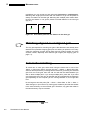
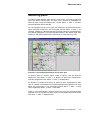
You can look at the matching results in stack mode. When two selected gels are
in stack mode, choose Show → Pairs → Show Pairs. The pairs between the
two staked gels will be highlighted in the form of blue vectors linking the locations of paired features. The head of the vector points to the feature in the front
gel (Fig. 8-2). To hide vectors, choose Show → Pairs → Hide Pairs.
Figure 8-2. Matched gels: blue vectors indicate paired features.
8-4
The Melanie II User Manual