1
Chapter 6: Integrating paging and duress
Adding a Computer Category for duress support
In this procedure, it is necessary to create a new Computer Category (or alter
one that was previously created). Computer Categories tell Forcefield how to
handle events. Forcefield has default Computer Categories that cannot be
modified, and because they cannot be modified it is necessary to create a new
Computer Category that can be modified.
Note: You must create a new Computer Category. As part of this procedure,
you’ll need to select each type of duress alarm event, and then clear the Restoral
Required field because Ascom Nira does not generate alarm restoral events.
To create a new computer category for Ascom Nira duress:
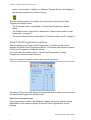
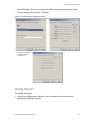
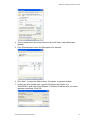
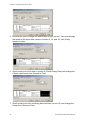
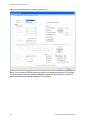
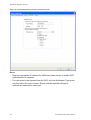
1. Select Databases > Management Software > Computer Categories >
Computer Categories. The Computer Categories screen displays.
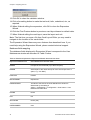
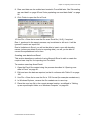
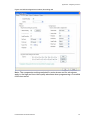
2. Click the Computer Category field, type a new name for the Computer
Category, and then press ENTER. Forcefield displays a Category type
selection list.
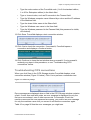
3. Select the Category Type “Duress” from the list.
4. Type a description for the new category in the description field.
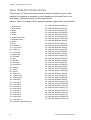
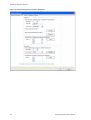
5. In the Event Text list, select an event type (e.g. Personal Monitor Alarm) for
which you want to program the event settings.
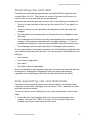
6. Right-click the Restoral Required box to clear it.
7. Press F5 to save the changes.
Adding an Ascom Nira duress station
Unless already done so, create a new Duress Computer Category, which has the
Restoral Required box cleared. See “Adding a Computer Category for duress
support” above.
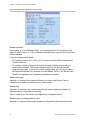
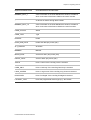
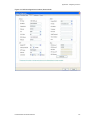
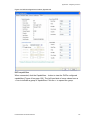
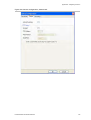
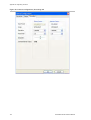
Unless already done so, create a duress port with the appropriate values from
the duress station. The required values are:
•
Port type = Duress
•
Node = The node number that the Duress Station is connected to
•
Handshake = None
•
Baud = 9600
•
Parity = Even
•
Data Bits = 8
See the Forcefield Operators Manual for more information on configuring ports.
56
Forcefield External Interfaces Manual