1
06 | Functions
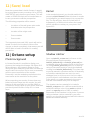
MAIN
TOOL (Previously called RENDERED)
This function changes the buttons in the topright of the GUI to accommodate the render tool
you are using.
ANTI ALIASING
Determines the use of anti-aliasing in the 3D
view. Makes 3D geometry very smooth to look at.
Performance will take a hit.
VERTICAL SYNC
Determines the use of vertical synchronisation.
GPUs do not run at the same speed as monitors.
Enabling this makes the GPU wait for the next
monitor update. Prevents screen tearing.
Performance will take a hit.
INTERPOLATE IMAGE
When zooming in on a photo, the quality will
degrade very fast and will become very pixely. By
turning on this function the image will be
smoothed. Useful when placing down nodes.
TRANSPARENCY
Determines the transparency of the *.OBJ
reference mesh. Useful when trying to match it
up to the photo.
UI BACKGROUND
This function allows you to choose from 3
background UI options that affect the graphics of
the modules. The options NONE, PARTLY and
SOLID.
IMPORT / EXPORT
IMPORT IMAGE
Imports a reference photo. Not that not all types
of compression ar supported. So for example if
your particular *.JPG photo is rejected, try
converting it to *.PNG (using GIMP or Photoshop
and try again).
IMPORT SCALE
Determines the factor that scales an *.OBJ when
it is imported in Phantom Scatter. Being a factor, it
means a value of 1 means the *.OBJ would be
imported at 100 % of its size. A factor of 0.001
means the *.OBJ is imported at 0.1 % of its size.
Important:
unit
15 of 27
Phantom Scatter is designed to
work with meters. That means 1
equals 1 meter.
IMPORT OBJ
This allows you to browse to your *.OBJ file of
choice and import it.
EXPORT SCALE
This scale influences the export values that are
copied to the clipboard. Possible export scales
are millimeters (MM), centimeters (CM),
decimeters (DM) and meters (M). Octane Render
standalone works in meters by default.
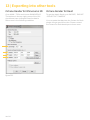
EXPORT OCT CAMERA
When pressing this button, Phantom Photo
Match will put XML code in your clipboard. You
can then use CTRL+V in the Graph Editor in
Octane Render standalone and a camera node
will be created with the correct data. You can
then rig this camera node up to a render target
node.
EXPORT OCT RESOLUTION
When pressing this button, Phantom Photo
Match will put XML code in your clipboard. You
can then use CTRL+V in the Graph Editor in
Octane Render standalone and an image
resolution node will be created with the correct
data. You can then rig this image resolution node
up to a render target node.
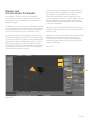
EXPORT ENVIRONMENT MAP
Export the current environment map image as a
*.PNG file.
SETUP
LOADS SETUP
Loads a previously defined setup.
SAVE SETUP
Saves the current setup. The following properties
will be saved:
•
•
•
•
•
•
•
Locations of the red/green axis nodes
that determine the perspective
Location of the origin node
Scene rotation
Scene scale
Color indicators
Environment map
Scene offset