1
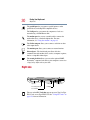
®
Satellite 3000/3005
Series
User’s Guide
If you need assistance:
VirtualTechTM e-support tool
Double-click the desktop icon or visit the Web site:
http://virtualtech.answerteam.com
InTouchsm Center
Calling within the United States (800) 457-7777
Calling from outside the United States (949) 859-4273
For more information, see Chapter 8 on page 185 in this guide.
C504-0501M1
TOSHIBA
2
Model: Satellite 3000/3005 Series
Compact Disk-ReWritable
The computer system you purchased may include a Compact Disk-Rewritable
(CD-RW), one of the most advanced storage technologies available. As with any
new technology, you must read and follow all set-up and usage instructions in the
applicable user guides and/or manuals enclosed. If you fail to do so, this product
may not function properly and you may lose data or suffer other damage.
TOSHIBA AMERICA INFORMATION SYSTEMS (“TOSHIBA”), ITS
AFFILIATES AND SUPPLIERS DO NOT WARRANT THAT
OPERATION OF THE PRODUCT WILL BE UNINTERRUPTED OR
ERROR FREE. YOU AGREE THAT TOSHIBA, ITS AFFILIATES AND
SUPPLIERS SHALL HAVE NO RESPONSIBILITY FOR DAMAGE TO
OR LOSS OF ANY BUSINESS, PROFITS, PROGRAMS, DATA OR
REMOVABLE STORAGE MEDIA ARISING OUT OF OR RESULTING
FROM THE USE OF THE PRODUCT, EVEN IF ADVISED OF THE
POSSIBILITY THEREOF.
Protection of Stored Data
For your important data, please make periodic back-up copies of all the data
stored on the hard disk or other storage devices as a precaution against possible
failures, alteration, or loss of the data. IF YOUR DATA IS ALTERED OR
LOST DUE TO ANY TROUBLE, FAILURE OR MALFUNCTION OF
THE HARD DISK DRIVE OR OTHER STORAGE DEVICES AND THE
DATA CANNOT BE RECOVERED, TOSHIBA SHALL NOT BE
LIABLE FOR ANY DAMAGE OR LOSS OF DATA, OR ANY OTHER
DAMAGE RESULTING THEREFROM. WHEN COPYING OR
TRANSFERRING YOUR DATA, PLEASE BE SURE TO CONFIRM
WHETHER THE DATA HAS BEEN SUCCESSFULLY COPIED OR
TRANSFERRED. TOSHIBA DISCLAIMS ANY LIABILITY FOR THE
FAILURE TO COPY OR TRANSFER THE DATA CORRECTLY.
Critical Applications
The computer you have purchased is not designed for any “critical applications.”
“Critical applications” means life support systems, medical applications,
connections to implanted medical devices, commercial transportation, nuclear
facilities or systems or any other applications where product failure could lead to
injury to persons or loss of life or catastrophic property damage.
3
ACCORDINGLY, TOSHIBA, ITS AFFILIATES AND SUPPLIERS
DISCLAIM ANY AND ALL LIABILITY ARISING OUT OF THE USE
OF THE COMPUTER PRODUCTS IN ANY CRITICAL
APPLICATIONS. IF YOU USE THE COMPUTER PRODUCTS IN A
CRITICAL APPLICATION, YOU, AND NOT TOSHIBA, ASSUME
FULL RESPONSIBILITY FOR SUCH USE.
FCC Notice
This equipment has been tested and found to comply with the limits for a Class B
digital device, pursuant to Part 15 of the FCC rules. These limits are designed to
provide reasonable protection against harmful interference in a residential
installation.
This equipment generates, uses and can radiate radio frequency energy and, if not
installed and used in accordance with the instructions, it may cause harmful
interference to radio communications. However, there is no guarantee that
interference will not occur in a particular installation. If this equipment does
cause harmful interference to radio or television reception, which can be
determined by turning the equipment off and on, the user is encouraged to try to
correct the interference by one or more of the following measures:
Reorient or relocate the receiving antenna.
Increase the separation between the equipment and receiver.
Connect the equipment to an outlet on a circuit different from that to which
the receiver is connected.
Consult the dealer or an experienced radio/TV technician for help.
NOTE: Only peripherals complying with the FCC Class B limits may be
attached to this computer. Operation with non-compliant peripherals or
peripherals not recommended by Toshiba is likely to result in interference
to radio and TV reception. Shielded cables must be used between the
external devices and the computer’s parallel port, monitor port, USB port,
and microphone jack. Changes or modifications made to this equipment
not expressly approved by Toshiba or parties authorized by Toshiba could
void the user’s authority to operate the equipment.
This device complies with Part 15 of the FCC Rules. Operation is subject to the
following two conditions:
This device may not cause harmful interference.
4
This device must accept any interference received, including interference
that may cause undesired operation.
Contact:
Toshiba America Information Systems, Inc.
9740 Irvine Blvd.
Irvine, CA 92618-1697
(949) 583-3000
Industry Canada requirement
This Class B digital apparatus complies with Canadian ICES-003.
Cet appareil numérique de la classe B est conformé à la norme NMB-003 du
Canada.
FCC requirements
The following information is pursuant to FCC CFR 47, Part 68 and refers to
internal modems.
Installation
When you are ready to install or use the modem, call your local telephone
company and give them the following information:
The telephone number of the line to which you will connect the modem.
The FCC registration number of the modem.
The Ringer Equivalence Number (REN) of the modem, which is 0.9B.
The modem connects to the telephone line by means of a standard jack called the
USOC RJ11C.
Type of service
Your modem is designed to be used on standard-device telephone lines.
Connection to telephone company-provided coin service (central office
implemented systems) is prohibited. Connection to party lines service is subject
to State tariffs. If you have any questions about your telephone line, such as how
many pieces of equipment you can connect to it, the telephone company will
provide this information upon request.
5
Telephone company procedures
The goal of the telephone company is to provide you with the best service it can.
In order to do this, it may occasionally be necessary for them to make changes in
their equipment, operations or procedures. If these changes might affect your
service or the operation of your equipment, the telephone company will give you
notice, in writing, to allow you to make any changes necessary to maintain
uninterrupted service.
If problems arise
If any of your telephone equipment is not operating properly, you should
immediately remove it from your telephone line, as it may cause harm to the
telephone network. If the telephone company notes a problem, they may
temporarily discontinue service. When practical, they will notify you in advance
of this disconnection. If advance notice is not feasible, you will be notified as
soon as possible. When you are notified, you will be given the opportunity to
correct the problem and informed of your right to file a complaint with the FCC.
In the event repairs are ever needed on your modem, they should be performed by
Toshiba Corporation, Toshiba American Information Systems, Inc. or an
authorized representative of Toshiba.
Disconnection
If you should ever decide to permanently disconnect your modem from its
present line, please call the telephone company and let them know of this change.
Fax branding
The Telephone Consumer Protection Act of 1991 makes it unlawful to use a
computer or other electronic device to send any message via a telephone fax
machine unless such message clearly contains in a margin at the top or bottom of
each transmitted page or on the first page of the transmission, the date and time it
is sent and an identification of the business, other entity or individual sending the
message and the telephone number of the sending machine or such business,
other entity or individual.
In order to program this information into your fax modem, you should complete
the setup for your fax software before sending a message.
6
Instructions for IC CS-03 certified equipment
1
NOTICE: The Industry Canada label identifies certified equipment. This
certification means that the equipment meets certain telecommunications
network protective, operational and safety requirements as prescribed in the
appropriate Terminal Equipment Technical Requirements document(s). The
Department does not guarantee the equipment will operate to the user’s
satisfaction.
Before installing this equipment, users should ensure that it is permissible to
be connected to the facilities of the local telecommunications company. The
equipment must also be installed using an acceptable method of connection.
The customer should be aware that compliance with the above conditions
may not prevent degradation of service in some situations.
Repairs to certified equipment should be coordinated by a representative
designated by the supplier. Any repairs or alterations made by the user to
this equipment, or equipment malfunctions, may give the
telecommunications company cause to request the user to disconnect the
equipment.
Users should ensure for their own protection that the electrical ground
connections of the power utility, telephone lines and internal metallic water
pipe system, if present, are connected together. This precaution may be
particularly important in rural areas.
Caution: Users should not attempt to make such connections themselves,
but should contact the appropriate electric inspection authority, or
electrician, as appropriate.
2
The user manual of analog equipment must contain the equipment’s Ringer
Equivalence Number (REN) and an explanation notice similar to the
following:
The Ringer Equivalence Number (REN) of this device is 0.4B.
NOTICE: The Ringer Equivalence Number (REN) assigned to each
terminal device provides an indication of the maximum number of
terminals allowed to be connected to a telephone interface. The termination
on an interface may consist of any combination of devices subject only to
the requirement that the sum of the Ringer Equivalence Numbers of all the
devices does not exceed 5.
3
The standard connecting arrangement (telephone jack type) for this
equipment is jack type(s): USOC RJ11C.
7
Wireless Interoperability
The Toshiba Wireless LAN Mini PCI Card products are designed to be
interoperable with any wireless LAN product that is based on Direct Sequence
Spread Spectrum (DSSS) radio technology, and is compliant to:
The IEEE 802.11 Standard on Wireless LANs (Revision B), as defined and
approved by the Institute of Electrical and Electronics Engineers.
The Wireless Fidelity (Wi-FiTM) certification as defined by the WECA
Wireless Ethernet Compatibility Alliance.
Wireless LAN and your Health
Wireless LAN products, like other radio devices, emit radio frequency
electromagnetic energy. The level of energy emitted by Wireless LAN devices
however is far much less than the electromagnetic energy emitted by wireless
devices like for example mobile phones. Because Wireless LAN products
operate within the guidelines found in radio frequency safety standards and
recommendations, Toshiba believes Wireless LAN is safe for use by consumers.
These standards and recommendations reflect the consensus of the scientific
community and result from deliberations of panels and committees of scientists
who continually review and interpret the extensive research literature.
In some situations or environments, the use of Wireless LAN may be restricted
by the proprietor of the building or responsible representatives of the
organization. These situations may for example include:
Using the Wireless LAN equipment on board of airplanes, or
In any other environment where the risk of interference to other devices or
services is perceived or identified as harmful.
If you are uncertain of the policy that applies on the use of wireless devices in a
specific organization or environment (e.g., airports), you are encouraged to ask
for authorization to use the Wireless LAN device prior to turning on the
equipment.
8
Regulatory Information
The Toshiba Wireless LAN Mini PCI Card must be installed and used in strict
accordance with the manufacturer’s instructions as described in the user
documentation that comes with the product. This device complies with the
following radio frequency and safety standards.
Canada – Industry Canada (IC)
This device complies with RSS 210 of Industry Canada.
Operation is subject to the following two conditions: (1) this device may not
cause interference, and (2) this device must accept any interference, including
interference that may cause undesired operation of this device.
USA-Federal Communications Commission (FCC)
This device complies with Part 15 of FCC Rules. Operation of the devices in a
Wireless LAN System is subject to the following two conditions:
This device may not cause harmful interference.
This device must accept any interference that may cause undesired
operation.
Caution: Exposure to Radio Frequency Radiation
The radiated output power of the Toshiba Wireless LAN Mini PCI Card is far
below the FCC radio frequency exposure limits. Nevertheless, the Toshiba
Wireless LAN Mini PCI Card shall be used in such a manner that the potential
for human contact during normal operation is minimized. When using this device
in combination with other wireless LAN products, a certain separation distance
between antenna and nearby persons has to be kept to ensure RF exposure
compliance. The distance between the antennas and the user should not be less
than 5.0 cm.
Refer to the Regulatory Statements as identified in the documentation that comes
with those products for additional information.
The Toshiba Wireless LAN Mini PCI Card is far below the FCC radio frequency
exposure limits.
Nevertheless, it is advised to use the Toshiba Wireless LAN Mini PCI Card in
such a manner that human contact during normal operation is minimized.
9
Interference Statement
This equipment has been tested and found to comply with the limits for a Class B
digital device, pursuant to Part 15 of the FCC Rules. These limits are designed to
provide reasonable protection against harmful interference in a residential
installation. This equipment generates, uses, and can radiate radio frequency
energy. If not installed and used in accordance with the instructions, it may cause
harmful interference to radio communications. However, there is no guarantee
that interference will not occur in a particular installation.
If this equipment does cause harmful interference to radio or television reception,
which can be determined by turning the equipment off and on, the user is
encouraged to try and correct the interference by one or more of the following
measures:
Reorient or relocate the receiving antenna.
Increase the distance between the equipment and the receiver.
Connect the equipment to an outlet on a circuit different from that to which
the receiver is connected.
Consult the dealer or an experienced radio/TV technician for help.
Toshiba is not responsible for any radio or television interference caused by
unauthorized modification of the devices included with this Toshiba Wireless
LAN Mini PCI Card, or the substitution or attachment of connecting cables and
equipment other than specified by Toshiba.
The correction of interference caused by such unauthorized modification,
substitution or attachment will be the responsibility of the user.
10
Approved Countries for use
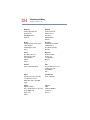
This equipment is approved to the radio standard by the countries in Fig.1.
Australia
Austria
Belgium
Canada
Denmark
Finland
Germany
Iceland
Ireland
Japan
Luxembourg
Netherlands
New Zealand
Norway
Sweden
Switzerland
UK
USA
Greece
Italy
France
Poland
Portugal
Spain
Caution: Do not use this equipment except in the countries in Fig 1.
CD-ROM, DVD-ROM, DVD-ROM/CD-RW
Safety Instructions
The CD-ROM, DVD-ROM, and DVD-ROM/CD-RW drives employ a laser
system. To ensure proper use of this product, please read this instruction
manual carefully and retain for future reference. Should the unit ever
require maintenance, contact an authorized service location.
Use of controls, adjustments or the performance of procedures other than those
specified may result in hazardous radiation exposure.
To prevent direct exposure to the laser beam, do not try to open the enclosure.
11
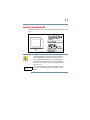
Location of the required label
(Sample shown below. Location of the label and manufacturing information may
vary.)
CAUTION: This appliance contains a laser system and is classified as a
“CLASS 1 LASER PRODUCT.” To use this model properly, read the
instruction manual carefully and keep it for your future reference. In case of
any trouble with this model, please contact your nearest “AUTHORIZED
service station.” To prevent direct exposure to the laser beam, do not try to
open the enclosure.
CLASS 1 LASER PRODUCT
LASER KLASSE 1
Use of controls or adjustments or performance of procedures other than
those specified in the owner’s manual may result in hazardous radiation
exposure.
12
Copyright
This guide is copyrighted by Toshiba America Information Systems, Inc. with all
rights reserved. Under the copyright laws, this guide cannot be reproduced in any
form without the prior written permission of Toshiba. No patent liability is
assumed, however, with respect to the use of the information contained herein.
©2001 by Toshiba America Information Systems, Inc. All rights reserved.
Export Administration regulation
This document contains technical data that may be controlled under the U.S.
Export Administration Regulations, and may be subject to the approval of the
U.S. Department of Commerce prior to export. Any export, directly or indirectly,
in contravention of the U.S. Export Administration Regulations is prohibited.
Notice
The information contained in this manual, including but not limited to any
product specifications, is subject to change without notice.
TOSHIBA CORPORATION AND TOSHIBA AMERICA
INFORMATION SYSTEMS, INC. (TOSHIBA) PROVIDES NO
WARRANTY WITH REGARD TO THIS MANUAL OR ANY
OTHER INFORMATION CONTAINED HEREIN AND HEREBY
EXPRESSLY DISCLAIMS ANY IMPLIED WARRANTIES OF
MERCHANTABILITY OR FITNESS FOR ANY PARTICULAR
PURPOSE WITH REGARD TO ANY OF THE FOREGOING.
TOSHIBA ASSUMES NO LIABILITY FOR ANY DAMAGES
INCURRED DIRECTLY OR INDIRECTLY FROM ANY
TECHNICAL OR TYPOGRAPHICAL ERRORS OR OMISSIONS
CONTAINED HEREIN OR FOR DISCREPANCIES BETWEEN
THE PRODUCT AND THE MANUAL. IN NO EVENT SHALL
TOSHIBA BE LIABLE FOR ANY INCIDENTAL,
CONSEQUENTIAL, SPECIAL, OR EXEMPLARY DAMAGES,
WHETHER BASED ON TORT, CONTRACT OR OTHERWISE,
ARISING OUT OF OR IN CONNECTION WITH THIS MANUAL
OR ANY OTHER INFORMATION CONTAINED HEREIN OR THE
USE THEREOF.
13
Trademarks
Satellite, Noteworthy, Fn-esse, and AccuPoint are registered trademarks,
SecureSleep, SelectServ, FreedomWare, SmartMedia, Ask IRIS Online, and
VirtualTech are trademarks, and InTouch is a service mark of Toshiba America
Information Systems, Inc. and/or Toshiba Corporation.
Microsoft, Windows, Windows Media, DirectX, and DirectShow are registered
trademarks of Microsoft Corporation.
Active Desktop is a trademark of Microsoft Corporation.
Intel and Pentium are registered trademarks and SpeedStep and Wake On LAN
are trademarks of Intel Corporation.
LapLink is a registered trademark of Traveling Software, Inc.
WinDVD is a trademark of InterVideo, Inc.
CompuServe is a registered trademark of America Online, Inc.
RingCentral is a registered trademark of Ring Zero Systems, Inc.
i.LINK is a registered trademark of Sony Corporation.
SPANworks 2000 is a trademark of SPANworks, U.S.A.
Wi-Fi is a trademark of the Wireless Capability Ethernet Alliance.
Manufactured under license from Dolby Laboratories, Dolby, Dolby Digital
Surround, and Dolby Digital are trademarks of Dolby Laboratories.
Easy CD Creator and Direct CD are trademarks of Adaptec, Inc.
Energy Star is a registered trademark of the U. S. Environmental Protection
Agency.
All other brand and product names are trademarks or registered trademarks of
their respective companies.
14
Energy Star compliance
As an Energy Star® partner, Toshiba has determined that this product is Energy
Star Compliant.
Computer disposal information
This product contains mercury. Disposal of this material may be regulated due to
environmental considerations. For disposal, reuse, or recycling information,
please contact your local government or the Electronic Industries Alliance at
www.eiae.org.
Contents
Introduction............................................................................... 23
This guide............................................................................... 23
Safety icons............................................................................ 24
Other icons used............................................................... 25
Other documentation............................................................ 25
Service options...................................................................... 26
Chapter 1: Finding Your Way Around ..................................... 27
Making sure you have everything........................................ 27
Front with the display closed................................................ 28
Back........................................................................................ 29
Right side............................................................................... 30
Left side.................................................................................. 31
Front with the display open.................................................. 32
Indicator panel................................................................... 34
System indicator panel..................................................... 34
CD or DVD control buttons.............................................. 35
CD/DVD/Media Player power switch .............................. 36
Underside............................................................................... 38
Chapter 2: Getting Started........................................................ 41
15
16
Selecting a place to work......................................................
Creating a computer-friendly environment....................
Keeping yourself comfortable..........................................
Precautions.......................................................................
Setting up your computer....................................................
Installing additional memory (optional)..........................
Removing a memory module.........................................
Connecting a mouse........................................................
Connecting a printer.........................................................
Connecting the AC adapter..............................................
Charging the battery .............................................................
Using the computer for the first time..................................
Opening the display panel................................................
Turning on the power.......................................................
Using the AccuPoint II Pointing device ..........................
Setting up your software......................................................
Setting up a printer...........................................................
Turning off the computer......................................................
Caring for your computer.....................................................
Cleaning the computer.....................................................
Moving the computer.......................................................
Using a computer lock.....................................................
41
41
42
45
46
47
50
50
50
51
53
54
54
55
56
57
58
61
62
62
63
63
Chapter 3: Learning the Basics................................................ 65
Computing tips......................................................................
Using the keyboard...............................................................
Character keys ..................................................................
Ctrl, Fn, and Alt keys.........................................................
Function keys....................................................................
Windows special keys.....................................................
Overlay keys......................................................................
Starting a program................................................................
Saving your work..................................................................
Printing your work................................................................
Using diskettes......................................................................
®
65
66
67
67
67
68
68
70
70
71
71
17
Inserting and removing diskettes.................................... 72
Caring for diskettes........................................................... 72
Backing up your files............................................................. 73
Using your CD or DVD drive................................................ 74
Drive components and control buttons.......................... 74
Setting the CD/DVD/Media Player switch to CD/DVD... 76
Setting the CD/DVD/Media Player switch
to Media Player.................................................................. 77
Inserting a disc.................................................................. 77
Playing an audio CD.......................................................... 79
Creating a CD..................................................................... 80
Playing a DVD.................................................................... 81
Viewing the contents of a CD or DVD............................. 81
Removing a disc with the computer on.......................... 81
Removing a disc with the computer off.......................... 82
Caring for CDs and DVDs................................................. 82
Setting up for communications........................................... 82
Using the modem............................................................. 83
Connecting your computer to a network........................ 83
Powering down the computer............................................. 84
Shut down command....................................................... 84
Hibernation command...................................................... 85
Standby command........................................................... 85
Using Shut down................................................................... 86
Shutting down more quickly............................................ 86
Starting again after Shut down........................................ 87
Using Hibernation.................................................................. 87
Starting again from Hibernation mode........................... 87
Using Standby....................................................................... 88
Starting again from Standby............................................ 88
Chapter 4: Mobile Computing.................................................. 89
Toshiba’s energy-saver design............................................. 89
Running the computer on battery power............................ 90
Using a second battery..................................................... 90
Battery safety precautions................................................ 90
18
Maximizing battery life.....................................................
Charging batteries.................................................................
Charging the main and secondary batteries..................
Charging the RTC battery.................................................
Monitoring battery power.....................................................
Determining remaining battery power............................
Conserving battery power................................................
What to do when the battery runs low...........................
Setting battery alarms......................................................
Changing the main battery...................................................
Removing the battery from the computer......................
Disposing of used batteries safely.......................................
Traveling tips..........................................................................
91
91
92
92
93
93
94
95
95
96
96
97
97
Chapter 5: Getting to Know the Windows Millennium
Edition Operating System......................................................... 99
Lesson 1: Exploring the desktop....................................... 100
Finding your way around the desktop.......................... 100
Windows Millennium Edition file system.................... 103
Lesson 2: Using the AccuPoint II ..................................... 103
Lesson 3: Learning about the Internet.............................. 106
Exploring the Web Tutorial............................................. 107
Lesson 4: Creating a new document................................. 108
Lesson 5: Creating a new folder........................................ 109
Lesson 6: Starting programs............................................. 110
Lesson 7: Resizing, repositioning, and hiding windows. 112
Using the taskbar............................................................ 113
Minimizing and maximizing windows.......................... 114
Resizing and moving windows..................................... 115
Lesson 8: Closing programs ............................................. 116
Lesson 9: Creating shortcuts............................................. 116
Creating a shortcut to the Calculator............................. 116
Creating a shortcut to the Character Map .................... 117
Lesson 10: Changing the screen saver............................. 120
®
19
Lesson 11: Setting the date and time................................ 122
Lesson 12: Removing objects from the desktop............. 123
Lesson 13: Using System Restore.................................... 125
Lesson 14: If I am lost, what do I do?............................... 126
Windows Millennium Edition Help............................... 126
Using the online tours and tutorials.............................. 128
Lesson 15: Turning off your computer.............................. 129
®
Chapter 6: Exploring Your Options........................................ 131
Windows Millennium Edition special features................ 131
Personalizing your desktop................................................ 132
Customizing the taskbar................................................. 132
Bringing the world to your desktop............................... 133
Changing desktop and browsing style.......................... 134
Personalizing individual windows ................................. 136
Adding a background to a window ............................... 137
Customizing window toolbars....................................... 137
Displaying a toolbar in a window................................... 139
Displaying information about each folder..................... 139
Connecting a monitor, keyboard and mouse.................... 140
Using the programmable buttons ..................................... 141
Using the Ethernet LAN Port.............................................. 142
Accessing a LAN............................................................. 143
Setting up a direct connection....................................... 143
Using a wireless connection.......................................... 143
Setting up a dial-up connection..................................... 144
Exchanging data with another computer.......................... 144
Transferring files using a parallel port connection....... 144
Transferring files using the Infrared port........................... 145
Connecting to the Internet.................................................. 145
Making the physical connection.................................... 146
Signing up with an Internet Service Provider .............. 147
Getting started................................................................. 147
Using the Internet................................................................ 148
The Internet...................................................................... 148
®
20
The World Wide Web..................................................... 148
Surfing the Internet......................................................... 149
Internet features.............................................................. 149
Uploading and downloading files from the Internet.... 150
Toshiba’s online resources................................................. 150
Conducting an electronic meeting .................................... 150
Sending a fax....................................................................... 151
Exploring video features .................................................... 152
Viewing presentations or DVD movies on your
television ......................................................................... 152
Connecting a television to the S-video out port........... 152
Transferring and editing video data............................... 155
Playing VideoCDs........................................................... 155
Exploring audio features..................................................... 156
Recording sounds.......................................................... 156
Using a microphone....................................................... 157
Adjusting recording quality............................................ 158
Using external speakers or headphones...................... 158
Using PC Cards................................................................... 159
PC Card supporting software........................................ 159
Inserting PC Cards.......................................................... 160
Removing PC Cards....................................................... 160
Hot swapping.................................................................. 161
Using SmartMedia cards.................................................... 161
Inserting a SmartMedia card......................................... 161
Removing a SmartMedia card...................................... 162
Emulating a full-size keyboard........................................... 162
Chapter 7: WinDVD 2000....................................................... 163
Playing DVDs....................................................................... 163
Using the WinDVD toolbar ............................................ 165
Using the WinDVD status bar........................................ 165
Using the WinDVD control panel.................................. 166
Using the control panel playback buttons.................... 167
Maximizing the video window....................................... 169
21
Using playlists...................................................................... 170
Creating playlists............................................................. 170
Loading and playing playlists......................................... 172
Resuming normal playback after using playlists......... 172
Customizing WinDVD......................................................... 172
Setting general properties.............................................. 173
Setting audio properties................................................. 174
Setting display properties............................................... 176
Customizing the control panel....................................... 177
Using WinDVD Advanced Features................................... 177
Zooming in ...................................................................... 182
Panning............................................................................ 183
Zooming out.................................................................... 183
Adjusting the color balance............................................ 183
Launching an Internet browser from WinDVD................. 184
Getting Help......................................................................... 184
Exiting WinDVD................................................................... 184
Chapter 8: If Something Goes Wrong .................................. 185
Problems that are easy to fix.............................................. 185
Problems when you turn on the computer....................... 187
The Windows Millennium Edition operating
system is not working......................................................... 188
Using Startup options to fix problems.......................... 189
Internet problems............................................................ 192
The Windows Millennium Edition operating
system can help you....................................................... 193
Resolving a hardware conflict............................................ 194
A plan of action................................................................ 194
Resolving hardware conflicts on your own.................. 194
Fixing a problem with Device Manager......................... 196
Memory card problems................................................. 198
Power and the batteries.................................................. 198
Keyboard problems........................................................ 200
AccuPoint II problems.................................................... 201
®
®
22
Display problems............................................................ 202
Disk drive problems....................................................... 204
CD-ROM or DVD-ROM drive problems....................... 206
Sound system problems ............................................... 213
PC Card problems.......................................................... 214
Printer problems............................................................. 217
Modem problems........................................................... 218
Develop good computing habits....................................... 218
Using VirtualTech................................................................ 220
If you need further assistance............................................ 221
Before you call................................................................. 221
Contacting Toshiba......................................................... 221
Other Toshiba Internet Web sites ..................................... 222
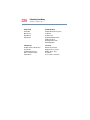
Toshiba's worldwide offices............................................... 223
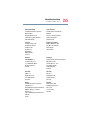
Appendix A: Hot Keys.............................................................
Appendix B: Power Cable Connectors..................................
Glossary...................................................................................
Index.........................................................................................
227
229
231
245
Introduction
Welcome to the world of powerful and portable multimedia
computers! With your new Toshiba notebook computer, your
work can accompany you wherever you go.
Your Satellite Pro Series computer offers enhanced multimedia
features and easy Internet access combined with great flexibility.
Its Modular Bay enables you to switch between a diskette drive,
CD-ROM, DVD-ROM, CD-ROM/RW, DVD-ROM/CD-RW
drive, a second hard disk drive, or second battery as you need
them. Your computer may also include the latest technology in
wireless communications, enabling you to exchange information
with as few or as many others as you want.
This guide
This guide introduces the computer’s features. You can:
Read the entire guide from beginning to end.
Skim through and stop when a topic interests you.
Use the table of contents and the index to find specific
information.
23
24
Safety icons
If you are new to computers, or have not used a notebook
computer before, read through the first couple of chapters to
familiarize yourself with the components of the computer and how
to turn it on. After that, seek out whatever interests you most.
Safety icons
This manual contains safety instructions that must be observed in
order to avoid potential hazards that could result in personal
injuries, damage to your equipment, or loss of data. These safety
cautions have been classified according to the seriousness of the
risk, and the icons highlight these instructions as follows:
DANGER: This icon indicates the existence of a hazard that
could result in death or serious bodily injury if the safety
instruction is not observed.
WARNING: This icon indicates the existence of a hazard that
could result in bodily injury if the safety instruction is not
observed.
CAUTION: This icon indicates the existence of a hazard that
could result in damage to equipment or property if the safety
instruction is not observed.
NOTE: This icon indicates information that relates to the safe
operation of the equipment or related items.
Other documentation
25
Other icons used
Additional icons highlight other helpful or educational
information:
TECHNICAL NOTE: This icon highlights technical
information about the computer.
HINT: This icon denotes helpful hints and tips.
DEFINITION: This icon indicates the definition of a term used
in the text.
Other documentation
In addition to this user’s guide, your computer comes with the
following documentation:
An electronic version of the user’s guide. Look for the user’s
guide icon on your desktop or install it from your Recovery
and Configuration Builder CD provided with your computer.
Guides for other programs that may come preinstalled on
your computer and for additional programs on your Recovery
and Configuration Builder CD.
Toshiba Accessories Information lists accessories available
from Toshiba and explains how to order them.
®
®
The Microsoft Windows Millennium Edition operating
system documentation which explains the features of the
operating system.
26
Service options
Service options
Toshiba offers a full line of service options built around its
SelectServTM warranty programs. For more information, visit
Toshiba’s Web site at Toshiba.com.
If you have a problem or need to contact Toshiba, see “If
Something Goes Wrong” on page 185.
Chapter 1
Finding Your Way
Around
This chapter presents a “grand tour” of your notebook computer. It
serves as a reference when you need to locate specific parts of the
computer.
Making sure you have everything
Before doing anything else, consult the Quick Start card provided
with your system to make sure you received everything. If any
items are missing or damaged, notify your dealer immediately. For
additional help, see “If you need further assistance” on
page 221.
27
28
Finding Your Way Around
Front with the display closed
Front with the display closed
Display latch
Modular Bay
The display latch keeps the display panel closed and locked. To
open the display panel, press the display latch and raise the panel.
The Modular Bay comes with a CD or DVD drive installed. This
bay can accommodate a CD-ROM, CD-R,CD-RW, DVD-ROM,
or multifunction DVD-ROM/CD-RW drive. It also supports a
diskette drive, additional hard disk drive or secondary battery. The
bay only supports one device at a time. It is designated as drive D:.
CAUTION: Never use a pencil to press the CD-ROM/DVDROM manual eject button. Pencil lead can break off inside
the computer and damage it. Instead, use a slim object such
as a straightened paper clip.
Finding Your Way Around
Back
29
Back
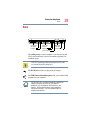
Cooling vent
Cooling vent
DC-IN jack
Parallel port
LAN port
USB ports
Modem port
S-video out port
Monitor port
Infrared port
Security lock slot
The cooling vent prevents the computer’s central processing unit
(CPU) from overheating so that it can continue to perform at its
maximum speed.
CAUTION: To prevent possible overheating of the CPU, make
sure you don’t block the cooling vents.
The DC-IN jack is where you plug in the AC adapter.
The USB (Universal Serial Bus) ports allow you to connect USB
peripherals to your computer.
DEFINITION: USB is a peripheral expansion standard that
supports a data-transfer rate of up to 12 Mbps for
peripherals such as keyboards, pointing devices, and
monitors. USB peripherals have a single standard for
cabling and connectors. The USB standard allows hot
swapping of peripherals.
30
Finding Your Way Around
Right side
The parallel port lets you connect a parallel printer or other
parallel device, including ECP-compatible devices.
The LAN port lets you connect the computer to a local area
network using a 10/100 Ethernet link.
The modem port lets you use a modular cable to connect the
modem directly to a standard telephone line. For more
information, see “Using the modem” on page 83.
The S-video out port allows you to connect a television or other
video output device.
The monitor port allows you to connect an external monitor.
Infrared port—The fast infrared port allows cable-free
communication with another device, such as a computer or printer,
that has a compatible infrared port.
The security lock slot allows you to attach an optional PORTNoteworthy® computer lock cable to your computer to secure it to
a large, heavy object such as your desk.
Right side
Speaker
i.LINK port
PC Card ejection tabs
USB port
Cooling vent
PC Card slots
The two stacked PC Card slots support up to two Type I or Type
II PC Cards, or one Type III PC Card. See “Using PC Cards” on
page 159 for more information.
Finding Your Way Around
Left side
31
The PC Card ejection tabs release PC Cards from the
corresponding slots.
The i.LINK® port allows transfers of large quantities of data
between the computer and an external device, such as a video
camera.
The USB (Universal Serial Bus) port allows you to connect USB
peripherals, such as a mouse, printer or external keyboard to your
computer.
The cooling vent prevents the computer’s central processing unit
(CPU) from overheating so that it can continue to perform at its
maximum speed.
CAUTION: To prevent possible overheating of the CPU, make
sure you don’t block the cooling vents.
Left side
Speaker
SmartMedia
card slot
Microphone jack
Headphone jack
Line-in jack
The SmartMediaTM card slot supports 2 MB, 4 MB, 8 MB,
16 MB, 32 MB and 64 MB. SmartMedia Random Access
Memory (RAM) Cards. These small cards are about one-third the
size of conventional PC Cards and are only 0.76mm in thickness.
They are used in digital still cameras and various forms of portable
information equipment. If Windows does not recognize an
inserted SmartMedia card, try to remove and insert it again.
32
Finding Your Way Around
Front with the display open
The 3.5 mm headphone jack lets you connect stereo headphones
or other audio-output devices, such as external speakers.
Connecting other devices automatically disables the internal
speakers.
The 3.5 mm microphone jack lets you connect an external
monaural microphone or other audio input device.
The line-in jack allows you to connect an external input device.
Front with the display open
Screen
System
indicator panel
CD/DVD/Media
Player switch
CD or DVD
control buttons
Power button
Keyboard
Indicator panel
AccuPoint II
pointing device
AccuPoint II
buttons
Palm rest
On
The power button turns the computer on and off.
The computer’s screen is a liquid crystal display (LCD) that
provides clear, sharp images. The CD/DVD/Media Player switch
Finding Your Way Around
Front with the display open
33
sets the computer to turn on the CD/DVD player automatically if
there is a disc in the DVD-ROM drive when the computer is
turned off, or to power up and launch Windows Media® Player.
For more information, see “CD/DVD/Media Player power
switch” on page 36.
The CD or DVD control buttons allow you to play audio CDs
when the computer is turned off. You can also use them to play
CDs and DVDs with the computer turned on. For a description of
these controls, see “CD or DVD control buttons” on page 35.
The lights on the indicator panel provide information about
keyboard functions. For a description of these lights, see
“Indicator panel” on page 34.
The AccuPoint II® pointing device combines the function of a
mouse with the convenience of never having to remove your hands
from the keyboard.
The AccuPoint II control buttons work with the pointing device.
The larger button acts as the primary button on a mouse. The
smaller button acts as the secondary mouse button. The two small
buttons above are the scroll buttons. For more information, see
“Using the AccuPoint II Pointing device” on page 56.
The function keys, when used with the Fn key, activate several
different system functions. For more information, see “Hot Keys”
on page 227.
The 85-key keyboard provides all the functionality of a full-size
keyboard. For more information, see “Using the keyboard” on
page 66.
The front panel provides a palm rest to assist you in maintaining
proper posture while using the computer.
34
Finding Your Way Around
Front with the display open
Indicator panel
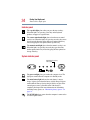
The caps lock light glows when you press the Caps Lock key.
When this light is on, pressing a letter key on the keyboard
produces an uppercase (capital) letter.
The cursor control mode light glows when the cursor control
overlay is on. When this light is on, pressing an overlay key moves
the cursor in the direction of the white arrow printed on the key
instead of typing the letter printed on the top of the key.
The numeric mode light glows when the numeric overlay is on.
When this light is on, pressing an overlay key types the white
number printed on the key instead of typing the letter printed on
the top of the key.
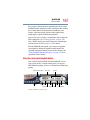
System indicator panel
Modular Bay/Secondary
battery light
New illustration to go here
On
The power on light glows green when the computer is on. The
light glows amber when the computer is in Standby mode.
The main battery light indicates the main battery’s current
charge. It glows green when the battery is fully charged. It glows
amber while the battery is being charged. It does not glow if the
external power source is disconnected or if the battery is
completely discharged. For more information on determining
remaining battery power, see “Monitoring battery power” on
page 93.
The DC-IN light glows green when the computer is connected to
an external power source.
Finding Your Way Around
Front with the display open
35
The hard disk drive light flashes green while the hard disk drive
is being accessed.
The Modular Bay/secondary battery light flashes green when
the Modular Bay is in use. This light is also the indicator for a
secondary battery, if one is seated in the Modular Bay.
CAUTION: Never turn off the computer while any of the
drives are in use. Doing so may damage the disk and result
in loss of data.
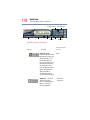
CD or DVD control buttons
The control buttons on the top of the computer are for playing CDs
and DVDs.
Wi-Fi indicator
Volume control
Next track
Stop/eject
Play/pause
Previous track
CD or DVD control buttons
The volume control allows you to set the volume level.
The previous track button returns to the preceding track on the
disc.
The play/pause button starts playing the disc, or pauses the disc if
it is currently playing.
The stop/eject button stops a disc that is currently playing. Press
the button again to eject the disc.
36
Finding Your Way Around
Front with the display open
The next track button skips to the following track on the disc.
Wi-Fi indicator light (for systems with Wi-Fi only)—The
802.11b (referred to as Wi-FiTM — wireless fidelity) indicator light
glows amber when the Wi-Fi is turned on. For more information
on wireless networking, see “Using the Ethernet LAN Port” on
page 142.
Wi-Fi on/off switch (for systems with Wi-Fi only)—The Wi-Fi
on/off switch turns the optional wireless communication system
on or off.
NOTE: For environments that do not permit wireless use or
instruct you to turn off all radio devices (for example, aboard
commercial aircraft), you should turn the Wi-Fi switch off.
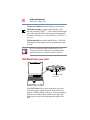
CD/DVD/Media Player power switch
CD/DVD/Media Player
power switch
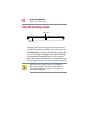
The CD/DVD/Media Player power switch allows you to play
audio CDs with the computer turned off. This switch has two
positions: CD/DVD, which is to the left as you face the computer
from the front, and Media Player, which is to the right. What
happens when you press this switch depends on what’s in the
drive.
Finding Your Way Around
Front with the display open
37
DVD playback and the power switch
With a DVD in the drive, setting the switch to the right turns on the
computer and launches Windows Media® Player as the default. To
play a DVD you will need to manually start WinDVD.
If there’s a DVD in the drive, setting the switch to the left turns on
TM
the computer’s main power and launches WinDVD . When you
open the display, WinDVD automatically starts playing the DVD
title.
Audio CD playback and the power switch
With a CD in the drive, setting the switch to the right turns on both
®
the computer’s main power and launches Windows Media
®
Player. When you open the display, Windows Media Player
begins playing the CD.
If there’s an audio CD in the drive, setting the switch to the left
leaves the computer’s main power off, but turns on the sound
system and the disk activity light. To play the CD, press the Play
button.To stop the CD, slide the switch to the left and hold it for
two seconds.
What happens when the drive is empty
If there’s nothing in the drive, setting the switch to the left turns on
the sound system and the disk activity light.
With nothing in the drive, setting the switch to the right turns on
®
the computer and launches Windows Media Player. When you
®
open the display, Windows Media Player automatically plays the
default audio file.
To open the CD/DVD tray, press either the eject button on the
drive or the Stop button twice.
For more information about the CD or DVD controls, see “Using
your CD or DVD drive” on page 74.
38
Finding Your Way Around
Underside
With nothing in the drive, setting the switch to the right turns on
both the computer’s main power and the power to the sound
®
system. When you open the display, Windows Media Player
launches, and the sound system plays the default audio file.
For more information, see “Using your CD or DVD drive” on
page 74.
Underside
Modular Bay
Battery cover
Modular Bay
Battery release
latch
release latch
Expansion
memory slot
cover
The Modular Bay allows you to add a CD-ROM, DVD-ROM,
CD-R, or DVD-ROM/CD-RW multifunction drive. You can also
add a diskette drive, secondary battery, or an additional hard drive.
The Modular Bay release latch allows you to remove modules.
The expansion memory slot cover protects the two expansion
memory slots where you insert additional memory. See
“Installing additional memory (optional)” on page 47 for
detailed information.
The battery cover protects the battery. For information about
replacing the battery, see “Changing the main battery” on
page 96.
Finding Your Way Around
Underside
The battery release latch secures the battery cover to the
computer, preventing the cover from dislodging from the
computer case.
39
40
Finding Your Way Around
Underside
— Blank Page —-
Chapter 2
Getting Started
This chapter provides tips for working comfortably, describes how
to connect components, and explains what to do the first time you
use your notebook computer.
Selecting a place to work
Your computer is portable and designed to be used in a variety of
circumstances and locations.
Creating a computer-friendly environment
Place the computer on a flat surface which is large enough for the
computer and any other items you need to use, such as a printer.
Leave enough space around the computer and other equipment to
provide adequate ventilation and prevent overheating.
To keep your computer in prime operating condition, protect your
work area from:
Dust, moisture, and direct sunlight.
41
42
Getting Started
Selecting a place to work
Equipment that generates a strong electromagnetic field, such
as stereo speakers (other than speakers that are connected to
the computer) or speakerphones.
Rapid changes in temperature or humidity and sources of
temperature change such as air conditioner vents or heaters.
Extreme heat, cold, or humidity.
Liquids and corrosive chemicals.
CAUTION: If you spill liquid into the computer, turn it off,
unplug it from the AC power source, and let it dry out
completely before turning it on again.
If the computer does not operate correctly after you turn it
back on, contact a Toshiba authorized service provider.
Keeping yourself comfortable
Strain and stress injuries are becoming more common as people
spend more time using their computers. With a little care and
proper use of the equipment, you can work comfortably
throughout the day.
This section provides hints on avoiding strain and stress injuries.
For more information, consult books on ergonomics, repetitivestrain injury, and repetitive-stress syndrome.
Placement of the computer
Proper placement of the computer and external devices is
important to avoid stress-related injuries.
Place the computer on a flat surface at a comfortable height
and distance. You should be able to type without twisting your
torso or neck, and look at the screen without slouching.
If you are using an external monitor, the top of the display
should be no higher than eye level.
Getting Started
Selecting a place to work
43
If you use a paper holder, set it at about the same height and
distance as the screen.
Seating and posture
When using your computer, maintain good posture with your
body relaxed and your weight distributed evenly. Proper seating is
a primary factor in reducing work strain. Some people find a
backless chair more comfortable than a conventional chair.
Below eye level
Approximately
90-degree angles
Footrest
Correct posture and positioning of the computer
Whichever type you choose, use the following guidelines to adjust
your chair for maximum computing comfort.
Position your chair so that the keyboard is at or slightly below
the level of your elbow. You should be able to type
comfortably with your shoulders relaxed and your forearms
parallel to the floor.
If you are using a conventional chair:
Your knees should be slightly higher than your hips. If
necessary, use a footrest to raise the level of your knees and
ease the pressure on the back of your thighs.
Adjust the back of your chair so that it supports the lower
curve of your spine. If necessary, use a cushion to provide
44
Getting Started
Selecting a place to work
extra back support. Lower-back-support cushions are
available at many office supply stores.
Sit with your back straight so that your knees, hips, and
elbows form approximately 90-degree angles when you work.
Do not slump forward or lean back too far.
Lighting
Proper lighting can improve the visibility of the display and reduce
eyestrain.
Position the display panel or external monitor so that sunlight
or bright indoor lighting does not reflect off the screen. Use
tinted windows or shades to reduce glare.
Avoid placing your computer in front of a bright light that
could shine directly in your eyes.
If possible, use soft, indirect lighting in your computer work
area.
Arms and wrists
Avoid bending, arching, or twisting your wrists. Keep them in
a relaxed, neutral position while typing.
Exercise your hands, wrists, and arms to improve circulation.
WARNING: Using the computer keyboard incorrectly may
result in discomfort and possible injury. If your hands,
wrists, and/or arms bother you while typing, stop using the
computer and rest. If the discomfort persists, consult a
physician.
Work habits
The key to avoiding discomfort or injury from strain is to vary
your activities. If possible, schedule a variety of tasks into your
Getting Started
Selecting a place to work
45
working day. Finding ways to break up the routine can reduce
stress and improve your efficiency.
Take frequent breaks to change position, stretch your muscles,
and relieve your eyes. A break of two or three minutes every
half hour is more effective than a long break after several
hours.
Avoid performing repetitive activities for long periods.
Intersperse such activities with other tasks.
Focusing your eyes on your computer screen for long periods
can cause eyestrain. Look away from the computer frequently
and focus your eyes on a distant object for at least 30 seconds.
Precautions
Your notebook computer is designed to provide optimum safety
and ease of use, and to withstand the rigors of travel. You should
observe certain precautions to further reduce the risk of personal
injury or damage to the computer.
Avoid prolonged physical contact with the underside of the
computer.
If the computer is used for long periods, its case can become
very warm. While the temperature may not feel too hot to the
touch, if you maintain physical contact with the computer for
a long time (if you rest the computer on your lap, for
example), your skin might suffer low-heat injury.
Never apply heavy pressure to the computer or subject it to
sharp impacts. Excessive pressure or impact can damage
computer components or otherwise cause your computer to
malfunction.
Some PC Cards can become hot with prolonged use. If two
cards are installed, both can become hot even if only one is
being used. Overheating of a PC Card can result in errors or
instability in its operation.
46
Getting Started
Setting up your computer
Be careful when you remove a PC Card that has been used for
a long period.
Avoid spilling liquids into the computer’s keyboard.
If you do spill a liquid that gets into the keyboard, turn off the
computer immediately. Leave the computer turned off
overnight to let it dry out before you use it again.
Never turn off the computer if a drive light indicates a drive is
active.
Turning off the computer while it is reading from or writing to
a disk may damage the disk, the drive, or both.
Keep the computer and disks away from objects that generate
strong magnetic fields, such as large stereo speakers.
Information on disks is stored magnetically. Placing a magnet
too close to a disk can erase important files.
Scan all new files for viruses.
This precaution is especially important for files you receive
via diskette, email, or download from the Internet.
Occasionally, even new programs you buy from a supplier
may contain a computer virus. You’ll need a special program
to check for viruses. Ask your dealer to help you.
Setting up your computer
Your computer contains a rechargeable high-capacity battery that
needs to be charged before you can use it.
To use external power or to charge the battery, you must attach the
AC adapter. See “Connecting the AC adapter” on page 51.
To register your computer online, or to sign up for an Internet
account, you must connect the built-in modem to a telephone line.
See “Using the modem” on page 83.
Getting Started
Setting up your computer
47
Before starting to use your computer, you may also want to:
Add more memory
Connect a mouse
Connect a full-size keyboard (see “Connecting a monitor,
keyboard and mouse” on page 140)
Connect an external monitor (see “Connecting a monitor,
keyboard and mouse” on page 140)
Connect a local printer
Install PC Cards (see “Using PC Cards” on page 159)
Installing additional memory (optional)
Your computer comes with enough memory to run most of today’s
popular applications. You may want to increase the computer’s
memory if you use complex software or process large amounts of
data.
Additional memory comes in 64 MB, 128 MB, and 256 MB
modules. You can only install two modules in your computer’s
expansion memory slots, located on the bottom of your computer.
You need a standard Phillips no. 1 screwdriver to install a memory
module.
CAUTION: To avoid damaging the computer’s screws, use a
standard Phillips no. 1 screwdriver that is in good condition.
If you are adding memory after you have started to use the
computer, begin at step 1, otherwise skip to step 2.
1
If the computer is on, click Start, Shut Down, select Shut
down, then click OK.
The operating system turns off the computer.
48
Getting Started
Setting up your computer
2
Unplug and remove any cables connected to the computer.
3
Close the display panel and turn the computer upside down to
locate the expansion memory slot cover.
Expansion memory
slot cover
Base of a Satellite Pro 3000/3005 Series computer
4
Using the standard Phillips no. 1 screwdriver, unscrew the two
screws that secure the expansion memory slot cover, then
remove the memory slot cover.
5
Put the screws and the cover in a safe place so that you can
retrieve them later.
CAUTION: Static electricity can damage the memory module.
Before you handle the module, touch a grounded metal
surface to discharge any static electricity you may have built
up.
To avoid damaging the memory module, be careful not to
touch its gold connector bar (on the side you insert into the
computer).
6
Remove the memory module from its antistatic packaging.
Getting Started
Setting up your computer
49
7
Holding the memory module by its edges so that the gold
connector bar faces the slot, fit the module into the socket.
8
Gently press down on the memory module connector until the
clips snap into place.
Do not force the module into position. The memory module
should be level when secured in place.
Inserting the memory module
CAUTION: Avoid touching the connectors on the memory
module or on the computer. Grease or dust on the
connectors may cause memory access problems.
9
Replace the expansion memory slot cover.
10 Replace the screws and tighten them.
11 Turn the computer over and reconnect any cables you
removed.
When you turn on your computer, it automatically recognizes
the additional memory. If the computer does not recognize the
memory, shut down the computer, remove the memory slot
cover, and make sure the memory module is seated properly,
as described in step 8.
50
Getting Started
Setting up your computer
Removing a memory module
1
Follow steps 1 through 5 in “Installing additional memory
(optional)” on page 47.
2
Gently pull up on the module to disconnect it, then gently pull
it out of the slot.
3
Complete the procedure by following steps 9 through 11.
Connecting a mouse
You may want to use a mouse instead of the computer’s built-in
pointing device.
To connect a USB mouse, plug the mouse cable into one of the
USB ports.
Connecting a printer
CAUTION: Connecting the printer cable while the computer
is on may damage the printer, the computer, or both.
Before connecting a printer, you need to know whether it uses a
serial or a parallel interface. Check the printer’s documentation. If
the printer can be switched between serial and parallel mode,
choose parallel because it is faster.
You also need a suitable printer cable, which may come with your
printer. Otherwise, you can purchase one from a computer or
electronics store.
NOTE: If your printer is ECP- or IEEE-compliant, make sure
your printer cable is an IEEE 1284 cable.
Getting Started
Setting up your computer
51
To connect a parallel printer:
1
Connect the printer cable to the printer and to the computer’s
parallel port.
To the computer
To the printer
Identifying the ends of a parallel printer cable
2
Plug the printer’s power cable into a live AC outlet.
See your printer documentation for additional configuration steps,
or see “Setting up a printer” on page 58.
Connecting the AC adapter
The AC adapter enables you to power the computer from an AC
outlet and to charge the computer’s batteries. The AC power light
on the computer glows when the device is plugged in.
Power cable
AC adapter
Power cable and AC adapter
52
Getting Started
Setting up your computer
DANGER: Damaged power cables can cause fire or electric
shock. Never modify, forcibly bend, place heavy objects on
top of, or apply heat to the power cable.
If the power cable becomes damaged or the plug overheats,
discontinue use. There is a risk of electric shock.
Never remove the power plug from the outlet with wet hands.
Doing so may cause an electric shock.
To connect AC power to the computer:
1
Connect the power cable to the AC adapter.
Connecting the power cable to the AC adapter
2
Plug the AC adapter into the DC-IN jack on the back of the
computer.
To locate the DC-IN jack, see “Back” on page 29.
Getting Started
Charging the battery
3
53
Connect the power cable to a live electrical outlet.
The AC power and battery lights glow.
CAUTION: Using the wrong AC adapter could damage your
computer. Toshiba assumes no liability for any damage in
such cases. The current rating for the computer is 3.16
amperes.
Never pull directly on the power cable to unplug it. Hold the
power plug when removing the cable from the outlet.
Charging the battery
Before you can use the battery to power the computer, you must
charge it. Connect the computer to a live power outlet using the
AC adapter and power cable. The on/off light glows green and the
battery light glows amber to show that it is charging.
Once the computer is connected to a power outlet, you can charge
the battery with the computer turned off or on. It takes several
hours to charge the battery when the computer is off. It takes much
longer to charge the battery when the computer is on. If the
computer is not consuming full power, the time required to charge
the battery is reduced.
For more information on battery use, see “Running the computer
on battery power” on page 90.
CAUTION: Once the battery is charged for the first time,
avoid leaving the computer plugged in and turned off for
more than a few hours at a time. Continuing to charge a fully
charged battery can damage the battery.
54
Getting Started
Using the computer for the first time
NOTE: Battery life and charge time may vary depending on
the applications, power management settings, and features
used.
Using the computer for the first time
Opening the display panel
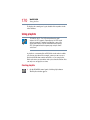
Press the display latch and lift the display panel.
Lift
Push
Opening the display panel
CAUTION: To avoid damaging the display panel, don’t force
it beyond the point where it moves easily.
Never lift or move the computer using the display panel.
Getting Started
Using the computer for the first time
55
Turning on the power
On
1
Check that all the drives are empty.
2
If you have a printer connected to your computer, turn on the
printer and wait until the printer indicates that it is ready (on
line).
3
Turn on the computer by pressing and releasing the power
button located on the top of the keyboard. For an illustration to
help you locate this button, see “Front with the display
open” on page 32.
NOTE: When you turn on the computer for the first time,
don’t turn off the power again until the operating system has
loaded completely.
The AC power light glows when the computer is connected to
an external power source.
The battery light:
Glows amber while the battery is being charged.
Glows green when the battery is fully charged.
Is unlit when the computer is not connected to an external
power source. For information on determining battery
power, see “Monitoring battery power” on page 93.
The hard disk drive light flashes to indicate that the hard disk
drive is currently in use.
The Modular Bay indicator light flashes when the Modular
Bay is in use.
CAUTION: Never turn off the computer while any of the
drives are in use.
56
Getting Started
Using the computer for the first time
Using the AccuPoint II Pointing device
The round button in the middle of the keyboard is the AccuPoint II
pointing device. It enables you to move the cursor and to select
items on the screen. (If you would rather use a mouse or trackball,
you can connect one to one of the computer’s USB ports. See
“Connecting a mouse” on page 50 for more information.)
AccuPoint II
Pointing device
Scroll
button
Scroll
button
Primary button
Secondary button
AccuPoint II control buttons and pointing device
To move the cursor, gently push the pointing device in the
direction you want the cursor to move. Pushing harder on the
pointing device moves the cursor faster.
Control buttons
When a step instructs you to click or choose an item, move the
cursor to the item, then press and release the primary button. To
double-click, press the primary button twice in rapid succession.
The primary button usually corresponds to the left mouse button.
Getting Started
Setting up your software
57
The function of the secondary button depends on the program you
are using. It usually corresponds to the right mouse button. Check
your program’s documentation to find whether it uses the right
mouse button.
Scroll buttons
You can scroll up and down a document by using the two scroll
buttons. The one on the left scrolls up and the one on the right
scrolls down.
Setting up your software
The first time you turn on your computer, the operating system
guides you through several essential steps to set up your software.
These steps may or may not appear in the following order:
❖ Select your time zone.
Select one of the time zones listed by clicking the up and
down arrow keys to highlight the appropriate time zone, then
click Next to change the setting.
❖ Confirm acceptance of Microsoft’s End User License
Agreement and complete information about the operating
system.
❖ You may be offered the opportunity to register the purchase of
your computer with Toshiba. If not, make sure you register
later by double-clicking the Registration icon on your
desktop.
58
Getting Started
Setting up your software
NOTE: To register online, your computer’s modem must be
connected to a voice-grade telephone line, or to a Local Area
Network.
To register your computer at a later time, select No, I do not
want to register at this time.
❖ Read about Warranty Extensions and Upgrades.
This step provides important information from Microsoft.
❖ Sign up for Internet access.
This step guides you through signing up for a new Internet
account, or assists you in setting up your computer to work
with your existing Internet account.
Completing installation
Upon completion, you will be prompted to click Finish to restart
your computer.
Setting up a printer
If you started your computer with a printer connected and turned
on, it may have been detected automatically (Plug and Play). If
this is not the case, then you must install the printer driver for the
model of printer that is connected to your computer. You install the
printer driver either by following the instructions indicated in your
®
printer manual, or by using the Windows Millennium Edition
operating system Add Printer Wizard.
If you plan to set up a printer later, click Cancel.
Getting Started
Setting up your software
Using the Add Printer Wizard
To set up a printer with the Add Printer Wizard:
1
Click the Start button, then point to Settings, and click
Printers.
The Printers window appears.
Sample Printers window
2
Double-click Add Printer.
The Add Printer Wizard starts.
59
60
Getting Started
Setting up your software
Sample Add Printer Wizard
3
Click Next.
The Add Printer Wizard asks you to select your printer.
TECHNICAL
NOTE: If your printer is Plug and Play, the
®
Windows Millennium Edition operating system recognizes
it automatically. You can ignore the remainder of this
section. See your printer manual.
4
If the printer you are setting up:
5
Is not connected to a network, select Local printer.
Is connected to a network, select Network printer.
Click Next.
The Add Printer Wizard prompts you to select your printer.
6
From the list of manufacturers and printers, select your
printer, then click Next.
7
Select the port settings according to the instructions in your
printer’s documentation and the port to which your printer is
connected, then click Next.
Getting Started
Turning off the computer
61
The Add Printer Wizard prompts you to enter a “friendly”
printer name.
8
Enter a name for your printer.
HINT: If you are using more than one printer, make sure the
name is descriptive enough to help you tell the difference.
9
To set up the printer to be:
®
The default printer for the Windows Millennium
Edition operating system, click Yes.
Available when specifically requested, click No.
10 Click Next.
The operating system prompts you to print a test page.
11 If your printer is connected and turned on, click Finish to
print a test page.
To complete the setup procedure without printing a test page,
click No, then click Finish.
You are now ready to print.
12 If you requested a test page, click OK to print.
Depending on your program, you may see various messages
indicating the status of your print job.
Turning off the computer
It is a good idea to turn off your computer when you are not using
it for a while.
If you are using the computer for the first time, leave the computer
plugged into a power source (even though the computer is off) to
fully charge the main battery. With the computer off, it may take
up to three hours to recharge the main battery.
62
Getting Started
Caring for your computer
Guidelines for turning off the computer:
If you have work in progress and are not connected to a
network, you can use the Windows Standby command to save
your system settings to memory so that, when you turn on the
computer again, you automatically return to where you left
off.
To leave the computer off for a longer period, you can use the
Windows Shut Down command instead. Alternatively, use
Hibernation mode to save the system settings to the hard disk.
Never turn off the power while a disk light on the system
indicator panel is on. Doing so may damage your hard disk,
diskette drive, or DVD-ROM drive.
For more information, see “Powering down the computer” on
page 84.
Caring for your computer
This section gives tips on cleaning and moving your computer,
and explains how to fit an antitheft lock. For information about
taking care of your computer’s battery, see “Running the
computer on battery power” on page 90.
Cleaning the computer
To keep your computer clean, gently wipe the display panel and
exterior case with a lightly dampened cloth. Ask your Toshiba
dealer for suggestions for appropriate cleaning products.
CAUTION: Keep liquid, including cleaning fluid, out of the
computer’s keyboard, speaker grille, and other openings.
Never spray cleaner directly onto the computer. Never use
harsh or caustic chemical products to clean the computer.
Getting Started
Caring for your computer
63
Moving the computer
Before moving your computer, even across the room, make sure
all disk activity has ended (the disk activity lights stop glowing)
and all external peripheral cables are disconnected.
CAUTION: Never pick up the computer by its display panel
or by the back (where the ports are located).
Although your notebook computer is built to withstand reasonable
shock and vibration, transport it in a carrying case for long trips.
You can purchase a carrying case from your Toshiba dealer or visit
Toshiba’s Web site at toshibaaccessories.com.
Using a computer lock
You may want to secure your computer to a heavy object such as
your desk. The easiest way to do this is to purchase an optional
PORT-Noteworthy computer lock cable.
PORT-Noteworthy computer lock cable
To secure the computer:
1
Loop the cable through or around some part of a heavy object.
Make sure there is no way for a potential thief to slip the cable
off the object.
2
Pass the locking end through the loop.
64
Getting Started
Caring for your computer
3
Insert the cable’s locking end into the security lock slot
located on the left side of the computer, then rotate the key a
quarter turn and remove it.
The computer is now securely locked to deter computer theft.
Locking the computer
Chapter 3
Learning the Basics
This chapter lists some computing tips and provides important
information about basic features.
Computing tips
Save your work frequently.
Your work stays in the computer’s temporary memory until
you save it to the disk. You will lose all unsaved work, if, for
example, a system error occurs and you must restart your
computer, or your battery runs out of charge while you are
working. Your computer can be configured to warn you when
the battery is running low. See “Setting battery alarms” on
page 95.
HINT: Some programs have an automatic save feature which
you can turn on. This feature saves your file to the hard disk
at preset intervals. See your software documentation for
details.
65
66
Learning the Basics
Using the keyboard
Back up your files to diskettes (or other removable storage
media) on a regular basis. Label the backup copies clearly and
store them in a safe place.
If your hard disk suddenly fails, you may lose all the data on it
unless you have a separate backup copy.
Use ScanDisk, Disk Defragmenter, and the Maintenance
Wizard regularly to conserve disk space and help your
computer perform at its optimal level. Consult your
Windows® Millennium Edition operating system
documentation for more information on these and other
utilities.
Before turning off the computer, always use the Shut down
command (unless you want to use Standby or Hibernation
mode as described in “Powering down the computer” on
page 84).
CAUTION: The operating system records information, such
as your desktop setup, during its shutdown procedure. If you
don’t let the operating system shut down normally, details
such as new icon positions may be lost.
Using the keyboard
∗
-
Keyboard
67
Learning the Basics
Using the keyboard
Character keys
Typing with the character keys is very much like typing on a
typewriter, except that:
The spacebar creates a space character instead of just passing
over an area of the page.
The lowercase l (el) and the number 1 are not interchangeable.
The uppercase letter O and the number 0 are not
interchangeable.
The Caps Lock key changes only the alphabet keys to upper
case — the number and symbol keys are not affected. The
caps lock light on the keyboard indicator panel illuminates
when you press the Caps Lock key.
Ctrl, Fn, and Alt keys
Ctrl
Fn
Alt
.
Ctrl, Fn and Alt keys
The Ctrl, Fn, and Alt keys do different things depending on the
program you are using. For more information, see your program
documentation.
Function keys
The function keys (not to be confused with the Fn key) are the 12
keys at the top of the keyboard.
F1
F2
F3
F4
F5
F6
F7
F8
F9
F10
F11
Function keys
F1 through F12 are called function keys because they run
programmed functions when you press them. Used in
F12
68
Learning the Basics
Using the keyboard
combination with the Fn key, function keys marked with icons run
specific functions on the computer.
Windows® special keys
Application key
Windows logo key
®
Windows special keys
The keyboard provides two keys that have special functions in the
®
Windows operating system:
®
The Windows logo key opens the Start menu.
The Application key has the same function as the secondary
AccuPoint II control button (or right mouse button).
Overlay keys
&
∗
7
8
Home 7
U
(
)
9
0
∗
PgUp 9
8
I
O
4
P
5
J
-
6
K
:
;
L
End 1
+
?
/
PgDn 3
2
>
M
.
Ins
Esc
F1
F3
F2
!
"
1
2
F4
F5
F6
F8
F7
%
^
&
∗
(
)
4
5
6
7
8
9
0
W
E
R
T
Y
PgUp 9
8
U
I
.
A
S
D
F
G
H
O
5
J
End 1
Z
Shift
X
C
V
B
N
Ctrl
Fn
Alt
\
2
Pause
Break
BkSp
{
}
[
]
Home
~
#
PgUp
Enter
PgDn
-
:
;
PgDn 3
<
,
>
.
Del
0
Alt
Gr
Sys Req
+
=
P
L
M
Ins
Prt Sc
_
-
∗
6
K
/
F12
F11
$
4
Caps
Lock
F10
F9
£
3
Home 7
Q
.
Del
0
¬
`
|
.
@
´
+
?
/
Shift
End
/
Ins
Del
Keyboard overlay keys
The keys with gray numbers and symbols on the front of them
form the numeric and cursor overlay. This overlay lets you enter
numeric data or control the cursor as you would using the ten-key
keypad on a desktop computer’s keyboard.
Learning the Basics
Using the keyboard
69
Using the numeric keypad overlay
To turn on the numeric keypad overlay, press Fn and F11
simultaneously. The numeric mode light on the keyboard indicator
panel glows when the numeric overlay is on.
You can still use the overlay keys to type alphabetic characters
while the numeric overlay is on. To do so:
For lowercase letters, hold down Fn while you type the letters.
For uppercase letters, hold down both Fn and Shift while you
type the letters.
To use the cursor control overlay when the numeric overlay is on,
press and hold down Shift while you use the cursor control keys. To
return to the numeric overlay, release Shift.
To turn off the numeric keypad overlay, hold down the Fn key and
press F11 again. The numeric mode light on the keyboard indicator
panel goes out.
Using the cursor control overlay
To turn on the cursor control overlay, press Fn and F10
simultaneously. The cursor control mode light on the keyboard
indicator panel glows when the cursor control overlay is on.
To type alphabetic characters while the overlay is on:
For lowercase letters, hold down Fn while you type the letters.
For uppercase letters, hold down both Fn and Shift while you
type the letters.
To use the numeric keypad overlay when the cursor control
overlay is on, hold down Shift while you use the numeric overlay
keys. To return to the cursor control overlay, release Shift.
To turn off the cursor control overlay, hold down the Fn key and
press F10 again. The cursor control mode light on the keyboard
indicator panel goes out.
70
Learning the Basics
Starting a program
Starting a program
The easiest way to start a program is to click the name of the file
that contains the information you want to work on. To find the file,
use My Computer or Windows Explorer.
If you prefer to open the program first, you have four options:
Double-click the icon for the program on your desktop
Use the Start menu
Use Windows Explorer or My Computer to locate the
program file
Use the Run dialog box
®
The Windows Millennium Edition operating system tutorial
chapter gives step-by-step instructions for starting a program from
the Start menu. See “Lesson 6: Starting programs” on
page 110.
Saving your work
Before you turn off the computer, save your work to the hard disk
drive or a diskette.
NOTE: Always save your data even when you are using the
Standby command. If your battery fully discharges, your
information will be lost. Your computer can be configured to
warn you when the battery is running low, see “Setting
battery alarms” on page 95.
Many programs offer a feature that saves documents at regular
intervals, such as every 15 minutes. Check your programs’
documentation to see whether they have an automatic save feature.
To save:
A file you are updating, open the program’s File menu and
click Save.
Learning the Basics
Printing your work
71
A new file, choose Save As from the File menu, type a name
for the file, and click OK.
HINT: To make another copy of the file you are currently
working with, choose Save As from the File menu and give
the new file a different name.
For information on how to name a file, see “Windows®
Millennium Edition file system” on page 103.
Printing your work
®
Verify that the Windows Millennium Edition operating system is
set up for your printer as described in “Setting up a printer” on
page 58.
TECHNICAL NOTE: You only need to set up the printer the
first time you connect it. If you use more than one printer or
are changing printers, you will need to set up the operating
system to run with the additional printer(s).
To print a file:
1
If your printer is not on, turn it on now.
2
In the File menu of your program, click Print.
The program displays a Print dialog box.
3
Click OK to print.
Using diskettes
The 3.5-inch diskette drive, which fits in the Modular Bay, lets you
use either double-density (720 KB) or high-density (1.44 MB)
diskettes for data transfer and storage.
72
Learning the Basics
Using diskettes
Eject button
Diskette drive
The Modular Bay/Secondary battery light glows when the diskette
drive is in use.
Inserting and removing diskettes
1
Hold the diskette so that the arrow on its upper surface points
toward the drive.
2
Push the diskette gently into the drive slot on the left side of
the computer. When the diskette is in place, the eject button
pops out.
To release a diskette from the drive, push the eject button.
CAUTION: Never press the eject button or turn off the
computer while the light is glowing. Doing so could destroy
data and damage the diskette or the drive.
Caring for diskettes
Store your diskettes properly to protect them and keep them
clean.
If a diskette is dirty, clean it with a soft cloth moistened in
water. Do not use cleaning fluids.
Never slide back the protective metal cover.
Never touch the magnetic surface of a diskette. Fingerprints
can prevent the drive from reading the data stored on a
diskette.
Never twist or bend a diskette.
73
Learning the Basics
Backing up your files
Keep diskettes at room temperature and avoid exposing them
to direct sunlight. Otherwise data may be lost.
Never place heavy objects on your diskettes.
Never eat, smoke, or use erasers near your diskettes. Foreign
particles can damage the diskette’s surface.
Keep your diskettes away from sources of magnetism, such as
speakers and radios, since these can destroy data.
Backing up your files
Backing up your files means copying individual files to a diskette
or copying entire sections of your hard disk to another device, such
as a tape drive.
1
Insert a diskette into the diskette drive.
2
Double-click the My Computer icon on the Windows
desktop.
3
Double-click the drive that contains the file you want to copy.
4
Double-click the folder that contains the file, then click the file
you want to copy.
®
HINT: You can use the Ctrl or Shift keys to select more than
one file.
5
Click File, then click Send To.
6
Click the icon for the diskette drive (3 1/2 floppy [D:]).
HINT: You can also back up a file to a diskette by clicking the
file (or files) you want to backup with the secondary button,
then pointing to Send To and clicking 3 1/2 Floppy (D:).
74
Learning the Basics
Using your CD or DVD drive
Using your CD or DVD drive
Your computer may have a CD-ROM drive, CD-R drive, CD-RW
drive, DVD-ROM drive, or a DVD-ROM/CD-RW multifunction
drive. CD-ROM drives can play back prerecorded CDs. DVDROM drives can play back both prerecorded CDs and DVDs.
With a CD-RW drive you can write files (including music) to a
CD-Recordable (CD-R) or CD-Rewritable (CD-RW) disc. A
DVD-ROM/CD-RW multifunction drive can do all of these
things.
Compact discs (CDs) store up to 600 MB of data or music. You
use CD-ROMs to load and run software, and to access reference
material such as catalogs, as well as listen to music.
A special feature allows you to play audio CDs even when the
computer is turned off. For more information, see “CD/DVD
control buttons” on page 76.
Digital versatile discs (DVDs) provide a significant increase in
data storage and support features that are not available on any
other video platform. These features include wide-screen movies,
multiple language tracks, digital surround sound, multiple camera
angles, and interactive menus. The computer can play highresolution video at up to 30 frames per second.
NOTE: For optimum DVD performance, it is recommended
that you play DVDs while running on AC power rather than
battery power.
Drive components and control buttons
The CD or DVD control buttons are located on the hinge bar of the
computer so that you can access them whether the display panel is
closed or open.
Learning the Basics
Using your CD or DVD drive
75
DVD-ROM drive components
If you have a DVD-ROM drive, it may look like this:
Drive in-use indicator light
Eject button
Manual eject hole
Sample DVD-ROM drive
CAUTION: Never press the eject button or turn off the
computer while the drive in-use indicator light is glowing.
Doing so could damage the disc or the drive.
The eject button requires power to operate. The manual eject
button does not require power.
CAUTION: Never use a pencil to press the DVD-ROM
manual eject button. Pencil lead can break off inside the
computer and damage it. Instead, use a slim object such as a
straightened paper clip.
The vent, located at the lower right-hand side of the drive, cools
the DVD-ROM drive’s internal mechanisms. Do not block this
vent.
HINT: When the computer is off and the DVD-ROM drive is
on, press the stop/eject control button on the top of the
computer to eject a disc.
76
Learning the Basics
Using your CD or DVD drive
CD/DVD control buttons
The control buttons on the hinge bar of the computer enable you to
play audio CDs when the computer is off. You can also use them
to play CDs and DVDs when the computer is on.
CD/DVD/Media Player switch
Previous track
Play/pause
Stop/eject
Next track
CD or DVD control buttons on the hinge bar of the computer
The previous track button returns to the preceding track on the
disc.
The play/pause button starts playing the disc or pauses it if it is
currently playing.
The stop/eject button stops a disc that is currently playing and
ejects the disc.
You can eject a disc by pressing the stop/eject button twice. Use
this method to eject a disc when the computer is turned off and the
eject button on the front of the drive is unavailable.
The next track button skips to the following track on the disc.
Setting the CD/DVD/Media Player switch to CD/DVD
If the drive is empty or there’s an audio CD in the drive, setting the
CD/DVD/Media Player switch to the left (CD/DVD position)
Learning the Basics
Using your CD or DVD drive
77
turns on the sound system only. The computer remains turned off.
When you open the display, Windows Media® Player turns on.
If there’s a DVD in the drive, setting the CD/DVD/Media Player
switch to the left (CD/DVD position), turns both the computer and
the sound system on, and launches WinDVD. When you open the
display, WinDVD starts playing the DVD.
Setting the CD/DVD/Media Player switch to Media Player
If the drive is empty or there’s a DVD in the drive, setting the
CD/DVD/Media Player switch to the right (Media Player
position) turns the computer’s power on and launches Windows
Media® Player. When you open the display, Windows Media®
Player automatically plays the default audio file (if the drive is
empty), or the DVD title if a DVD is in the drive.
If there’s an audio CD in the drive, setting the CD/DVD/Media
Player switch to the right (Media Player position) turns the
computer’s power on. Windows Media® Player launches
automatically and begins playing the audio CD.
Inserting a disc
WARNING: Before playing an audio CD, turn the volume
down. Playing the compact disc at maximum volume could
damage your ears. To turn the volume down, use the Volume
Control dial or access the Volume Control program (click
Start, Programs, Accessories, Entertainment, Volume
Control).
1
If the computer is turned on, press the eject button on the
DVD-ROM drive.
To play an audio CD when the computer is turned off, slide
the CD/DVD/Media Player switch to the left to turn the
DVD-ROM drive on, and press the CD/DVD stop/eject
button twice to release the disc tray.
78
Learning the Basics
Using your CD or DVD drive
To locate the switch and button, refer to illustration labeled
“CD or DVD control buttons on the hinge bar of the
computer” on page 76.
The disc tray partially opens.
CAUTION: To avoid damaging a disc or losing data, check
that the disc activity light is off before opening the disc tray.
2
Grasp the disc tray and pull it fully open.
3
Hold the disc by its edges and check that it is clean and free of
dust.
CAUTION: Handle discs carefully. Avoid touching the
surface of the disc. Grasp it by its center hole and edge. If
you handle the disc incorrectly, you could lose data.
4
Carefully place the disc in the empty tray with its label facing
up.
Inserting a disc
CAUTION: Be careful not to touch the drive’s lens (located
underneath the drive’s spindle) or the area around it. Doing
so could cause the drive to malfunction.
Learning the Basics
Using your CD or DVD drive
5
79
Gently press the center of the disc onto the spindle until it
locks into place.
Spindle
Disc
Correct position
Incorrect position
Incorrect position
Positioning the disc on the spindle
CAUTION: Make sure the disc is properly positioned on the
spindle. If you position the disc incorrectly, it can jam the
disc tray.
6
Close the disc tray by pressing gently on the center of the tray
until it clicks indicating that it is locked.
Playing an audio CD
Insert an audio CD and close the disc tray. If the computer is
turned off, use the CD/DVD/Media Player switch and the control
buttons on the top of the computer. Slide the CD/DVD/Media
Player switch to the left to turn on the CD/DVD player, then press
the play/pause button once. The CD begins to play.
If the computer is turned on, Windows Media® Player opens and
the CD begins to play. You can use either the CD/DVD control
buttons or the Windows Media® Player program to control the CD.
To access the Windows Media® Player, you can open it through
the Start menu or activate it from the taskbar.
80
Learning the Basics
Using your CD or DVD drive
Sample Windows Media Player screen
The CD Player control panel works much like an ordinary
compact disc player:
To play the CD or to pause, click the play/pause button on the
CD Player control panel.
To stop the CD, click the Stop button.
Creating a CD
If your drive is CD-Rewritable, two programs control a drive’s
CD-RW features:
DirectCDTM prepares a CD-R or CD-RW disc for file read and
write operations. Its icon is located on the taskbar. You can also
right-click this icon to eject a disc.
Easy CD CreatorTM 4 copies music to an audio CD-R or CD-RW
disc, and data to a data CD-R or CD-RW disc. Its icon is located
on the desktop.
For details on how to use these programs, please refer to the
respective Online Help menus.
Learning the Basics
Using your CD or DVD drive
81
Playing a DVD
This manual has an entire chapter devoted to using WinDVD. For
information about how to play back a DVD, see “WinDVD
2000” on page 163.
Viewing the contents of a CD or DVD
CDs and DVDs contain files just like diskettes and the hard disk.
CDs are often used to install software or store files that require lots
of space, such as photographs and large presentation files. You can
use Explorer or My Computer to view the contents of any CD or
DVD.
Removing a disc with the computer on
CAUTION: Check the DVD-ROM, CD-ROM, or CD-RW drive
in-use indicator light when you use the DVD-ROM, CDROM, or CD-RW drive. Do not press the eject button,
disconnect a drive, or turn off the computer while the light is
glowing. Doing so could damage the CD, DVD, or drive.
1
Locate and press the eject button.
The disc tray partially opens.
2
Grasp the sides of the disc tray and pull it fully open.
3
Remove the disc from the disc tray and place it in its
protective cover.
CAUTION: If the disc is spinning when you open the disc
tray, wait for the disc to stop before removing it.
4
Close the disc tray by pressing gently on the center of the tray
until it clicks indicating that it is locked.
82
Learning the Basics
Setting up for communications
Removing a disc with the computer off
1
Insert a slender object, such as a straightened paper clip, into
the manual eject button access hole.
CAUTION: Never use a pencil to press the manual eject
button. Pencil lead can break off inside the computer and
damage it.
2
Pull the tray fully open, remove the disc and place it in its
protective cover.
3
Push the tray in to close the drive.
Caring for CDs and DVDs
Store your discs in their original containers to protect them
from scratches and keep them clean.
Never bend a disc or place heavy objects on top of it.
Hold a disc by its outside edge. Fingerprints on the surface of
a compact disc can prevent the drive from reading the data
properly.
Avoid exposing discs to direct sunlight or extreme heat or
cold.
To clean a disc, wipe it from the center outwards (not in a
circle) with a clean, dry cloth. If necessary, moisten the cloth
with water or a neutral cleaner (not benzine or rubbing
alcohol). Let the disc dry completely before inserting it in the
drive.
Setting up for communications
To communicate across the telephone lines with another
computer, you need:
Learning the Basics
Setting up for communications
83
The computer’s modem
A telephone line
A communications program
To connect to the Internet, you need a Web browser, such as
®
Microsoft Internet Explorer.
TECHNICAL NOTE: Disable Call Waiting before you connect
through the modem. Call Waiting interrupts data
transmission.
Using the modem
The Satellite Pro 3000/3005 Series computers come with a built-in
modem and 10/100 Ethernet LAN connection. To use the modem,
you must connect it to a standard voice-grade RJ11 telephone line.
1
Attach one end of a standard RJ11 telephone cable to the
modem port.
To locate the modem port, see “Back” on page 29.
2
Plug the other end of the RJ11 telephone cable into the
modular jack of a standard voice-grade telephone line.
Connecting your computer to a network
You can connect your computer to a network locally or remotely.
Locally, using the built-in 10/100 Ethernet LAN adapter by
connecting it to a standard RJ45 LAN line.
Remotely, using the built-in modem and a dial-up connection.
For specific information about connecting to the local area
network (LAN) or wide area network (WAN), consult your
network administrator.
To use a dial-up connection, have your network administrator
configure your computer for the network and supply you with the
84
Learning the Basics
Powering down the computer
telephone number for the dial-up connection. To set up the
network connection, use the Dial-Up Networking Wizard:
1
Click Start and point to Programs.
2
Point to Accessories, then to Communications, and click
Dial-Up Networking.
3
Enter the phone number of your network connection and let
the program dial the number.
The computer connects with the network.
Powering down the computer
When you power down the computer, you have three options
to choose from: Shut down, Hibernation and Standby. Each
option has its advantages.
TECHNICAL NOTE: Before using any of these options to
power down your computer, save your files and make sure
the disk activity lights are off.
If you decide to continue working, wait a few seconds before
turning the computer on again.
Shut down command
The Shut down command shuts the computer down
completely. When you start up again, the computer runs a
self-test and loads the operating system. You must open any
programs and files you want to use.
Factors when choosing Shut down:
No power is used while the computer is shut down. This
is the most efficient mode if you will be away from your
computer for an extended time.
Restarting from Shut down uses the most time and
battery power.
Learning the Basics
Powering down the computer
85
When starting up again, the system does not
automatically open programs and files you were
previously using.
Hibernation command
Hibernation mode shuts the computer down completely, but it first
saves the current state of the computer to the hard disk. Since
Hibernation mode does not require power to maintain the saved
information, the system settings are retained indefinitely.
Restoring information from the hard disk takes longer than
restoring it from memory. When you start up again, the computer
runs a self-test, loads the operating system, and then returns to the
state in which you left it.
Factors when choosing Hibernation mode:
While in Hibernation mode, the computer uses no battery
power.
Because the state of the system is held on the hard disk, no
data is lost if the battery discharges.
Restarting from Hibernation mode uses less time and battery
power than restarting from Shut down.
Restarting from Hibernation mode uses a little more time and
battery power than restarting from Standby because
information is being retrieved from the hard disk instead of
memory.
When starting up again, the computer returns to the state in
which you left it, including all open programs and files you
were using.
Standby command
The Standby command puts the computer into a power-saving
mode. Standby holds the current state of the computer in memory
86
Learning the Basics
Using Shut down
so that, when you restart the computer, you can continue working
from where you left off.
Factors when choosing Standby:
While in Standby mode, the computer uses some battery
power. The battery will eventually discharge in Standby
mode. If the battery discharges, your data will be lost if you do
not save your work before entering Standby mode.
Restarting from Standby mode uses less time and battery
power than restarting from Shut down or Hibernation mode.
When starting up again, the computer returns to the mode in
which you left it, including all open programs and files you
were using.
NOTE: If you power down using the Standby command and
the battery discharges fully, your information will be lost. Be
sure to save your work first.
Using Shut down
To power down the computer using the Shut down command,
click Start, Shut Down, select Shut down from the menu, then
click OK.
The computer shuts down completely.
Shutting down more quickly
You can also shut down the computer by pressing the power
button or closing the display panel.
To use either of these methods, you first need to turn on the feature
in the Power Management utility.
1
Open the Start menu, point to Settings, then click Control
Panel.
Learning the Basics
Using Hibernation
2
87
In the Control Panel window, double-click the Power
Management icon. If the Power Management icon is not
present, click View all control panel options on the left side
of the panel.
The Power Management Properties dialog box appears.
3
Click the Advanced tab, and select the options you want.
When I close the lid of my portable computer
Set this option to Power Off to have the computer shut
down when you close the display panel.
When I press the power button on my computer
Set this option to Shutdown to have the computer shut
down when you press the power button.
4
Click Apply.
5
Click OK, then close the Control Panel.
Starting again after Shut down
To start the computer up again, press and release the power button.
The on/off light turns on.
Using Hibernation
To power down the computer using the Hibernation option, click
Start and select Hibernate, then click OK.
The computer saves the state of the system, including all open
programs and files, to the hard disk, and then powers down
completely.
Starting again from Hibernation mode
To start the computer from Hibernation mode, press and release
the power button. The computer returns to the screen you were
using.
88
Learning the Basics
Using Standby
If you put the computer in Hibernation mode by closing the
display panel, you can start it again by pressing and releasing the
power switch.
Using Standby
To power down the computer using the Standby command, click
Start, Shut Down, select Stand by from the menu, then click
OK.
The computer saves the status of all open programs and files to
memory, turns off the display, and goes into a low-power mode.
The on/off light blinks green to indicate the machine is in Standby
mode.
Starting again from Standby
To start the computer from Standby mode, press the power button.
The computer returns to the screen you were using.
If you put the computer in Standby mode by closing the display
panel, you can start it again by opening the display panel.
Chapter 4
Mobile Computing
This chapter covers all aspects of using your computer while
traveling.
Toshiba’s energy-saver design
Toshiba is a partner in the Environmental Protection Agency’s
(EPA) Energy Star Program and has designed this product to meet
the Energy Star guidelines for energy efficiency.
Your computer enters a low-power standby mode when it is not
being used, thereby conserving energy and saving money in the
process. It has a number of other features that enhance its energy
efficiency.
Many of these energy-saving features have been set by Toshiba.
We recommend you leave these features active, allowing your
computer to operate at its maximum energy efficiency, so that you
can use it for longer periods while traveling.
89
90
Mobile Computing
Running the computer on battery power
Running the computer on battery power
The computer contains a removable lithium ion (Li-ion)
high-capacity battery that provides power when you are away
from an AC outlet. You can recharge it many times.
In addition, the computer has an internal real-time clock (RTC)
battery. The RTC battery powers the RTC memory, which stores
your system configuration settings and the current time and date
for up to a month while the computer is turned off.
Using a second battery
If you spend a lot of time traveling and need to work for many
hours without an AC power source, you can fit a second lithium
ion battery pack in the Modular Bay.
Battery safety precautions
Never try to disassemble a battery.
Never overcharge or reverse charge a battery. Overcharging
will shorten its life and reverse charging could destroy it,
causing the release of toxic fumes.
Avoid touching the metal terminals of the battery with another
metal object. Short-circuiting the battery will cause it to
overheat and may cause permanent damage to the battery or
the computer.
Never incinerate a spent battery as this will cause it to
explode, releasing toxic materials.
If a battery is leaking or damaged, replace it immediately. Use
protective gloves when handling a damaged battery.
To replace the main battery, use an identical battery which you can
purchase from the accessory information shipped with your
system or at toshibaaccessories.com.
Mobile Computing
Charging batteries
91
Maximizing battery life
A high-capacity battery pack can be recharged many times. Over
time it will gradually lose its ability to hold a charge. To maximize
the life of your battery:
Avoid leaving the computer plugged in and unused for more
than a few hours. Overcharging the battery may shorten its
life.
If you are not going to use the computer for a long period of
time, remove the main battery, and the secondary battery (if
fitted).
Alternate between batteries if you have a spare.
Make sure your computer is turned off or in Hibernation
mode when you are replacing a battery.
Store spare batteries in a cool dry place out of direct sunlight.
NOTE: For optimum DVD performance, Toshiba
recommends that you play DVDs while running on AC power
rather than on battery power.
NOTE: Battery charge time may vary depending on the
applications, power management settings, and features
used.
Charging batteries
The main battery and the optional secondary battery need to be
charged before you can use them to power the computer.
92
Mobile Computing
Charging batteries
Charging the main and secondary batteries
To charge the main battery, plug the computer into a live wall
outlet. It takes several hours to charge the battery with the
computer off. It takes much longer to charge the battery while the
computer is on.
TECHNICAL NOTE: The battery does not charge while the
computer is consuming full power.
To charge the secondary battery, fit it in the Modular Bay and
connect the computer to an AC power source.
A battery may not start charging immediately if:
The battery is extremely hot or cold.
To ensure that the battery charges to its full capacity, wait until
it reaches room temperature (50 to 80 degrees Fahrenheit, 10
to 26 degrees Celsius).
The battery is almost completely discharged.
Leave the power connected, and the battery should begin
charging after a few minutes.
HINT: Once a battery is fully charged, we recommend that
you operate your computer on battery power until the battery
discharges completely. Doing this extends battery life and
helps ensure accurate monitoring of battery capacity.
Charging the RTC battery
The computer contains an internal battery that provides power for
the real-time clock (RTC) and calendar.
During normal use, the main battery keeps the RTC battery
adequately charged. Occasionally, the RTC battery may lose its
Mobile Computing
Monitoring battery power
93
charge completely, especially if you have had the computer turned
off for a long time.
If the RTC battery is low, the real-time clock and calendar may
display the incorrect time and date, or stop working.
To recharge the RTC battery, plug in the computer and leave it
turned off for at least 24 hours.
NOTE: When Hibernation mode is enabled and the RTC
battery is completely discharged, a warning prompts you to
reset the real-time clock.
Monitoring battery power
The battery light indicates the primary battery’s current charge.
The Modular Bay light indicates the charge state of the secondary
battery (if used). In both cases, the indicator light:
Glows green when the battery is fully charged
Glows amber while the battery is being charged
Does not glow if the external power source is disconnected or
if the battery is completely discharged
Determining remaining battery power
NOTE: Wait at least 16 seconds after turning on the
computer before trying to monitor the remaining battery
power. The computer needs this time to check the battery’s
remaining capacity and perform its calculations.
1
Click Start, point to Settings, and then click Control Panel.
2
Double-click the Power Management icon.
94
Mobile Computing
Monitoring battery power
3
Choose the Power Save Modes tab, then under the Running
on Batteries section, click Details.
4
Click the Power Save Mode tab.
The current power source and battery power remaining
section displays the current charge state of the battery. The
value displays as a percentage of remaining battery charge.
TECHNICAL NOTE: The computer drains the battery faster at
low temperatures. Check your remaining charge frequently if
you are working in temperatures below 50 degrees
Fahrenheit.
The computer calculates the remaining battery charge based
on your current rate of power use and other factors such as
the age of the battery.
Conserving battery power
How long a fully charged battery lasts when you are using the
computer depends on a number of factors, such as:
How the computer is configured
How much you use the display panel instead of an external
monitor
How much you use the hard disk and other drives
Whether you use any optional devices to which the battery
supplies power, such as a PC Card
Where you are working—since operating time decreases at
low temperatures
Toshiba’s power-saving options greatly increase the length of time
you can use the computer before it becomes necessary to recharge
the battery.
Mobile Computing
Monitoring battery power
95
Toshiba has combined these options into three preset power usage
modes:
Long Life
Normal
High Power
To change the power usage mode, hold down both the Fn and F2
keys.
What to do when the battery runs low
When the battery runs low you can:
Plug the computer into an external power source and recharge
the battery.
Put the computer in Hibernation mode and replace the battery
with a charged spare.
Save your work and turn off the computer.
If you don’t manage to do any of these things before the battery
completely runs out of power, the computer automatically enters
Hibernation mode and turns itself off. Hibernation mode keeps
track of where you were so, when you turn on the power again,
you can continue where you left off.
The computer stores the information on what you were doing until
the battery runs out of power. If you have Hibernation mode
enabled (the default), the computer copies the details of your open
programs and files to the hard disk before shutting down.
Setting battery alarms
Your computer can be configured to warn you when the battery is
running low.
You can set multiple alarms. Each alarm can be set to alert you
when a specified percentage of remaining battery power has been
96
Mobile Computing
Changing the main battery
reached. You can set how the warning occurs: sound an alarm,
display a message, both, or none. You can also set the computer to
enter Standby mode or Hibernation mode, or to Shutdown when
the alarm goes off.
To set an alarm:
1
Click Start, point to Settings, and then click Control Panel.
2
Double-click the Power Management icon.
3
Choose the Power Save Modes tab, then under the Running
on Batteries section, click Details.
4
Click the Alarm tab and set the alarm, as desired.
Changing the main battery
When your battery power is running low, you have two options—
connect the computer to an AC power source or install a charged
battery.
CAUTION: When handling a battery, be careful not to drop it
or short-circuit its terminals.
Removing the battery from the computer
1
Save your work.
2
Shut down the computer or place it in Hibernation mode
according to the instructions in “Using Hibernation” on
page 87.
3
Remove all cables connected to the computer.
4
Close the display panel and turn the computer upside down
with the front side of the computer facing you.
Mobile Computing
Disposing of used batteries safely
5
97
Push and hold the battery release latch, then firmly pull the
battery pack toward yourself.
WARNING: If the battery is leaking or its case is cracked, put
on protective gloves to handle it, and discard it immediately
following the advice in “Disposing of used batteries safely”
on page 97.
Disposing of used batteries safely
You can recharge a battery many times. When the battery needs
replacing, the battery light flashes amber shortly after you have
fully recharged the battery.
You must discard a battery if it becomes damaged.
CAUTION: The computer’s main battery is a lithium ion
(Li-ion) battery, which can explode if not properly replaced,
used, handled, or disposed of. Putting spent batteries in the
trash is not only irresponsible, it may be illegal. Dispose of
the battery as required by local ordinances or regulations.
Use only batteries recommended by Toshiba.
The materials that came with your computer may include an insert
regarding the disposal of batteries. If not, check with your local
government agency for information on where to recycle or dispose
of old batteries.
Traveling tips
The environmental precautions listed in “Selecting a place to
work” on page 41, also apply while traveling.
Never leave your computer on a sunny ledge or in a place
where it could get wet or covered in dust.
98
Mobile Computing
Traveling tips
Always travel with the computer in a carrying case. Toshiba
offers a choice of carrying cases for the computer. They all
provide plenty of extra space for manuals, power cables,
compact discs and diskettes. Contact your authorized Toshiba
representative for more information.
TECHNICAL NOTE: When traveling by air, you may be
required to pass your notebook through airport security
equipment. The X-ray equipment will not harm your
computer.
Chapter 5
Getting to Know the
®
Windows Millennium
Edition Operating System
®
This chapter introduces the Windows Millennium Edition
operating system by guiding you through a few basic tasks.
®
If you have used the Windows 98 operating system before, you
®
will find the Windows Millennium Edition operating system
familiar, since both operating systems are similar. Whether you
®
have used a Windows operating system or not, the skill and
confidence you will gain from this chapter will more than offset
the short amount of time spent going through these lessons.
As you explore your computer’s operating system further, you will
often discover alternative ways of accomplishing a particular task.
For more detailed information on your operating system, refer to
®
®
the Microsoft Windows Millennium Edition operating system
documentation that came with your computer.
99
100
Getting to Know the Windows Millennium Edition Operating
System
Lesson 1: Exploring the desktop
Lesson 1: Exploring the desktop
The desktop is the launching pad for everything you can do in the
®
Windows Millennium Edition operating system. You use its
features to start programs, find documents, set up system
components, and perform most other computing tasks.
HINT: The illustrated examples in this guide may appear
slightly different from the screens displayed by your system.
However, the differences are not significant and do not
indicate any change in the functionality of your system.
Finding your way around the desktop
Your computer’s desktop includes several standard features: icons,
Start button, shortcut tray, taskbar, system tray, and background
pattern.
Icons
An icon represents a folder, file, or program that can be quickly
activated by double-clicking the icon.
You can create a new desktop icon for any folder, file, or program
by dragging the element’s icon from its location in a window to the
desktop area.
The icons initially displayed on your system desktop include:
My Documents—Provides a convenient place to store documents,
graphics, or other files you want to access quickly.
My Computer—Shows the file system for your computer and
network (if any).
Getting to Know the Windows Millennium Edition Operating
System
Lesson 1: Exploring the desktop
101
Recycle Bin—Holds files you’ve deleted using the Windows
Explorer. You may retrieve these files until you empty the Recycle
Bin.
TECHNICAL NOTE: If you delete a file from a diskette, it does
not go into the Recycle Bin. For more information on the
Recycle Bin, see Windows online Help.
Internet Explorer—The Microsoft browser that provides access to
the Internet.
Toshiba VirtualTech—A Toshiba utility to help answer technical
questions and troubleshoot system problems. For more
information about VirtualTech, see “Using VirtualTech” on
page 220.
Toshiba Software Offer—A service provided by Toshiba that
offers additional software.
FreedomWareTM—Free offers and discounts on hardware and
software for your notebook computer.
NOTE: If you place the cursor over an icon, a popup
description of the file contents appears.
Your desktop may contain other icons depending on your
®
configuration. See Windows Millennium Edition online Help for
more specific information on each icon and how to use it.
Start button
You use the Start button to:
Start programs
®
®
Access Microsoft Windows Millennium Edition operating
system update information
102
Getting to Know the Windows Millennium Edition Operating
System
Lesson 1: Exploring the desktop
Open recently accessed documents
Adjust system settings
Search for files
Access Windows Help and Support
Run programs
Suspend system activity and shut down the computer
For more information on starting programs, see “Lesson 6:
Starting programs” on page 110.
Shortcut tray
The Shortcut tray displays icons of tasks or programs. These icons
function much like the desktop icons, but are easily accessible
even when the desktop is covered with open windows.
To activate a task or program, click the appropriate Shortcut tray
icon.
To add an icon to the Shortcut tray, click the icon and drag it to the
Shortcut tray.
Taskbar
Each time you open a program, a button associated with that
program appears on the taskbar. With some programs, a button
appears on the taskbar for each document or window you open.
You can use these buttons to quickly switch between the programs
or windows.
To make a program or window the active one, click the program’s
or window’s button.
System tray
The System tray displays icons of tasks or programs that run
continuously in the background. To learn more about each task,
105WindowsMe.fm Page 103 Tuesday, April 24, 2001 4:19 PM
Getting to Know the Windows Millennium Edition Operating
System
Lesson 2: Using the AccuPoint II
103
position the cursor over the icon for a few moments and a short
description of the task appears.
Typical tasks in the System tray are Current time, Power usage
mode, and speaker volume.
To activate a specific task, double-click the appropriate System
tray icon.
Windows® Millennium Edition file system
All files on your computer are organized for accessibility using a
hierarchal file system.
Programs, documents, and other data are held in files. These files
can be grouped together in folders, and folders can be grouped
inside other folders for convenient organizing. All the files and
folders reside in your computer on a storage device, such as a disk
drive.
You can think of your computer storage system in terms of office
equipment. You have a file cabinet (device), that contains folders,
and each folder may contain documents. Your office may have
more than one file cabinet, just as your computer may have more
than one disk drive.
Computers can be connected together to form a network, so that
programs, documents and other data can be quickly and easily
shared between computers.
You can use the My Computer feature on the desktop to access
any file in the Windows file system.
For more information, read the Microsoft documentation that
comes with your computer.
Lesson 2: Using the AccuPoint II
The “Getting Started” chapter introduced you to the AccuPoint II
pointing device, which is your basic tool for moving around the
104
Getting to Know the Windows Millennium Edition Operating
System
Lesson 2: Using the AccuPoint II
screen and performing computing tasks. This lesson lets you
practice using the AccuPoint II pointing device.
1
Move the pointer to the Start button, then click the primary
button (the larger one) to open the Start menu.
NOTE: In this guide, the term “click” refers to the primary
button, which is the larger one. Instructions requiring the
secondary button specifically mention that button. For
example, “click the secondary button.”
2
Click an empty area of the desktop to close the Start menu.
3
With the pointer in an empty area of the desktop, click the
secondary button (the smaller one) to open the desktop
shortcut menu. As the name implies, shortcut menus provide
®
quick access to many Windows Millennium Edition
operating system features.
Sample desktop shortcut menu
4
Click an empty area to close the shortcut menu.
5
Use the pointer button in the center of the keyboard to move
the pointer to the My Computer icon, then click the primary
button twice rapidly. (This process is known as “doubleclicking.”)
The My Computer window opens.
Getting to Know the Windows Millennium Edition Operating
System
Lesson 2: Using the AccuPoint II
105
Sample desktop with the My Computer window open
6
Now click the Close button in the upper-right corner of this
window.
The My Computer window closes.
7
Click an empty area of the taskbar at the bottom of the screen
and, while holding down the primary button, use the pointing
device to drag the pointer to the right edge of the desktop, then
release the primary button. This process is known as “clicking
and dragging.”
The taskbar moves from the bottom to the right edge of the
desktop.
106
Getting to Know the Windows Millennium Edition Operating
System
Lesson 3: Learning about the Internet
Taskbar
Sample desktop with the taskbar on the right
HINT: You can move the taskbar to any of the desktop’s four
edges.
8
Click the taskbar once again and drag it back to the bottom of
the desktop.
Lesson 3: Learning about the Internet
®
This lesson begins with Windows Millennium Edition Web
Tutorial. It demonstrates how to access a Web page from a
window and from the taskbar.
The lesson assumes you have an account with an Internet Service
Provider (ISP).
Getting to Know the Windows Millennium Edition Operating
System
Lesson 3: Learning about the Internet
107
Exploring the Web Tutorial
Microsoft’s Web Tutorial can answer questions about the Internet.
1
Click on the Connect to the Internet icon on your desktop.
The Internet Connection Wizard appears.
2
Follow the Wizard’s steps to connect.
3
In Internet Explorer, click Help.
The Help menu appears.
4
Click Tour.
Internet Explorer displays a page with information about how
to use Internet Explorer.
Browser
controls
Internet
address
Sample Web page from the Tutorial
HINT: The content on the Web Tutorial may be different from
the content in this illustration. The information on Web
pages is dynamic and can be changed at any time.
108
Getting to Know the Windows Millennium Edition Operating
System
Lesson 4: Creating a new document
The Browser controls provide various navigation features.
The Internet address, also called a Uniform Resource Locator
(URL), is a line of information telling the browser where to
look for a specific Web page.
The large window contains the Web page itself.
Lesson 4: Creating a new document
This lesson teaches you how to create a text file without having to
first open a program.
1
Move the pointer to an empty area of the desktop, then click
the secondary button.
The operating system displays a shortcut menu of commands
applicable to the desktop.
2
Click New, then click Text Document.
The operating system creates an icon on the desktop called
New Text Document with the icon name highlighted.
3
To give your document a meaningful name, type My New
Doc.txt and press Enter.
4
Double-click the My New Doc icon.
The operating system opens the new document in Notepad—
®
the text editor built into the Windows Millennium Edition
operating system.
Getting to Know the Windows Millennium Edition Operating
System
Lesson 5: Creating a new folder
109
Title bar
Sample Notepad window
Notice that when the document opens, there is a new button
on the taskbar that reads My New File- Notepad (the name
may be too long to fit into the taskbar space but, if you point to
the name, the complete name is visible). By displaying
buttons like this one, the taskbar helps you keep track of the
programs and files you currently have open.
To learn more about Notepad, click Start, then click Help or
open the Help menu by pressing F1. For now, leave Notepad
open and go on to the next lesson.
Lesson 5: Creating a new folder
DEFINITION: A folder is an area where you can store
documents and other types of files. It is analogous to a file
folder stored in a file cabinet. In this case, a disk drive in the
computer is the file cabinet.
110
Getting to Know the Windows Millennium Edition Operating
System
Lesson 6: Starting programs
®
The Windows Millennium Edition operating system stores
documents and programs in folders. It even stores other folders in
folders. In this lesson, you will create a folder in which to store
your new document.
1
Move the pointer to an empty area of the desktop, then click
the secondary button.
The operating system displays the desktop shortcut menu.
2
Click New, then click Folder.
The operating system creates an icon on the desktop called
New Folder with the icon name highlighted.
3
Type a name for the folder, such as My Folder, then press
Enter.
4
Close the Notepad document you just created by clicking the
Close button on the right side of the Notepad title bar.
The operating system displays the document as an icon on the
desktop.
5
Click the document icon and drag it toward your New Folder
icon. Position the document icon over the New Folder icon
until it changes color, then release the primary button.
The outline of the document icon moves across the desktop
and disappears into the folder.
6
To see your document, double-click the folder icon.
A window opens and displays the contents of the folder.
7
Close the window by clicking its Close button and continue
with the next lesson to learn how to start programs.
Lesson 6: Starting programs
Usually, you will know which program you want to use for a
particular task.
Getting to Know the Windows Millennium Edition Operating
System
Lesson 6: Starting programs
111
This lesson teaches you how to launch programs from the Start
®
menu, using two of the programs that are built into the Windows
Millennium Edition operating system: Paint and Windows
Explorer.
1
Click Start, then point to Programs.
The operating system displays a list of program folders.
2
Point to Accessories, then click Paint.
The operating system opens Paint—a basic drawing program.
Sample Paint program open on the desktop
3
To open the second program, click Start, then click
Programs.
4
Point to Accessories, then click Windows Explorer.
The operating system opens Windows Explorer, which
provides access to all your computer’s resources. For
example, it lets you see all the files in a particular folder on the
computer’s hard disk.
112
Getting to Know the Windows Millennium Edition Operating
System
Lesson 7: Resizing, repositioning, and hiding windows
Sample Windows Explorer open on the desktop
Notice the taskbar now has two buttons on it—one for Paint
and one for Windows Explorer.
5
Click the Paint button on the taskbar.
The operating system displays the Paint program.
®
The Windows Millennium Edition operating system places the
active window on top of other windows on the desktop unless you
have selected a different display option. You can move back and
forth between the two programs by clicking each button
alternately.
Lesson 7: Resizing, repositioning, and hiding
windows
If you have followed the lessons in this chapter, you now have a
screen with several program windows open. You can organize
these windows by resizing and repositioning windows so that you
can see more than one of them at a time. You can also hide
Getting to Know the Windows Millennium Edition Operating
System
Lesson 7: Resizing, repositioning, and hiding windows
113
windows by removing them from the desktop without actually
closing your document or program.
This lesson introduces several ways to adjust the size, shape, and
position of windows open on the desktop.
Close button
Maximize button
Minimize button
Taskbar
Sample Windows Explorer open on the desktop
Using the taskbar
If you have applications open on the desktop, you can rearrange
them by pointing to the taskbar with the AccuPoint II pointing
device and clicking the secondary button. You have these options:
Move windows
Size windows
Minimize all windows—display only the taskbar buttons
114
Getting to Know the Windows Millennium Edition Operating
System
Lesson 7: Resizing, repositioning, and hiding windows
Maximize windows
Close windows
Choose your option depending on how you wish to set up your
desktop.
Minimizing and maximizing windows
1
To make the Windows Explorer window the active window,
click the Windows Explorer button on the taskbar.
The operating system highlights the Windows Explorer title
bar to show that Windows Explorer is the active window.
2
Click the Minimize button at the top-right of the Explorer
window to hide the window.
Windows Explorer disappears from the desktop. However, it
is still open, as you can see from the taskbar.
HINT: Minimizing program windows is a good way to clean
up the desktop without actually closing programs.
3
Click the Maximize button in the top-right corner of the Paint
window.
The Paint window expands to fill the screen, hiding
everything except the taskbar. Notice that the Maximize
button has changed. It is now called the Restore button.
HINT: Maximizing a program is a good way to work when
you are only using that program and do not want any
distractions on the screen.
Getting to Know the Windows Millennium Edition Operating
System
Lesson 7: Resizing, repositioning, and hiding windows
115
Resizing and moving windows
1
Click the Restore button in the top-right corner of the Paint
window.
Paint returns to its previous size and location. Notice that the
Restore button has changed back into the Maximize button.
For the next few steps assume that you want to be able to see
both Paint and Windows Explorer at the same time.
2
Move the pointer to the right-hand edge of the Paint window.
The pointer changes to a two-headed arrow.
3
Click and drag the edge of the window until it takes up just
less than half the width of the desktop.
4
Click the title bar of the Paint window and drag it to the left
side of the desktop.
You can move any window by clicking its title bar and
dragging it.
5
Click My Documents on the taskbar.
6
Repeat steps 3 and 4 to change the size and position of
Windows Explorer, placing it on the right side of the desktop.
Now that the windows are side by side, you can see how you
could refer to one window while working in the other.
Resizing and moving windows allows you to rearrange the
desktop to suit your needs. Experiment with different sizes and
placements of windows to find the best arrangement for your
work.
At this point you have two programs open on the desktop. The
next lesson shows you how to close them.
116
Getting to Know the Windows Millennium Edition Operating
System
Lesson 8: Closing programs
Lesson 8: Closing programs
Once you are finished working with a document or program, it is a
good idea to close it. While you can run several programs at the
same time, having a large number of programs and documents
open simultaneously can slow down your computer.
This lesson teaches you how to close the programs you opened
earlier in this tutorial.
To close the programs:
1
Click the Close button at the top-right of the Explorer
window.
That is all there is to it. Windows Explorer closes, removing
the Explorer button from the taskbar as well.
2
Close Paint and the My Computer window (assuming it is still
open) by clicking the Close buttons for each program.
HINT: Always save your work before you close a program.
Lesson 9: Creating shortcuts
By adding shortcuts to your desktop, you can open programs or
files with the click of a button. You will probably want to create
shortcuts for the programs you use most frequently. This lesson
®
explains how to create shortcuts using two Windows Millennium
Edition accessories, Calculator and Character Map, as examples.
Creating a shortcut to the Calculator
Use this method when you know the name and location of the
program file to which you would like to create a shortcut.
1
Move the pointer to an empty area of the desktop, then click
the secondary button.
Getting to Know the Windows Millennium Edition Operating
System
Lesson 9: Creating shortcuts
117
The operating system displays the desktop shortcut menu.
2
Click New, then click Shortcut.
The operating system displays the Create Shortcut dialog box.
Sample Create Shortcut dialog box
3
In the Command line box, type c:\windows\calc.exe and click
Next.
The operating system prompts you to select a name for the
shortcut.
4
Type Calculator and click Finish.
The operating system displays the new shortcut on your
desktop.
Creating a shortcut to the Character Map
Use this method when you don’t know the name and location of
the program file.
1
Click Start, then point to Search.
118
Getting to Know the Windows Millennium Edition Operating
System
Lesson 9: Creating shortcuts
Sample Search options on the Start menu
2
Click Files or Folders.
The operating system displays the Search Results dialog box.
Getting to Know the Windows Millennium Edition Operating
System
Lesson 9: Creating shortcuts
119
Sample Search Results dialog box
HINT: Search also allows you to perform searches on the
Internet.
3
Type char in the Search for files or folders named: text box,
and then click Search Now.
The operating system displays a list of all the files with “char”
in their names.
4
Click the Character Map file with the secondary button and
drag it to the desktop.
A shortcut menu appears.
5
Click Create Shortcut.
A shortcut to the Character Map appears on your desktop.
120
Getting to Know the Windows Millennium Edition Operating
System
Lesson 10: Changing the screen saver
Clicking a shortcut icon opens the program or folder immediately.
You can place as many shortcuts on your desktop as you find
useful.
HINT: The Character Map is a useful tool when you want to
add a special character to a document.
Lesson 10: Changing the screen saver
You can personalize the background area of your desktop with
pictures, patterns, or colors. The background is considered a
“property” of your desktop. This lesson will not only teach you
how to change the background, but will also introduce you to
properties.
®
The Windows Millennium Edition operating system treats all
windows, icons, programs, drives, etc. as self-contained objects,
each with its own set of properties (such as size, position onscreen, and color). Many of these properties can be customized to
meet your particular needs and tastes.
DEFINITION: An object is an independent block of data, text,
or graphics that was created by an individual application.
This lesson introduces object properties by showing you how to
change one of the properties of the desktop—the screen saver.
This is a continuously changing pattern that appears on the screen
during pauses in your work.
1
Move the pointer to an empty area of the desktop, then click
the secondary button.
The operating system displays the desktop shortcut menu.
2
Click Properties.
Getting to Know the Windows Millennium Edition Operating
System
Lesson 10: Changing the screen saver
121
The operating system opens the Display Properties dialog
box.
Sample Display Properties dialog box
3
Click the Screen Saver tab.
4
Click the arrow beside the current option—probably
“(None)”—to open the screen saver list box.
5
Scroll through the screen saver options by clicking the scroll
arrows in the list box.
6
Try a screen saver pattern by clicking a name in the list box.
The operating system displays your selection in the monitor
above the list box. Try several patterns.
7
To apply a pattern to your desktop, click Apply.
8
After you have chosen a screen saver pattern and applied it to
your desktop, click OK.
The operating system returns you to the desktop.
You can view any object’s properties by clicking the object with
the secondary button, then choosing Properties from the shortcut
menu that appears.
122
Getting to Know the Windows Millennium Edition Operating
System
Lesson 11: Setting the date and time
The next lesson explains how to set two other properties—the date
and time.
Lesson 11: Setting the date and time
You initially set the computer’s date and time properties when you
®
turned the computer on for the first time and set up the Windows
Millennium Edition operating system.
To change the date and time settings:
1
Click Start, then point to Settings.
2
Click Control Panel.
The operating system displays the Control Panel.
3
Double-click the Date/Time icon.
The operating system displays the Date/Time Properties
dialog box.
Sample Date/Time Properties dialog box
HINT: To open the Date/Time Properties dialog box more
quickly, either click the time display on the taskbar with the
secondary button, then click Adjust Date/Time, or doubleclick the time display.
Getting to Know the Windows Millennium Edition Operating
System
Lesson 12: Removing objects from the desktop
123
4
5
Set the correct month, year, day, and time.
Click the Time zone drop-down list box and set your time
zone.
6 Click OK.
Continue with the next lesson to finish cleaning up the desktop.
Lesson 12: Removing objects from the desktop
Earlier in this tutorial, you created a new icon on the desktop.
Since everything you have done to this point has been just
practice, you may want to return the desktop back to its original
uncluttered state. This lesson explains how to remove objects from
the desktop and introduces the Recycle Bin.
1
Click the New Folder icon you created, drag it until it is over
the Recycle Bin icon and it changes color, then release the
primary button.
®
The icon disappears. But, with the Windows Millennium
Edition operating system, it is not really gone. It is merely set
aside in the Recycle Bin so that you can restore or delete it
later.
2
Repeat step 1 for any other icons you created during this
tutorial.
Each icon disappears as you drop it on the Recycle Bin.
3
Double-click the Recycle Bin icon.
The operating system opens the Recycle Bin window. Notice
that all the icons you dropped on the Recycle Bin are listed.
124
Getting to Know the Windows Millennium Edition Operating
System
Lesson 12: Removing objects from the desktop
Sample Recycle Bin open on the desktop
4
To completely remove an object, select it, and then click File,
Delete.
The object is permanently deleted from the Recycle Bin.
Later on—in your real work, not in this tutorial—you will use the
Recycle Bin to delete other objects such as folders, documents,
and sometimes even programs. Still, the process is the same. Just
drag an object’s icon to the Recycle Bin.
If you change your mind and want to restore an object you sent to
the Recycle Bin, select the object with the secondary button and
click Restore. The operating system restores the object to the
place from which it was deleted.
When you are absolutely certain that you never want to see it
again, delete it from the Recycle Bin.
Getting to Know the Windows Millennium Edition Operating
System
Lesson 13: Using System Restore
125
To delete everything from the Recycle Bin at once, choose Empty
Recycle Bin from the File menu.
HINT: Empty the Recycle Bin periodically. Even though an
item is moved to the Recycle Bin, it still uses valuable space
on the hard disk drive until it is deleted from the Recycle Bin.
Lesson 13: Using System Restore
The System Restore feature allows you to return your computer to
the way it was configured on a specific date or time, a “restore
point.” This is useful if you are reconfiguring your computer for
new hardware or software. In the event that your hardware or
software causes your computer to malfunction, you can remove
the offending item(s) and restore the system to the state it was in at
the preset time.
To get to System Restore, click Start, point to Programs,
Accessories, System Tools and click System Restore.
The System Restore Welcome screen appears.
Sample System Restore Welcome screen
126
Getting to Know the Windows Millennium Edition Operating
System
Lesson 14: If I am lost, what do I do?
®
The Windows Millennium Edition operating system guides you
through the process of storing your system settings for future use.
It also guides you through restoring your system to the selected
date or time.
Lesson 14: If I am lost, what do I do?
This lesson teaches you how to use some of the Help features in
®
Windows Millennium Edition operating system.
Windows® Millennium Edition Help
®
The Windows Millennium Edition operating system has a Help
facility. If you cannot figure out how to do something, the answer
is probably only a few clicks away.
Assume that you want to draw a picture, but don’t know how.
1
If you have an application open, press F1, otherwise click
Start, then click Help.
Windows Millennium Edition opens the Help and Support
window.
2
If you do not see the index, click index.
Help and Support displays the Index.
Getting to Know the Windows Millennium Edition Operating
System
Lesson 14: If I am lost, what do I do?
127
Sample Help and Support Index
The left side of the screen contains the index. The text box
above the index, where the cursor is flashing, lets you type in
a topic you want to find in the index.
3
Type pictures in the text box.
Notice as you type that the index moves to locate what you
typed. When you type the letter p, the topic list moves to the
first entry that begins with P, and so on.
There are a number of topics listed under Picture. One of
them, creating, editing with Paint, looks promising.
4
Double-click creating, editing with Paint.
Help opens a topic screen that gives a brief description of how
to draw pictures, including an icon to start the Paint program.
128
Getting to Know the Windows Millennium Edition Operating
System
Lesson 14: If I am lost, what do I do?
Sample Drawing help window
5
Click the Click Here link.
The operating system opens the Paint program.
Not every Help topic contains a hot link to start the program it
is talking about. However, when you do encounter one, it
provides a convenient way to start the program to look at it
while you read about the program in the Help topic.
Using the online tours and tutorials
Whether you are new to computers or you have some experience,
®
the Windows Millennium Edition Tours and Tutorials collection
is a good place to start.
®
®
If you are not familiar with either the Windows 98 or Windows
Millennium Edition operating system, start with “Windows
Millennium Edition Preview.”
®
If you have used the Windows 98 operating system, “Learning
about the benefits of Windows Me features” is a helpful
Getting to Know the Windows Millennium Edition Operating
System
Lesson 15: Turning off your computer
129
®
introduction to the new features in the Windows Millennium
Edition operating system.
®
Sample Windows Millennium Edition Tours and tutorials
window
®
To start a Windows Millennium Edition tour or tutorial:
1
Click Help, then click Tours and tutorials.
®
The Microsoft Help and Support window takes you to the
Tours and tutorials section.
2
Scroll through the list of Tours and tutorials and select the
place you want to start.
3
Click the selected topic and follow the instructions on the
screen.
Lesson 15: Turning off your computer
®
It is very important that you let the Windows Millennium Edition
operating system shut down your computer. As it shuts down, the
operating system performs a number of tasks that ensure that
everything is in place the next time you turn on the computer. This
130
Getting to Know the Windows Millennium Edition Operating
System
Lesson 15: Turning off your computer
lesson teaches you how to shut down the operating system and
turn off your computer.
1
Click Start, then click Shut Down.
The operating system displays the Shut Down Windows
dialog box.
2
Select Shut down, then click OK.
The operating system displays a message that it is shutting
down and turns off the computer.
There are other ways to shut down your computer. For more
information, see “Powering down the computer” on page 84.
Chapter 6
Exploring Your
Options
In this chapter, you will explore other features of your notebook
computer.
Windows® Millennium Edition special features
®
The Windows Millennium Edition operating system offers you
several new features and enhancements, including:
New system file protection
A system restore function, allowing you to rollback the
system to its previous mode
An improved help center, support automation, and automatic
Windows update
Wizards to simplify setting up your home network
Ability to share one Internet connection among multiple PCs
An automatic discovery feature that allows your computer to
detect new and intelligent devices
131
132
Exploring Your Options
Personalizing your desktop
Personalizing your desktop
Your desktop is your virtual workspace. This section explains how
to customize its features for the way you like to work. You can
customize the following aspects of the desktop:
Taskbar—which resources to display for quick access
Active DesktopTM—what information from the Internet to
always display
Desktop style—how windows are displayed and how to
browse folders and files
Toolbars—what information appears at the top of each
window
Customizing the taskbar
As you work, the taskbar changes to reflect what you are doing. Its
icons provide shortcuts to programs, documents, files, folders,
system features, and components. Open applications also have
Forward and Backward buttons to allow navigation through
folders, documents, and Web sites.
For example, you can personalize the taskbar to include not only
Quick Launch icons, but also your favorite URL addresses or local
folders and programs.
DEFINITION: URL stands for Uniform Resource Locator,
which is the address that defines the route to a file on the
Web or any other Internet facility. Generically, it is known as
the World Wide Web site address.
Having a list of favorite URLs handy saves time. Using it bypasses
the need for you to launch your browser first.
To access all taskbar options, point to an empty space in the
taskbar and click the secondary button to customize your setting.
Exploring Your Options
Personalizing your desktop
133
Bringing the world to your desktop
®
With the Windows Millennium Edition operating system you
can set up your desktop with complete World Wide Web
®
integration at a single click. As Microsoft Help says, “The Active
Desktop interface lets you put ‘active content’ from Web pages or
a channel on your desktop. You can make your desktop truly your
own space by adding the active items you refer to on a regular
basis: news, weather, sports, stock prices or whatever you want to
have at hand.”
Turning on the Active DesktopTM interface
The first step to bring active content to your desktop is to turn on
the Active DesktopTM interface:
1
Point to an empty space on the desktop and click the
secondary button.
2
Point to Active Desktop, then click Show Web Content.
Your desktop is ready to set up.
Adding components to the Active DesktopTM
interface
1
Point to an empty space on the desktop, click the secondary
button, and click Properties.
2
Click the Web tab.
The operating system displays a list of items to add to the
desktop.
3
Click Show Web Content on My Active Desktop.
4
To view additional components, click New.
The New Active Desktop Item dialog box appears.
134
5
Exploring Your Options
Personalizing your desktop
To browse the Active Desktop Gallery for more components
to add, click Visit Gallery.
In order to browse, an active Internet connection must be
established.
6
To select some other Web site, type the address of the Web
site you want or click Browse to locate it.
You can configure the Active DesktopTM interface in several other
ways. For further information, see your Windows® Millennium
Edition operating system documentation or access Windows®
Help by clicking Start, and then Help.
Changing desktop and browsing style
The Windows® Millennium Edition operating system provides
several ways to view your desktop and browse the files and folders
on your local computer or network file server.
You can choose from three different styles:
Web style
Classic style
Custom style
The style you choose determines how you browse in the
Windows® Millennium Edition operating system, regardless of
whether you start from the desktop, My Computer, Windows
Explorer, or Internet Explorer.
For more information about changing your desktop style, enter
®
Help.
customizing the desktop on the Index tab in Windows
Exploring Your Options
Personalizing your desktop
135
Working in Web style
You can work in Web style if you prefer to organize and browse
your computer using these Web-like options:
Single-click to browse the desktop and folder.
You click only once to open an item, just as you click a Web
link to jump. Similarly, you point to items to select them.
Show Web page backgrounds in individual windows.
You can display Web pages, or any HTML page, as
background in a window. In Web style, any folder with
HTML content that is displayed as a Web page can include
artwork, Microsoft Office documents, multimedia, interactive
forms, and so on. Some windows—such as My Computer
and Control Panel—come with a background that displays a
description of each feature when you point to its icon.
DEFINITION: Hypertext Markup Language (HTML) is a
special coding scheme used to prepare text and graphics for
access over the World Wide Web.
Working in Windows 95 Classic style
The Classic style resembles the Windows® 95 operating system
desktop. Using this option, you double-click to open items, and
each item opens in a separate window.
Working in Custom style
You can pick and choose which options you want. Custom settings
include options for browsing folders, creating window
backgrounds, and selecting and opening items. For example you
can use options from both the Web style and the Classic style so
you can double-click to open items and use Web pages as window
backgrounds.
136
Exploring Your Options
Personalizing your desktop
Choosing a style
To select the desktop style and browsing option:
1
On the desktop, double-click My Computer.
The My Computer window appears.
2
On the Tools menu, click Folder Options.
The Folder Options dialog box appears.
Sample Folder Options
3
Click the style you want to use, then click OK.
Personalizing individual windows
Just as you can display a Web page on your desktop, you can also
display a Web page in an individual window. If you subscribe to
the Web page, it can be automatically updated on a regular basis.
For example, using this Web integration feature you can monitor
weather, game scores, stock prices, or headlines—all in the
window of your choice.
Exploring Your Options
Personalizing your desktop
137
Adding a background to a window
If you select art or a Web page as a window background, set your
desktop style to Web style—or select the As Web Page option
from the View menu.
To add a background to a window:
1
Open the window you want to customize.
2
On the View menu, select Customize this folder, and follow
the prompts.
Customizing window toolbars
You can display one or more customizable toolbars at the top of a
window. As you browse, the Windows® Millennium Edition
operating system detects the kind of information presented in the
window and automatically displays the appropriate toolbar buttons
and menus.
You can also add these toolbars to the taskbar.
138
Exploring Your Options
Personalizing your desktop
Address bar
Standard buttons
Quick Launch
Sample toolbar locations
The elements you can add to the top of the window are:
Toolbar element
Description
Address Bar
Opens Web pages, programs, folders, or
documents. By default, the address bar shows
your current location, and whether it is a folder or
a Web page. You can browse to another location
by typing an address—a URL, a path, or even a
program name.
If you start typing a previously typed address, the
AutoComplete feature finishes the address for
you.
Standard buttons
Displays buttons for commonly used commands,
such as copying, pasting, deleting items,
changing views, and browsing backward and
forward.
Exploring Your Options
Personalizing your desktop
139
Toolbar element
Description
Quick Launch
Opens your browser or email program or allows
you to view channels or instantly bring your
desktop to the front.
To add a new toolbar button, drag the program
icon to the Quick Launch tray.
Displaying a toolbar in a window
1
On the desktop, double-click My Computer.
The My Computer window appears.
2
On the View menu, point to Toolbars, then click the name of
the toolbar you want to display.
The toolbar appears below the menu bar of the current
window.
Displaying information about each folder
In addition to displaying the contents of each window, you might
find it helpful to have the operating system display the name of the
folder and brief information about how to use the folder. In
Windows® Millennium Edition terminology, this means
displaying an individual window “as a Web page.”
1
Double-click My Computer.
The My Computer window opens.
2
Open the folder you want to view as a Web page.
3
On the Tools menu, select Folder Options.
4
Make the selections in Web View.
5
Click Enable Web Content in Folders.
6
Click OK.
140
Exploring Your Options
Connecting a monitor, keyboard and mouse
Sample Control Panel window as a Web page
The addition of the name of the folder and instructions for how to
use the folder on the left give the window the appearance of a Web
page.
Connecting a monitor, keyboard and mouse
By connecting an external monitor, external full-size keyboard and
a mouse, you can work with your notebook as if it were a standard
office desktop computer.
You can connect an external monitor to the monitor port. For more
information, see “Back” on page 29.
You can connect an external USB-compatible keyboard and a
USB-compatible mouse to one of the three USB ports. For more
information about connecting a mouse, see “Connecting a
mouse” on page 50.
Exploring Your Options
Using the programmable buttons
141
Using the programmable buttons
Your computer has two programmable buttons on the indicator
panel. They are the AP button and the Internet button.
Pressing the AP button will bring up the Ez Button
application.
®
Pressing the Internet button will open Microsoft Internet
Explorer.
To program these buttons for other options, use the Ez Button
application.
Click the Ez Button icon on the taskbar.
The Configure Buttons dialog box appears.
Sample Configure Buttons dialog box
Select one of the two buttons, WWW (Internet) or User (AP),
from the Button drop-down list.
In the properties section, choose Predefined Function or
Application Launch.
The predefined functions are:
Close Application
Selecting Close Application closes any open window that you
select.
142
Exploring Your Options
Using the Ethernet LAN Port
Mute
Selecting Mute will mute the sound system.
Task Switch
Selecting Task Switch toggles between open applications.
Selecting the Application Launch will display a list of applications
to choose from. You may select any of the application options to
assign to your buttons, or you may select your own by using the
Browse button.
By pressing the Reset All button, you will set the assigned buttons
back to their default setting.
The default setting for the AP Button is the Ez Button
Application.
®
The default setting for the Internet Button is Microsoft
Internet Explorer.
Using the Ethernet LAN Port
You can connect your computer to a Local Area Network (LAN)
at work or from a remote location.
When your computer starts, the Windows® operating system
attempts to contact a Dynamic Host Configuration Protocol
(DHCP) server. If the computer is not connected to a network, it
may pause a few minutes as it waits for a reply. To avoid this delay,
you can configure the Windows® operating system to disable the
LAN port.
To disable the LAN port:
1
Click Start, point to Settings, and click Control Panel.
2
Double-click the System icon and select Device Manager.
3
Select Intel® Pro/100 VE Network Connection in Network
Adapters.
Exploring Your Options
Using the Ethernet LAN Port
143
4
Click the Properties button.
5
Check the Disable in this hardware profile check box.
6
Click OK.
Your LAN port is now disabled.
Accessing a LAN
To access a LAN:
At the office, you can connect the network Ethernet cable to
the RJ45 jack on your computer.
Your computer is also equipped for wireless communications.
For more information, see “Exchanging data with another
computer” on page 144.
From home or while on the road you’ll need a dial-up
connection. Ask your network administrator for the telephone
number to access the network.
Setting up a direct connection
To set up an office connection, consult your network administrator
for network settings and additional considerations.
Using a wireless connection
Your system may come with an integrated Wi-Fi module. The
following information is only for systems with Wi-Fi.
Do not remove the module from your computer. For assistance,
contact a Toshiba Wireless Authorized Service Partner.
When using your Wi-Fi Mini PCI module, your computer may
display a PC Card icon in the desktop’s system tray to indicate that
it is in use. Do not confuse the system tray’s icon with other
removable PC Card devices you may have installed.
144
Exploring Your Options
Exchanging data with another computer
You can use the system tray’s PC Card icon to turn off your Wi-Fi
Mini PCI module. However, you will need to restart your
computer to turn it back on.
Setting up a dial-up connection
To set up a dial-up connection, use the Dial-Up Networking
Wizard:
1
Click Start and point to Programs.
2
Point to Accessories, then to Communications, and click
Dial-Up Networking.
3
Click Make New Connection and follow the directions on
the screen.
4
Enter the phone number of your network connection and let
the program dial the number.
The computer connects to the network.
Exchanging data with another computer
To transfer a large amount of information between computers, you
need a wireless or physical connection and a synchronization
program.
You can use the Windows® Millennium Edition Briefcase, the
computer’s Infrared port, or a specialized synchronization
program that transfers data using a cable connected to the
computers’ parallel ports.
Transferring files using a parallel port connection
To transfer files using the computers’ parallel ports, you need a
LapLink®- compatible parallel cable.
Exploring Your Options
Transferring files using the Infrared port
145
Getting started
1
Connect the cable.
2
Load the transfer program on both computers.
3
Set any specific options.
4
Start the transfer.
5
When you have finished transferring files, close the programs
on both computers.
Getting help
1
Click Start, then Help.
2
Choose the Index tab.
3
In the dialog box, type direct cable connection.
4
Follow the online guide instructions.
Transferring files using the Infrared port
You can transfer files to another computer using your Satellite Pro
notebook computer’s Infrared port. Both computers involved in
the data transfer must have compatible Infrared ports and
synchronization software.
Connecting to the Internet
To connect to the Internet you need:
A modem (one comes with your Satellite Pro computer)
A telephone line, DSL or cable connection
A browser or communications program
An Internet Service Provider (ISP)
146
Exploring Your Options
Connecting to the Internet
Making the physical connection
You can connect to the Internet by using a telephone and modem
or through other higher-speed communication methods, such as
Digital Subscriber Lines (DSL), cable, and satellite link.
Using a modem
If you’re using a modem, you connect the modem to one of the
computer’s COM (communications) ports. The default setting for
the modem is COM3.
If you are having trouble connecting through the modem, you may
need to determine the current COM port name and possibly
change it.
Determining the COM Port
To find out which port your modem is connected to:
1
Click Start, point to Settings, and click Control Panel.
2
Double-click Modems.
The operating system displays the Modem Properties dialog
box.
3
Click the Diagnostics tab.
Your modem should be listed next to one of the computer’s
COM ports.
4
Make a note of the COM port number.
5
To verify that the modem is set up properly, click the port to
which your modem is connected, and then click More Info to
run the Windows Millennium Edition Modem Diagnostics.
The operating system communicates with the modem and
displays identifying information reported by the modem. If
the operating system cannot communicate with the modem, it
displays an error message. Consult the troubleshooting
Exploring Your Options
Connecting to the Internet
147
sections of your modem and Windows® Millennium Edition
documentation.
6
Click OK to close the Modem Properties dialog box.
7
Close the Control Panel.
Signing up with an Internet Service Provider
An Internet Service Provider (ISP) is a company that has the
equipment and the telecommunication lines necessary to maintain
an Internet connection.
Microsoft’s Web browser, Internet Explorer, which is preinstalled
on your system, is automatically configured so that when you first
start it, it guides you through signing up for a new ISP account, or
assists you in setting up your computer to work with your existing
ISP.
Once you have established an ISP account, you can access the
Internet.
Getting started
1
Connect your computer’s modem to a telephone line.
TECHNICAL NOTE: If you are using the telephone line at
home, disable Call Waiting before you connect through the
modem. Call Waiting interrupts data transmission.
2
Start your Web browser. Have your modem dial the ISP’s
telephone number, and establish a connection with the ISP’s
computer.
If you are using your computer at the office, then you probably
connect to the Internet through your company’s local area
network. For more information, see “Using the Ethernet LAN
Port” on page 142.
148
Exploring Your Options
Using the Internet
Using the Internet
The following sections give a quick introduction to the Internet
and some of its exciting features, under these headings:
The Internet
The World Wide Web
Surfing the Internet
Internet features
Uploading and downloading files from the Internet
For more information about the Internet, see “Lesson 3:
Learning about the Internet” on page 106.
The Internet
The Internet is an association of thousands of networks and
millions of computers around the world connected by
communications lines. They all work together to share
information.
The World Wide Web
The World Wide Web (or ‘Web’) is a subset of the Internet—a
collection of interlinked documents (located on computers
connected to the Internet) that work together using a specific
Internet protocol called Hypertext Transfer Protocol (HTTP).
The World Wide Web offers information as text, images, audio, or
video to be referenced from anywhere in the world. Special
programs called Web browsers are specifically designed to work
with HTTP. They make it easier to connect to a particular network
address and send and receive information.
Exploring Your Options
Using the Internet
149
Surfing the Internet
Once connected to the Internet, the Web browser displays a home
page, for example, your ISP’s home page on the Internet or your
company’s Web site home page.
To visit a desired Web site, type in the Web address. The Web
address, or Uniform Resource Locator (URL), is a unique
identifier for that computer system linked to the Internet. Web
addresses can also appear within a Web page’s text, and are known
as links. Clicking a link automatically transfers your Web browser
to that site.
You can also use a Search Engine, a Web site specifically designed
to help you look for information.
Internet features
The Internet offers many types of communication tools to help
you perform many tasks.
Internet email
To send and receive email of your own, you need a mailbox
on the Web, or an email address.
If you have an account with an ISP, you can probably set up
an email address at the same time as you sign up for the
service.
Internet chat rooms
A chat room is a Web site that offers a place where people
with similar interests and ideas can communicate in real-time,
one-on-one or in groups, by typing messages which are
instantly viewed by others on their computer screens.
Internet news groups
A news group is similar to a chat room, but instead of using a
dedicated site to converse about a specialized subject with
150
Exploring Your Options
Toshiba’s online resources
others in real-time, it uses a Web site as a clearinghouse where
all the messages are placed, like a gigantic bulletin board.
Online shopping
Many Web sites offer products and services for sale.
Uploading and downloading files from the Internet
Transferring files from one computer to another is termed
uploading (transferring data from your computer to a site on the
Web), or downloading (transferring data from a site on the Web to
your computer).
There are several ways to upload or download data. It can be as
simple as attaching a file or document to an email, or you can use
the File Transfer Protocol (FTP) features of your Web browser to
transfer large amounts of data.
Toshiba’s online resources
Toshiba maintains a number of online sites to which you can
connect. These sites provide information about Toshiba products,
give help with technical questions, and keep you up to date with
future upgrades. For more information, see “Contacting
Toshiba” on page 221.
Conducting an electronic meeting
The SPANworksTM 2000 application offers enhanced meeting
productivity between networked computers. You can do such
things as transfer files between two computers, broadcast a slide
presentation simultaneously to several machines, set up electronic
Exploring Your Options
Sending a fax
151
business cards, and send text messages to a few people or to
everyone in your proximity.
NOTE: Before using SPANworks 2000, you must establish a
network link between computers.
To access SPANworks 2000:
1
Double-click the SPANworks icon on the desktop.
2
Follow the instructions on your screen to set up a connection
to the network.
SPANworks 2000 file utilities
The central application of SPANworks 2000 is designed to enable
data transfers among a group of computers with or without using
wired connections. You can transfer files, browse authorized
locations on other computers, or synchronize data with other
computers. A record of each transaction is maintained in a list or
archive so you know exactly what you sent to others, or received
from them.
TECHNICAL NOTE: Toshiba recommends that you start the
SPANworks 2000 application after closing all other
applications. This will ensure system resources are available
since in the presentation function, SPANworks 2000 may
stop opening a presentation if the amount of remaining
system resources is less than required.
Sending a fax
To send a fax, your system must be connected to a telephone line.
Faxing a document is almost as simple as printing it.
152
1
Exploring Your Options
Exploring video features
On the desktop, double-click the RingCentral icon.
If the icon is not on the desktop, click Start, then Programs.
Go to the RingCentral® folder and click RingCentral.
The RingCentral Setup Wizard appears.
2
Select Next and follow the instructions on the screen.
Exploring video features
Your computer’s video features include:
Viewing Windows® presentations or DVD movies either on
the computer screen (display panel or external monitor) or on
a television set.
Capturing video using a camera connected to the i.LINK port.
Playing back VideoCDs.
Viewing presentations or DVD movies on your television
To use your television for this purpose, you need to connect your
television to your computer via the S-video out port, change the
display setting on your computer, and direct the computer’s video
output to your television.
Connecting a television to the S-video out port
To view a DVD movie or Windows® presentation in full-screen
mode on your TV you need to use the S-video out port.
Exploring Your Options
Exploring video features
153
To connect a device to the S-video out port, you’ll need an S-video
cable (not included with your system). For the best video quality,
always use a properly shielded cable.
NOTE: Before connecting the device, make sure that it is
ready to receive S-video input. Some devices have a switch
or button that changes this setting. Others may provide a
menu-driven option from a remote control. Refer to the
documentation provided with your device to see if any set up
is necessary.
TECHNICAL NOTE: Using an S-video cable of poor quality
may result in dull or fuzzy picture, poor color, ghosting,
video noise, or loss of video.
HINT: It is recommended that you use an S-video cable no
longer than 20 feet, approximately 6 meters.
To connect the television:
1
Connect one end of the S-video cable to the external
television.
Refer to the documentation provided with the device for the
location of the video in port.
2
Connect the other end of the cable to the S-video out port on
the back of your computer.
To locate the port, see “Back” on page 29.
3
Turn on the television.
154
Exploring Your Options
Exploring video features
Changing the display properties setting
1
Right-click anywhere on your desktop and select Properties.
The Display Properties dialog box appears.
Sample Display Properties dialog box
2
Click the Settings tab.
3
Slide the Screen area slider bar toward Less until the setting
reads 640 x 480.
4
Click Apply, then OK.
Direct video output to television
1
Click Advance button.
2
Select Twin view tab.
3
Click Output device button.
4
Choose Select output device.
5
Click on TV option.
6
In Format, select NTSC-n.
7
Click Apply.
Exploring Your Options
Exploring video features
8
Click OK.
9
Open the DVD tray and insert DVD title.
155
The DVD movie should play automatically.
Transferring and editing video data
The i.LINK port on the right side of the computer provides very
fast data transfer rates (up to 400 Mbps or 400 million bits per
second). You can connect up to 63 external devices to this port.
Each peripheral device receives power from the computer through
the i.LINK port.
In addition to its high speed, it supports isochronous data—the
delivery of data at a guaranteed rate. This makes it ideal for
devices that transfer high levels of data in real-time, such as video
devices.
Like your USB ports, the i.LINK port supports both Plug-andPlay (automatic configuration) and hot swapping (the ability to
connect and disconnect devices while the computer is on). The
main difference between the i.LINK port and your USB ports is
that the i.LINK port supports faster data transfer rates.
Playing VideoCDs
TECHNICAL NOTE: VideoCD playback capability is not
enabled on all systems.
156
Exploring Your Options
Exploring audio features
1
Fit the DVD-ROM drive in the Modular Bay, if necessary.
2
Place the VideoCD in the DVD-ROM drive.
3
Launch WinDVD 2000 and press the Play button.
Audio volume controls Time slider
Repeat
Counter
Eject Pause
Play
Step
Stop
Fast reverse Previous Next Fast forward
Help
Sample WinDVD control panel with playback controls called out
HINT: There are no menus for VideoCD 1.0 titles.
For more information about using WinDVD 2000, see “WinDVD
2000” on page 163.
Exploring audio features
You can use your computer to record sounds using an external
microphone. You can play .wav sound files or audio CDs using the
built-in speakers, headphones or external speakers.
Recording sounds
You can make audio recordings and save them as .wav files by
connecting an external microphone or other sound source to the
Exploring Your Options
Exploring audio features
157
microphone jack and using the Sound Recorder feature in the
operating system.
DEFINITION: A .wav (pronounced “wave”) file is the
Windows® format for storing sound in files in the operating
system.
Using a microphone
1
Connect an external microphone to the computer.
To locate the microphone port, see “Left side” on page 31.
2
Click Start, point to Programs, Accessories,
Entertainment, then click Sound Recorder.
Positioning
bar
Record
Stop
Play
Skip forward
Skip backward
Sample Sound Recorder screen
3
Click the Record button and speak normally into the
microphone.
The maximum recording time is 60 seconds.
4
When you have finished recording, click the Stop button.
5
To hear what you just recorded, click the Play button.
6
To save the file, select Save from the File menu.
158
Exploring Your Options
Exploring audio features
Adjusting recording quality
The better the quality of the recording, the more disk space the
sound file requires. Experiment to find a balance that fits your
needs.
1
Open Sound Recorder, if necessary (click Start, point to
Programs, Accessories, Entertainment, then click Sound
Recorder).
2
In the Sound Recorder window, click Edit, then click Audio
Properties.
3
In the Audio Properties dialog box, adjust the Sound
Recording, Preferred device, and Advanced quality.
4
Click OK.
Your new settings take effect the next time you record.
Using external speakers or headphones
Your computer is equipped with a full stereo sound system with
internal speakers. Instead of using the internal speakers, you can
connect headphones or a pair of external stereo speakers.
TECHNICAL NOTE: Use amplified speakers that require an
external power source. Other types of speakers will be
inadequate to produce sound from the computer.
To play back sound files through external speakers or headphones:
1
Locate the headphone jack on the computer.
To locate the headphone jack, see “Left side” on page 31.
2
Using any necessary adapters, plug the cable from the
headphones or external speakers into the headphone jack.
The headphone jack requires a 16-ohm stereo mini-jack.
Exploring Your Options
Using PC Cards
3
159
Adjust the volume:
For external speakers, use the volume controls on each
speaker.
For headphones, use the computer’s volume control dial.
Using PC Cards
PC Cards expand your computer’s capabilities and usefulness.
You can purchase additional PC Cards from your dealer. Most PC
Cards conform to the PCMCIA (Personal Computer Memory
Card International Association) standard.
Your computer has two stacked PC Card slots and supports three
types of PC Cards:
Two Type I and Type II cards.
One Type III card.
Check the documentation that came with the PC Card to see if it
conforms to the PCMCIA 2.1 standard, or later. Other cards may
work with your computer, but are likely to be much more difficult
to set up and use.
PC Card supporting software
PC Cards require Card and Socket Services software — a set of
programs that acts as a translator between the PC Card and the
computer, and that makes hot swapping (switching cards while the
computer is on) possible.
The Windows® Millennium Edition operating system provides the
Card and Socket Services for your PC Card. Even if your PC Card
comes with its own version of Card and Socket Services, you
should use the files included in the Windows® Millennium Edition
operating system.
160
Exploring Your Options
Using PC Cards
Inserting PC Cards
1
If your PC Card does not support hot swapping, save your
data and turn off the computer before inserting the PC Card.
For more information, see “Hot swapping” on page 161.
2
Hold the PC Card with the arrow side up and the connector
side toward the slot.
3
Align the card connectors with an available PC Card slot and
carefully slide the card into the slot until it locks into place.
NOTE: If you have a Type III card, insert the connector into
the lower slot. If you have a Type I or Type II card, you can
insert it into either the upper or the lower slot.
There are two eject buttons, one per slot.
CAUTION: To avoid damaging the PC Card or the computer,
don’t force the card into the PC Card slot.
Removing PC Cards
1
Click the PC Card button on the taskbar.
2
Click Stop xxxx where xxxx is the identifier for your PC Card.
The operating system advises you that you may safely remove
the card.
3
To remove the PC Card, press the slot’s eject button once.
4
Remove the PC Card and store it properly.
Exploring Your Options
Using SmartMedia cards
161
Hot swapping
One of the great things about PC Cards is that you can replace one
PC Card with another while the computer is on. This is called “hot
swapping.”
Hot swapping precautions
Although you can insert a PC Card at any time, to avoid data loss
never remove a card while it is in use. For example:
Never remove a hard disk card while the system is accessing
it.
Never remove a network card while you are connected to a
network.
Before removing a PC Card, shut it down by clicking the PC Card
(PCMCIA) icon on the taskbar. Once the PC Card has stopped,
you can safely remove it. See “Removing PC Cards” on
page 160.
Using SmartMedia cards
SmartMedia cards are super compact memory cards that are
highly portable and can be carried in a pocketbook or credit card
holder. SmartMedia cards are used to exchange data with other
portable devices, such as digital cameras and Personal Digital
Assistants (PDAs). They are also found in electronic musical
instruments, voice recorders, faxes, printers, scanners, word
processors and handy terminals.
To locate the SmartMedia card slot, see “Left side” on page 31.
Inserting a SmartMedia card
1
Turn the card so that the connector (metal area) faces up.
2
Push the card into the slot until it locks in place.
162
Exploring Your Options
Emulating a full-size keyboard
Removing a SmartMedia card
1
Press the card inward to release it.
The card pops out slightly.
2
Lift the side of the computer, grasp the card, and pull it
straight out.
Emulating a full-size keyboard
Although the computer’s keyboard layout is compatible with a
standard full-size keyboard, it has fewer keys.
Pressing the Fn key simultaneously in combination with one of the
specially marked keys allows you to emulate a full-size keyboard.
Chapter 7
WinDVD 2000
WinDVD is a software program for playing back CDs, VideoCDs
and DVDs. This chapter explains how to use this program.
Playing DVDs
TECHNICAL NOTE: For optimum DVD performance, always
play DVDs while your computer is connected to AC power.
For systems with a DVD-ROM or DVD-ROM/CD-RW
multifunction drive, you can use InterVideo WinDVD™ to play
DVDs. WinDVD is an easy-to-use, full-featured multimedia
control center that helps you get the most out of the exciting world
of DVD technology. If your computer has a DVD-ROM or
163
164
WinDVD 2000
Playing DVDs
DVD-ROM/CD-RW multifunction drive, your computer comes
with WinDVD preinstalled.
WARNING: Before playing a DVD, turn down the volume.
Playing the disc at maximum volume could damage your
ears. See “Using the control panel playback buttons” on
page 167 to locate the volume control buttons.
Fit the DVD-ROM or DVD-ROM/CD-RW drive into the Modular
Bay. Insert a DVD into the drive, following the instructions in
“Inserting a disc” on page 77. The computer automatically
detects the disc in the drive and opens WinDVD. If the autoplay
feature is enabled, the DVD automatically begins to play (see
“Setting general properties” on page 173 for information on
enabling autoplay).
To open WinDVD manually:
1
Click Start, and point to Programs.
2
Point to InterVideo WinDVD, then click InterVideo
WinDVD.
WinDVD 2000
Playing DVDs
Time slider
165
Current time slot indicator
Playback speed slider Current chapter indicator
Sample WinDVD video window with the control panel
Using the WinDVD toolbar
The WinDVD window contains a toolbar at the top and a status
bar at the bottom. If the toolbar or status bar does not appear, you
can display them by following the instructions in “Setting general
properties” on page 173.
The toolbar contains basic DVD playback controls. Pause the
pointer over a button to display its definition. The toolbar also
contains an adjustment button (see “Adjusting the color
balance” on page 183 for more information).
Using the WinDVD status bar
The time slider enables you to rapidly move forward or backward
in the DVD content. Move the time slider to the left to go
166
WinDVD 2000
Playing DVDs
backward or move it to the right to go forward. The current time
slot is indicated on the right side of the status bar.
The playback speed slider enables you to control the speed at
which the DVD plays. Move the slider to the left to slow the
playback speed or move it to the right to play the DVD faster.
Placing the slider in the center plays the DVD at normal speed,
and enables the audio. The audio is automatically muted at any
other playback speed.
The current chapter indicator displays the DVD chapter that is
currently playing.
Using the WinDVD control panel
The WinDVD control panel resembles the control panel of a
standard home DVD player.
TECHNICAL NOTE: The DVD author determines what
features the DVD supports. Depending on the DVD format
and your computer’s hardware configuration, some of the
control panel features may be unavailable when playing a
DVD. Unsupported features appear gray, and you cannot
select them.
Audio volume controls
Web Playlist Repeat
Maximize
Eject
Properties
Sample WinDVD control panel
Time slider
Counter
Exit
Expanded controls button
Directional buttons
Help button
WinDVD 2000
Playing DVDs
167
You can open a shortcut menu, by positioning the cursor over the
WinDVD window, other than over the control panel, then clicking
the secondary button. The shortcut menu contains the same
features as the control panel, plus the enable caption feature,
which displays captions for the hearing impaired.
You can also create a playlist, to customize the order in which the
DVD content plays (see “Creating playlists” on page 170).
Once a DVD is playing, the counter displays the current chapter
and elapsed time, in hours:minutes:seconds format.
From the WinDVD control panel, you can open an expanded
control panel by clicking the expanded controls button. The
expanded control panel contains several advanced features. See
“Using WinDVD Advanced Features” on page 177 for an
explanation of these features.
Using the control panel playback buttons
Once you have inserted a DVD and started WinDVD, you are
ready to play the disc. Using the control panel, you can play a
DVD from the beginning, or move to a desired location then begin
playing.
Audio volume controls Time slider
Repeat
Counter
Eject Pause
Play
Step
Stop
Fast reverse Previous Next Fast forward
Sample WinDVD control panel
Help
168
WinDVD 2000
Playing DVDs
Click this
To do this
Or use keyboard
shortcut
Repeat — repeat the current
chapter, if the DVD contains
chapters. Otherwise this button
repeats the DVD from the beginning. When the repeat button is
activated, the repeat symbol
appears to the left of the chapter
number on the control panel
counter. The DVD continues to
repeat until you click the repeat
button again, and the repeat symbol no longer displays on the
control panel.
None
Eject — open the DVD-ROM
E
drive disc tray.
Pause — temporarily stop play-
Spacebar
ing a DVD.
Play — start playing a DVD.
Spacebar
Step — move forward through
None
the DVD one frame at a time.
Each time you click this button
the DVD moves forward one
frame.
Stop — cease playing a DVD.
After stopping the DVD, click
the play button to resume playing the DVD.
End
WinDVD 2000
Playing DVDs
Click this
169
To do this
Or use keyboard
shortcut
Fast reverse — move quickly
R
backward through the DVD content. When you reach the desired
location, click the play button to
resume playing the DVD.
Previous — move to the begin-
PgUp
ning of the previous chapter and
resume playing the DVD.
Next — move to the next chap-
PgDn
ter and resume playing the DVD.
Fast forward — move quickly
F
forward through the DVD content. When you reach the desired
location, click the play button to
resume playing the DVD.
Time — move to a specific time
None
slot, then click the play button to
play the DVD from the selected
location.
Audio volume controls — click Shift ↑
the plus button to increase vol- (increases)
ume. Click the minus button to
Shift ↓
decrease volume.
(decreases)
Maximizing the video window
To close the WinDVD control panel and expand the video window
to fill the screen, click the Maximize button.
170
WinDVD 2000
Using playlists
To display the control panel again, double-click anywhere in the
video window.
Using playlists
TECHNICAL NOTE: The DVD author determines what
features the DVD supports. Depending on the DVD format
and your computer’s hardware configuration, some of the
control panel features may be unavailable when playing a
DVD. Unsupported features appear gray, and you cannot
select them.
A playlist is a customized list of DVD files in the order in which
you want to view them. For example, you may want to create a
playlist for DVDs that contain music files, so you can play the
music selections you want in the order you want to hear them. You
can only save one playlist at a time.
Creating playlists
1
On the WinDVD control panel, click the playlist button.
The Playlist window appears.
WinDVD 2000
Using playlists
171
Sample Playlist window
2
Click the File button in the lower-right corner of the window,
to indicate that you are creating a playlist of individual files.
3
In the Directory list, select the file you want to play first, and
click Add to put it at the top of the playlist.
DVD files have an .mpg, .vob or .ac3 file name extension.
After selecting a file, the file name appears in the Selected
files list. You can also double-click a file name to add it to the
playlist.
4
Add as many files as you wish to the playlist. You must add
the files in the order in which you want to play them.
To delete a file from the playlist, select the file in the Selected
files list, then click Delete. To delete the entire list and start
over, click Delete All.
5
When you have finished creating your playlist, click Save
Playlist to save it.
You do not assign a name to the saved playlist, as you can
only save one playlist at a time. After saving the playlist, a
confirmation dialog box appears.
172
6
WinDVD 2000
Customizing WinDVD
Click OK to close the confirmation dialog box, then click OK
to close the Playlist window.
Loading and playing playlists
1
In the Playlist window, click File to display the saved playlist
of files.
2
Click Load Playlist to load the saved playlist.
After loading the playlist, a confirmation dialog box appears.
3
Click OK to close the confirmation dialog box, then click OK
to close the Playlist window.
The DVD begins to play the loaded playlist.
Resuming normal playback after using playlists
To resume playing the DVD files in order after using a playlist,
click the eject button to open the disc tray, then close it again. The
DVD resumes normal playback.
Customizing WinDVD
You can control several general WinDVD characteristics, such as
whether the toolbar and status bar are visible, as well as numerous
audio and display features.
You control these general, audio and display features from the
Properties dialog box.
1
Launch WinDVD, if it is not already running.
2
On the WinDVD control panel, click the Properties button.
WinDVD displays the Properties dialog box, with the
General tab on top.
WinDVD 2000
Customizing WinDVD
173
Sample Properties dialog box with the General tab on top
Setting general properties
You use the General tab to select the region code, the drive letter
assigned to the DVD-ROM drive, the autoplay default option, and
which WinDVD toolbars are displayed by default.
Region coding is part of the protection system for DVD content. It
divides the world into six regions. The intent is to enable specific
content to be viewed in a specific region. The current region code
of the WinDVD player installed in your computer is Region 1,
comprising the United States and Canada.
NOTE: Most DVD-ROM drives let you change the region
code, usually between one and five times. Once a drive has
reached the limit, the region code cannot be changed again.
Pay careful attention to the Remaining times until
permanent box on the General properties tab.
1
To change the region code, select the desired option in the
Current regions list.
174
WinDVD 2000
Customizing WinDVD
The Remaining times until permanent box displays the
remaining number of times you can change the current region
before the setting becomes permanent.
2
In the Player settings Default DVD drive box, select your
DVD-ROM drive letter.
3
Select the Player settings Auto play check box to enable the
auto play feature. Clear the check box to disable this feature.
When enabled, the auto play feature automatically launches a
DVD-ROM when it is inserted in the DVD-ROM drive.
4
In the View box, select the items you want to display when
WinDVD launches.
Tool bar is the bar containing basic player functions that is
displayed at the top of the WinDVD video window.
Status bar is the bar that is displayed at the bottom of the
WinDVD video window.
Player is the WinDVD control panel.
5
Click OK to save your settings.
Setting audio properties
NOTE: The DVD author determines which features the DVD
supports. When playing a DVD, some of the control panel
features may be unavailable. Unsupported features appear
gray, and you cannot select them.
1
In the Properties dialog box, click the Audio tab.
The Audio tab moves to the front. The Current audio track
box displays the current audio format and attributes.
WinDVD 2000
Customizing WinDVD
175
Sample Properties dialog box with Audio tab on top.
2
In the Audio channels box, select the appropriate speaker
mode to match your setup as follows:
If you have two speakers, select one of the 2 speaker
modes. Mono mixes the audio channels into one
channel. Stereo mixes the audio channels into two
channels. Dolby Surround Compatible mixes the audio
channels into two channels plus Dolby Pro Logic
Surround sound. 3D audio provides standard 3D audio
sound.
If you have four speakers, select 4 speaker mode.
WinDVD distributes four unique sound channels to the
speakers, providing a true surround sound experience.
If you have six speakers, select 6 speaker mode.
WinDVD automatically distributes 5.1 sound channels to
these speakers, for enhanced surround sound.
If you have an S/PDIF compliant sound card, select
Enable S/PDIF output. This option sends the stereo
output through the sound card to an external receiver.
176
3
WinDVD 2000
Customizing WinDVD
In the Vocal options box, select the desired option for DVDs
that support vocal as follows:
No vocal does not output vocals to any speaker.
Left vocal outputs vocals to left speakers only.
Right vocal outputs vocals to right speakers only.
Both outputs vocals to both left and right speakers.
4
In the Dolby Pro Logic box, select the Always enable check
box to enable Dolby Pro Logic. Clear the check box to disable
it.
5
To test Dolby Pro Logic, click the Test button.
Setting display properties
1
In the Properties dialog box, click the Display tab.
The Display tab moves to the front.
Sample Properties dialog box with Display tab selected
WinDVD 2000
Using WinDVD Advanced Features
177
2
Select the Lock aspect ratio check box to maintain the
original aspect ratio when the video window is resized.
Otherwise clear the check box.
3
Select the Startup in full screen mode check box to
automatically start WinDVD each time with the video
window maximized and the control panel hidden. Otherwise,
clear the check box.
4
Select the OSD (On Screen Display) check box to enable
OSD. Otherwise, clear the check box.
5
Click OK to save the settings.
Customizing the control panel
You can configure the control panel’s appearance. Position the
pointer over the control panel, then click the secondary button to
display a shortcut menu of control panel options. You can select a
new control panel background color, or select WinDVD to display
the control panel in a different format. You can also select About
to display copyright and version information.
Using WinDVD Advanced Features
TECHNICAL NOTE: The DVD author determines what
features the DVD supports. Depending on the DVD format
and your computer’s hardware configuration, some of the
control panel features may be unavailable when playing a
DVD. Unsupported features appear gray, and you cannot
select them.
The features described in this section are available on the
WinDVD expanded control panel. To open the expanded control
panel, click the expanded controls button on the WinDVD main
control panel. See “Playing DVDs” on page 163 for help
locating the expanded controls button.
178
WinDVD 2000
Using WinDVD Advanced Features
Directional buttons
Playback speed slider
Brightness slider
Numeric keypad
Audio tracks
Camera angles
Subtitles
Bookmarks
WinDVD expanded control panel
Use this
To do this
Or use keyboard
shortcut
Playback speed—
control the speed at which
the DVD plays. Move the
slider to the left to slow
the playback speed or
move it to the right to play
the DVD faster. Placing
the slider in the center
plays the DVD at normal
speed, and enables the
audio. The audio is
automatically muted at
any other playback speed.
None
Brightness — move the
slider to the right to
increase video brightness.
Move it to the left to
decrease brightness.
+ (increases)
- (decreases)
WinDVD 2000
Using WinDVD Advanced Features
Use this
To do this
179
Or use keyboard
shortcut
Directional buttons —
use to navigate the
WinDVD menus, as you
would the arrow keys on
the keyboard. The center
button represents Enter.
↑ (Up)
→ (Right)
↓ (Down)
← (Left)
Numeric keypad — use
these buttons to select a
chapter by entering the
chapter number. After you
have entered a chapter
number, click the enter
button on the lower right
corner of the numeric
keypad (↵) to begin
playing that chapter. You
can clear an entry by
clicking the clear (X)
button on the lower left
corner of the numeric
keypad.
0-9
Menu button — displays
all available menus for the
current DVD. Examples
of menus are: Root, Audio
Language, Subtitles. Use
your mouse or the control
panel directional buttons
to select a menu. Click
Resume to resume DVD
playback.
None
Enter
180
WinDVD 2000
Using WinDVD Advanced Features
Use this
To do this
Or use keyboard
shortcut
Chapter button —
displays a list of all the
chapters in the current
DVD. Select the chapter
you want to play, or use
the numeric keypad to
enter the chapter number.
C
Title button — Displays
a list of all the titles on the
current DVD. Click the
title you want to play, then
click Enter.
T
Audio tracks — displays
a list of all the audio track
options. This feature is
most commonly used with
multi-language content to
change the spoken/heard
language. This button is
enabled only when the
DVD supports dynamic
audio track changes.
A
WinDVD 2000
Using WinDVD Advanced Features
Use this
To do this
Subtitles — displays a list
of all the available
language subtitles. This
button is enabled only for
DVD content that includes
subtitles and supports
dynamic subtitle
information changes.
Select the desired
language, or select
Default to display
subtitles in the DVD’s
default language.
Camera angles —
G
display a list of all the
available camera angles.
Due to differences in the
DVD mastering process,
some multi-angle views
may not function properly.
181
Or use keyboard
shortcut
S
182
WinDVD 2000
Using WinDVD Advanced Features
Use this
To do this
Or use keyboard
shortcut
Bookmark — save an
None
unlimited number of
locations on the DVD for
quick reference. On the
bookmark shortcut menu,
click Add to open the
Add Bookmark dialog
box. Type a bookmark
name, then click OK. The
bookmark name appears
on the bookmark shortcut
menu. Click the bookmark
name to go to that location
on the DVD. Click Delete
All to delete all
bookmarks.
Zooming in
You can zoom in on an area of the WinDVD video window to get
a closer look.
1
Click the Zoom button, located in the upper-left corner of the
directional button panel.
2
Position the cursor over the top-left corner of the area you
want to view in close up.
3
Hold the primary button and drag the cursor to the bottomright corner of the area you want to view in close up.
A dotted rectangle appears around the area you wish to view.
4
Release the primary button.
WinDVD automatically fills the window with the selected
area.
WinDVD 2000
Using WinDVD Advanced Features
183
Panning
Once you are zoomed in on an area of the WinDVD video
window, you can move the zoom window location using the pan
feature.
1
With the video window in zoom mode, click the pan button,
located in the lower-right corner of the directional button
panel.
2
With the pointer over the center of the window, drag the
zoomed window up, down, left or right.
The close-up view changes to reflect the new zoom window
location.
Zooming out
To return the video to normal size, click the zoom button. The
video also returns to normal size when you reach the zoom limit.
Adjusting the color balance
You can adjust the DVD color balance. Click the adjustment
button on the main DVD video window toolbar to open the
Adjustment dialog box.
WinDVD Adjustment dialog box
The adjustment dialog box provides another set of sliders for
adjusting volume and brightness. It also provides two color control
sliders.
184
WinDVD 2000
Launching an Internet browser from WinDVD
Move the Color control 1 slider to the right to increase the blue
and decrease the yellow color values. Move the slider to the left to
increase the yellow and decrease the blue color values.
Move the Color control 2 slider to the right to increase the red and
decrease the green color values. Move the slider to the left to
increase the green and decrease the red color values.
Launching an Internet browser from WinDVD
Some DVDs contain links to Web sites. To enable these links,
click the control panel Web button to launch your Internet browser.
Getting Help
Click the control panel Help button to open the WinDVD Help
system.
Exiting WinDVD
Click the control panel Exit button, or click the Close button, to
exit WinDVD.
Chapter 8
If Something Goes
Wrong
Some problems you may encounter when using your notebook
computer are relatively easy to identify and solve. Others may
require help from your dealer or the manufacturer of a software
program.
This chapter aims to help you solve many problems by yourself. It
covers the problems you are most likely to encounter. For further
assistance and solutions, use Toshiba’s support tool, VirtualTech,
to help diagnose and solve possible problems.
If all else fails, contact Toshiba. You will find information on
Toshiba’s support services at the end of this chapter.
Problems that are easy to fix
Your program stops responding.
If you are working with a program that suddenly freezes all
operations, chances are the program has stopped responding. You
can exit the failed program without shutting down The Windows®
Millennium Edition operating system or closing other programs.
185
186
If Something Goes Wrong
Problems that are easy to fix
To close a program that has stopped responding:
1
Press Ctrl, Alt, and Del simultaneously (once).
The operating system displays the Close Program dialog box.
This box lists all the programs and processes currently in
operation. If a program has stopped responding, the words
“not responding” appear beside its name in the list.
2
Select the program you want to close, then click End Task.
Closing the failed program should allow you to continue
working. If it does not, continue with step 3.
3
Close the remaining programs one by one by selecting the
program name, then End Task.
4
Click Shut Down.
The computer shuts down.
CAUTION: Pressing Ctrl, Alt, and Del simultaneously twice to
restart your computer is not recommended. By closing all
open programs before shutting down the system you ensure
that all data is saved.
Your program performs an illegal operation.
If you receive the message, “Your program has performed an illegal
operation,” you should record the details of the message and consult
the software manufacturer.
To record the details:
1
Click the Details button and select the text
Windows Millennium Edition displays.
The Details button displays information that the software
manufacturer needs to help you solve your problem.
2
Press Ctrl and c simultaneously to copy the text to the
clipboard.
If Something Goes Wrong
Problems when you turn on the computer
187
3
Open Notepad (click Start, point to Programs, then point to
Accessories and click Notepad).
4
Press Ctrl and v simultaneously to paste the details into
Notepad.
5
Add a paragraph break and type some notes describing what
you were doing when you received the message.
6
Save the file and refer to it when you contact the software
manufacturer.
Problems when you turn on the computer
These problems may occur when you turn on the power.
The computer will not start.
Make sure you attached the AC adapter and power cable properly
or installed a charged battery.
Press and hold down the power button for a few seconds.
If you are using the AC adapter, check that the wall outlet is
working by plugging in another device, such as a lamp.
The computer starts but, when you press a key on the
keyboard or touch the AccuPoint II, nothing happens.
You are probably in Standby mode and have a software or
resource conflict. When this happens, turning the power on returns
you to the problem instead of restarting the system. To clear the
condition, press Ctrl, Alt, and Del simultaneously, or press the reset
button.
Clearing the condition may get the computer running, but it won’t
solve a resource conflict. Read the documentation that came with
the conflicting device and “Resolving a hardware conflict” on
page 194.
188
If Something Goes Wrong
The Windows® Millennium Edition operating system is not working
The computer is not accessing the hard disk or the diskette
drive.
Your computer normally loads Windows from the hard disk. If
you have a hard disk problem, you will not be able to start the
computer. Insert a system diskette into the internal diskette drive
and press F10 while you turn on the power.
The computer displays the WARNING RESUME FAILURE message.
The computer was placed in Standby mode and the battery has
discharged. Data stored in the computer’s memory has been lost.
To charge the battery, leave the computer plugged into a live wall
outlet for about three hours. For more information, see “Power
and the batteries” on page 198.
The computer displays the Non-System disk or disk error message.
Make sure there is no diskette in the diskette drive. If there is one,
remove it and press any key to continue. If pressing any key does
not work, press Ctrl, Alt, and Del, or press the reset button to restart
the computer.
The Windows® Millennium Edition operating
system is not working
Once you are familiar with the desktop and used to the way the
operating system responds to your work routine, you can easily
detect if the operating system is not working correctly. For
example:
The operating system fails to start after the Starting
Windows Millennium Edition message appears.
The operating system takes a long time to start.
The operating system responds differently from the normal
routine.
The screen does not look right.
If Something Goes Wrong
The Windows® Millennium Edition operating system is not working
189
Unless a hardware device has failed, problems usually occur when
you change the system in some way such as installing a new
program or adding a device.
If you experience any of these problems, use the options in the
Windows® Millennium Edition Startup menu to fix the problem.
Using Startup options to fix problems
If the operating system fails to start properly, you may have to
change your system’s configuration or verify the startup procedure
to fix the problem. To do this, use the options in the Startup menu.
This section describes each option and when to use the procedure.
To open the Startup menu:
1
Restart your computer.
2
Press F8 when your computer starts.
The Windows® Millennium Edition Startup menu displays
these options:
Normal
Logged (BOOTLOG.TXT)
Safe mode
Step-by-step confirmation
TECHNICAL NOTE: If your computer is connected to a
network, the Startup menu may display different versions of
Safe mode.
Normal
Selecting Normal starts the operating system under normal
conditions. Start the computer in Normal mode when there are no
apparent problems with the system.
190
If Something Goes Wrong
The Windows® Millennium Edition operating system is not working
Logged (Bootlog.txt)
Selecting Logged starts the operating system under normal
conditions and creates a hidden startup log file named
C:\Bootlog.txt. This file records every step of the system’s startup
process.
You or a qualified Windows® Millennium Edition operating
system expert can use this log file to check the loading and
initializing of device drivers.
DEFINITION: A device driver is a file that contains
information to help the computer’s BIOS (Basic Input/Output
System) control the operation of devices connected to the
system.
Safe mode
Selecting Safe mode bypasses basic startup files and starts the
operating system, enabling only the mouse, keyboard, and
standard VGA display drivers.
Running Safe mode allows you to undo any changes you made to
the system configuration that may have caused the system or a
device to fail. For example, if you choose a screen resolution that
is not supported by the display, the operating system will have a
problem starting correctly. Safe mode bypasses the setting and
allows you to change the screen resolution to one supported by the
display. Once you have done this, the operating system will start
correctly.
If Something Goes Wrong
The Windows® Millennium Edition operating system is not working
191
Other problems may involve a device driver. See “The Windows®
Millennium Edition operating system can help you” on
page 193 to fix the problem.
TECHNICAL NOTE: The Windows® Millennium Edition
operating system automatically starts in Safe mode if it
detects that system startup failed or the Registry (the file that
defines how the operating system is set up) is corrupted.
Step-by-step confirmation
When you turn on your computer, the operating system processes
the start-up files. With Step-by-step confirmation, the system asks
you to confirm each line of the start-up process once it appears.
Use this option:
When the start-up process fails while loading the start-up files
To verify all drivers are being loaded
To temporarily disable one or more specific driver(s)
To check for errors in the start-up files
The operating system uses a file called io.sys, which contains all
the information needed to start the computer. Although your
computer does not need the Config.Sys and Autoexec.Bat files to
start, it does process these files to support backward compatibility
192
If Something Goes Wrong
The Windows® Millennium Edition operating system is not working
with some programs and device drivers. The same holds true for
the System.Ini and Win.Ini files.
TECHNICAL NOTE: Programs and devices that are backward
compatible are designed to work with older operating
systems and other programs. For example, many features of
the Windows® Millennium Edition operating system are
backward compatible with earlier versions of the operating
system. This lets you use older programs with the
Windows® Millennium Edition operating system.
Most of the information contained in these files is now stored in
the Registry, but they are still processed during system startup.
Bootlog.Txt file contains a record of all the components and
drivers loaded during startup and the status of each. When you
select Step-by-step confirmation, you can view all these files one
line at a time to help diagnose the cause of a problem.
Internet problems
My Internet connection is very slow.
Many factors contribute to the speed with which you can surf the
Internet. They include: modem speed, time of day (when everyone
else is surfing, your access can be slow) and popularity of the site.
If accessing a particular site is very slow, try later.
My browser can’t find the URL address I typed in.
Make sure you separated the domain names of the address with
the forward slash (/). Check the spelling of each name and the
syntax of the address carefully. A single incorrect letter or missed
character, comma instead of period (“dot”) or other mistake makes
it impossible for your browser to locate the site.
If Something Goes Wrong
The Windows® Millennium Edition operating system is not working
193
My browser can’t find a site I bookmarked.
The World Wide Web is constantly changing. A site you
bookmarked yesterday may not be available today or its server
may be down for temporary repair. Try again later.
The Windows® Millennium Edition operating system can
help you
If Windows® Millennium Edition operating system has started
properly, but you still have a problem using your computer, the
online Help can assist you in troubleshooting the problem.
To access Windows® Millennium Edition Help:
1
Click the Start button and click Help.
2
Click the Home tab, then click Troubleshooting.
3
Double-click a problem you would like help with, and follow
the steps on the screen.
Working with troubleshooters
Windows® Millennium Edition Help includes a wide range of
helpful troubleshooters that can assist you with many common
computer problems. For instance, if you are having difficulty
setting up a new printer, the Print troubleshooter can walk you
through the setup process step by step. Troubleshooters are
available through Windows® Help, and they are constantly
updated and supplemented on the Microsoft Support Online Web
site.
You can connect to Support Online by clicking the Search Online
Support button in Windows® Help or by connecting to:
http://support.microsoft.com/directory/.
194
If Something Goes Wrong
Resolving a hardware conflict
Resolving a hardware conflict
If you receive an error message telling you there is a device driver
conflict or a general hardware problem, try using Windows®
Millennium Edition Help to troubleshoot the problem first.
For help on hardware conflicts:
1
From the Help menu, double-click on Troubleshooting.
2
Click Hardware and System device problems and follow
the steps.
If there is still a problem, the Windows® Millennium Edition
operating system should display a message that explains what the
conflict is.
A plan of action
The smooth operation of the system depends on the interaction of
all devices, programs, and features. If the system or one of its
attached devices isn’t working, resolving the problem can be timeconsuming and frustrating.
The recommended procedure for getting multiple devices to work
together is to add and set up one device at a time. After you add
each device, test it to make sure it and all previously connected
devices work.
The device most recently connected to the system is the one most
likely to be causing a hardware conflict.
Resolving hardware conflicts on your own
Computer components need resources to accomplish a task. A
device, such as a disk drive or a modem, needs a channel to the
computer’s Central Processing Unit (CPU). It also needs a direct
channel to the computer’s memory to store information as it
works. These channels of communication are commonly referred
to as system resources.
If Something Goes Wrong
Resolving a hardware conflict
195
Interrupt Request Channel
The channel to the CPU is called an Interrupt Request (IRQ)
because it interrupts what the processor is doing and requests
some of the processor’s time. If two or more devices use the same
IRQ, the processor does not know which device is asking for
attention. This causes a hardware conflict.
Direct Memory Access
Similarly, the data required by the device is stored in a specific
place or address in memory called the Direct Memory Access
(DMA). The DMA provides a dedicated channel for adapter cards
to bypass the microprocessor and access memory directly. If two
or more devices use the same DMA, the data required by one
device overwrites the data required by the other, causing a
hardware conflict.
Plug and Play
With Plug and Play and the Windows® Millennium Edition
operating system, avoiding hardware conflicts is easy. Plug and
Play is a computer standard that helps the system BIOS (basic
input/output system) and the operating system to automatically
assign resources to Plug and Play-compliant devices. In theory, if
every device connected to the computer is Plug and Playcompliant, no two devices will compete for the same system
resources. Plug in the device and turn on your computer. The
operating system automatically sets up your system to
accommodate the new device.
If you install an older (legacy) device that the operating system
cannot recognize, it may have difficulty assigning resources to it.
As a result, a hardware conflict can occur. To see what resources
have been assigned to the device, see “Checking device
properties” on page 197.
196
If Something Goes Wrong
Resolving a hardware conflict
Resolving conflicts
There are three things you can do to resolve hardware conflicts:
Disable the device.
For an older device, remove it from the computer. For a Plug
and Play device, see “Fixing a problem with Device
Manager” on page 196.
Disable another system component and use its resources for
the new device, see “Fixing a problem with Device
Manager” on page 196.
Reconfigure the device so that its requirements do not
conflict. Refer to the device’s documentation for instructions
about changing settings on the device.
Fixing a problem with Device Manager
Device Manager provides a way to check and change the
configuration of a device.
CAUTION: Changing the default settings using Device
Manager can cause other conflicts that make one or more
devices unusable. Device Manager is a configuration tool for
advanced users who understand configuration parameters
and the ramifications of changing them.
Disabling a device
1
Click the My Computer icon with the secondary button, then
click Properties.
The System Properties dialog box appears.
2
Click the Device Manager tab.
3
Select the device and click Properties.
A dialog box displays the device’s properties.
If Something Goes Wrong
Resolving a hardware conflict
197
4
In the General section of the dialog box, check the box next to
Disable in this hardware profile.
5
Click OK.
Checking device properties
Device Manager provides a way to view the properties of a device.
Properties include the name of the manufacturer, the type of
device, the drivers installed, and the system resources assigned to
the device.
To check a device’s properties:
1
Click the My Computer icon with the secondary button, then
click Properties.
The System Properties dialog box appears.
2
Click the Device Manager tab.
3
To view the device(s) installed, double-click the device type.
4
To view the properties, double-click the device.
The operating system displays the Device Properties dialog
box, which provides various tabs from which to choose. Some
of the common ones are:
The General tab, which provides basic information about
the device.
The Resources tab, which lists the resources assigned to
the device. If you have a device conflict, it is shown in the
Conflicting device list.
The Drivers tab, which displays the drivers being used by
the device.
For more information about Device Manager, refer to Windows®
Millennium Edition online help.
198
If Something Goes Wrong
Resolving a hardware conflict
Memory card problems
Incorrectly connected or faulty memory modules may cause errors
that seem to be device-related. It is worthwhile checking for these
first:
1
Click Start, then click Shut Down.
2
Select Shut down, then click OK.
The operating system shuts down and turns off the computer
automatically.
3
Remove the memory module.
4
Reinstall the memory module, following the instructions in
“Installing additional memory (optional)” on page 47,
and making sure it is seated properly.
5
Check for the error again.
6
If the error recurs, remove the memory module entirely and
check for the error again.
If removing the memory module eliminates the error, the
memory module may be faulty. If the error recurs without the
memory module installed, the error is not caused by the
memory module.
Power and the batteries
Your computer receives its power through the AC adapter and
power cable or from the system batteries (main battery and realtime clock (RTC) battery). Power problems are interrelated. For
example, a faulty AC adapter or power cable will neither power
the computer nor recharge the batteries.
Here are some typical problems and how to solve them:
If Something Goes Wrong
Resolving a hardware conflict
199
The AC power light does not come on when you plug in the
AC adapter and power cable.
Make sure the AC adapter and power cable are firmly plugged into
both the wall outlet and the computer.
If the AC power light still does not come on, check that the wall
outlet is working properly by plugging in a lamp or other
appliance.
The AC adapter and power cable work correctly, but the
battery will not charge.
The battery doesn’t charge while the computer is consuming full
power. Try turning off the computer.
The main battery may not be inserted correctly in the computer.
Turn off the computer, remove the battery, clean the contacts with
a soft dry cloth (if necessary) and replace the battery.
The battery may be too hot or too cold to charge properly. Its
temperature needs to be in the range of 50 degrees to 88 degrees
Fahrenheit (10 degrees to 30 degrees Celsius). If you think this is
the probable cause, let the battery reach room temperature and try
again.
If the battery has completely discharged, it will not begin charging
immediately. Leave the AC adapter and power cable connected,
wait 20 minutes and see if the battery is charging.
If the battery light is glowing after 20 minutes, let the computer
continue charging the battery for at least another 20 minutes
before you turn on the computer.
If the battery light does not glow after 20 minutes, the battery may
have reached the end of its useful life. Try replacing it.
200
If Something Goes Wrong
Resolving a hardware conflict
The battery appears not to power the computer for as long
as it usually does.
If you frequently recharge a partially charged battery, it may not
charge fully. Let the battery discharge completely, then try
charging it again.
Check the power options using the Windows® Millennium
Edition Power Management utility. Have you added a device, such
as a PC Card or memory module, that takes its power from the
battery? Is your software using the hard disk more? Is the display
power set to turn off automatically? Was the battery fully charged
to begin with? All these conditions affect how long the charge
lasts.
For more information on maximizing battery power, see
“Charging batteries” on page 91.
Keyboard problems
If, when you type, strange things happen or nothing happens, the
problem may be related to the keyboard itself.
The keyboard produces unexpected characters.
A keypad overlay may be on. If the numeric keypad or cursor
control light is on, press Fn and F10 simultaneously to turn off the
cursor control light or press Fn and F11 simultaneously to turn off
the numeric keypad light.
If the problem occurs when both the keypad overlays are off, make
sure the software you are using is not remapping the keyboard.
Refer to the software’s documentation and check that the program
does not assign different meanings to any of the keys.
You have connected an external keyboard and the operating
system displays one or more keyboard error messages.
If you have a second keyboard, try it. If it works, the first keyboard
may be defective or incompatible with your computer.
If Something Goes Wrong
Resolving a hardware conflict
201
Nothing happens when you press the keys on the external
keyboard.
The computer may not recognize your USB keyboard. Removing
the USB cable and reinserting it into the computer should make
the computer recognize the keyboard.
The keyboard locks and the computer will not restart.
Make sure the power is on and press the reset button.
AccuPoint II problems
Some of the keyboard problems already listed may affect the
AccuPoint II. In addition:
Your finger slides off the AccuPoint II easily.
If the AccuPoint II cap is oily, remove the cap and clean it with a
cotton swab dipped in rubbing alcohol.
To remove the cap:
1
Firmly grasp the cap and pull it straight up.
Removing the AccuPoint II cap
202
2
If Something Goes Wrong
Resolving a hardware conflict
After cleaning the cap, position it on the peg and press it into
place.
NOTE: The peg is square, so be careful to align the cap’s
hole with the peg.
Display problems
Here are some typical display problems and their solutions:
The display is blank.
Display Auto Off may have gone into effect. Press any key to
activate the screen.
You may have activated the instant password feature by pressing
Fn and F1 simultaneously. If you have registered a password, press
Enter, type the password and press Enter. If no password is
registered, press Enter. The screen reactivates and allows you to
continue working.
If you are using the built-in screen, make sure the display priority
is not set for an external monitor. To do this, press Fn and F5
simultaneously (once). If this does not correct the problem, press
Fn and F5 simultaneously again to return the display priority to its
previous setting.
If you are using an external monitor:
Check that the monitor is turned on.
Check that the monitor’s power cable is firmly plugged into a
working power outlet.
Check that the cable connecting the external monitor to the
computer is firmly attached.
Try adjusting the contrast and brightness controls on the
external monitor.
If Something Goes Wrong
Resolving a hardware conflict
203
Press Fn and F5 simultaneously to make sure the display
priority is not set for the built-in screen.
The screen does not look right.
You can change the display settings by clicking a blank area of the
desktop with the AccuPoint II secondary button, then clicking
Properties. This opens the Display Properties dialog box. The
Appearance tab of this dialog box allows you to choose the colors
for the screen. The Settings tab allows you to choose the screen
resolution.
The built-in screen flickers.
Some flickering is a normal result of the way the screen produces
colors. To reduce the amount of flickering, try using fewer colors.
To change the number of colors displayed:
1
Point at the desktop and click with the secondary button.
2
Click Properties, and then Settings.
3
Change the Colors option and click OK.
For more information, see Windows® Help.
A message tells you that there is a problem with your display
settings and that the adapter type is incorrect or the current
settings do not work with your hardware.
Reduce the size of the color palette to one that is supported by the
computer’s internal display.
To change the display properties:
1
Point at the desktop and click with the secondary button.
2
Click Properties, and then Settings.
3
Change the Colors option and click OK.
204
If Something Goes Wrong
Resolving a hardware conflict
The display mode is set to Simultaneous and the external
display device does not work.
Make sure the external monitor is capable of displaying at
resolutions of 800 x 600 or higher. Devices that do not support this
resolution will only work in Internal/External mode.
Disk drive problems
Problems with the hard disk or with a diskette drive usually show
up as an inability to access the disk or as sector errors. Sometimes
a disk problem may cause one or more files to appear to have
garbage in them. Typical disk problems are:
You are having trouble accessing a disk, or one or more files
appear to be missing.
Make sure you are identifying the drive by its correct name
(D: or C:).
Run ScanDisk, which analyzes the directories, files and File
Allocation Table (FAT) on the disk and repairs any damage it
finds.
To run ScanDisk:
1
Click Start, point to Programs, Accessories, System Tools,
and click ScanDisk.
2
Click the drive you want to test.
3
Select the type of test you want to use.
A thorough test is more complete but takes much more time
than a standard test.
4
Click Start.
ScanDisk tests the disk.
If Something Goes Wrong
Resolving a hardware conflict
205
Your hard disk seems very slow.
If you have been using your computer for some time, your files
may have become fragmented. Run Disk Defragmenter. To do
this, click Start, point to Programs, Accessories, System Tools,
and click Disk Defragmenter.
Your data files are damaged or corrupted.
Refer to your software documentation for file recovery
procedures. Many software packages automatically create backup
files.
You may also be able to recover lost data using utility software,
which is available from your dealer.
Some programs run correctly but others do not.
This is probably a configuration problem. If a program does not
run properly, refer to its documentation and check that the
hardware configuration meets its needs.
A diskette will not go into the diskette drive.
You may already have a diskette in the drive. Make sure the drive
is empty.
You may be inserting the diskette incorrectly. Hold the diskette
with the hub side facing down, and insert it so that the metal head
window cover goes into the drive first.
The metal cover or a loose label may be obstructing the path into
the drive. Carefully inspect the diskette. If the metal cover is loose,
replace the diskette. If the label is loose, replace the label and try
inserting the diskette again.
The computer displays the Non-system disk or disk error message.
If you are starting the computer from the hard disk, make sure
there is no diskette in the diskette drive.
206
If Something Goes Wrong
Resolving a hardware conflict
If you are starting the computer from a diskette, the diskette in the
drive does not have the files necessary to start the computer.
Replace it with a bootable diskette.
The drive cannot read a diskette.
Try another diskette. If you can access the second diskette, the first
diskette (not the drive) is probably causing the problem. Run
ScanDisk on the faulty diskette (for instructions, see “Disk drive
problems” on page 204).
CD-ROM or DVD-ROM drive problems
You cannot access a disc in the drive.
Make sure the drive tray has closed properly. Press gently until it
clicks into place.
Open the drive tray and remove the disc. Make sure the drive tray
is clean. Any dirt or foreign object can interfere with the laser
beam.
Examine the disc to see whether it is dirty. If necessary, wipe it
with a clean cloth dipped in water or a neutral cleaner.
Replace the disc in the tray. Make sure it is lying flat, label side
uppermost. Press the disc down until it locks on the spindle. Close
the drive tray carefully, making sure it has shut completely.
You press the disc eject button, but the drive tray does not
slide out.
Make sure the computer is connected to a power source and turned
on. The DVD-ROM drive eject mechanism requires power to
operate.
To remove a disc without turning on the computer, use a narrow
object, such as a straightened paper clip, to press the manual eject
button. This button is in the small hole next to the disc eject button
on the right side of the computer.
If Something Goes Wrong
Resolving a hardware conflict
207
Some discs run correctly, but others do not.
If the problem is with an application CD-ROM, refer to the
software’s documentation and check that the hardware
configuration meets the program’s needs.
The color of the materials used to make the disc can affect its
reliability. Silver-colored CD-ROMs are the most reliable,
followed by gold-colored CD-ROM. Green-colored CD-ROMs
are the least reliable.
WinDVD problems: General issues
WinDVD has been configured to provide optimum performance
and quality based upon your system’s available resources.
Changes made to the system or its configuration may impact the
playback performance of the WinDVD player.
WinDVD controls are disabled.
Controls may be grayed out by commands on the DVD. For
example, it is common for DVD movie titles to disable fastforward and rewind during the legal notices at the beginning of a
movie.
Playback performance is poor.
The use of DMA dramatically increases the DVD playback
performance of your system.
To make sure DMA is turned on and to check its settings:
1
Open the Start menu, point to Settings, then click Control
Panel.
2
Double-click the System icon, then select the Device
Manager tab.
3
Open the CD-ROM device folder, select your DVD-ROM
device driver, then click Properties.
208
4
If Something Goes Wrong
Resolving a hardware conflict
Select the Settings tab, click the DMA check box, then click
OK.
The system must be restarted for this setting to take effect.
The Root or Title menu does not open.
Most DVD titles have one or both of the “Root” and “Title”
menus. If one menu button appears to do nothing, try the other
menu button.
WinDVD performance decreases after making a system
change.
DVD playback performance is dependent upon several system
resources. Changes to these system resources caused, for example,
by installing a new graphics or audio card may impact
performance. Some software changes may also impact playback
performance (for example, downloading new drivers from the
Web).
Before installing a new hardware or software component on your
system, check for any potential conflicts between its resource
requirements and your current system configuration. Also, if you
change your Operating System, check with your PC manufacturer
or your graphics card vendor to ensure that you have the
appropriate drivers for both your hardware (for example, the
graphics card) and software (drivers must support the Operating
System and DVD with WinDVD).
Slow playback performance.
DVD playback is a resource intensive application. Other
applications and/or changes to your system hardware, software or
configuration can impact playback performance. If playback is
slower than normal, try:
1
Closing any other open applications to improve the
performance of the DVD playback.
2
Ensuring DMA is turned on. (See “Playback performance is
poor.” on page 207.)
If Something Goes Wrong
Resolving a hardware conflict
209
3
If you have installed new hardware (such as a new graphics
card or audio card), ensure the component’s drivers support
Microsoft® DirectX® 5.2b or higher and WinDVD. Contact
the manufacturer of the component.
4
Verifying that your display driver resolution, color depth and
refresh rate are optimal for DVD playback. (Some systems do
not support video overlays if these parameters are not
optimal.) Try lowering these settings to improve performance.
WinDVD problems: Content issues
Movies exhibit poor performance of “Director's
Commentary” or other similar optional content versions.
Some movies may exhibit poor performance of these features. In
particular, the video portion of the movie may become jerky or
show pauses. The normal version of the movie will not show this
problem.
WinDVD will not function properly with “debug” software
installed.
The WinDVD application will not function properly if it detects
that debug software is present on the system. Remove the debug
software to restore functionality of WinDVD.
Minimum system requirements
WinDVD performs best when these recommended components
are present in your system:
Sound card (with 48 KHz sampling rate support)
DirectX® Foundation 6.0 or higher (Source: Microsoft)
DirectShow® 6.0 (Source: Microsoft)
DVD-ROM drive with DMA enabled (only available with
Microsoft OSR 2.1 or above with PIXX 4.0 and USB support
added)
210
If Something Goes Wrong
Resolving a hardware conflict
WinDVD software
WinDVD: Error messages
This table offers descriptions and resolutions for error messages
that may appear when using WinDVD.
Error message and additional
information
Resolution
The disc in the DVD-ROM drive
is not a valid disc type.
Ensure the disc is a valid disc
type.
Valid disc types are DVD-Video,
Video CD, and audio CD.
If the disc works in other players,
try using a disc cleaner.
The disc may require features
that are not supported by
WinDVD.
Microsoft® DirectShow®
components are missing.
Microsoft® DirectShow® is not
installed properly on the system.
No audio subsystem could be
found for playback.
There is a problem with the
audio card or audio component
within the system. The problem
may be one of the following:
The audio card is faulty.
There is a problem with the
audio driver.
Reinstall Microsoft®
DirectShow® version 6.0 or
higher (available from the
Microsoft Web site).
Check installation of the sound
card drivers.
If Something Goes Wrong
Resolving a hardware conflict
211
Error message and additional
information
Resolution
WinDVD cannot display the
selected resolution due to system
limitations.
Alter the display settings to
reduce the resolution or number
of colors.
The screen size exceeds the
allowable display limit. There
are not enough system resources
to play the DVD at the selected
setting.
Update video drivers.
The audio settings are incorrect.
Please check sound card or
drivers.
Check installation of audio card
drivers.
The audio card was found, but
there is a problem with the audio
card or drivers. The wrong audio
driver may be installed in the
system.
An unexpected error has
occurred.
This is usually a rare,
title-specific problem.
This error is unclassified. Report
the problem and any error code
to your supplier's Technical
Support.
There is a problem with the copy
protection system within the
DVD-ROM drive. Playback
cannot continue.
The DVD-ROM drive failed to
authenticate (authorize playback
of) the DVD disc. There may be
a problem with the DVD-ROM
drive.
Try to play another disc. Contact
your supplier’s Technical
Support.
212
If Something Goes Wrong
Resolving a hardware conflict
Error message and additional
information
Resolution
WinDVD does not support this
version of the DVD
specification.
Check that this is a DVD-Video
1.0 disc.
This DVD disc cannot be played
in this region.
Use DVD content from the
appropriate region. If applicable
on your system, refer to the Help
file for how to change the Region
Code.
The selected region cannot be
used due to one of the following:
The Region Code of WinDVD
and the DVD disc do not match.
Check the Region Code of
WinDVD within the About tab
and use a disc from the
appropriate region.
The Windows operating system
is assigned to a region that does
not match the Region Code of
WinDVD.
Permission to play is denied.
Please check the Parental
Control setting.
The Parental Control setting of
WinDVD is lower than the
Parental Control level of the
content being played. Playback
of the DVD disc is not
authorized.
Change the Parental Control
level in the DVD Options dialog.
Note that WinDVD requires a
password for this change.
WinDVD encountered an error.
Report the problem and any error
code to your supplier's Technical
Support.
If Something Goes Wrong
Resolving a hardware conflict
213
Error message and additional
information
Resolution
This file appears to contain
unsupported data.
Please refer to the Supported
Formats section of the WinDVD
Help file and ensure that this file
contains valid data.
The drive or disc cannot be
found.
This may be caused by one of the
following:
Check the DVD-ROM drive or
DVD disc. Ensure the disc is a
valid type (DVD-Video, VideoCD, or audio CD).
No disc in the DVD-ROM drive.
No DVD-ROM drive.
A disc of an unsupported type in
the DVD-ROM drive.
Sound system problems
You do not hear any sound from the computer.
Adjust the volume control.
If you are using external headphones or speakers, check that they
are securely connected to your computer.
The computer emits a loud, high-pitched noise.
This is feedback between the microphone and the speakers. It
occurs in any sound system when input from a microphone is fed
to the speakers and the speaker volume is too loud. Adjust the
volume control.
Changing the settings for the Record Monitor feature in the
Recording Control Utility (default Off), or the Mute feature in the
Mixer Utility (default Enabled), may cause feedback. Revert to the
default settings.
214
If Something Goes Wrong
Resolving a hardware conflict
PC Card problems
PC Cards (PCMCIA-compatible) include many types of devices,
such as a removable hard disk, additional memory, or a pager.
Most PC Card problems occur during installation and setup of
new cards. If you’re having trouble getting one or more of these
devices to work together, several sections in this chapter may
apply.
Resource conflicts can cause problems when using PC Cards. See
“Resolving a hardware conflict” on page 194.
Card Information Structure
When you insert a PC Card into a slot, the computer attempts to
determine the type of card and the resources it requires by reading
its Card Information Structure (CIS). Sometimes the CIS contains
enough information for you to use the card immediately.
Other cards must be set up before you can use them. Use the
Windows® Millennium Edition PC Card (PCMCIA) Wizard to set
up the card. Refer to your Microsoft documentation for more
information, or refer to the documentation that came with the PC
Card.
Some card manufacturers use special software called enablers to
support their cards. Enablers result in nonstandard configurations
that can cause problems when installing the PC Card.
If your system does not have built-in drivers for your PC Card and
the card did not come with a Windows® Millennium Edition
driver, it may not work under Windows Millennium Edition.
Contact the manufacturer of the PC Card for information about
using the card under the Windows® Millennium Edition operating
system.
PC Card checklist
Make sure the card is inserted properly into the slot.
If Something Goes Wrong
Resolving a hardware conflict
215
See “Using PC Cards” on page 159 for how to insert PC
Cards.
Make sure all cables are securely connected.
Make sure the computer is loading only one version of Card
and Socket Services.
Occasionally a defective PC Card slips through quality
control. If another PCMCIA-equipped computer is available,
try the card in that machine. If the card malfunctions again, it
may be defective.
Resolving PC Card problems
Here are some common problems and their solutions:
The slots appear to be dead. PC Cards that used to work no
longer work.
Check the PC Card status:
1
Click the My Computer icon with the secondary button, then
click Properties.
The System Properties dialog box appears.
2
Click the Device Manager tab.
3
Double-click the device listed as your PC Card.
The operating system displays your PC Card’s Properties
dialog box, which contains information about your PC Card
configuration and status.
The computer stops working (hangs) when you insert a PC
Card.
The problem may be caused by an I/O (input/output) conflict
between the PCMCIA socket and another device in the system.
Use Device Manager to make sure each device has its own I/O
base address. See “Fixing a problem with Device Manager” on
page 196 for more information.
216
If Something Goes Wrong
Resolving a hardware conflict
Since all PC Cards share the same socket, each card is not required
to have its own address.
Hot swapping (removing one PC Card and inserting another
without turning the computer off) fails.
Follow this procedure before you remove a PC Card:
1
Click the PC Card icon on the taskbar.
2
Click Stop xxxx, where xxxx is the identifier for your PC
Card.
Windows Millennium Edition displays a message that you
may safely remove the card.
3
Remove the card from the slot.
The system does not recognize your PC Card or PCMCIA
socket controller.
This problem may be caused by a low battery. Charge the battery
fully:
1
Make sure the computer is not in Standby mode. For more
information, see “Using Standby” on page 88.
2
Turn off the computer.
3
Connect the AC adapter and power cable.
4
Keep the computer plugged in for about three hours with the
power turned off.
The problem may also be caused by a conflict with any additional
memory in your system.
Removing a malfunctioning card and reinstalling it can correct
many problems. For more information, see “Using PC Cards” on
page 159.
A PC Card error occurs.
Reinsert the card to make sure it is properly connected.
If Something Goes Wrong
Resolving a hardware conflict
217
If the card is attached to an external device, check that the
connection is secure.
Refer to the card’s documentation, which should contain a
troubleshooting section.
Printer problems
This section lists some of the most common printer problems:
The printer will not print.
Check that the printer is connected to a working power outlet,
turned on and ready (on line).
Check that the printer has plenty of paper. Some printers will not
start printing when there are just two or three sheets of paper left in
the tray.
Make sure the printer cable is firmly attached to the computer and
the printer.
If your printer is ECP- or IEEE 1284-compliant, make sure you
have an IEEE 1284 printer cable.
Run the printer’s self-test to check for any problem with the printer
itself.
Make sure you installed the proper printer drivers, as shown in
“Setting up a printer” on page 58.
You may have connected the printer while the computer is on.
Disable Standby mode, turn off the computer, and turn off the
printer. Turn the printer back on, make sure it is on line, then turn
the computer back on.
Try printing another file. For example, you could create and
attempt to print a short test file using Notepad. If a Notepad file
prints correctly, the problem may be in your original file.
Contact your network administrator if the printer is on your office
network.
218
If Something Goes Wrong
Develop good computing habits
The printer will not print what you see on the screen.
Many programs display information on the screen differently from
the way they print it. See if your program has a print preview
mode. This mode lets you see your work exactly as it will print.
Contact the software manufacturer for more information.
Modem problems
This section lists common modem problems:
The modem will not receive or transmit properly.
Make sure the cable from the modem to the telephone line is
firmly connected to the computer’s modem port and the telephone
line jack.
Check the serial port settings to make sure the hardware and
software are referring to the same COM port (look in Device
Manager under Modems for the built-in modem).
Check the communications parameters (baud rate, parity, data
length and stop bits) specified in the communications program. It
should be set up to transmit at 300, 1200, 2400, 4800, 9600,
14400, 28800, 33600 bps (bits per second) or higher. Refer to the
program’s documentation and the modem manual for information
on how to change these settings.
The modem is on, set up properly and still will not transmit
or receive data.
Make sure the line has a dial tone. Connect a telephone handset to
the line to check this.
The other system may be busy or off line. Try making a test
transmission to someone else.
Develop good computing habits
Make sure you are prepared.
If Something Goes Wrong
Develop good computing habits
219
Save your work frequently.
You can never predict when your computer will lock, forcing you
to close a program and lose unsaved changes. Many software
programs build in an automatic backup, but you should not rely
solely on this feature. Save your work! See “Computing tips” on
page 65 for instructions.
On a regular basis, back up the information stored on your
hard disk.
Here are some ways you can do this:
Copy files to diskette in with the operating system, following
the steps in “Saving your work” on page 70.
Connect a tape drive to the system and use specialized
software to copy everything on the hard disk to a tape.
Some people use a combination of these methods, backing up all
files to tape weekly and copying critical files to diskette on a daily
basis.
If you have installed your own programs, you should back up
these programs as well as your data files. If something goes wrong
that requires you to reformat your hard disk and start again,
reloading all your programs and data files from a backup source
will save time.
Read the user’s guides.
It’s very difficult to provide a fail-safe set of steps you can follow
every time you experience a problem with the computer. Your
ability to solve problems will improve as you learn about how the
computer and its software work together.
Get familiar with all the user’s guides provided with your
computer, as well as the manuals that come with the programs and
devices you purchase.
Your local computer store or book store sells a variety of self-help
books you can use to supplement the information in the manuals.
220
If Something Goes Wrong
Using VirtualTech
Using VirtualTech
VirtualTech is a suite of innovative support resources and tools
installed on your computer. VirtualTech will make your
computing experience easier and more fulfilling by assisting you
when you have questions, run into problems, or need help with
your computer or programs.
To access VirtualTech, double-click the VirtualTech icon located
on your computer’s desktop.
Here is a summary of the kinds of resources and tools VirtualTech
has to offer:
A library of solutions to common computer problems. These
are arranged in easy to navigate topics like software, hardware
and the Internet.
A set of powerful support tools that can:
Retrieve hardware and software details whenever you
need system configuration information.
Provide a real time view of your machine’s condition and
running applications.VirtualTech can take up to 10
“snapshots” of your applications to ensure you can
restore your configuration and replace or repair damaged
files.
Check and inform you of any updates whenever you go
online. To load an update, click yes.
Run a detailed system report that harvests and compiles
your system’s hardware and software information.
This report is also accessible to Toshiba’s InTouch Center
technicians to reference when you place a call or send a
question electronically.
Direct you to Ask IRIS OnlineTM, Toshiba’s instant
response information service where you can ask
questions and receive answers.
If Something Goes Wrong
If you need further assistance
221
Send a message electronically with your questions
directly to our InTouch Center. A representative will
address your situation and contact you.
If you need further assistance
If you have followed the recommendations in this chapter and are
still having problems, you may need additional technical
assistance. This section contains the steps to take to ask for help.
Before you call
Since some problems may be related to the operating system or
the program you are using, it is important to investigate other
sources of assistance first.
Try the following before contacting Toshiba:
Review the troubleshooting information in your
Windows Millennium Edition documentation.
If the problem occurs while you are running a program,
consult the program’s documentation for troubleshooting
suggestions. Contact the software company’s technical
support group for their assistance.
Consult the dealer from whom you purchased your computer
and/or program. Your dealer is your best source for current
information.
For the number of a Toshiba dealer near you in the United States,
call: (800) 457-7777.
Contacting Toshiba
If you still need help and suspect that the problem is hardwarerelated, Toshiba offers a variety of resources to help you.
1
Start with accessing Toshiba on the Internet using any Internet
browser by typing pcsupport.toshiba.com
222
2
If Something Goes Wrong
Other Toshiba Internet Web sites
Next, try one of Toshiba’s online services. The Toshiba Forum
can be accessed through CompuServe® by typing:
go toshiba.
Toshiba voice contact
Before calling Toshiba, make sure you have:
Your computer’s serial number.
The computer and any optional devices related to the
problem.
Backup copies of your Windows operating system and all
other preloaded software on diskettes or CD-ROM.
Name and version of the program involved in the problem
along with its installation diskettes or CD-ROM.
Information about what you were doing when the problem
occurred.
Exact error messages and when they occurred.
For technical support, call the Toshiba InTouch Center:
Within the United States at (800) 457-7777
Outside the United States at (949) 859-4273
Other Toshiba Internet Web sites
toshiba.com
Worldwide Toshiba corporate site
computers.toshiba.com
Marketing and product information
in the USA
toshiba.ca
Canada
toshiba-Europe.com
Europe
toshiba.co.jp/index.htm
Japan
If Something Goes Wrong
Toshiba's worldwide offices
223
Toshiba's worldwide offices
Argentina
Acron, S.A.
Solís 1525
(1134) Buenos Aires
Argentina
Australia
Toshiba (Australia) Pty. Limited
84-92 Talavera Road
North Ryde NSW 2113
Sydney
Australia
Austria
Toshiba Europe GmbH
Niederlassung Ö sterreich
Landstraßer
Hauptstraße 2/259 a - c, A-1030
Wien, Austria
Belgium
Toshiba Information Systems
Benelux (Belgium) B.V.
Excelsiorlaan 40
B-1930 Zaventem
Belgium
Brazil
Semp Toshiba Informática
Silveria Rodrigues 52
05047-000 Sao Paulo
SP Brazil
Canada
Toshiba Canada Ltd.
191 McNabb Street
Markham, Ontario
L3R - 8H2
Canada
Central America & Caribbean
TechData Latin America
8501 NW 17th Street, #101
Miami, FL 33126
United States
Chile
CHS Promark Chile Ltda.
J. Joaquin Aguirre Luco 1339
Huechuraba
Santiago, Chile
Colombia
CHS Promark Colombia Ltda.
Carrera 129, Nro. 2957
Parque Industrial de Occidente
Bodega 30 - Zona Fontibón
Santa Fe de Bogotá, Colombia
Czech Republic
CHG Toshiba, s.r.o.
Hnevkovskeho 65
61700 Brno
224
If Something Goes Wrong
Toshiba's worldwide offices
Denmark
Scribona Danmark A/S
Naverland 27
DK2600 Glostrup
Denmark
Finland
Scribona TPC OY
Sinimäentie 14
P.O. Box 83
02630 ESPOO
Finland
France
Toshiba Systèmes (France) S.A.
7, Rue Ampère
92804 Puteaux Cédex
France
Germany
Toshiba Europe GmbH
Leibnizstraße 2
D-93055 Regensburg
Germany
Greece
Ideal Electronics S.A.
109 Syngrou Avenue
176 71 Kalithea
Athens
Greece
Hungary
Technotrade Kft.
Ö v utca 185
1147 Budapest
Hungary
Ireland
Same as United Kingdom
Italy
Progetto Elettronica 92 s.r.l.
Viale Certosa 138,
20156 Milano
Italy
Japan
Toshiba Corporation, PCO-IO
1-1, Shibaura 1-Chome
Minato-Ku, Tokyo, 105-8001
Japan
Luxembourg
Same as Belgium
Mexico
Toshiba de Mexico
Paseo de la Reforma no. 30, 4-Piso
Centro 06048 D.F.
Mexico City
Mexico
Morocco
C.B.I.
22 Rue de Béthune
Casablanca
Morocco
If Something Goes Wrong
Toshiba's worldwide offices
225
The Netherlands
Toshiba Information Systems
Benelux B.V.
Rivium Boulevard 41
2909 LK, Capelle a/d IJssel
The Netherlands
New Zealand
Toshiba (New Zealand) Pty.
Limited
Level 4, 3 Ferncroft Street
Grafton Auckland
New Zealand
Norway
Scribona Norge A/S
Toshiba PC Service
Stalfjaera 20
P.O. Box 51
Kalbakken
0901 OSLO 9
Norway
Papua New Guinea
Fujitsu (PNG) Pty. Ltd.
P.O. Box 4952 Boroko
NCD, Papua
New Guinea
Poland
TECHMEX S.A.
ul. Partyzantów 71,
43-316 Bielsko-Biala
01-059 Warszawa
Poland
Portugal
Quinta Grande Assisténcia Técnica
Informática, Lda.
Av. Moinhos no. 15A
Ur. Quinta Grande
2720 Alfragide
Portugal
Slovakia
HTC s.r.o.
Kukucinova 26
831 03 Bratislava
Slovakia
Slovenia
Inea d.o.o.
Ljubljanska 80
1230 Domzale
Slovenia
Spain
Toshiba Information Systems
(España) S.A.
Parque Empresarial San Fernando
Edificio Europa, 1a Planta
Escalera A
28831 (Madrid) San Fernando de
Henares
Spain
Sweden
Scribona PC AB
Sundbybergsväegen 1
Box 1374
171 27 Solna
Sweden
226
If Something Goes Wrong
Toshiba's worldwide offices
Switzerland
Ozalid AG
Herostrasse 7
8048 Zürich
Switzerland
United Kingdom
Toshiba Information Systems
(U.K) Ltd.
Toshiba Court
Weybridge Business Park
Addlestone Road
Weybridge KT15 2UL
United Kingdom
United States
Toshiba America Information
Systems, Inc.
9740 Irvine Boulevard
Irvine, California 92618
United States
Venezuela
InterPC de Venezuela
Esquina Calle 4 y Calle 8
Edificio Tepal - Piso 3
La Urbina
Caracas 1073 - Venezuela
Appendix A
Hot Keys
Hot keys are keys that, when pressed in combination with the Fn
key, turn system functions on and off. Hot keys have a legend on
or above the key indicating the option or feature the key controls.
Instant password security
F1
Fn +
This hot key blanks the display.
To resume working, if you have registered a user password, press
Enter, type your password and press Enter. If there is no registered
password, press Enter.
Do not confuse the instant password security feature with:
The Windows screen saver feature that merely blanks the
display after a specified amount of time (and needs no
password to resume operation),
or
The use of an invalid Display mode hot key (Fn + F5) setting.
227
228
Hot Keys
Sound
Sound
F4
Fn +
This hot key cycles through the different alarm
volume levels.
The alarm volume options are:
Off, Low, Medium, and High.
Off is always first.
Display modes
F5
Fn +
This hot key cycles through the power-on display
mode options.
The display mode options are:
Built-in display panel only, Built-in display panel and external
monitor simultaneously, External monitor only, Built in display
panel and TV (or other external video device) simultaneously, and
TV (or other external video device) only.
TECHNICAL NOTE: In order to use simultaneous mode, you
must set the resolution of the built-in display panel to match
the resolution of the external display device.
Simultaneous mode works only with external monitors that
support 640 X 480 resolution and higher.
Keyboard hot keys
F10
Fn +
This hot key turns the cursor control overlay on and
off.
F11
Fn +
This hot key turns the numeric overlay on and off.
F12
Fn +
This hot key turns the scroll lock feature on and off.
For more information, see “Overlay keys” on page 68.
Appendix B
Power Cable
Connectors
Your notebook computer features a universal power supply you
can use worldwide. This appendix shows the shapes of the typical
AC power cable connectors for various parts of the world.
USA and Canada
UL approved
CSA approved
United Kingdom
BS approved
Australia
Europe
AS approved
VDA approved
NEMKO approved
229
230
— Blank Page —-
Glossary
TECHNICAL NOTE: Some features defined in this glossary
may not be available on your computer.
Acronyms
The following acronyms may appear in this user’s guide.
AC
alternating current
BIOS
basic input/output system
bps
bits per second
CD
compact disc
CD-ROM
compact disc read-only memory
CD-RW
compact disc rewrite memory
CMOS
complementary metal-oxide semiconductor
COM1
communications port 1 (serial port)
COM2
communications port 2 (serial port)
CPU
central processing unit
DC
direct current
231
232
Glossary
Acronyms
DMA
direct memory access
DIMM
dual inline memory module
DOS
disk operating system
DPI
dots per inch
DSTN
dual supertwist nematic
DVD
digital versatile (or video) disc
DVD-ROM digital versatile (or video) disc read-only memory
ECP
enhanced capabilities port
EPROM
erasable programmable read-only memory
FAT
file allocation table
FCC
Federal Communications Commission
FIR
fast infrared
GB
gigabyte
HDD
hard disk drive
HTML
Hypertext Markup Language
IEEE
Institute of Electrical and Electronics Engineers
I/O
input/output
IRQ
interrupt request
ISP
Internet service provider
KB
kilobyte
LAN
local area network
LCD
liquid crystal display
LPT1
line printer port 1 (parallel port)
LSI
large-scale integration
MB
megabyte
MIDI
Musical Instrument Digital Interface
PC
personal computer
PCI
Peripheral Component Interconnect
PCMCIA
Personal Computer Memory Card International
Association
RAM
random access memory
Glossary
Terms
RFI
radio frequency interference
ROM
read-only memory
RTC
real-time clock
SCSI
small computer system interface
SDRAM
synchronous dynamic random access memory
SRAM
static random access memory
SVGA
super video graphics adapter
TFT
thin film transistor
USB
universal serial bus
URL
uniform resource locator
WAN
wide area network
www
World Wide Web
233
Terms
The following terms may appear in this user’s guide.
A
active-matrix display — A liquid crystal display (LCD) made from an
array of liquid crystal cells using active-matrix technology. Also
known as a “TFT display,” in its simplest form there is one thin film
transistor (TFT) for each cell. This type of display works well with
notebook computers because of its shallow depth and high-quality
color. Active-matrix displays are viewable from wider angles than
most passive-matrix displays.
adapter — A device that provides a compatible connection between two
units. For example, the computer’s internal display adapter receives
information from the software and translates it into images on the
screen. An adapter can take a number of forms, from a microprocessor
to a simple connector. An intelligent adapter (one that is capable of
doing some processing) may also be called a controller.
alternating current (AC) — The type of power usually supplied to
residential and commercial wall outlets. AC reverses its direction at
regular intervals. Compare direct current (DC).
234
Glossary
Terms
application — A computer program that you use to perform tasks of a
specific type. Applications include word processors, spreadsheets, and
database management systems. See also program.
B
backup — A copy of a file, usually on a removable disk, kept in case the
original file is lost or damaged.
basic input/output system (BIOS) — See BIOS.
baud rate — The speed at which a communication device, such as a
printer or modem, transmits information. Baud rate is the number of
signal changes per second (not necessarily the same as bits per
second). See also bits per second.
BIOS (basic input/output system) — Basic instructions, stored in readonly memory (ROM), containing the information the computer needs
in order to check hardware and load the operating system when you
start up the computer.
bit: — Short for “binary digit.” A bit is the smallest unit of information
used by a computer. A group of eight bits is a byte. See also byte.
bits per second (bps) — A way of measuring the speed at which
information is passed between two devices. The basic measure used in
modem communications, bps is similar, but not identical, to the baud
rate. See also baud rate.
boot — To start the computer. The term “boot” originates from bootstrap
program (as in “pulling itself up by its bootstraps”), a program that
loads and initializes the operating system. See also reboot.
boot disk — See system disk.
boot priority (startup sequence) — The order in which the computer
accesses its disk drives to locate the startup files. Under the default
startup sequence, the computer looks for the startup files in the diskette
drive before checking the hard disk.
bus — An electrical circuit that connects the central processing unit
(CPU) with other parts of the computer, such as the video adapter, disk
drives, and ports. It is the pathway through which data flows from one
device to another. See also bus speed, frontside bus.
bus speed — The speed at which the central processing unit (CPU)
communicates with the other parts of the computer.
Glossary
Terms
235
byte — A sequence of eight bits. A byte is the smallest addressable unit
of data. See also bit, gigabyte, kilobyte, megabyte.
C
cache — A section of very fast memory in which frequently used
information is duplicated for quick access. Accessing data from cache
is faster than accessing it from the computer’s main memory. See also
CPU cache, L1 cache, L2 cache.
CD — An individual compact disc. See also CD-ROM.
CD-ROM (compact disc read-only memory) — A form of highcapacity storage that uses laser optics instead of magnetic means for
reading data. See also CD. Compare DVD-ROM.
central processing unit (CPU) — The chip that functions as the “brain”
of the computer. It takes information from outside sources, such as
memory or keyboard input, processes the information, and sends the
results to another device that uses the information.
character — Any letter, number, or symbol you can use on the
computer. Some characters are non-printing characters, such as a
paragraph break in a word-processing program. A character occupies
one byte of computer storage.
chip — A small piece of silicon containing computer logic and circuits
for processing, memory, input/output, and/or control functions. Chips
are mounted on printed circuit boards.
click — To press and release the AccuPoint control button or mouse
button without moving the AccuPoint or mouse. In Windows, this
refers to the left mouse button or primary AccuPoint control button,
unless otherwise stated. See also double-click.
color palette — A set of specified colors that establishes the colors that
can be displayed on the screen at a particular time.
compatibility — The extent to which computers, programs, or devices
can work together harmoniously, using the same commands, formats,
or language as another.
configuration — (1) The collection of components that make up a single
computer system. (2) How parts of the system are set up (that is,
configured).
236
Glossary
Terms
controller — A device that controls the transfer of data from a computer
to a peripheral device and vice versa. For example, disk drives,
monitors, keyboards, and printers all require controllers.
CPU — See central processing unit (CPU).
CPU cache — A section of very fast memory residing between the CPU
and the computer’s main memory that temporarily stores data and
instructions the CPU will need to execute commands and programs.
See also cache, L1 cache, L2 cache.
cursor — A symbol that indicates the current position on the screen. The
shape of the cursor varies, depending on the program you’re using and
what you’re doing.
D
default — The setting selected by a program when the user does not
specify an alternative setting.
device — A component attached to the computer. Devices may be
external (outside the computer’s case) or internal (inside the
computer’s case). Printers, disk drives, and modems are examples of
devices.
device driver — A program (called a “driver”) that permits a computer
to communicate with a device.
dialog box — An on-screen window displayed by the operating system
or a program giving a direction or requesting input from the user.
direct current (DC) — The type of power usually supplied by batteries.
DC flows in one direction. Compare alternating current (AC).
direct memory access (DMA) — A dedicated channel, bypassing the
CPU, that enables direct data transfer between memory and a device.
directory — See folder.
disable — To turn a computer option off. See also enable.
disc — A round, flat piece of metal, designed to be read from and written
to by optical (laser) technology, and used in the production of optical
discs, such as CDs and DVDs. Compare disk.
disk — A round, flat piece of material that can be magnetically
influenced to hold information in digital form, and used in the
production of magnetic disks, such as diskettes and hard disks.
Compare disc. See also diskette, hard disk.
Glossary
Terms
237
disk drive — The device that reads and writes information and programs
on a diskette or hard disk. It rotates the disk at high speed past one or
more read/write heads.
diskette — A thin, flexible disk in a protective jacket that stores
magnetically encoded data. Diskettes can be removed from the
computer and come in two sizes: 5.25-inch and 3.5-inch. Your
computer uses 3.5-inch diskettes. See also double-density diskette,
high-density diskette.
document — Any file created with an application and, if saved to disk,
given a name by which it can be retrieved. See also file.
double-click — To press the AccuPoint control button or mouse button
rapidly twice without moving the AccuPoint or mouse. In Windows,
this refers to the primary AccuPoint control button or left mouse
button, unless otherwise stated.
double-density diskette — A 3.5-inch diskette that can hold up to 720
KB of information (half the capacity of a high-density diskette). See
also diskette, high-density diskette.
download — (1) In communications, to receive a file from another
computer through a modem or network. (2) To send font data from the
computer to a printer. See also upload.
drag — To hold down the AccuPoint control button or mouse button
while moving the cursor to drag a selected object. In Windows, this
refers to the primary AccuPoint control button or left mouse button,
unless otherwise stated.
driver — See device driver.
DVD — An individual digital versatile (or video) disc. See also DVDROM.
DVD-ROM (digital versatile [or video] disc read-only memory) — A
very high-capacity storage medium that uses laser optics for reading
data. Each DVD-ROM can hold as much data as several CD-ROMs.
Compare CD-ROM.
E
emulation — A technique in which a device or program imitates another
device or program.
enable — To turn on a computer option. See also disable.
238
Glossary
Terms
executable file — A computer program that is ready to run. Application
programs and batch files are examples of executable files. Names of
executable files usually end with a .bat or .exe extension.
expansion device — A device that connects to a computer to expand its
capabilities. Other names for an expansion device are port expander,
port replicator, docking station, or network adapter.
extension — See file extension.
external device — See device.
F
file — A collection of related information, saved on disk with a unique
name. A file may be a program, information used by a program, or a
document. See also document.
file allocation table (FAT) — The section of a disk that keeps track of
the location of files stored on the disk.
file name — A set of characters that uniquely identifies a file within a
particular folder. It consists of two parts: the actual name and the file
name extension. See also file extension.
file extension — The three characters following the period (pronounced
“dot”) at the end of a file name. The extension indicates the type of file.
Examples are .exe for program files and .hlp for help files. See also file
name.
folder — Also called directory. A container for organizing files saved to
a disk. A folder is symbolized on screen by a graphical image (icon) of
a file folder. A folder can contain files and other folders.
format — (verb) To prepare a blank disk for use with the computer’s
operating system. Formatting creates a structure on the disk so the
operating system can write information to the disk or read information
from it.
frontside bus — The primary pathway (bus) between the CPU and the
computer’s main memory. Also called “system bus.” See also bus.
function keys — The keys labeled F1 through F12, typically located on
the keyboard. Their function is determined by the operating system
and/or individual programs.
G
gigabyte (GB) — A unit of data equal to 1,073,741,824 bytes (1024 x
1024 x 1024 bytes). See also byte.
Glossary
Terms
239
ground — A conductor to which all components of an electric circuit are
connected. It has a potential of zero (0) volts, is connected to the earth,
and is the point of reference for voltages in the circuit.
H
hard disk — A storage device composed of a rigid platter or platters that
can be magnetically coded with data. Hard disks hold much more
information than diskettes and are used for long-term storage of
programs and data. The primary (or only) hard disk in a computer is
usually fixed, but some computers have secondary hard disks that are
removable. By default, the hard disk is referred to as drive C.
hardware — The physical components of a computer system. Compare
software.
Hibernation — A feature of many Toshiba notebook computers that
saves to the hard disk the current state of your work, including all open
files and programs, when you turn the computer off. When you turn on
the computer again, your work is returned to the same state it was
when the computer was turned off. See also Standby, Suspend.
high-density diskette — A 3.5-inch diskette that holds 1.44 MB of data.
See also diskette.
hot key — (1) A feature in which certain keys in combination with the
Fn key can set system options or control system parameters, such as
the battery save mode. (2) A key or combination of keys that activates
a memory resident program.
hot swapping — The ability to add or remove devices from a computer
while the computer is running and have the operating system
automatically recognize the change.
I
icon — A small image displayed on the screen that represents a function,
file, or program.
interlaced — A method of refreshing a computer screen, in which only
every other line of pixels is refreshed. Interlaced monitors take two
passes to create a complete screen image. Compare non-interlaced.
internal device — See device.
Internet — The decentralized, world-wide network of computers that
provides electronic mail, the World Wide Web, and other services. See
also World Wide Web.
240
K
Glossary
Terms
keyboard shortcut — A key or combination of keys that you use to
perform a task instead of using a pointing device such as the
AccuPoint.
kilobyte (KB) — A unit of data equal to 1024 bytes. See also byte.
L
L1 (level one) cache — Memory cache built into the processor to help
improve processing speed. See also cache, CPU cache, L2 cache.
L2 (level two) cache — Memory cache installed on the motherboard to
help improve processing speed. It is slower than L1 cache and faster
than main memory. See also cache, CPU cache, L1 cache.
LAN (local area network) — A group of computers or other devices
dispersed over a relatively limited area and connected by a
communications link that enables any device to interact with any other
on the network.
liquid crystal display (LCD) — A type of display that uses a liquid
substance between two transparent electrode panels. When an electric
current passes through the electrodes, the molecules in the liquid form
a crystalline pattern that polarizes the light passing through it. A filter
over the electrodes permits only non-polarized light to pass to the
surface of the display, creating light and dark pixels.
load — To move information from a storage device (such as a hard disk)
into memory for processing.
local area network — See LAN.
logical drive — A section of a disk that is recognized by the operating
system as a separate disk drive. A system’s logical drives may differ
from its physical drives. For example, a single hard disk drive may be
partitioned into two or more logical drives.
M
megabyte (MB) — A unit of data equal to 1,048,576 bytes (1024 x 1024
bytes). See also bytes.
memory — Typically refers to the computer’s main memory, where
programs are run and data is temporarily stored and processed.
Memory can be volatile and hold data temporarily, such as RAM, or it
can be nonvolatile and hold data permanently, such as ROM. A
computer’s main memory is RAM. See RAM, ROM.
microprocessor — See central processing unit (CPU).
Glossary
Terms
241
MIDI (Musical Instrument Digital Interface) — A standard for
connecting musical instruments, synthesizers, and computers. The
MIDI standard provides a way of translating music into a form
computers can use, and vice versa.
modem — Short for “modulator/demodulator.” A device that converts
information from digital to analog and back to digital, enabling
information to pass back and forth between digital computers and
analog telephone lines.
motherboard — The main circuit board in the computer. It contains the
processor, memory, and other primary components.
MS-DOS prompt — See system prompt.
multimedia — A combination of two or more media, such as sound,
animation, and video in a computer program or presentation.
Musical Instrument Digital Interface — See MIDI.
N
network — A collection of computers and associated devices that are
connected by communications facilities. A network allows you to
share data and peripheral devices, such as printers, with other users
and to exchange electronic mail.
non-interlaced — A method of refreshing a computer screen, in which
each pixel of every line is refreshed as the electron beam scans across
and down the screen. Compare interlaced.
non-system disk — A disk for storing programs and data that cannot be
used to start the computer. Compare system disk.
O
online — Available through the computer. Online may refer to
information being read from your own computer’s hard disk, such as
online documentation or online help, or to information coming from
another company on a company network or the Internet.
operating system — A set of programs that controls how the computer
works. Examples of operating systems are Windows 98 Second
Edition and Windows 2000.
P
palette — See color palette.
242
Glossary
Terms
parallel — Processes that occur simultaneously. In communications, it
means the transmission of more than one bit of information at a time.
On your computer, the parallel port provides a parallel
communications interface between the computer and an appropriate
device. Most modern printers are parallel. Compare serial.
password — A unique string of characters entered by a user to verify his
or her identity to the computer or the network.
PC Card — A credit-card-sized expansion card designed to increase the
capabilities of notebook computers. PC Cards provide functions such
as modem, fax/modem, hard disk drive, network adapter, sound card,
or SCSI adapter.
peripheral — Any device, such as a printer or joystick, that is attached
to the computer and controlled by the computer’s CPU.
pixel — Short for “picture element.” The smallest dot that can be
produced on a screen or printer.
Plug and Play — Generally, refers to the computer’s ability to
automatically configure itself to work with peripheral devices. When
capitalized, refers to a standard that, when followed by a device
manufacturer, allows a PC to configure itself automatically to work
with the device.
pointing device — Any device, such as the AccuPoint or a mouse, that
enables you to move the cursor on the screen.
port — A socket on the computer where you plug in a cable for
connection to a network or a peripheral device.
processor — See central processing unit (CPU).
program — A set of instructions that can be executed by a computer.
The general classes of programs (also called software) are operating
system, application, and utility. See also operating system, application,
utility.
properties — The attributes of an object or device. For example, the
properties of a file include the file’s type, size, and creation date.
Glossary
Terms
R
243
RAM (random access memory) — Volatile memory that can be
written to as well as read. By volatile, we mean that information in
RAM is lost when you turn off your computer. This type of memory is
used for your computer’s main memory. See also memory. Compare
ROM.
random access memory — See RAM.
read-only memory — See ROM.
reboot — See boot, restart.
removable disk — A disk that can be removed from a disk drive. A
diskette is one example of a removable disk.
resolution — A measure of the sharpness of the images that can be
produced by a printer or displayed on a screen. For a printer, resolution
is expressed in dots per inch (dpi). For a screen, it is expressed as the
number of pixels available horizontally and vertically.
restart — Synonymous with reboot. To reset the computer by reloading
the operating system without turning the computer off. See also boot.
RJ11 — A modular connector used on most U.S. telephone systems and
direct-connect modems. The RJ11 connector is a 6-wire connector.
ROM (read-only memory) — Non-volatile memory that can be read
but not written to. By non-volatile, we mean that information in ROM
remains whether or not the computer is receiving power. This type of
memory is used to store your computer’s BIOS, which is essential
instructions the computer reads when you start it up. See also BIOS,
memory. Compare RAM.
S
select — To highlight or otherwise specify text, data, or graphics with the
intent to perform some operation on it.
serial — Processes that occur one at a time. In communications, it means
the transmission of one bit at a time sequentially over a single channel.
On your computer, the serial port provides a serial interface between
the computer and an appropriate device. Compare parallel.
shortcut — See keyboard shortcut.
software — See program. Compare hardware.
244
Glossary
Terms
Standby — A feature of some Windows operating systems that allows
you to turn off the computer without exiting your open applications
and to continue from where you left off when you turn the computer
on again.
Suspend — A feature of some Windows operating systems that allows
you to turn off the computer without exiting your open applications
and to continue from where you left off when you turn the computer
on again.
system disk — A diskette that contains the operating system files needed
to start the computer. Any diskette can be formatted as a system disk.
A system disk is also called a “bootable disk” or a “startup disk.”
Compare non-system disk.
system prompt — The symbol (in MS-DOS, generally a drive letter
followed by a “greater than” sign) indicating where users are to enter
commands.
T
U
TFT display — See active-matrix display.
universal serial bus (USB) — A serial bus that supports a data transfer
rate of up to 12 Mbps (12 million bits per second). USB can connect
up to 127 peripheral devices through a single all-purpose USB port.
USB allows hot swapping of peripherals. See also bus, hot swapping,
serial.
upload — To send a file to another computer through a modem or
network. See also download.
USB — See universal serial bus (USB).
utility — A computer program designed to perform a narrowly focused
operation or solve a specific problem. Utilities are often related to
computer system management.
W
V
Web — See World Wide Web.
Wi-Fi — A trademarked term by the Wireless Capability Ethernet
Alliance which stands for Wireless Fidelity. Wi-Fi is another term for
the IEEE 2.11b communication protocol to permit an Ethernet
connection using wireless communication components.
World Wide Web (www) — The worldwide network of Web sites
linked together over the Internet. A user of the Web can jump from site
to site regardless of the location of the computer hosting the site. See
also Internet.
Index
A
avoiding injury 42
AC adapter 51
AC power light 34, 51, 55
Accessories programs 111, 125
AccuPoint II
cleaning 201
control buttons 33, 56
not working 187
pointing device 33, 56, 104
using 103
Active Desktop 133
adding
background to a window
B
137
memory 47
alarms
low battery 95, 96
Application Launch 141
Ask IRIS Online 220
audio CDs
playing 37, 74, 77
audio features 156
battery
alarms 95
changing 96
charge not lasting 200
charging 53, 61, 92
conserving power 94
disposal 97
installing 96
light 34, 55, 93
Li-ion (lithium ion) 90
monitoring power 93
not charging 199
remaining power 93
removing 96
RTC (real-time clock) 90,
92
safety precautions 90
setting alarms 96
battery cover 38
latch 39
245
246
Index
Bootlog.txt file 190
browser 108
buttons
AccuPoint II 33, 56
CD controls 76
CD or DVD controls 33, 35,
74, 76, 79
CD Player 80
DVD-ROM drive eject 75
next track 36
PC Card eject 31
play/pause 35
power 32
previous track 35
programmable 141
Start 101
stop 35
C
calculator 116
caps lock light 34
Card and Socket Services 159
CD and DVDs
caring for 82
inserting 78
removing 81
viewing contents 81
CD or DVD control buttons 33,
35, 74, 76, 79
CD Player control panel 80
CD/DVD/Media Player switch
33, 77
CD-ROM drive 74
CDs 33
inserting 78
problem solving 207
using 74
channels
DMA 195
IRQ 195
Character Map 117
charging
main battery 53, 61, 92
RTC (real-time clock)
battery 92
classic style 135
cleaning
AccuPoint II 201
CD or DVDs 82
computer 62
diskettes 72
click 56
closing programs 116
COM port 146
modem connection 146
comfort
chair 43
lighting 44
work habits 45
commands
Hibernation 85
powering down 84
Shut down 84
Standby 85
communications
cable-free 30
network connection 143
ports 146
programs 83
setting up 82
system resources 194
via modem 83
compact discs
inserting 78
Index
problem solving 207
removing 81
computer
cleaning 62
lock 63
moving 63
non-system disk or disk
error message 188
not accessing disk drives
188
placement 42
protection 41
running on battery power 90
setting up 46, 47, 57
startup files 192
transferring information 144
turning off 130
turning on 55
using at the office 140
warning resume failure
message 188
will not restart 201
work area 41
computing tips 65
connecting
AC adapter 51
external monitor 140
external speakers 158
headphones 158
modem 83
mouse 50
power cable 53
printer 50
to a network 83
USB mouse 50
conserving battery power 94
Contents
247
CDs 81
DVDs 81
cooling vents
CPU 29, 31
cursor control mode light 34
custom style 135
customizing
taskbar 132
window toolbars 137
D
date and time
setting 122
Date/Time icon 122
DC-IN jack 52
desktop 100
browsing style 134
choosing style and browsing
options 136
classic style 135
creating new icon 100
creating shortcuts 116
custom style 135
major features 100
properties 120
shortcut menu 104
shortcut tray 102
Start button 101
styles 134
system tray 102
taskbar 102, 113
Web style 135, 137
Device Manager 196
checking properties 197
disabling a device 196
dial-up connection 84
Dial-Up Networking Wizard 84
248
Index
Digital Subscriber Lines (DSL)
146
Digital Versatile Discs 74
DirectShow 209
DirectX Foundation 209
Disk Defragmenter 205
disk drive
corrupted/damaged data
files 205
missing files/trouble
accessing a disk 204
running slow 205
diskette drive 72
can’t insert a diskette 205
can’t read a diskette 206
diskettes
caring for 72
cleaning 72
copying files to 73
inserting and removing 72
display
doesn’t look normal/flickers
203
external monitor not
working 204
latch 54
properties 121
screen is blank 202
display modes
changing 228
display panel
opening 54
displaying folder information
139
disposing of used batteries 97
DMA (Direct Memory Access)
195
check settings 207
double-click 56
DVD player
playing DVDs 163
DVD-ROM drive
can’t access disc 206
drive tray won’t open 206
eject button 75
inserting a disc 77
playing
CDs and DVDs 74
removing a disc 81
safety instructions 10
DVD-ROM/CD-RW drive 74
DVDs 33, 74
E
email 149
emulating a full-size keyboard
162
energy saving features 89
Energy Star Program 89
environmental considerations
42, 43
ergonomics
lighting 44
posture 43
seating guidelines 43
work habits 45
error messages
device driver conflict 194
general hardware problem
194
non-system disk or disk
error 188, 205
Index
problem with display
settings/current
settings not working
with hardware 203
program has performed an
illegal operation
186
warning resume failure 188
WinDVD 210
Ethernet 10/100 Ethernet LAN
adapter 83
Ethernet LAN Port
disabling 142
using 142
expansion memory slot 48
cover 38
external microphone
connecting 157
external monitor
connecting 140
not working 204
external speakers 158
Ez Button 141
F
FAT (File Allocation Table) 204
fax 152
faxing a document 151
File Allocation Table (FAT) 204
files 103
backing up 66, 73
Bootlog.txt 190
copying to diskette 73
printing 71
saving 65, 70
System.ini 192
transferring 144
Win.ini 192
249
Fn key 33, 162
folders 103
displaying information 139
FreedomWare 101
front panel 33
function keys 33, 67
H
hard disk drive
light 35, 55
hardware conflicts 194
resolving 196
headphone jack 32, 158
headphones
connecting 158
Help 126, 193
Hibernation 85
low battery 95
restarting 87
using 87
Hibernation mode 62
hiding windows 112
hot keys
display modes 228
instant password 227
keyboard functions 228
sound 228
hot swapping 159
precautions 161
HTML (Hypertext Markup
Language) 135
Hypertext Transfer Protocol
(HTTP) 148
I
icon 100
Date/Time 122
desktop 100
moving to desktop 100
250
Index
My Computer 100
naming 110
safety 24
indicator light
Wi-Fi 36
indicator panel
keyboard 34
system 33, 34
infrared port 30
inserting
CDs and DVDs 78
PC Cards 160
installing
main battery 96
memory modules 47
Internal/External mode 204
Internet 148
bookmarked site not found
193
browser 108
chat rooms 149
connecting to 145
downloading files 150
news groups 149
overview 148
slow connection 192
uploading files 150
URL address not found 192
Internet Connection Wizard 107
Internet Explorer 101, 107
Internet Service Provider (ISP)
147
K
keyboard 33
character keys 67
Ctrl, Fn, and Alt keys 67
cursor control overlay 69
emulating full-size 162
function keys 67
hot keys 228
indicator panel 34
not working 187, 200
numeric keypad overlay 69
overlay keys 68
unexpected characters 200
Windows special keys 68
L
LAN (Local Area Network)
adapter 83
port 30
lights
AC power 34, 51, 55
battery 34, 55, 93
caps lock 34
cursor control mode 34
diskette activity 72
hard disk drive 35, 55
numeric mode 34
on/off 34
system 33
Wi-Fi 36
lock slot 30
Logged (Bootlog.txt) 190
IRQ (Interrupt Request) 195
M
J
main battery
changing 96
maximizing battery life 91
removing 96
jacks
headphone 32
microphone 32
Index
memory
adding 47
problem solving 198
removing 50
removing expansion slot
cover 48
memory module
inserting 49
removing 50
microphone jack 32
Microsoft Internet Explorer 83
Microsoft Support Online Web
site 193
Microsoft Windows Millennium
Edition 99
minimizing 114
modem
determining the COM port
146
FCC requirements 4
port 30, 83
problem solving 218
modem, using 83
modes
Safe 190
monitor
connecting 140
not working 202
port 30
mouse
connecting 50
moving the computer 63
My Computer 103, 104
icon 100
My Documents icon 100
N
network
251
accessing 143
connecting to 83
dial-up connection 84
Dial-Up Networking Wizard
143
New Folder icon 110
new text document 108
next track button 36
Notepad 109
numeric mode light 34
O
object properties 120
on/off light 34
online tours 128
P
Paint 111
palm rest 33
parallel port 30
password
instant 227
PC Card
Card and Socket Services
159
checklist 214
CIS (Card Information
Structure) 214
computer stops working 215
eject button 31
errors 216
hot swapping fails 216
inserting 160
not recognized 216
problem solving 214, 215
removing 160
replacing 161
slots 30
using 159
252
Index
PCMCIA (Personal Computer
Memory Card International
Association) 159
play/pause button 35
playing
audio CDs 77
CDs and DVDs 77
Plug and Play 195
pointing device
AccuPoint II 33, 56, 104
ports
communication 146
infrared 30
LAN 30
modem 30
monitor 30
parallel 30
S-video out 30
USB 29, 31
power
cable 53
cable connectors 229
computer will not start 187
light 34
monitoring 93
on/off button 32
problem solving 198
Power Management
powering down 84
power off
guidelines 62
power usage mode 95
precautions 45
Predefined Function 141
presentations
viewing on television set
152
previous track button 35
primary button 56
printer
Add Printer Wizard 58
connecting 50
problem solving 217, 218
printing a file 71
problem solving 193
AC power 199
accessing disk drives 188
AccuPoint II 201
not responding 187
Ask IRIS Online 220
battery charge doesn’t last
200
battery not charging 199
can’t access CD/DVD 206
can’t insert diskette in drive
205
can’t read a diskette 206
changing display properties
203
checking device properties
197
compact discs not running
correctly 207
computer hangs when PC
Card inserted 215
computer will not power up
187
contacting Toshiba 221
corrupted/damaged data
files 205
Device Manager 196
Index
disabling a device 196
disk drive is slow 205
display is blank 202
DVD-ROM
controls are gray 207
drive tray doesn’t eject
206
not functioning properly
209
performance is poor
207, 208
Root or Title menu does
not open 208
slow playback 208
video content poor 209
enabling the USB-FDD
Legacy Emulation
option 188
external display not working
204
external keyboard not
working 200
external monitor 202
faulty memory 198
hardware conflict 194, 195
hardware conflict caused by
legacy device 195
Help 193
high-pitched noise 213
illegal operation 186
Internet bookmarked site not
found 193
Internet connection is slow
192
InTouch Center 220
keyboard
locked and computer
253
will not restart
201
not responding 187
produces unexpected
characters 200
missing files/trouble
accessing a disk 204
modem not receiving or
transmitting 218
no sound 213
non-system disk or disk
error 188, 205
PC Card 214
checklist 214
error occurs 216
hot swapping fails 216
not recognized 216
slots appear dead 215
Plug and Play 195
power and batteries 198
printer 217, 218
program not responding 185
program not working
properly 205
rebooting from a USB
diskette drive 188
screen does not look right/
flickers 203
system resources 194
trouble prevention 218
URL address not found 192
using Startup options 189
VirtualTech 220
warning resume failure 188
Windows Millennium
Edition not working
188
254
Index
Windows won’t start 188
WinDVD error messages
210
programmable buttons 141
programs
closing 116
not running correctly 205
starting 70
Web browsers 148
properties 120
R
recharging
main battery 92
RTC battery 92
recording
adjusting quality 158
sounds 156, 157
Recovery and Configuration
Builder CD 25
Recycle Bin 101, 123
region code 173
remaining battery power 93
removing
CDs and DVDs 81
main battery 96
PC Cards 160
resizing windows 112, 115
restarting from Hibernation 87
restarting from Shut down 87
restarting from Standby 88
RingCentral 152
sending a fax 152
RTC (real-time clock) battery 90
running the computer on battery
power 90
S
Safe mode 190
safety
battery 90
computer 97
disposing of batteries 97
icons 24
precautions 45
saving your work 70
ScanDisk 204
screen
blank 202
doesn’t look normal/flickers
203
Screen Saver tab 121
Search Engine 149
secondary button 57
security
fitting a computer lock cable
63
instant password 227
lock slot 30
SelectServ 26
sending a fax 152
setting
battery alarms 95
setting up
AC adapter 51
communications 82
computer 41, 46, 47, 57, 58
date and time 122
printer 58
software 57
shortcut
creating 116
menu 104
tray 102
Index
Shut Down 62
Shut down 84
restarting 87
using 86
software
setting up 57
sound
.wav files 157
problem solving 213
SPANworks 150
speakers
external 158
Standby 85
command 62
low battery 95
mode 34
restarting 88
using 88
Start button 101
starting a program 70
Startup menu
Logged (Bootlog.txt) 190
Normal mode 189
problem solving 189
Safe mode 190
Step-by-step confirmation
191
stop button 35
support for Windows 102
S-video out port 30
switch
Wi-Fi 36
system indicator panel 33, 34
system requirements
WinDVD 209
System Restore 125
System Setup 188
255
System Tools 125
system tray 102
T
taskbar 102, 113
customizing 132
telephone line
connecting the modem 83
text file 108
tips on computing 65
toolbars
customizing 137
displaying in a window 139
Toshiba
Accessories Information 25
Forum 222
Internet Web sites 222
online services 222
software offer 101
worldwide offices 223
trademarks 13
transferring files 144
transferring information between
computers 144
traveling tips 97
troubleshooters 193
turning computer on/off 32, 55,
62
tutorials 106, 128
U
Uniform Resource Locator
(URL) 108, 132, 149
URL (Uniform Resource
Locator) 132, 149
USB (Universal Serial Bus) port
29, 31
USB mouse
connecting 50
256
Index
USB-FDD Legacy Emulation
option 188
Using
VirtualTech,Virtual Tech
101
using
Hibernation 87
modem 83
PC Cards 159
Shut down 86
Standby 88
Using VirtualTech 101
V
video features
exploring 152
VideoCDs
playing 156
VirtualTech 185
using 220
volume, adjusting 159
volume, adjusting alarm 228
W
warranty
SelectServ 26
wav files
recording 157
Web address 149
Web browsers 148
Web sites 221
Support Online 193
Web sites,Toshiba 222
Web style 135, 137
Wi-Fi
indicator light 36
on/off switch 36
wireless networking 142
windows
adding a background 137
hiding 112
repositioning 112
resizing 112, 115
Windows Explorer 111
Windows Help 102
Windows Media Player 33, 79
Windows Millennium Edition
Briefcase 144
change date and time
settings 122
changing the screen saver
120
closing programs 116
creating a new folder 110
creating a text file 108
creating shortcuts 116
desktop 100
Help 126, 193, 194
problem solving 188
Recycle Bin 123
removing objects 123
resizing or moving windows
113, 115
Shut Down 130
special features 131
starting programs 111
System Restore 125
tours and tutorials 128
troubleshooters 193
Web Tutorial 106
WinDVD 77, 163
advanced features 177
color balance 183
control panel 166
controls are disabled 207
customizing 172
Index
error messages 210
help 184
Internet browser, launching
184
not functioning properly
209
pan 183
performance is poor 207,
208
playing DVDs 163
playlists 170
properties, audio 174
properties, display 176
region codes 173
Root or Title menu does not
open 208
slow playback 208
starting 164
status bar 165
system requirements 209
toolbar 165
video content poor 209
video window, maximizing
169
zoom 182, 183
WinDVD 2000 156
wireless networking 142
Wizards
Add Printer 58
Dial-Up Networking Wizard
143
Windows Me PC Card 214
World Wide Web 148
257
258
— Blank Page —-