1
21
Cool Edit Pro: User Manual
4.
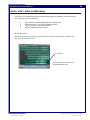
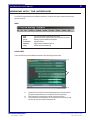
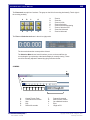
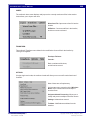
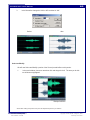
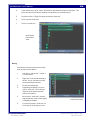
Make sure the CD Audio menu is enabled. To enable if it is not, go to the View menu,
and then choose “Show CD Player”.
CD Player
5.
The CD Player should display the number of tracks on the CD. Click on Track 1.
6.
If you double click on Track 1, or Press Play on the CD Player. The CD will start playing.
7.
Hit the stop button.
8.
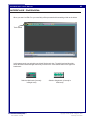
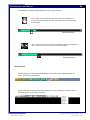
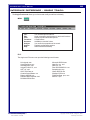
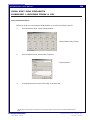
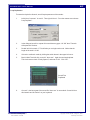
Go above the CD player and hit the Record
button on the playback menu.
Record
9.
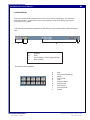
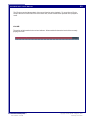
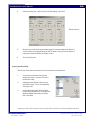
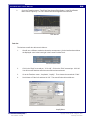
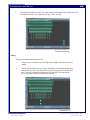
A context menu will appear “Recording Time”. Set its parameters to “No Time Limit”,
and “Right Away”, and then hit “OK”.
Recording Time
10.
Quickly start jump back to the CD Menu, and
press play.
11.
Let the CD play for a few seconds. Then hit
the Stop button on the CD player.
12.
Jump to the Record button on the Playback
menu, and also hit stop.
13.
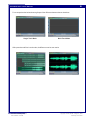
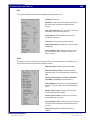
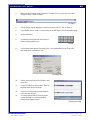
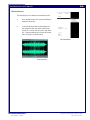
You can playback what you have by pressing the spacebar, or by hitting the Play
button on the Playback menu.
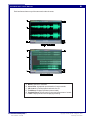
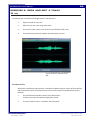
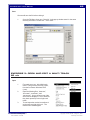
Resulting recording
File name: CoolEdit_User.pmd
Last modified: 03/06/02
Copyright Arizona Board of Regents, 2002
University of Arizona