1
•
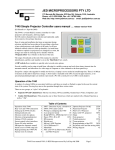
A Relays window, in which the state of 2 or 3 relays are shown, as well as their function allocation. (Relays 1
and 2 are only usable if the –R2 option has been ordered. Relay3 does not need a special order. A relay which
has had an active allocation has its box set to red. An unallocated relay is shown boxed in green.
If a relay application needs two relays (e.g. a screen control function which uses one relay for “Screen Down”
and second one for ‘Screen Up”, the next relay in sequence is allocated automatically. (Relay 3 is only active if
it has been selected as the valid state in the RES pin selection above.)
Set Configuration
As part of the setup process, data can be selected or entered into any of the above windows to suit the particular
installation, and the Set Configuration button clicked to transfer the setup to the T470 currently connected.
Source allocations: Clicking on a “Source Key” will pop up a list of provided source messages by name and by
number 0->F. Any one of these can be selected and “OK” will allocate this, which is then shown below that source key.
One function which updates and displays a Device ID string immediately are the < and > arrows either side of the
Device ID window which will only display valid entries in the device database. After stepping to the desired device,
press “Get Config” which will update the source labels on the keyboard with sources named as appropriate to the new
device code.
(The functions of each of these windows is described in the on-line “Help” at the top left of the config. Utility.)
After changing any selection/value, press “Set Config.” To update the controller, and “Get Config.” To verify the
setting went through correctly (e.g. an invalid code was not attempted to be set.)
Factory Reset (to a phantom/demo/training mode)
Clicking on “Factory Reset” will select a default “phantom” display device, Code: 0000h which is quite useful for demo
and testing purposes. It sets valid English language messages (and a number) for all sources, and when in monitor mode
(see next) will transmit them at 9600 baud. Default times, etc are set up as well. English demo display text also are sent
for volume, blank/mute TV channel change messages, etc.
Monitor button
Clicking on “Monitor” switches to a mode where a serial connection to the T470 is made as if the PC was a display
device and the T470 is reset (Red OFF LED illuminates).
The T470 shows the initial “Power Off” (usually twice) and a “PowerGet” command (used to verify communications,
and used to blink the red LED once (connect) or three times (No connect)
Baud rate, serial format and hex/ASCII mode is set up automatically to suit the data-base settings. ASCII data is shown
in text in blue, and in “ASCII” mode, hex data (such as CR and LF) are shown in red as hex between angled brackets,
e.g. <0D><0A>.
Each received string is placed on its own line with a time stamp. The break delay to a new line is controlled by the
“Break (ms)” window.
The T470 can be operated for a Complete Off press -> On-> run all sources/buttons -> Off cycle.
When finished in “Monitor” mode, press the T470 OFF button and allow it to close down. (Pressing Off and the button
above it simultaneously speeds up the “Closedown” time.) When the red LED is on and stable, click on “Setup” (top
left on monitor screen). Click on “Connect” to re-launch the Configuration Utility.
Update button
NOTE: A software update does NOT change any other settings.
This button allows the software in a T470 to be updated to a newer revision. Firstly the “Open” button should be used to
select the “.hex” file to be used. This file is on the JED web site, T470 page.
Updating is shown on the “progress” bar. The “Firmware Version” window shows a three-digit version number of
current software loaded.
File tab
A configuration can be read from an existing T470, saved under one name, an alteration made and tested,
and then the new configuration saved under a new name.
File tab | Open
This button allows an existing saved configuration for a T470 to be browsed to and opened. The file extension is “.cfg”.
The system will remember the last directory in use, and allows a user-set-up filing system, e.g. by campus, then by
wing, then by classroom.
T470 Part A User’s Manual V039 © JED Microprocessors Pty Ltd
Page 3