1
3.2.2. Project Membership
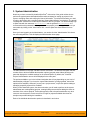
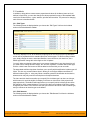
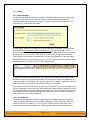
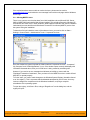
The following screen is displayed when you choose the “Project Membership” link from the
Administration sidebar navigation:
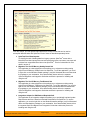
This screen displays the name of the current project together with a list of all the users who are
currently members of the project along with their currently assigned project role. If you want to
modify the membership for a different project, simply click the “Change Project” link to be take
back to View/Edit Projects screen where you can select a different project.
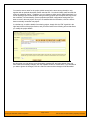
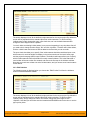
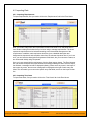
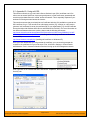
To add a user to the project, so that can access its information, simply click the <Add> button and
the new user membership form will be displayed below the user membership list:
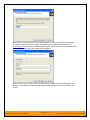
Choose the name of the user to add and the role you want him/her to play. Once you are
satisfied, click <Insert> to actually add the user, or <Cancel> if you want to return back to the
administration home page without making any changes.
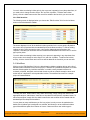
Similarly, to modify the role of a user assigned to the project, simply change the role for that
user’s entry in the drop-down menu and click the <Update> button.
To remove a user from the project, simply check the box to the left of the user’s name and click
the <Delete> button. Note that this only removes them from the project, not the entire system.
3.2.3. Active Sessions
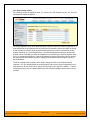
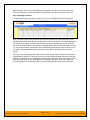
Often an administrator of the system will want to know how many users are currently logged into
the system, especially on installations licensed by concurrent-user. Clicking on the ‘Active User
Sessions’ administration option will display a list of all the users who currently have active
sessions in the system:
© Copyright 2006-2008, Inflectra Corporation
Page 20 of 53
This document contains Inflectra proprietary information