1
2.1. System Prerequisites
Assuming that you have already installed the appropriate version of Microsoft Windows onto your
computer (or that has been pre-installed for you), you need to then make sure that the various
prerequisites have been correctly added to your installation before trying to install SpiraTest®.
The SpiraTest® installer will check to ensure that the various prerequisites are in place, and will
abort the install if any are missing, indicating to the user what action needs to be taken.
We recommend that you install / configure the prerequisites in the following order:
h
Install SQL Server 2005 or 2000
h
Install Internet Explorer 7.0
h
Ensure that IIS is installed
h
Install the .NET Framework v2.0 or later
h
Ensure that ASP.NET 2.0 is installed
2.1.1. Install SQL Server 2005 or 2000
Install the appropriate version of the database software, following the instructions provided with
the installation. Note that during the installation, make sure that you choose “Mixed Mode”
authentication. This will allow you to log-in to the database using both Windows Integrated
Authentication (“Windows Logins”) and using SQL Server login/password authentication (“SQL
Server Logins”). This is important as SpiraTest® uses a SQL Server Login to access the
database.
We recommend SQL Server 2005® Express Edition® for most users. This free version of SQL
Server will offer sufficient performance for most installations and can be easily downloaded from
the Microsoft® web-site at http://msdn.microsoft.com/vstudio/express/sql/register/default.aspx.
2.1.2. Install Internet Explorer 7.0
Install the appropriate version of the browser, following the instructions provided with the
installation. You are free to use Internet Explorer, Mozilla Firefox, Apple Safari or Opera with
SpiraTest®. Other browsers (Netscape, Konqueror, etc.) may work with SpiraTest®, but they have
not been exhaustively tested for compatibility by Inflectra®.
2.1.3. Ensure that IIS is installed
On Windows Server installations, IIS is usually installed as part of the factory configuration,
whereas on Windows Vista and XP installations, you typically need to manually add the
components to the factory configuration.
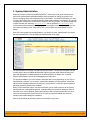
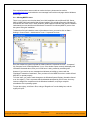
To check if you have IIS installed, click Start > Settings > Control Panel > Administrative Tools.
Under the “Administrative Tools folder”, you should see an icon for “Internet Information
Services”. If you don’t see this icon, then it means that you need to add IIS to your computer:
© Copyright 2006-2008, Inflectra Corporation
Page 3 of 53
This document contains Inflectra proprietary information