1
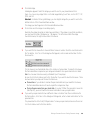
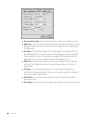
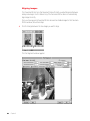
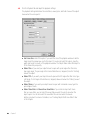
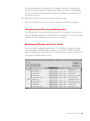
There are three reasons you may want to save the PICT file:
m To save time—If you save the PICT file and you later decide to remake your panorama, the
Panorama Stitcher skips the stitching step, so processing time is much shorter.
m To retouch the image—If you want to make changes to the image, you can change the
PICT file, then remake the panorama.
m To diagnose problems—If your panorama does not look the way you think it should, the
PICT file may help you determine the problem.
15
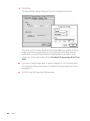
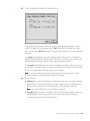
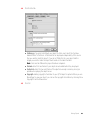
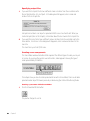
If you want the tile movie file to have a different name or location from the one listed next to
the Tile button, click Tile. In the dialog box that appears, enter a name and location for the
tile movie file.
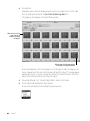
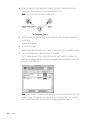
The tile movie is an intermediate step in the creation of a panorama. To make the tile movie,
the Panorama Stitcher creates a PICT image, then compresses it and divides it into equalsized sections called tiles. You can view a tile movie using a standard QuickTime player.
Be sure to click the checkbox next to the Tile button if you want to save the tile movie. There
are two reasons you may want to save the tile movie:
m To save time—If you decide to remake the panorama later and you saved the tile movie,
the Panorama Stitcher does not have to repeat the compression step.
m To play the panorama from your hard disk—If you don’t flatten the panoramic movie file
(see step 24), you must save the tile movie to be able to view your panorama.
16
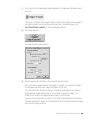
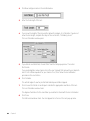
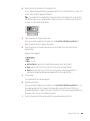
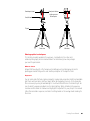
If you want your panorama to have a different name or location from the one listed next to
the Pano button, click Pano. In the dialog box that appears, enter a name and location for the
panorama file.
The panorama file is the final QTVR panorama. To save your panorama, make sure there’s an
X in the checkbox next to the Pano button.
17
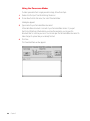
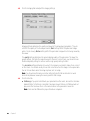
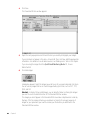
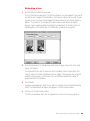
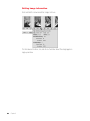
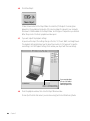
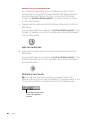
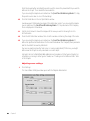
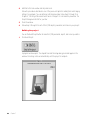
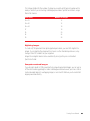
Click Settings.
The Stitch Settings window opens with the Image tab selected.
Stitching a Panorama From a Series of Images
27