1
LAPAC1750PRO Access Point Software User Manual
Section 3: Configuring the Access Point
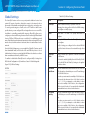
Global Settings
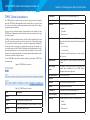
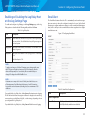
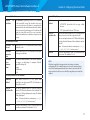
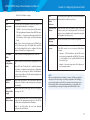
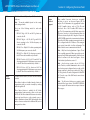
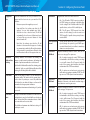
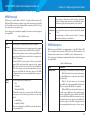
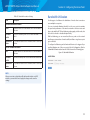
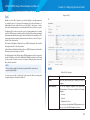
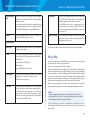
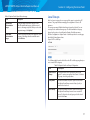
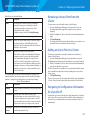
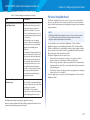
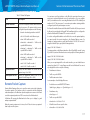
Table 45: QoS Global Settings
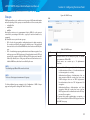
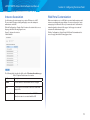
The client QoS features on the access point provide additional control over
certain QoS aspects of wireless clients that connect to the network, such as
the amount of bandwidth an individual client is allowed to send and receive.
To control general categories of traffic, such as HTTP traffic or traffic from a
specific subnet, you can configure ACLs and assign them to one or more VAPs.
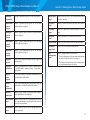
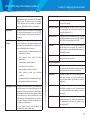
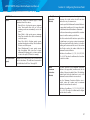
Field
Description
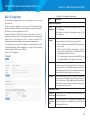
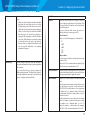
Client QoS
Enable or disable Client QoS operation on the AP.
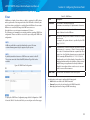
In addition to controlling general traffic categories, Client QoS allows you to
configure per-client conditioning of various micro-flows through Differentiated
Services (DiffServ). DiffServ policies are a useful tool for establishing general
micro-flow definition and treatment characteristics that can be applied to each
wireless client, both inbound and outbound, when it is authenticated on the
network.
Radio
Select Radio 1 or Radio 2 to specify which radio to
configure.
VAP
Specify the VAP that will have the Client QoS settings that
you configure.
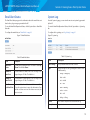
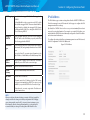
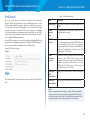
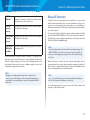
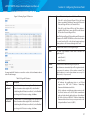
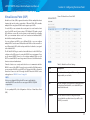
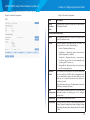
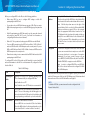
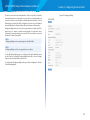
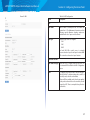
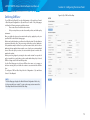
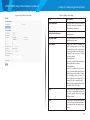
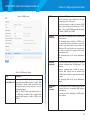
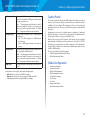
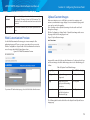
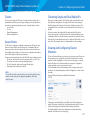
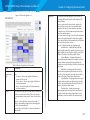
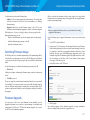
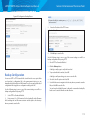
From the Global Settings page, you can enable the Client QoS feature, specify
client bandwidth limits, and select the ACLs and DiffServ policies to use as
default values for clients associated with the VAP when the client does not have
their own attributes defined by a RADIUS server.
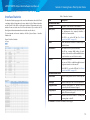
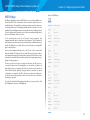
To enabled or disabled the Client QoS and to configure the QoS settings for a
VAP, click the Configuration > QoS and Access Control > Global Settings tab.
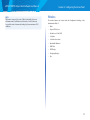
Changing this setting will not affect the WMM settings
you configure on the QoS page.
The QoS settings you configure for the selected VAP will
not affect clients that access the network through other
VAPs.
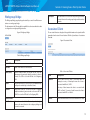
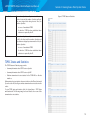
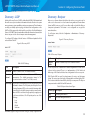
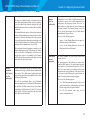
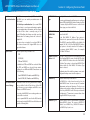
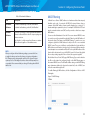
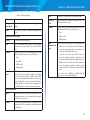
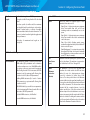
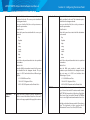
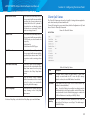
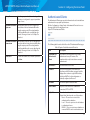
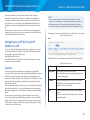
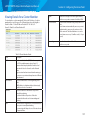
Client QoS
Mode
Enable or disable QoS operation on the VAP selected in
the VAP menu.
QoS must be enabled globally (from the Client QoS field)
and on the VAP for the Client QoS settings to be applied
to wireless clients.
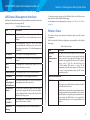
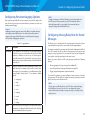
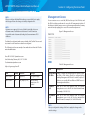
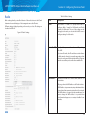
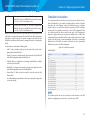
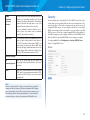
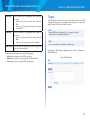
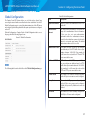
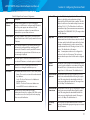
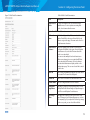
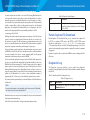
Figure 37: QoS Global Settings
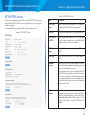
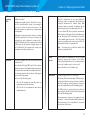
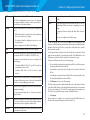
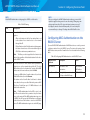
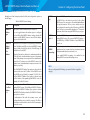
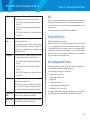
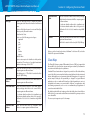
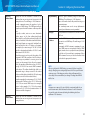
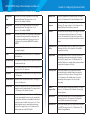
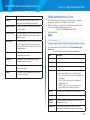
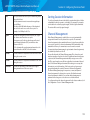
Bandwidth
Limit Down
Enter the maximum allowed transmission rate from the
AP to the wireless client in bits per second. The valid range
is 0–429496000 bits/sec.
The value you enter must be a multiple of 8000 bits/sec, in
other words, the value must be n × 8000 bits/sec, where
n = 0, 1, 2, 3... If you attempt to set the limit to a value
that is not a multiple of 8000 bits/sec, the configuration
will be rejected. A value of 0 means that the bandwidth
maximum limit is not enforced in this direction.
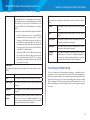
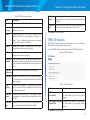
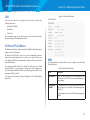
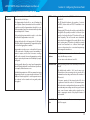
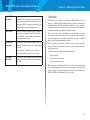
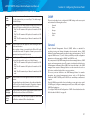
Bandwidth
Limit Up
Enter the maximum allowed client transmission rate to
the AP in bits per second. The valid range is 0–4294967295
bps.
The value you enter must be n × 8000 bits/sec, where
n = 0, 1, 2, 3... If you attempt to set the limit to a value
that is not a multiple of 8000 bits/sec, the configuration
will be rejected. A value of 0 means that the bandwidth
maximum limit is not enforced in this direction.
67