1
LAPAC1750PRO Access Point Software User Manual
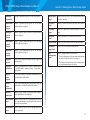
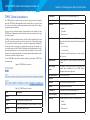
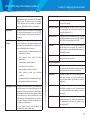
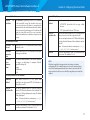
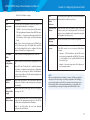
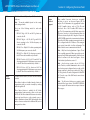
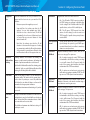
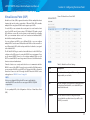
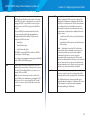
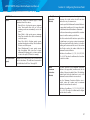
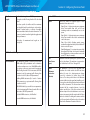
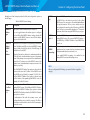
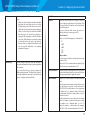
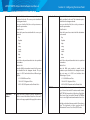
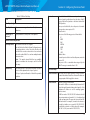
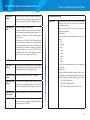
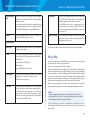
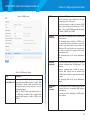
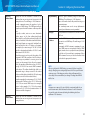
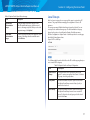
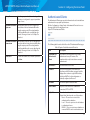
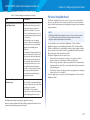
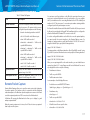
Table 11: TSPEC Status and Statistics
Field
Description
Interface
Indicates the name of the Radio or VAP interface.
Access
Category
Indicates Current Access Category associated with this Traffic
Stream (voice or video).
Status
Indicates whether the TSPEC session is enabled (up) or
disabled (down) for the corresponding Access Category.
Note: This is a configuration status (does not necessarily
represent the current session activity).
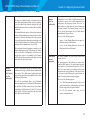
Active TS
Indicates the number of currently active TSPEC Traffic
Streams for this radio and Access Category.
TS Clients
Indicates the number of Traffic Stream clients associated
with this radio and Access Category.
Med. Time
Admitted
Time allocated for this Access Category over the transmission
medium to carry data. This value should be less than or equal
to the maximum bandwidth allowed over the medium for
this TS.
Med. Time
Unallocated
Time of unused bandwidth for this Access Category.
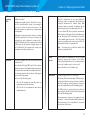
Total Bytes
Indicates the total number of TS bytes sent (in Transmit table)
or received (in Received table) by this Radio for the specified
Access Category.
Total
Packets
Indicates the total number of TS packets sent (in Transmit
table) or received (in Received table) by this Radio for the
specified Access Category.
Total Voice
Packets
Indicates the total number of TS voice packets sent (in
Transmit table) or received (in Received table) by this AP for
this VAP.
Total Voice
Bytes
Indicates the total TS voice bytes sent (in Transmit table) or
received (in Received table) by this AP for this VAP.
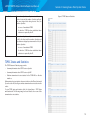
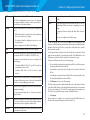
Section 2: Viewing Access Point System Status
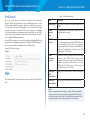
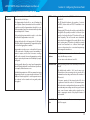
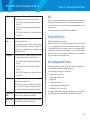
Total Video
Packets
Indicates the total number of TS video packets sent (in
Transmit table) or received (in Received table) by this AP for
this VAP.
Total Video
Bytes
Indicates the total TS video bytes sent (in Transmit table) or
received (in Received table) by this AP for this VAP.
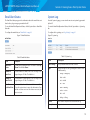
Click Refresh to refresh the page.
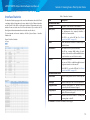
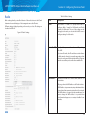
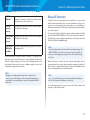
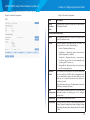
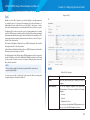
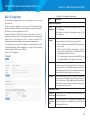
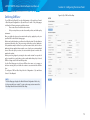
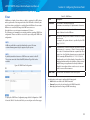
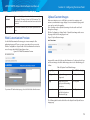
TSPEC AP Statistics
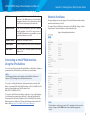
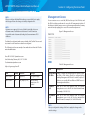
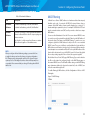
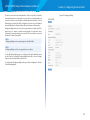
The TSPEC AP Statistics page provides information on the voice and video
Traffic Streams accepted and rejected by the AP.
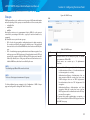
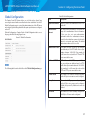
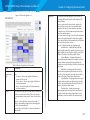
To view TSPEC AP statistics, click the System Status > TSPEC AP Statistics tab.
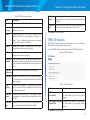
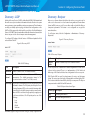
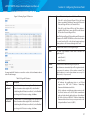
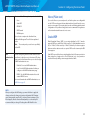
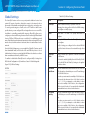
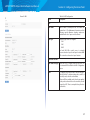
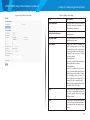
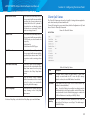
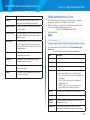
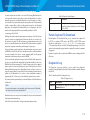
Figure 10: TSPEC AP Statistics
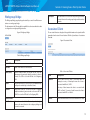
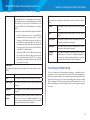
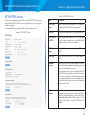
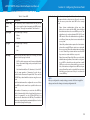
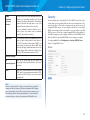
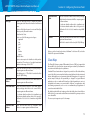
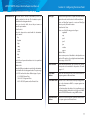
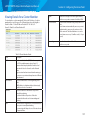
Table 12: TSPEC AP Statistics
Field
Description
TSPEC Statistics Summary Indicates the total number of accepted and
for Voice ACM
the total number of rejected voice Traffic
Streams.
TSPEC Statistics Summary Indicates the total number of accepted and
for Video ACM
the total number of rejected video Traffic
Streams.
Click Refresh to refresh the page.
17