1
Printer Status and Printer Messages
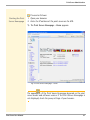
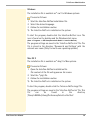
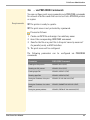
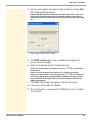
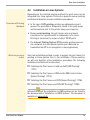
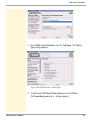
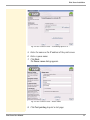
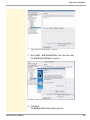
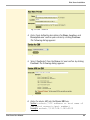
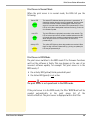
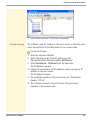
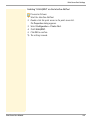
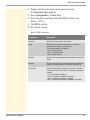
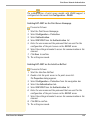
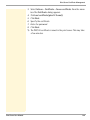
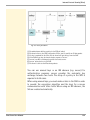
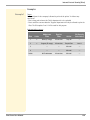
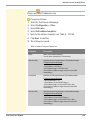
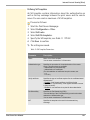
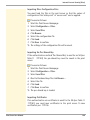
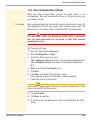
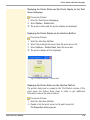
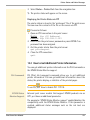
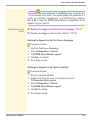
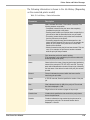
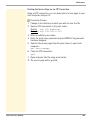
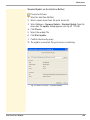
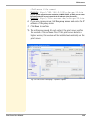
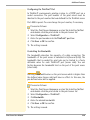
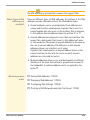
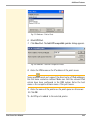
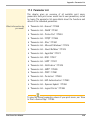
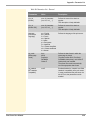
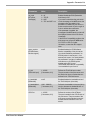
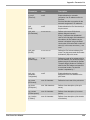
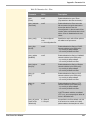
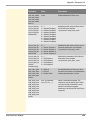
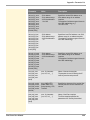
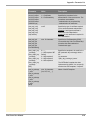
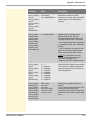
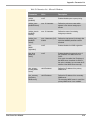
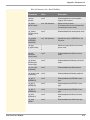
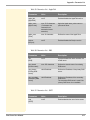
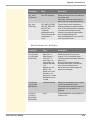
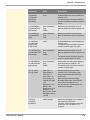
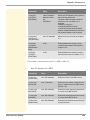
3. Select Status – Printer Port from the navigation bar.
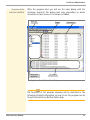
ª The printer status will appear on the screen.
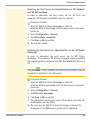
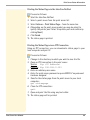
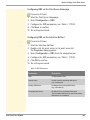
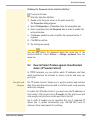
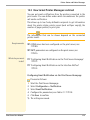
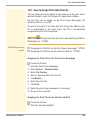
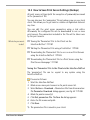
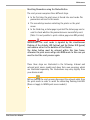
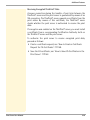
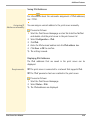
Displaying the Printer Status via FTP
The printer status is stored in the 'printerport' file of the print server.
You can view the contents of the file on the screen via FTP.
1.
2.
3.
4.
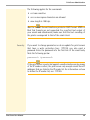
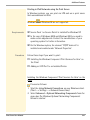
Proceed as follows:
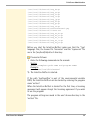
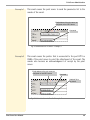
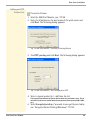
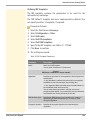
Open an FTP connection to the print server:
Syntax: ftp <IP Address>
Example: ftp 192.168.0.123
Enter either the print server password or press ENTER if no
password has been assigned.
Get the printer status from the print server:
get printerport
Close the FTP connection:
quit
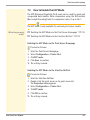
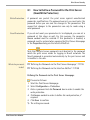
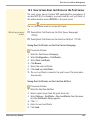
12.2 How to Get Additional Printer Information
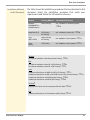
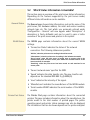
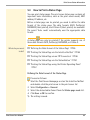
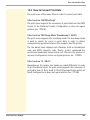
You can get additional printer information via the PJL Commands or
the EPSON Status Monitor support.
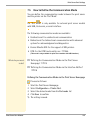
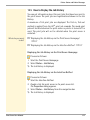
PJL Commands
PJL (Print Job Language) commands allow you to get additional
printer information. You can get additional information about the
status, the printer display, or statistics of the printed pages.
To use PJL; see: ’How to Enable PJL’ Ö110.
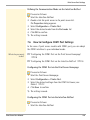
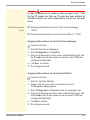
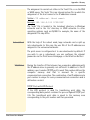
EPSON Status
Monitor Support
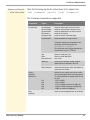
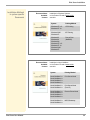
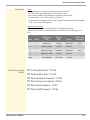
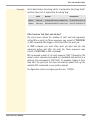
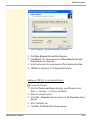
External print server models that support EPSON products via an
LPT1 port have an additional parameter.
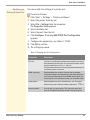
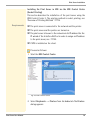
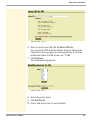
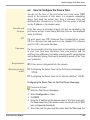
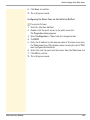
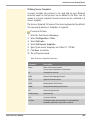
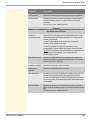
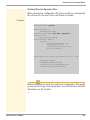
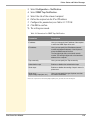
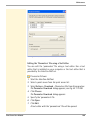
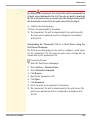
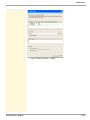
The parameter 'EPSON Status Monitor support' enables/disables the
compatibility with the EPSON Status Monitor. If this parameter is
enabled, additional status messages such as the ink level are
displayed.
Print Server User Manual
171