1
196
Dynamic Commands: Special Considerations
The dynamic commands include <DELAY> and <BEEP>. The <AUDIO> command is dynamic, as
well as the <VIDEO> command. They are discussed in the section Media Commands. If any of these
commands are directed to a window which is not on the screen, they and any subsequent text or
commands sent to that window are put on hold until that window is displayed to the student. Therefore,
an author must be sure not to put any commands in these windows which WinCALIS is meant to
execute immediately.
The Interactive (Question) Window and Presentation (Text) Window, if one exists, are always treated
as if they are displayed. No hold is ever created for them. Basically, we are concerned with the
windows that are popped up or can be popped up by the student: the Directions, Feedback Diagnostic
and F1-F10 Tutorial Windows.
Commands that redirect WinCALIS (<DIR>, <Q>, <T>, <D>, <F1>...<F10>) to other windows are
never put in hold, but instead are executed immediately. Use them freely to keep your lessons in order.
On the other hand, WinCALIS commands that act on another window without actually switching to it
(e.g., <BLANK F8>, <CUR: DIR marklabel>) are put on hold and will not be executed until the hold
window is accessed by the student.
For example, if the command <CLEAR: F8> appears in a series of commands being sent to the F7
window, and F7 had previously been issued a dynamic command, the command <CLEAR: F8> would
not be executed until the F7 window was opened (either by the author, or by the student pressing the
Shift+F7 key combination). If the author wishes the F8 window to be cleared before this, the F8
window should be accessed directly: <F8><CLEAR>.
The <BLANK> command is somewhat of an exception. If a <BLANK> command is sent to a window
on hold, it is acted upon immediately: the window and the hold are blanked (even if the student has yet
to see the contents). However, if it is meant to act on another window the command will be kept on
hold until the window it is written to is opened. For example, if the command <BLANK F8> is
directed to the F7 window, and the F7 window had previously been issued a dynamic command, the
<BLANK F8> command would remain on hold until the F7 window was opened.
Special Responses
In WinCALIS, certain keys have a special significance. Pressing the F9 key will pop up the latest
Popup (Directions) Window; pressing the Shift key in combination with one of the first ten function
keys, allows the student to consult a Tutorial Window. Four keys that the student will use often are the
ENTER key (sometimes called RETURN or carriage return), the Giveup key (F6) and the Pass keys
(the gray + and - keys on the numeric keypad of the keyboard or Ctrl+PageDown and Ctrl+PageUp).
Moreover, in WinCALIS authors have the option of specifying tasks in which students respond by
clicking the mouse. And if necessary key combinations can be given a special status. When authors
need to present special feedback in conjunction with these particular keys (the mouse or a defined key
combination) special responses can be included in anticipated Correct/Continue, Incorrect/Remain
Here, and neutral answer lines. This section explains how to use the special responses.
Note: All CALIS commands, options, and special responses are composed of one or more key words in capital
letters, surrounded by opening and closing angle brackets (< >), and separated by one or more delimiters.
Pressing a Button
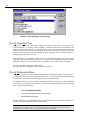
<BUTTON name [CLICKED|CHECKED|UNCHECKED]>
no abbreviation