1
Chapter 5:
The CALIScript Language
167
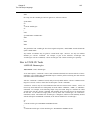
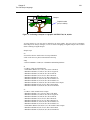
The first parameter, “33” informs WinCALIS that the top of the window should be located 33% down
from the top of the screen. The second “33” causes the left border of the window to appear 33% of the
screen from the left-hand side of the screen. The first “66” parameter tells WinCALIS to locate the
bottom border of the window 66% down from the top of the screen. The last parameter causes the righthand side of the window to appear 66% from the left-hand side of the screen.
The [W] option again offers the opportunity to define the window the sizing should be applied to. If not
specified, WinCALIS will apply the sizing to the window that you are currently editing in WinCALIS
Author, for example, to the Popup (Directions) Window when you enter the <SIZE:
top,left,bottom,right> in the Popup (Directions) Window. For example:
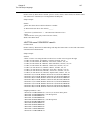
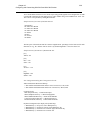
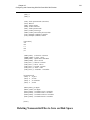
#window-size
/<BLA><SIZE 0,0,50,50><SET BC CYAN>
/<CUR:4,> <CE>This Text Window takes up
/<CE>one half of the total screen.
?<BLA>
?<SET FS MEDIUM><CE>Which corner is taken
?by the Presentation (Text) Window?
?
?<TAB:4>(a) upper left
?<TAB:4>(b) upper right
?<TAB:4>(c) lower right
?<TAB:4>(d) lower left
?
?<CE><M:prompt> <CUR:prompt>
+a;<CE>Correct
-b;<SIZE T 0,50,50,100><CE>Incorrect, this is the
&upper right corner
-c;<SIZE T 50,50,100,100><CE>Incorrect, this is the
&lower right corner
-d;<SIZE T 50,0,100,50><CE>Incorrect, this is the
&lower right corner
Remember that when you size the Presentation (Text) Window, you may also have to size the Interactive
(Question) Window
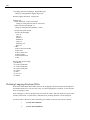
In the above example, the Presentation (Text) Window initially takes up the upper left corner of the
screen. Pressing “b” as a student response will cause WinCALIS to display the Presentation (Text)
Window at the upper right corner, while the message “Incorrect, this is the upper right corner” is
displayed in the D Box. After pressing the spacebar, the Presentation (Text) Window is displayed in the
upper left corner again. This occurs because WinCALIS repeats the entire task (including the
Presentation (Text) Window lines). The <SIZE: top,left,bottom,right> command remains active until
another <SIZE: top,left,bottom,right> command is encountered in the script.
Importing Other Files into WinCALIS
You have seen how the various window-switching commands allow the author to direct text to various
WinCALIS windows. Up to this point, however, all text that went into these windows had to be present
in the WinCALIS script. There are times when an author will want to use the same text for various
lessons, as is often the case with basic tutorial screens. WinCALIS provides a way to import other
DOS text files into the lesson. This is done with <IMPORT> command. The basic structure of this
command is:
<IMPORT [W] filename.ext>