1
Chapter 5:
The CALIScript Language
205
Clicking the Mouse
Using WinCALIS, you can design a task that the student completes by using the mouse to point and
click on a region of the screen which you have previously defined, known as a hotspot. This is done
using the <MARK:x> and <MARK:y> commands and the special response:
<MOUSE x y>
no abbreviation
Parameters (x y): Parameters x and y should refer to the upper left-hand and lower right-hand corners
of the region in which a student may point and click to give an answer. These corners are defined by
means of the <MARK:x> command.
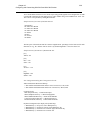
WinCALIS will allow an author to define text as a hotspot, i.e., a region that can be clicked with the
mouse as a student response. The upper left and lower right corners are specified by means of a
<MARK: x> and <MARK: y> special response. Consider the following example:
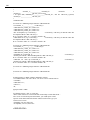
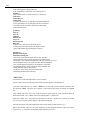
#mouse
!Point and click on the US capital.
? <M:p1>Paris<M:p2>
? <M:w1>Washington<M:w2>
? <M:l1>Lima<M:l2>
+<MOUSE w1 w2>;Very Good!
-<MOUSE p1 p2>;Paris is the capital of France.
-<MOUSE l1 l2>;Lima is the capital of Peru.
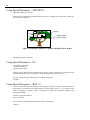
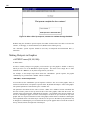
The <MARK> command is used to define the area in the Interactive (Question) Window where the
student can point and click using the mouse to answer a question. The special response <MOUSE x y>
is used to define how these answers will be judged and what action will follow them. The two “marks”
specified by means of the <MARK> command define the upper left-hand and lower right-hand corners
of the region in which a student may point and click to give an answer. This may be a single character,
a line or a much larger area. When the student moves the cursor over an area which has been marked
in the manner described above the cursor changes from an arrow to a pointing hand.
One Special Response OR Another
<OR>
no abbreviation
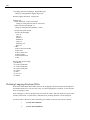
The <OR> Special Response operator is a special kind of Special Response. It was added in order to
make authoring even easier. In some instances you may want WinCALIS to respond exactly the same
way to two or more events, such as the click of the mouse on a certain hot link or the press of a certain
key. You can use the <OR> Special Response to anticipate these two events in a single answer by
linking two Special Responses with <OR>.
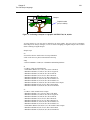
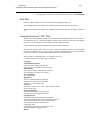
Interactive (Question) Window:
Click <M:s1>Start<M:s2> or press 's' to begin this session.
Correct/Continue Anticipated Response (Short Answer format tasks):
<MOUSE:s1 s2><OR><KEY 's'>