1
247
Chapter 6:
Multimedia in WinCALIS
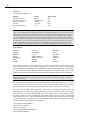
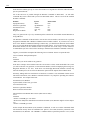
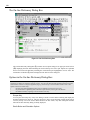
Note: If you select the Full Screen option, the Location buttons will be dimmed. This occurs simply because if
you want the image to appear on the entire screen, you cannot specify a location.
Location
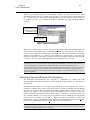
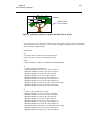
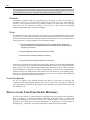
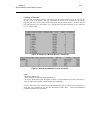
You use the Location option to specify the area on the screen in which you would like the clip to
appear. You may specify Top Left, Top Center, Top Right, Center, Lower Left, Lower Center, or
Lower Right. If you click on the Specify Location button, it will open a Specify Location dialog box,
in which you will be able to determine the location of the clip on-screen with more accuracy, while
using the size selected in the Size box. For the most flexibility, the Customize Area option enables you
to define the size, shape, and location (see Size above).
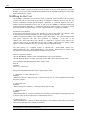
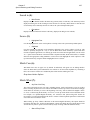
Play
The Play box provides you with the option of playing and hiding the clip, playing and freezing it, or
playing Audio Only. The Play/Hide option causes the image to disappear whenever the clip is stopped
(by the student, if he or she has control) or when it has reached completion. The Play/Freeze option
will freeze that image when it is stopped by the student, and also when it has reached the final frame.
Audio
The Audio option allows you to specify which audio track, if there is more than one, to play along with
the video clip, or to play it without sound.
Video
You may specify to which port the desired external device is connected, if there is more than one.
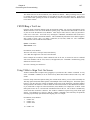
Zoom Image
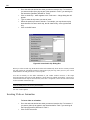
This option enables you to crop your image as you would a photograph. If you click on the Zoom
Image button, it will open a Zoom Image dialog box, in which you will be able to specify the portion of
the image to show. You could, for instance, choose to focus on one aspect of the image in your clip
using this feature. Or you could mask out subtitles by cropping the bottom of the image.
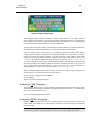
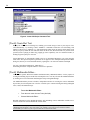
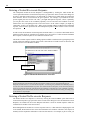
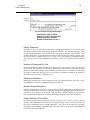
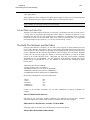
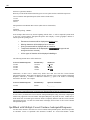
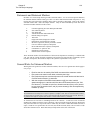
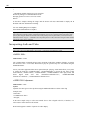
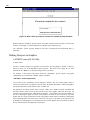
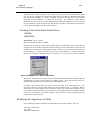
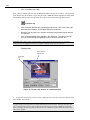
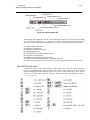
MCI Control / Media Controls Bar
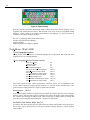
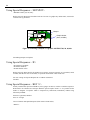
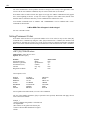
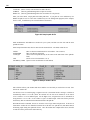
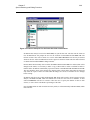
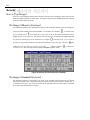
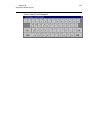
Figure 24: MCI Control Bar / Media Controls
When enabled, this option allows the student to manipulate the clip. He or she can play, pause, stop,
fast-forward and rewind the image when this toolbar is showing. The student enables this option in
WinCALIS under the Options menu.
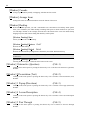
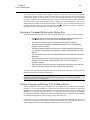
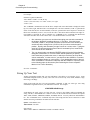
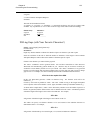
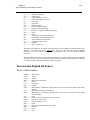
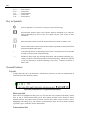
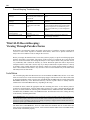
The default values for a video or an animation clip are as follows:
· Size:
Quarter Screen
· Location:
Center
· Play:
Play/Hide
· Audio:
Both Tracks
· Video:
COM1 (when external video devices are connected
to COM ports)
· Crop Image:
100% of the image