1
4.
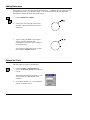
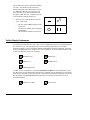
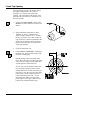
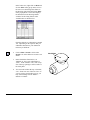
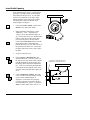
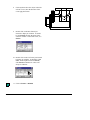
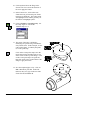
Click on Draw > Sketch Circle. Using the
center point of the circle shown, click on
the center point and drag the cursor away
from the center point and click to place the
circle, making sure that your radius of the
new circle is not the same size as the circle
whose center point you are using.
Otherwise, the circle you are inserting will
be constrained to equal radius.
5.
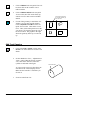
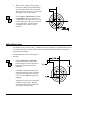
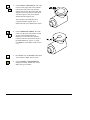
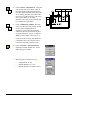
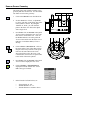
Click on Dimension > Radial. Wave the
cursor over the circle until it turns red and
an echo of the radial dimension is
displayed. Click on the circle, drag the
cursor to locate the text and click to place
the radial dimension. Type in .5 and press
Enter to set the radius of the circle to .5.
It isn’t necessary to assign any additional
constraints to the circle, because it has a
concentric constraint to the first circle.
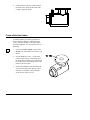
6.
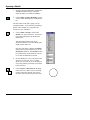
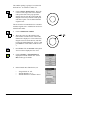
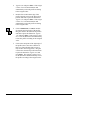
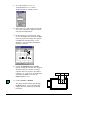
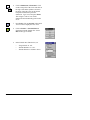
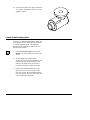
Click on Feature > Extrude Sketch to
display the Extrude function box. Select
Cut as the type of extrude.
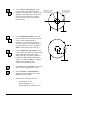
7.
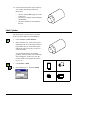
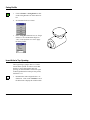
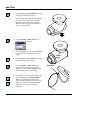
In the Extrude Cut function box, set:
•
•
•
CADMAX User's Manual
-Target Solids? to ‘All’
-Extrude Distance? to ‘10.3’
-Extrude Extent? to ‘Distance Above’
Solids Tutorial / 21