1
ACTIVE AERO DESKTOP RECORDING
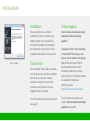
Introduction
Windows Aero desktop must be
enabled to perform desktop
recording. Active desktop recording
mode allows to record everything
that happens on your desktop: all
applications, all windows and user
actions. You can record live audio
commentary and create tutorials
with ease.
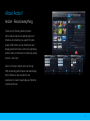
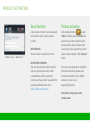
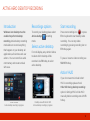
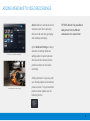
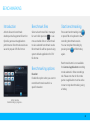
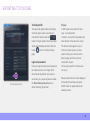
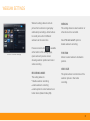
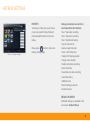
Action! window
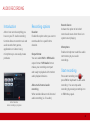
Active desktop recording in progress
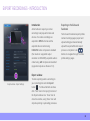
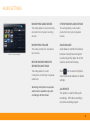
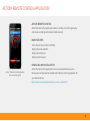
Recordings options
To record your desktop please select
Active desktop
recording
mode.
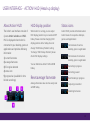
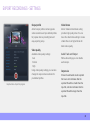
Select active desktop
For multi-display setup Action! allows
to select which desktop will be
recorded. Use F8 hotkey to select
active desktop.
Start recording
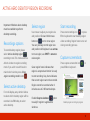
Press start recording icon
or press
F9 on keyboard to start desktop video
recording. You can stop video
recording by pressing recording icon or
F9 hotkey again.
To pause / resume video recording use
Shift+F9 hotkey.
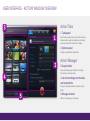
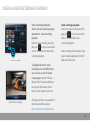
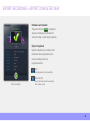
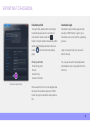
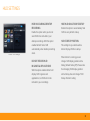
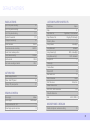
Action! HUD
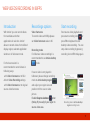
Desktop view with Action! HUD
Active desktop recording in progress
If you do not want to include Action!
HUD in recordings please check
Hide HUD during desktop recording
option in Settings/HUD or hide HUD
manually before recording start with F6
hotkey.
14