1
User Interface
Sidebars
47
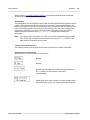
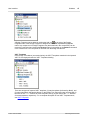
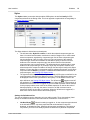
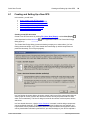
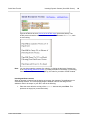
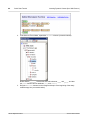
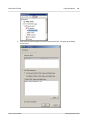
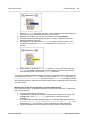
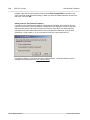
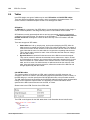
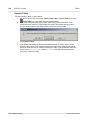
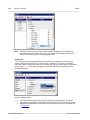
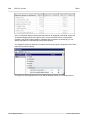
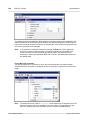
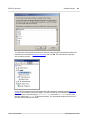
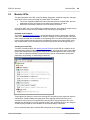
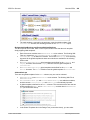
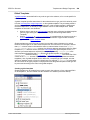
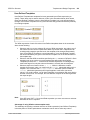
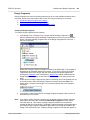
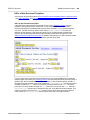
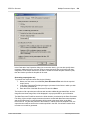
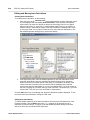
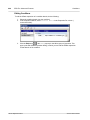
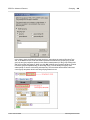
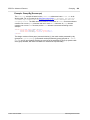
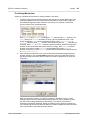
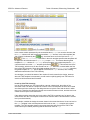
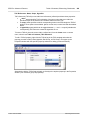
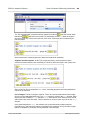
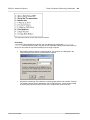
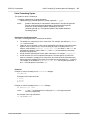
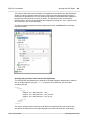
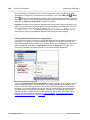
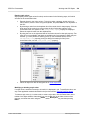
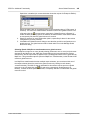
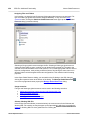
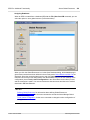
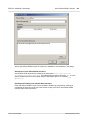
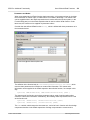
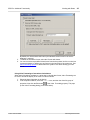
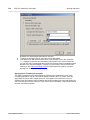
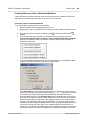
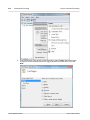
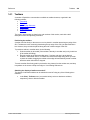
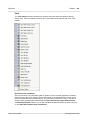
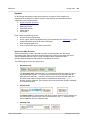
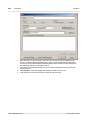
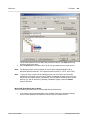
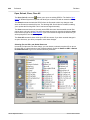
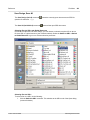
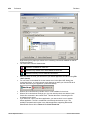
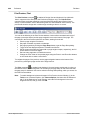
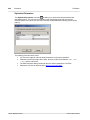
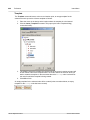
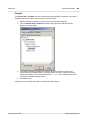
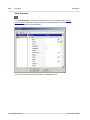
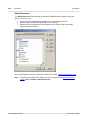
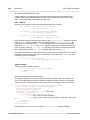
A Design Fragment can be added by clicking the Add icon
to the right of the Design
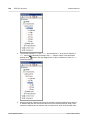
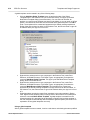
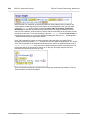
Fragments item. Each Design Fragment is designed as a tree with expandable/collapsible
nodes. Any component in a Design Fragment tree (that is defined in the current SPS) can be
removed by selecting it and clicking the Remove button in the toolbar or the Remove command
in the context menu. The component is removed from the design and the tree.
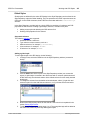
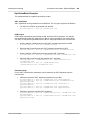
XSLT Templates
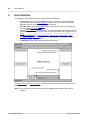
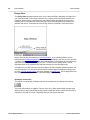
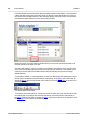
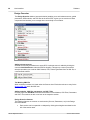
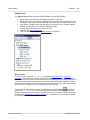
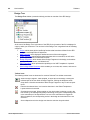
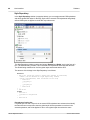
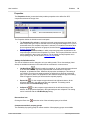
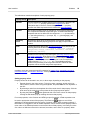
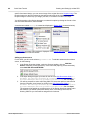
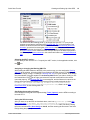
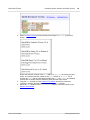
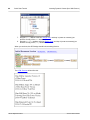
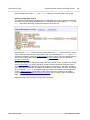
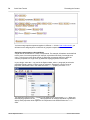
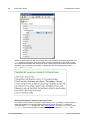
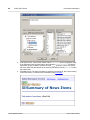
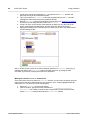
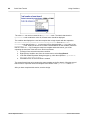
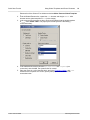
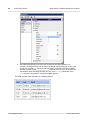
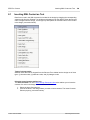
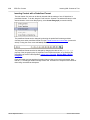
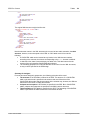
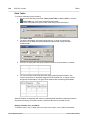
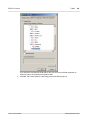
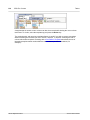
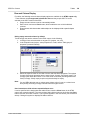
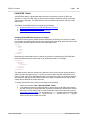
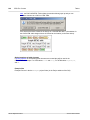
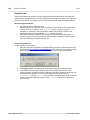
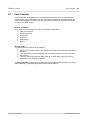
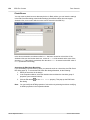
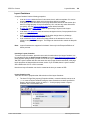
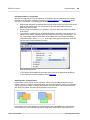
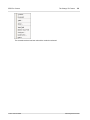
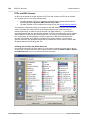
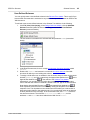
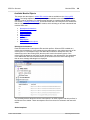
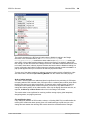
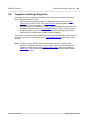
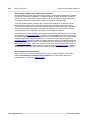
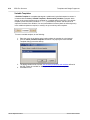
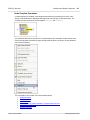
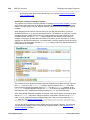
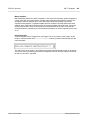
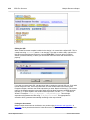
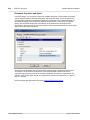
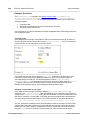
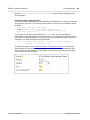
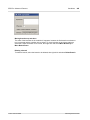
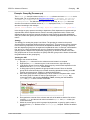
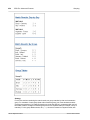
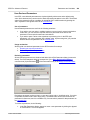
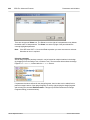
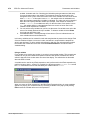
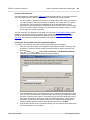
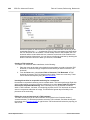
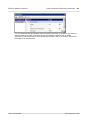
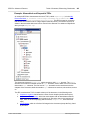
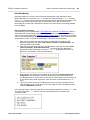
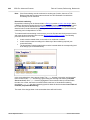
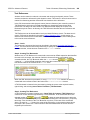
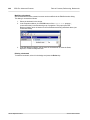
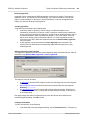
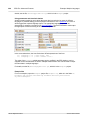
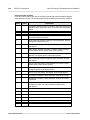
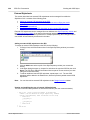
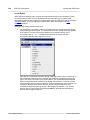
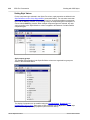
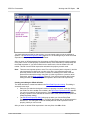
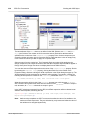
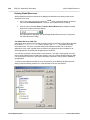
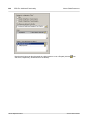
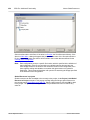
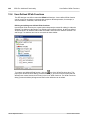
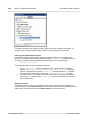
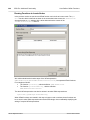
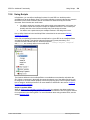
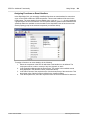
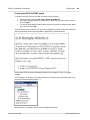
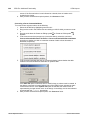
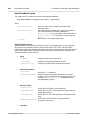
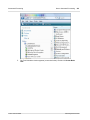
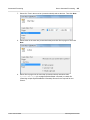
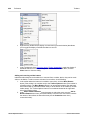
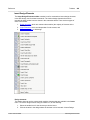
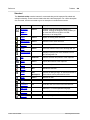
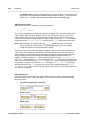
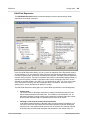
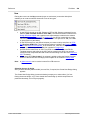
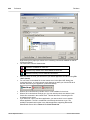
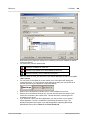
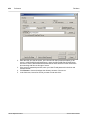
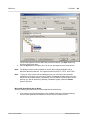
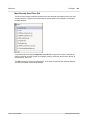
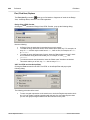
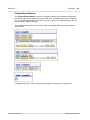
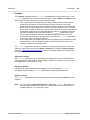
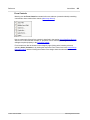
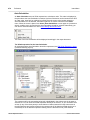
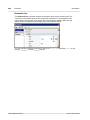
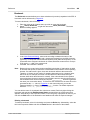
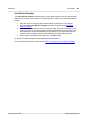
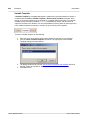
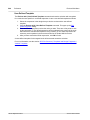
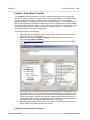
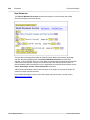
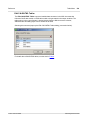
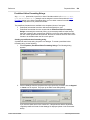
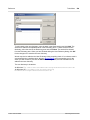
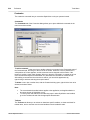
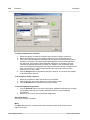
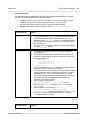
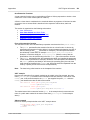
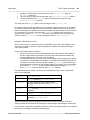
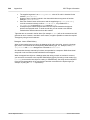
In the Design Tree sidebar (screenshot below), the XSLT Templates contained in the imported
XSLT file are displayed under the XSLT Templates heading.
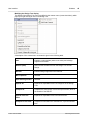
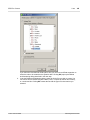
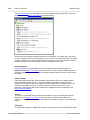
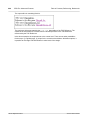
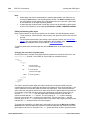
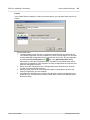
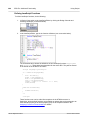
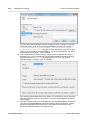
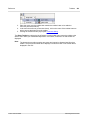
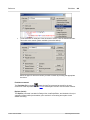
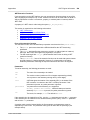
There are two types of imported XSLT templates: (i) match templates (indicated by Match), and
(ii) named templates (indicated by Name). In the Design Tree, these two types are listed with (i)
the value of the select attribute of match templates, and (ii) by the value of the name attribute
of named templates, respectively. For a complete description of how XSLT Templates work,
see XSLT Templates.
© 2011 Altova GmbH
Altova StyleVision 2012