1
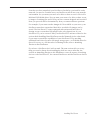
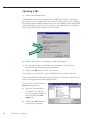
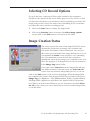
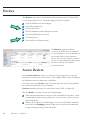
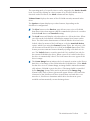
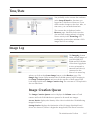
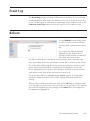
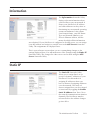
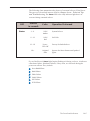
volumes to which the user has been given Read rights will display on the Browse page. If the Automatic Guest Login is left at the default Yes, any user attempting to gain access to DiscZervers Web browser interface will be treated as a Guest. Only those volumes that have been assigned guest Read privileges will be displayed on the Browse page. This gives you a second level of security or control over CD volume access. Casual users have easy access to designated, general interest CD volumes. The users who want to get to the next level must click on the Login icon and provide their user names and passwords. Authenticated users will then gain access to the CD volumes to which they have been given Read rights. The Browse Page The Browse page is the CD access page of the DiscZerver Web browser. Users can browse CD volumes and navigate through directories to open or download files. CD volumes can be CD images stored on an internal or external hard drive attached to DiscZerver, or actual CD-ROMs mounted in attached CD-ROM drives. The process of mounting, or publishing, a CD-ROM is automated so that as soon as it is loaded in the CD-ROM drive, the CD-ROM is mounted. The volume label of a CD is taken from the CD primary volume descriptor and is the name that initially identifies the CD. Some CDs do not include a volume name on the CD. In those cases, DiscZerver gives the CD the volume name NO_LABEL_nnn, where the Ns represent a number. Finally, the volume label can be a name given to the CD by the DiscZerver admin. As admin, you will probably want to rename those CDs that have obscure volume names that look like some kind of code, and those that have no names at all. You can use the Volumes System Utility to change the volume name. n Ico Users browse a CD by clicking on the CD icon or on the volume label. The CD directory structure is displayed on the CD Browse directory view page. Files on the CD are accessed in much the same way they are in File Manager or Windows Explorer, by drilling down through the directory structure to the file. lu Vo me La be l Notice in the upper left-hand corner of the Browse directory view page, below the CD volume label, the path is tracked as you move through the directory tree. You can move to other branches by clicking on the folder icon, or on the name of the directory. When you find the file you want, you have the option of opening it, or downloading it and saving it to disk. Accessing Networked CDs 79