1
PREFERENCE LISTS | PAGE 6 of 12
Job Visibility
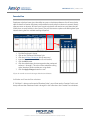
You can set a default for the list and override individual subs if necessary. These settings apply
only to a particular sub’s access to this school or schools/employees grouped under this selected
school.
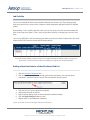
By overriding a sub’s visibility with low values you can also set up subs that are not excluded, but
who are one step away from it. That is, they can go there, but only as the job gets near to its start
time.
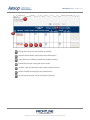
You can also EXCLUDE a sub from viewing jobs from this particular school. Simply click in the circle
under the EXCLUDE column instead of the Include column.
A sub with override visibility settings entered. These setting will override the default visibility settings for this
preference list. In this case 20% would be the visibility percentage for this sub rather than 85%
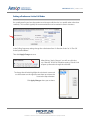
Adding a New Substitute to a School Preferred Sub List
1. Click the Add New Substitutes link
2. Click on the alphabet letter representing the desired substitute’s last name (or enter
substitute’s last name into the “Search” box and click the Search button)
3.
4.
5.
6.
7.
Click the “On List” box to select the substitute
Select either Exclude or Include
Enter override settings if you wish to override the default visibility
Click the Apply Changes button to save*
Repeat Steps 2-6 for additional substitutes
*If you do not wish to save the changes click the Cancel button.
April - ©2013 Frontline Technologies, Inc.
Confidential - Information in this document should not be distributed unless explicitly authorized.