1
Adding A Folder
User must have a teacher plus account and have navigated already to the desired course page
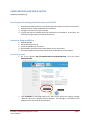
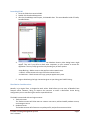
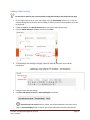
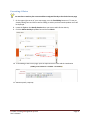
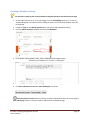
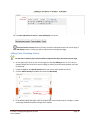
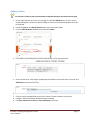
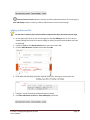
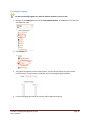
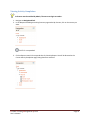
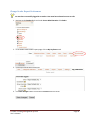
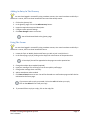
1. On the upper right corner of your course page, turn the Turn Editing button on if it’s not yet
already. Editing icons and links as well as adding an activity and resources dropdown menu will
be displayed.
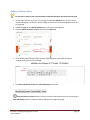
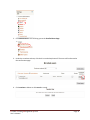
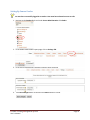
2. Locate the Topic or the Weekly Section where you want to add a folder
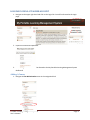
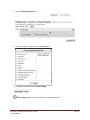
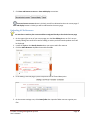
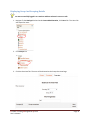
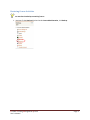
3. Click the Add a Resource dropdown box and choose Folder
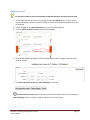
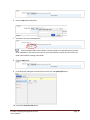
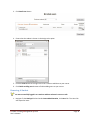
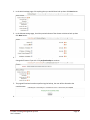
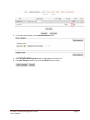
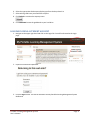
4. In the adding a new folder page, input the required name of file and description.
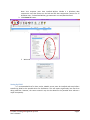
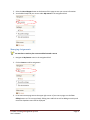
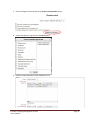
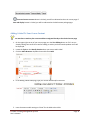
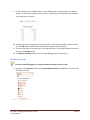
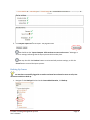
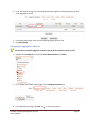
5. On the content area, either drag a zipped/compressed folder into the box with an arrow or click
Add button to open the File Picker.
6.
7.
8.
9.
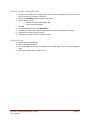
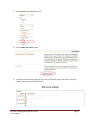
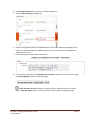
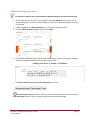
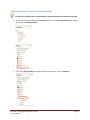
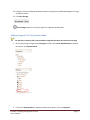
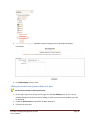
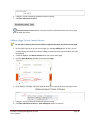
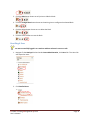
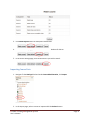
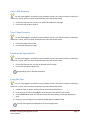
When the folder thumbnail appears, click on it and select “Unzip”.
Click the original (zipped) folder and click the “Delete” button to delete it if necessary.
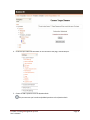
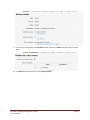
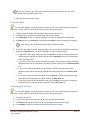
Configure, review and change the default optional settings.
Click Save and Return to course or Save and display to continue.
Portable Learning Management System
User’s Manual
Page 37