1
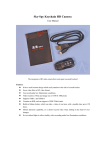
808 Keychain Camera
User Manual
The inexpensive video camera that works great on model rockets!
•
•
•
•
•
•
•
•
Features:
It has a small contour design which easily attaches to the side of a model rocket.
Saves video files in AVI video format.
Can record under low illumination conditions.
Video records at 30 fps and image size of 640X480 pixels
Supports USB1.1 and USB2.0.
Supports up to 16GB T-flash cards.
Build-in lithium battery, which can take a video of one hour, with a standby time up to 120 hours. The
battery is 280mha 3.7V
Made in China
Operating Your 808 Keychain Video
Camera
1. Charging the Battery
The battery in the 808 Keychain video camera
is a built-in lithium rechargeable battery. You should
recharge it before using the camera. The method
for charging is:
Connect the 808 Keychain video camera to
your computer using the supplied USB cable.
During the charge cycle the yellow light will
flash slowly. When it is fully charged, the yellow light
will stop flashing and remain steadily illuminated.
Notice: When battery power is too low, the
camera will enter into protection mode. In this state,
it cannot be turned on. It should be recharged for
video operations.
2. Turning on the 808 Keychain video camera
Please confirm the TF (micro SD) card has
already been inserted into the product! This
camera does not come with a TF card, and it
must be supplied by the user of the device. This
camera does not support T-flash cards greater than
16GB of storage.
NOTE: Make sure a T-Flash (Micro SD) card
has been inserted before turning on the camera. If
a T-Flash card is not installed, the yellow light will
begin flashing fast, and the camera will power off
automatically after 15 seconds.
3. Making a Video Recording
To Start Recording:
Press and hold the “VIDEO/CAMERA” button
for 3 seconds. The yellow indicator light will flash
quickly three times, and will then go dark. It is
now recording video (it is in stealth mode so other
people can’t tell it is recording. Remember, it is a
spy camera).
To Stop Recording:
To stop recording, press-and-release the
“VIDEO/CAMERA” button. The yellow indicator light
will flash briefly and then again become steadily
illuminated.
IMPORTANT! Before turning the unit off or
restarting the video camera, pause a few seconds
to allow the video file to be written to the memory
card. Turning on the video camera too soon will
create incomplete video files.
The lens is not designed for close-up videos.
You’ll need at least 50cm (about 20in) between the
lens and the subject for proper focus and to allow
sufficient illumination.
4. To Take Still Photos
Taking still photos is easy. When the camera is
powered on and is in “standby mode” (indicated by
the steady yellow light), simply press-and-release
the “VIDEO/CAMERA” button. The yellow indicator
light will flash multiple times, which represents a
photo shot. A repeated press will result in another
photo taken.
5. Setting the Time Stamp
Insert the Micro SD card with the metal contacts
facing upward.
Press and hold the “ON/OFF” button for 3
seconds. The yellow indicator light will illuminate,
indicating that the camera is now powered on, and
is in standby mode.
Note: There is no way to turn off the time-stamp
on the video that we are aware of. (The time stamp
may reset every time you plug the camera into your
computer, so make sure to check it when you are
preparing to launch.)
a. Make sure the T/F memory card is inserted
into the keychain camera.
b. Connect the 808 Keychain camera to your
computer using the USB cable.
c. Open the TAG.txt file with a word processing
program. It is located in the root directory of the
memory card. This file is generated by the camera
on new T-flash cards, so you may need to take a
6. Turning Power off
Whe the camera is in standby mode, hold the
“ON/OFF” button, until indicator goes out. Then the
camera is turned off.
7.
Open the TAG.txt file to change the time code on
the camera.
video or photo with the camera first before you’ll
see the TAG.txt file.
d. Change the time stamp in this format: YYYYMM-DD HR:MIN:SEC
For example, October 23, 2013 at 12-noon
would be:
2013-10-23 12:00:00
You may want to set the time ahead a minute
so that you can have enough time to get the camera
turned on and the new time-stamp loaded.
e. Resave the file to the memory card. It should
be .txt format.
g. Disconnect the camera from the computer
and power it on. Take a short video. Put the camera
back into stand-by mode, and then turn it off.
When you load the video onto the computer, it
will now have the new time-stamp imprinted on it.
Auto-power off function
The 808 Keychain camera will save video
files and turn off automatically under the following
conditions:
a. Battery power is low: the camera will disable,
the video file will be saved automatically, and then
the 808 Keychain camera will power down.
b. When available memory space on the T/F
card is insufficient, the indicator light will go out, the
video file will be saved, and the camera will power
down.
c. When in standby mode, without any
operation for 45 seconds, it will be auto-power off.
8. Connecting to your computer
When the 808 Keychain camera is connected
to your computer using the USB cord, your
computer should recognize it just like a simple USB
memory stick. While connected to your computer,
the illumination light will be a steady or flashing
yellow color (depending on if it needs to charge).
You should see several folders on the
“removable drive.” The folder called “DCIM”
contains the videos and the photos you have taken.
Open the folder, and copy the files you wish to
view to your computer. It is better to copy the files
before trying to play them, as they will play with less
choppiness.
Use your computer to delete the video files
from the T/F card to free up memory space to take
more videos. The camera can also be used as a
memory disk to hold and transfer files.
9. Reset
When the camera doesn’t seem to work
properly, it needs to be reset. Use a stiff rod (a
paper clip works well) to press the Reset button.
The Reset button is in the hole placed between the
USB port and TF card slot.
10. Mounting Options
You can remove the key ring from the device
to save weight. Then use strong electrical tape or
duct tape wrapped over the 808 keychain camera
to hold it onto your model rocket. Be sure not to
cover up the two operation buttons near the lens of
the device.
On small rockets, mount the camera closer to
the front of the rocket to keep the Center-of-Gravity
forward of the Center-of-Pressure. On bigger
rockets, you can move the camera rearward to
get a more unobstructed view of the ground during
launch.
11. Other Important Information
Suitable usage: Please follow all applicable
state laws. Do not use it illegally.
Moisture Warning: Do not get the 808
keychain video camera wet or use it in high humidity
conditions. It is not waterproof and will destroy the
device.
Shooting illumination: The 808 Keychain
camera works best in sunlight conditions. Do not
aim the camera at the sun or other strong light
sources, as that will damage the optical sensors in
the camera.
Cleaning requirements: Protect the camera
and the lens from dust and dirt.
Disposal: Protect the environment, do not
to throw the product in with household garbage.
It should be disposed of in a manner suitable for
electronic products.
Removing the T/F Card: to remove the card,
press inward on the edge of the card with your
fingernail. It is spring-loaded, and will pop out after
you release the pressure.
Fire: In order to avoid a battery explosion, do
not throw product into a fire.
Warranty Information
Apogee Components is not the manufacturer
of this product. It is made by some unknown
company in China. We do not warranty 808
Keychain cameras other than it will work on your
bench when you receive it (only if you purchased
it yourself, directly from Apogee Components.). If
your camera does not operate when you receive it,
contact the vendor you purchase the camera from.
Once the camera has been flown or driven on a
vehicle, the warranty is no longer in effect.
www.ApogeeRockets.com