1
The Tracking Window
Note
To open a tracking window
for a position, the position
must be displayed in the
Position window.
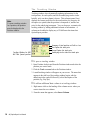
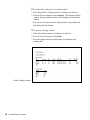
Tracking Window for IBM
Bull Time Spread position
Tracking windows show dynamically updating information for the
total position, for each option, and for the underlying stock or index.
Initially, only one data column is shown. This column (named Last)
displays the current profit/loss for the total position, the last price for
the option (or options) that the position is composed of, and the last
price for the underlying instrument. You can, however, customize the
tracking window by adding additional columns of information. A
column can be added to display any of 38 different data items that
OptionExpert provides.
Summary of total position net Profit or Loss
First Option last trade price
Second Option last trade price
Underlying stock or index last trade price
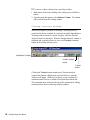
å To open a tracking window:
1. Open Position Analysis and from the Position window and select the
position you want to track.
2. Click the Track command above the Position window.
3. A small tracking window will appear on your screen. The name that
appears in the title bar of the tracking window begins with the
underlying ticker symbol followed by a brief description of the
position (e.g., Buy Opt).
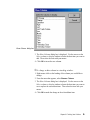
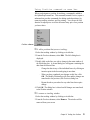
å To add an additional data column to a tracking window:
1. Right mouse click on the heading of the column next to where you
want to insert the new column.
2. From the menu that appears, select Insert Column.
74
AIQ OptionExpert User Manual