1
FINAL DRAFT
237 - SmartType
SmartType Options
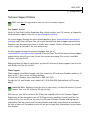
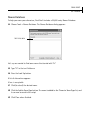
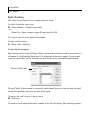
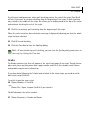
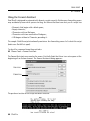
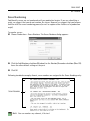
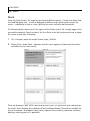
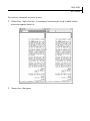
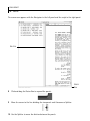
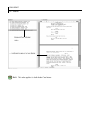
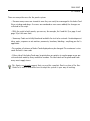
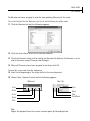
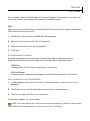
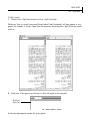
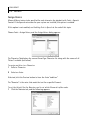
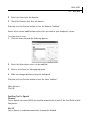
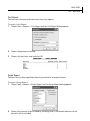
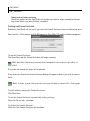
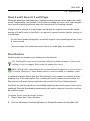
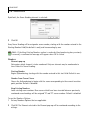
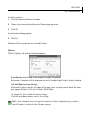
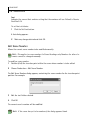
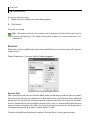
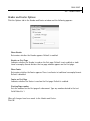
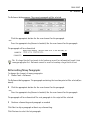
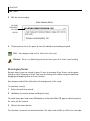
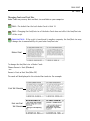
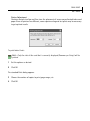
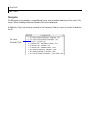
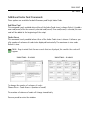
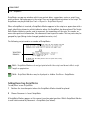
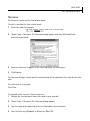
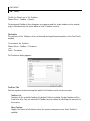
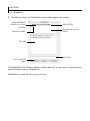
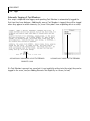
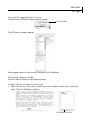
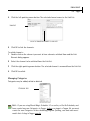
Click the Options tab of the SmartType Dialog to view SmartType Options.
By default, all of the SmartType Lists are enabled.
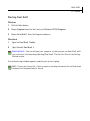
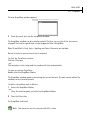
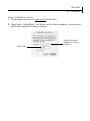
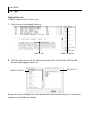
To disable Character, Scene Heading or Transitions Matching:
Uncheck the checkbox next to the SmartType List to be disabled.
If a list is disabled and a new paragraph of that type is created, the pop-up SmartType window
will not appear. Any new entries will still be added to the appropriate list.
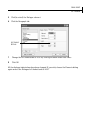
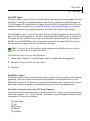
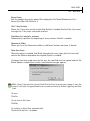
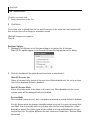
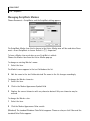
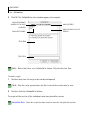
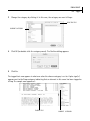
Automatically Guess Next Character
Tracks the entry of Character Names, and when it senses that two individuals are having a
conversation, alternately offers their names when a new Character element is created. This
is useful when a scene contains multiple conversations between two individuals. Default is
enabled.
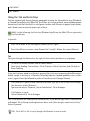
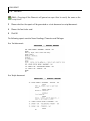
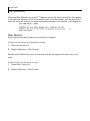
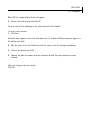
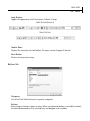
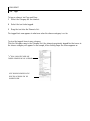
Tab Key Transitions to Character Extension
By default, pressing the tab key after entering a Character Name automatically creates a
Parenthetical paragraph. Check this box so that pressing tab will create a Character Extension instead.
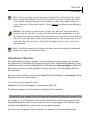
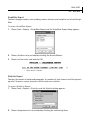
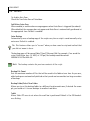
Show SmartType Window
Determines whether all the SmartType pop-up windows will appear. Default is enabled.
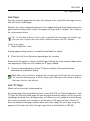
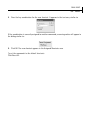
Alphabetize SmartType Window
Items in the SmartType pop-up window will appear in alphabetical order. Default is disabled.