1
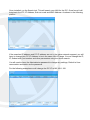
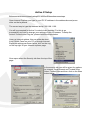
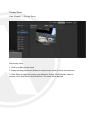
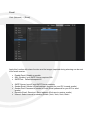
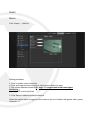
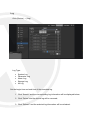
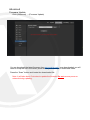
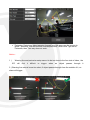
First, click on (1) “Require sever verification (https :) for all sites in this zone” so that it
is not ticked, as shown in the image. Then, you can type the IP address of your
X2C4000 into the text box at the top and then click Add.
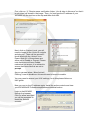
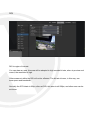
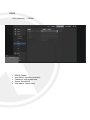
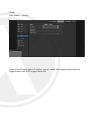
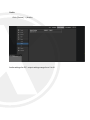
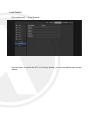
Next, click on Custom Level, you will
need to locate all the “Active X controls
and plug-ins”. There will be around12
items listed with the ‘ActiveX’ icon.
Ensure that ALL of these items are
either set to Enable or Prompt. Please
note that some will have Enable
marked as not secure, it is advised to
ensure that items like this are set to
prompt.
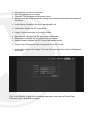
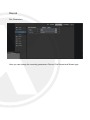
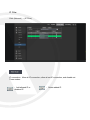
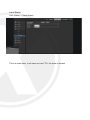
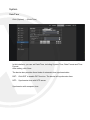
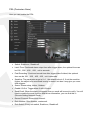
As you can see below, “Allow ActiveX
Filtering” is set to disable so this would need to be set to enable.
You may need to amend your UAC settings, to do this please follow our
UAC guide.
Now you can try the IP address again, install the active controls and view
yourX2C4000onIE.Followthestepsbelowtoinstallthisfunction.
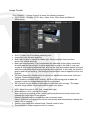
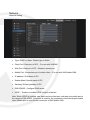
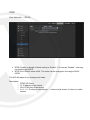
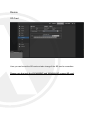
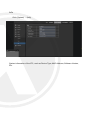
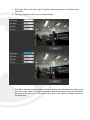
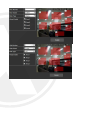
Login to theX2C4000
through the browser.
Click on ‘allow’ and then
you will be prompted to
install the ActiveX
controls.