1
Erase Free Disk Space
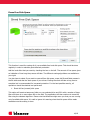
This function is used for erasing all of your available free hard disk space. This should be done
regularly in order to maintain good data leak protection.
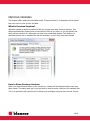
Add the hard disks that you want by checking the box on the left. The amount of free space gives
an indication of how long the process will take. The different erasing algorithms are available on
your right.
You also have to select if you want to erase all free disk space, erase old file and folder names in
the file table and also the slack space of your drives. Erasing the slack will take a long time to
complete but is recommended for increased protection. For the best possible security, all
operations should be checked and performed.
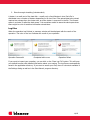
1. Shred all free (unused) disk space
This option will create a temporary folder on your selected drive and fill it with a number of large
files until there is no more space left on the disk. The application will then continue to erase the
files using the selected algorithm. Please note that Windows might warn you that you are running
out of available disk space. It is safe to ignore this warning since the disk space will be made
available once the erasing is done.
10/19