1
1
Personal Computer
Reference Manual
Model No.
XP
CF-50 Series
We recommend that this Reference Manual be printed.
Read Me First
2
Some of the illustrations in this manual may differ slightly in shape from the actual items in
order to make the explanation easier to understand.
If the user has logged on without the administrator authority, some functions may not be
executable, and some screens may be not displayed as shown in this manual.
If this happens, log on with the administrator authority to enable these functions.
Confirm the latest information on optional products in catalogs, etc.
In this manual, the following software packages are described as follows:
"WinDVD™ 4" as "WinDVD"
"B's Recorder GOLD7 BASIC" as "B's Recorder"
"B's CLiP 5" as "B's CLiP"
The following drives may be described as "CD/DVD drive".
DVD-ROM & CD-R/RW drive, DVD MULTI drive
Circular media such as DVD-ROM and CD-ROM are described as "discs".
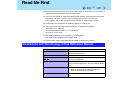
Illustrations and Terminology in this Reference Manual
NOTE
NOTE provides a useful fact or helpful information.
CAUTION
CAUTION indicates a condition that may result in
minor or moderate injury.
Enter
This illustration means to press the [Enter] key.
Fn+F5
This illustration means to press and hold the [Fn] key,
then press the [F5] key.
[start] - [Run]
This illustration means to click [start], then to click
[Run]. For some applications, you may need to doubleclick.
or ⇒
Orange*1
These symbols indicated related pages.
: Refer to the page in this Reference Manual
⇒ : Refer to the Operating Instructions
If *1 is selected, it will jump to a related explanatory
note.
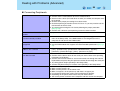
Key Combinations
3
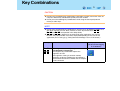
CAUTION
Do not press the following key combinations repeatedly in (quick) succession. Also, do
not press different key combinations quickly one after another.
Do not press the following key combinations while using the touch pad (external
mouse) or other keys.
NOTE
Do not press the following key combinations until you log on to Windows and the hard
disk drive indicator turns off. Note, however, that the key combinations Fn+F1,
Fn+F2 and Fn+F3 are operable in the Setup Utility.
The key combinations below may not work while some applications are running.
Besides, the popup window may not be displayed depending on the state of the
application you are using (e.g., when [Command Prompt] is set to "Full Screen").
Key
Fn+F1
Fn+F2
Functions
LCD brightness control (down)
LCD brightness control (up)
Pressing this key combination adjusts the
brightness of LCD.
The brightness setting is stored in memory
separately under the condition the AC adaptor is
connected and under the condition the AC adaptor
is not connected.
Popup Window
(Displayed after logging
on to Windows)
Key Combinations
4
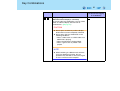
Key
Fn+F3
Functions
Display change
(When the external display is connected)
By pressing this key combination, you can select
either an external display, internal LCD or
simultaneous. ( page 57)
CAUTION
Do not press another key until the display
destination has been completely switched.
Do not press this key combination in the
following conditions.
• When a video such as a DVD video or an
MPEG file is playing.
• When the Dualview is being utilized.
• When a game such as pinball is displayed.
NOTE
When switching to a different user with the
Fast User Switching function, this key
operation may not work. In this case, log off
all users and restart the computer.
Popup Window
(Displayed after logging
on to Windows)
Key Combinations
5
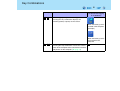
Key
Fn+F4
Functions
Speaker on/off switch
Pressing this key combination turns on/off audio
from the internal speakers and headphone jack.
NOTE
Disabling the speakers will also disable the
warning beep.
Speakers connected to the USB port
cannot be muted.
Fn+F5
Fn+F6
Volume control (down)
Volume control (up)
Pressing this key combination adjusts the volume
of the internal speaker and headphone jack.
NOTE
This key combination cannot be used to
adjust the volume of the warning beep or
speakers connected to the USB port.
Fn+F7
Power off using the standby function
Pressing this key combination causes the current
status of the computer to be saved to memory, and
powers off the computer. ( page 13)
Popup Window
(Displayed after logging
on to Windows)
OFF
(MUTE)
ON
Key Combinations
6
Key
Fn+F9
Functions
Popup Window
(Displayed after logging
on to Windows)
Remaining capacity of the battery pack
Pressing this key combination displays the
remaining battery capacity on the screen.
When the battery pack is
inserted in the computer
(example)
When the battery pack is
not inserted in the
computer
Fn+F10
Power off using the hibernation function
Pressing this key combination causes the current
status of the computer to be saved to the hard disk,
and powers off the computer. ( page 13)
Key Combinations
7
Hotkey Settings
There are two Fn key functions as follows:
Fn key lock function
After Fn is pressed once, it stays in the "pressed" position until another key is pressed.
This is convenient when it is difficult to press two buttons simultaneously.
Popup windows display ON/OFF
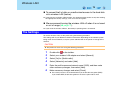
1
Run the Hotkey Settings.
Select [start] - [All Programs] - [Panasonic] - [Hotkey Settings].
2
Set the parameters.
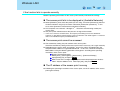
A. Use Fn key lock
Add the check mark if you want to enable the Fn key lock function. The following
Fn key lock function will then be enabled.
To use Fn only once:
A Press Fn once. (Locked)
B Press another key for combination. (Lock released)
To use Fn successively:
A Press Fn twice. (Locked)
B Press another key for combination.
Fn key remains locked until Fn is pressed once more.
B. Notification
This setting is only available when [Use Fn key lock] is checked.
[Make sounds when Fn key is pressed]*1
Notifies the user with a sound when Fn is locked or released.
[Show status on screen]:
Displays the Fn key status on the taskbar.
:Fn is locked
:Fn is not locked
C. Disable popup
Add the check mark if you want to turn the popup window display function OFF.
The full-screen display of [Command Prompt] screen or MPEG files may change
to a window display if Fn+Fx*2 keys are pressed. To prevent this, turn the popup
window display function OFF.
Key Combinations
8
3
Select [OK].
NOTE
Each user can select separate settings for whether or not to use the Hotkey settings.
*1
*2
If MUTE is set, you will not hear a beep.
"Fx" indicates any function key from F1 to F10.
LED Indicators
9
Power status
Not lit
Power off / Hibernation mode
Green
Power on
Blinking green
Standby mode
Blinking green rapidly
Due to extremely low temperatures, power
cannot be turned on, or computer cannot
resume from standby mode.
Battery pack status
page 28
Caps Lock
This indicator lights green when CapsLock is
pressed. Subsequent non-shifted input is
capitalized.
NumLk
(Numeric key)
This indicator lights green when NumLk is
pressed. This causes a portion of the keyboard
to function as a numeric keypad. The [Enter] key
functions differently depending on the
application.
(If an external
keyboard or tenkeyboard is
connected to the
external keyboard/
mouse port, the
numeric keypad of
the internal
keyboard will not
operate.)
ScrLk
(Scroll lock)
This indicator lights green when ScrLk is
pressed. Scroll lock functions differently
depending on the application.
Hard disk drive status
This indicator lights when the hard disk drive is
accessed.
LED Indicators
10
CD/DVD drive status
This indicator lights when the CD/DVD drive is
accessed.
The access lamp on the CD/DVD drive lights at
the same time as this indicator. (In some cases,
only one of them may light.)
Floppy disk drive status
This indicator lights when the floppy disk drive is
accessed.
Touch Pad
11
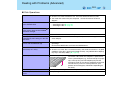
Use the touch pad to move the cursor on the screen and perform computer operations.
A. Work Surface (touch pad)
B. Left Button
C. Right Button
Function
Operation
Moving the Cursor
Move the tip of your finger lightly over the work
surface.
Tapping/Clicking
tapping
or
clicking
double-tapping
or
double-clicking
Double-Tapping/DoubleClicking
Dragging
Two quick taps, but on the second tap leaving your finger
down (applying pressure) and moving it on the work surface.
or
While holding down the button, moving your finger on the work
surface.
Touch Pad
12
Function
Operation
*1
Scroll
Scroll a document.
*1
The movements will differ depending on the application.
NOTE
Refer to [Mouse Properties] for information on basic operations other than the above.
To display [Mouse Properties]:
Select [start] - [Control Panel] - [Printers and Other Hardware] - [Mouse].
The operations of Scroll, Pan or Zoom will differ depending on the application. There
are cases the touch pad will not support these operations even with an application
that supports the functions.
Handling the touch pad
By design the touch pad is to be used with a finger tip only. Do not place any object on the
work surface or press down forcefully with sharp-pointed objects (e.g., nails) or hard
objects that can leave marks (e.g., pencils and ball point pens).
Try to avoid having any harmful substances such as oil, come in contact with the touch
pad. The cursor may not work properly in such cases.
When the touch pad becomes dirty:
Wipe to remove dirt by using a dry soft cloth such as gauze or a soft cloth first applied with
detergent diluted with water and then thoroughly wrung.
Do not use benzene or thinner, or rubbing alcohol. Doing so may adversely affect the
surface, e.g., discoloration. In addition, do not use commercially-available household
cleaners and cosmetics, as they may contain components harmful to the surface.
Standby/Hibernation Functions
13
Starting Up Your Computer Quickly
If you use the standby or hibernation function, you can shut down the computer without
closing programs and documents. Upon restarting your computer from either the standby or
hibernation mode, you can immediately continue working in all programs, or documents that
were open at the time the computer was placed into standby or hibernation mode.
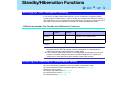
Differences between the Standby and Hibernation Functions
Function
Where data is
saved to
Time until
recovery
Requires power supply
Standby
function
Memory
Short
Yes
(if power is cut, all data is lost)
Hibernation
function
Hard disk
Rather long
Power is not required to maintain data
NOTE
z We recommend plugging in the AC adaptor if the standby function is to be used for a
long period of time. If the AC adaptor cannot be connected, we recommend that
hibernation mode be used instead of the standby mode.
z If the standby or hibernation function is used repeatedly, the computer may not work
properly. To stabilize computer operations, shut down Windows on a regular basis
(about once a week) without using the standby or hibernation function.
Entering the Standby or Hibernation Mode
Use any of the following methods to enter the standby or hibernation mode.
To use the hibernation mode, set [Power Options] in advance (Î page 14).
(Enabled in factory preset.)
z Using Fn key combinations (Î page 5)
z Using the power switch (Î page 15)
z Using the display (Î page 17)
Standby/Hibernation Functions
14
z From the shutdown screen
• Standby
In [start] - [Turn Off Computer], select [Stand By].
• Hibernation
In [start] - [Turn Off Computer], press and hold Shift, then select [Hibernate].
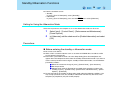
Setting for Using the Hibernation Mode
At the time of purchase, the computer is set so that hibernation mode can be used.
1
Select [start] - [Control Panel] - [Performance and Maintenance] [Power Options].
2
In [Hibernate], add the check mark for [Enable hibernation] and select
[OK].
Precautions
Before entering the standby or hibernation mode
z Be sure to save all data.
z When a file in an external device such as an external CD/DVD drive, hard disk, or ATA
card is opened, close the file.
z Even when a password has been set in the Setup Utility, [Enter Password] does not
appear when the computer resumes from the standby or hibernation mode. If you want to
use the security function when using the standby or hibernation mode, use the Windows
password as follows:
A Select the account to change in [start] - [Control Panel] - [User Accounts].
B Set the password.
C Add the check mark for [Prompt for password when computer resumes from
standby] in [start] - [Control Panel] - [Performance and Maintenance] - [Power
Options] - [Advanced].
z Do not enter either the standby or hibernation mode under the following conditions. You
may corrupt your data or file, the standby or hibernation function may not work, or the
computer (or peripherals) may fail to work properly.
Standby/Hibernation Functions
15
• When the floppy disk drive indicator
•
•
•
•
•
, hard disk drive indicator
, CD/DVD drive
indicator
or access lamp on the CD/DVD drive is on (Î page 9).
When playing/recording audio files and displaying images (such as MPEG files).
When playing a DVD-Video.
When writing to a CD-R/RW disc.
When using communications software or the network function.
When using PC Cards.
(If these cards fail to work properly, restart the computer.)
When entering the standby or hibernation mode
Standby mode: until the power indicator blinks green
Hibernation mode: until the power indicator goes off
z Avoid the following:
• Touching the keyboard, touch pad, or power switch.
• Using external mouse or other peripheral devices.
• Connecting or disconnecting the AC adaptor.
• Closing or opening the display.
z It may take one or two minutes to enter standby or hibernation mode.
In standby or hibernation mode
z Do not insert or remove peripherals; abnormal operation may result.
z In standby mode, power is consumed. If PC Cards are inserted, more of that power is
consumed. When all power has been consumed, all data saved at standby is lost since it
is retained in memory. We therefore recommend plugging in the AC adaptor when using
the standby function.
Using the Power Switch
Setting
1
Select [start] - [Control Panel] - [Performance and Maintenance] [Power Options] - [Advanced].
Standby/Hibernation Functions
16
2
Select [Stand by] or [Hibernate] for [When I press the power button
on my computer], and then select [OK].
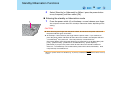
Entering the standby or hibernation mode
1
Press the power switch (A); at the beep*1 sound, release your finger.
The computer will enter either the standby or hibernation mode, depending on the
setting.
CAUTION
z After releasing your finger from the power switch, do not touch the power switch until
the power indicator goes off or blinks.
z At the beep*1 sound, release your finger from the power switch. If you continue to
press the power switch and hold it for more than four seconds, the computer will emit
a second beep*1 then power off. Data not previously saved will be lost.
Even when [When I press the power button on my computer] is set to [Shut down] with
[start] - [Control Panel] - [Performance and Maintenance] - [Power Options] [Advanced], if you press the power switch for more than four seconds and do not
release it, a second beep*1 will sound and the power will be turned off forcibly. Data
not previously saved will be lost.
*1
When the speaker function is disabled, e.g., by the key combination Fn+F4, there will be no beep
sound.
Standby/Hibernation Functions
17
Using the Display
Setting
1
Select [start] - [Control Panel] - [Performance and Maintenance] [Power Options] - [Advanced].
2
Select [Stand by] or [Hibernate] for [When I close the lid of my portable computer], and then select [OK].
Entering the standby or hibernation mode
1
Close the display.
The computer will enter either the standby or hibernation mode, depending on the
setting.
z When entering the standby or hibernation mode, close the display correctly. If
you do not do so, (for example, if you open the display soon after you close it)
the computer may not enter standby or hibernation mode.
Standby/Hibernation Functions
18
Resuming Operation
CAUTION
z Until resuming is complete (requires about 15 seconds, or 60 seconds if connected to
a network, after the display returns), avoid the following:
• Touching the keyboard (except for password input), touch pad, or power switch.
• Using external mouse or other peripheral devices.
• Connecting or disconnecting the AC adaptor.
• Closing or opening the display.
• Shutting down or restarting Windows.
• Entering either the standby or hibernation mode again.
Using the Power Switch
1
Press the power switch (A).
Using the Display
When [Stand by] or [Hibernate] is selected as the setting for [When I close the lid of my
portable computer] (Î page 17), you can resume operation using the following procedure.
1
Open the display.
Even if the display is closed after the computer has entered either the standby or
hibernation mode, operation will resume when the display is opened. If the
computer does not resume when the display is opened, press the power switch.
Security Measures
19
To prevent unauthorized access of your computer, the various security measures are
provided below.
Situation
Function to use
You do not want the settings in the Setup
Utility to be changed
Supervisor Password (below)
User Password ( page 21)
You do not want your computer to be used
without permission
Password on boot (
You do not want the data on the hard disk to
be read, or data to be written to the hard
disk, in cases including theft
Hard Disk Lock (
You want to prevent theft or damage to data
by using a floppy disk
Prevent operation by using a floppy disk
( page 25)
You want to prevent theft of your computer
Security lock (⇒ Operating Instructions
"Names and Functions of Parts")
*1
page 22)*1
page 23)*1
You need to set the Supervisor Password beforehand.
NOTE
Windows has a security function that differs from the above security measures. For
detailed information, refer to the Windows help.
For security functions for the wireless LAN:
page 72
Setting the Supervisor Password
(enabling, changing, disabling)
1
2
3
Run the Setup Utility. (
page 77)
Using either
or , select [Security].
Using either
Enter.
or
, select [Set Supervisor Password] and press
Security Measures
20
4
Only when the Supervisor Password has been set:
Enter your password at [Enter Current Password] and press Enter.
5
Enter your password at [Enter New Password] and press Enter.
To disable the Supervisor Password
Press only Enter.
6
Re-enter your password at [Confirm New Password] and press
Enter.
To disable the Supervisor Password
Press only Enter.
7
8
At [Setup Notice], press Enter.
Press F10 and select [Yes], then press Enter.
CAUTION
Do not forget your password. If your Supervisor Password is forgotten, you will be
unable to use your computer. Contact Panasonic Technical Support.
When running the Setup Utility, do not leave your computer even for a short time, as
the possibility exists for the password to be set/changed by another person.
NOTE
Your password will not be displayed on the screen.
Only up to seven alphanumeric characters can be used.
• There is no distinction between upper and lower case letters.
• Use only the upper horizontal row of numeric keys to input your password.
• Do not input your password while holding down on Shift or Ctrl.
Disabling the Supervisor Password also disables the User Password.
Security Measures
21
Setting the User Password (enabling, changing, disabling)
NOTE
When the Supervisor Password has not been set, the User Password can not be set.
Set the Supervisor Password if you have not done so. ( page 19)
To disable the User Password, start up the Setup Utility with the Supervisor Password.
1
2
3
4
Run the Setup Utility. (
5
Enter your password at [Enter New Password] and press Enter.
page 77)
Using either
or , select [Security].
Using either
or
, select [Set User Password] and press Enter.
Only when the User Password has been set:
Enter your password at [Enter Current Password] and press Enter.
To disable the User Password
Press only Enter.
6
Re-enter your password at [Confirm New Password] and press
Enter.
To disable the User Password
Press only Enter.
7
8
At [Setup Notice], press Enter.
Press F10 and select [Yes], then press Enter.
CAUTION
Do not forget your password. If a password is forgotten, you will be unable to use your
computer. If this happens, ask a person who knows the Supervisor Password.
When running the Setup Utility, do not leave your computer even for a short time, as
the possibility exists for the password to be set/changed by another person.
Security Measures
22
NOTE
Your password will not be displayed on the screen.
Only up to seven alphanumeric characters can be used.
• There is no distinction between upper and lower case letters.
• Use only the upper horizontal row of numeric keys to input your password.
• Do not input your password while holding down on Shift or Ctrl.
When you do not want the User Password enabled or changed without permission:
A Run the Setup Utility and enter the Supervisor Password.
B Go to [Security] menu. Using and , select [User Password Protection] and
press Enter.
C Using either or , select [Protected] and press Enter.
When you do not want your computer to be used without
permission
When [Password on boot] is set to [Enable], it is impossible to start the computer without the
password.
NOTE
Set the Supervisor Password if you have not done so. ( page 19)
When starting up the Setup Utility, the password input screen will be displayed if a
Supervisor Password or User Password has been set, even if [Password on boot] is
set to [Disable].
Setting the Password on boot (enabling, disabling)
1
2
3
Run the Setup Utility. (
page 77)
Using either
or , select [Security].
Using either
or
, select [Password on boot] and press Enter.
Security Measures
23
4
Select [Enable] or [Disable].
To enable the Password on boot
Select [Enable] and press Enter.
To disable the Password on boot
Select [Disable] and press Enter.
5
Press F10 and select [Yes], then press Enter.
Starting Up When the Password on boot is Set
The screen shown at left is displayed.
Enter your password*1 and press Enter.( page 77)
When the correct password is input, the computer will start.
When three incorrect password attempts or nothing is input for one minute, the computer
will power off.
*1
Supervisor Password or User Password set in the Setup Utility (not the Windows password).
When you do not want the data on the hard disk to be read/
written
When the Hard Disk Lock is set to [Enable], it is impossible to read/write data from/to the
hard disk when the hard disk is inserted in a different computer, since a password is also set
for the hard disk. When the hard disk is returned to the original computer, you can read and
write data as before. In this case, however, make the settings in the Setup Utility exactly the
same as they were before the hard disk was removed.
It is possible to set the Hard Disk Lock even if [Password on boot] is set to [Disable], but we
recommend that [Password on boot] be set to [Enable] for security reasons.
(Note that this Hard Disk Lock does not guarantee complete protection of data.)
NOTE
In the default setting, [Hard Disk Lock] is set to [Disable].
You cannot set [Hard Disk Lock] without setting the Supervisor Password. Set the
Supervisor Password if you have not done so. ( page 19)
Security Measures
24
The hard disk lock function only works with the internal hard disk. This function does
not work with the external hard disk.
Setting the Hard Disk Lock (enabling, disabling)
1
2
3
4
Run the Setup Utility. (
page 77)
Using either
or , select [Security].
Using either
or
, select [Hard Disk Lock] and press Enter.
Select [Enable] or [Disable].
To enable the Hard Disk Lock
Select [Enable] and press Enter. At [Caution], press Enter.
To disable the Hard Disk Lock
Select [Disable] and press Enter.
5
Press F10 and select [Yes], then press Enter.
CAUTION
To change your hard disk drive
• Contact Panasonic Technical Support.
• Before changing the hard disk, be sure to set the [Hard Disk Lock] to [Disable].
Security Measures
25
Preventing theft or damage to data using a floppy disk
Disabling the floppy disk operation makes it impossible to read and write a floppy disk and to
start the computer from a floppy disk. This can prevent data from being accessed illegally or
overwritten accidentally using a floppy disk.
Procedure
1
2
3
4
Run the Setup Utility. (
page 77)
Using either
or , select [Security].
Using either
or
, select [Floppy Operation] and press Enter.
Select [Enable] or [Disable].
To enable the floppy operation
Select [Enable] and press Enter.
To disable the floppy operation
Select [Disable] and press Enter.
5
Press F10 and select [Yes], then press Enter.
Computing on the Road
26
Saving Power
One of the main features of notebook-type computers is that you have the power of
computing away from your home or office. In the following, information is provided on how to
maximize use of the battery pack which is necessary for such computing.
Four Important Points
• POINT 1
Be sure to charge your battery before and after use.
• POINT 2
To get the maximum use of your battery, set the power management mode.
• POINT 3
Check to see that you have your AC adaptor with you before leaving your home or
office.
Purchasing a spare battery (CF-VZSU18/CF-VZSU18A/CF-VZSU18B) is highly
recommended.
• POINT 4
Always watch your battery level!
Power Saving Methods
Change [Power Schemes]
Select [start] - [Control Panel] - [Performance and Maintenance] - [Power Options], and
then set [Power schemes] to [Max Battery].
Power consumption can also be minimized with detailed settings; for example, by
reducing the time setting for [Turn off monitor].
Adjust the brightness (darker) with Fn+F1 (
page 3)
Leave your computer off when it is not in use
Remove peripheral devices (USB devices, PC Cards, external mouse, etc.) when
not in use
Before stepping away from your computer, press Fn+F7 to put your computer in
the standby mode ( page 5), or Fn+F10 to put your computer in the hibernation
mode ( page 6)
Computing on the Road
27
If you plan to leave the computer for a long period of time, we recommend using the
standby mode or hibernation mode as often as possible to minimize power consumption.
CAUTION
When installed in a network environment (except when the Wake up from LAN
function is in use).
Do not use the standby or hibernation mode.
After resuming operation from the standby or hibernation mode, the network
connection may be severed or the computer will not work properly.
NOTE
Select
to view [Important Tips] for using the battery pack. You can also view
[Important Tips] using the following procedures.
Select [Important Tips] in [start] - [All Programs] - [Panasonic] - [On-Line Manuals].
Battery Power
28
Use the Battery Indicator to Check the Battery Status
Battery Indicator
Battery Status
Not lit
Battery pack is not connected or charging not being
performed.
Orange*1
Charging in progress.
Green*1
Fully-charged.
Blinking green
In high temperature mode, the battery pack is discharging to
a level of 80%*2 in normal temperature mode.(Î page 30)
Do not remove the battery pack while the battery indicator is
blinking green.
Red
The battery level is very low (the charge is approx. 9% or
less).
Connect the AC adaptor. You can use the computer when
the battery indicator light is orange. If you do not have an AC
adaptor, save your data and power off your computer. After
replacing the battery pack with a fully charged one, turn your
computer on.
Blinking red*1
Battery pack or charging may not be working properly.
Quickly save your data and power off your computer.
Remove the battery pack and disconnect the AC adaptor,
then connect them again. If the problem persists, contact
Panasonic Technical Support. The battery pack or charging
circuit may be defective.
Blinking orange*1
Battery cannot be recharged temporarily because the internal
temperature of the battery pack is outside of the acceptable
temperature range for recharging. Once the allowable range
requirement is satisfied, charging begins automatically. Your
computer can be used normally in this state.
*1
*2
When the AC adaptor is connected.
A level of 80% in normal temperature mode is displayed as [100%] in high temperature mode.
Battery Power
29
NOTE
This computer prevents overcharging of the battery by recharging only when the
remaining power is less than approx. 95% of capacity after the battery is fully charged.
Check the Remaining Battery Power
1
Press Fn+F9 to Check the Remaining Battery Power on
the Screen. (After logging on to Windows)
When the battery pack is inserted in the computer (example)
When the battery pack is not inserted in the computer
NOTE
In the following cases, there may be a difference between the remaining battery
capacity displayed on the indicator and the actual remaining battery capacity. To
correct this, execute the Battery Recalibration utility. ( page 32)
• The battery indicator light remains red.
• The battery remaining displays 99% and the indicator light is orange for a long
period of time.
• Low battery warning appears after a short period of time.
This may be caused by the use of standby mode for long periods of time. The
battery is discharging while the computer is in standby mode when the AC adaptor
is not connected.
There may be a discrepancy between the % value that is displayed on the taskbar
icon, and [Power Meter] in [Power Options Properties]. This is not a malfunction.
Battery Power
30
About High Temperature Mode
This computer has a high temperature mode function that prevents the deterioration of the
battery in high-temperature environments or when using the fully charged battery pack for a
long period of time.
To use the high temperature mode function, set [Environment] in the [Main] menu of the
Setup Utility to [Auto]*1 or [High Temperature]. In the [Auto] mode, the high temperature mode
or the normal temperature mode is selected automatically depending on the battery status
(the internal temperature of the battery pack, etc.) or usage condition (when the AC adaptor
has been connected for a long period of time).
Note that a level of 100% in the [High Temperature] mode is about a level of 80% in the
[Normal Temperature] mode.
*1
The default mode.
NOTE
z After switching from [Normal Temperature] to [High Temperature] or vice versa, the
remaining battery capacity will not be displayed properly until the battery pack is
completely discharged or fully charged.
z In the [Auto] mode:
Once the computer has automatically switched from the normal temperature mode to
the high temperature mode, the computer will not switch back to the normal temperature mode until the battery has been recharged from 0% to 100% about five times.
This is to prevent the deterioration of the battery.
Battery Power
31
When the Remaining Battery Charge Becomes Low
The following is factory default setting.
When remaining battery capacity falls to
10%
[Low battery alarm]
Displays a message indicating the low
battery level.
Charge your battery.
Connect the AC adaptor immediately. If
you do not have the AC adaptor with you,
exit any programs currently running, then
exit Windows, and confirm that the power
indicator is off.
If you have a fully charged spare battery,
turn off the computer, replace the battery,
and turn the computer on again.
Do not replace the battery pack while the
computer is in standby mode.
When remaining battery capacity falls to 5%
[Critical battery alarm]
Displays a message indicating the low
battery level and the computer will enter
hibernation mode.
Connect the AC adaptor or replace the battery before starting up the computer next
time.
Connect the AC adaptor, then charge the
battery.
If you have a fully charged spare battery,
turn off the computer, replace the battery,
and turn the computer on again.
After the computer enter hibernation
mode when the battery runs down, if
computer operations are resumed
without charging the battery, Windows
may not start up properly, and in some
cases the alarm function may not operate
properly from that point on.
Do not replace the battery pack while the
computer is in standby mode.
Above settings can be changed.
A Display [Alarms] screen.
Select [start] - [Control Panel] - [Performance and Maintenance] - [Power
Options] - [Alarms].
B Set alarm operations and remaining battery level for operating alarm functions.
When disabling the speaker by pressing Fn+F4, the sound alarm is also
disabled.
Battery Power
32
A. When making a setting for [When the alarm goes off, the computer will] in
[Alarms] - [Alarm Action]:
Add a check mark for [Force stand by or shutdown even if a program stops
responding.].
B. Set the value for [Critical battery alarm] to 5% or more.
This is necessary for the standby or hibernation function to be completed
(assuring data is saved) when the battery level is low.
Accurately Displaying Battery Capacity
The battery pack has a function for measuring, storing and learning about battery capacity.
Using this function properly to accurately display remaining battery capacity requires that the
battery pack be fully charged (charged to 100%), then fully discharged, and then fully
charged again. This procedure should be performed once after you purchase the computer.
As you use the battery pack over a long period of time, the remaining capacity display may
become inaccurate due to aging of the battery pack and other factors. The procedure
described below should be performed again.
NOTE
If the computer is turned off while recalibrating the battery (electrical power outage,
accidental removal of the AC adaptor or battery pack, etc.), the battery will not be
recalibrated correctly.
Battery Recalibration does not increase the battery's capacity. If Battery Recalibration
is executed frequently, deterioration of the battery may result.
Perform the following procedure in a temperature range of 10°C to 30°C {50°F to
86°F}.
1
Attach the battery pack, then connect the AC adaptor.
Remove all peripherals (except for the battery pack and AC adaptor).
Battery Power
33
2
Use the "Battery Recalibration" utility to fully discharge the battery
pack.
A Run the Setup Utility. ( page 77)
B Select [Battery Recalibration] from [Exit] menu and press Enter.
C At the confirmation message, select [Yes] and press Enter.
Once the battery indicator turns green, the battery pack will be completely
discharged. It takes approximately 4.5 hours until the power automatically goes
off through the complete discharge of the battery from the fully charged state.
3
Allow the battery pack to charge until the battery indicator turns
green.
Charging Time: Approximately 3.5 hours
Replacing the Battery Pack
The battery pack is a consumable item and therefore will require replacement (CF-VZSU18/
CF-VZSU18A/CF-VZSU18B). If the battery operation time becomes noticeably short, and if
performance is not recovered even after executing Battery Recalibration, we recommend that
the battery be replaced.
CAUTION
Do not touch the terminals on the battery pack and the computer. The battery pack
may no longer function properly if the contacts are dirty or damaged. Also, the
computer may not operate properly.
The battery pack is not charged when it is first purchased. Be sure to charge it before
using it for the first time. When the AC adaptor is connected to the computer,
charging begins automatically.
Use only the specified battery pack (CF-VZSU18/CF-VZSU18A/CF-VZSU18B) with
your computer.
In the standby mode, do not remove/change the battery pack. Removing the pack in
the standby mode will erase your data and may damage the computer.
Battery Power
34
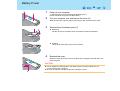
1
2
Power off your computer.
(⇒Operating Instructions "Starting Up/Shutting Down")
Do not shut down using the standby function.
Turn your computer over and remove the cover (A).
Slide the latch (B), and then without releasing it, slide and remove the cover.
3
Remove/Insert the battery pack (C).
Removing
Pull the tab (D) on the battery pack and remove it from the computer.
Inserting
Firmly attach the battery pack to the connector.
4
Reattach the cover.
Match the mark (E) on the cover to the body of the computer and slide the cover
back into place.
CAUTION
For an improperly attached cover, your battery pack may fall out while you are
carrying around your computer.
Be sure the tab does not get caught when closing the cover.
CD/DVD Drive
35
Usage Precautions
Before using the CD/DVD drive
<Information for the DVD-ROM & CD-R/RW drive and the DVD MULTI drive>
z When using the CD/DVD drive for the first time, press the eject button to open the CD/
DVD drive after the computer has been powered on, and remove the protective sheet
from the lens area.
z Do not expose the CD/DVD drive to excessive smoke that may leave a residue, e.g., oil
smoke, or tobacco smoke. Doing so could shorten the life of the drive lens.
When opening/closing the tray
z When the computer is on, be sure to use the eject button (Î page 41) or perform the
ejecting operation through Windows.
z After B’s Recorder has been installed:
When ejecting the disc while
is displayed on the taskbar, select
with the right
button and select [Eject].
Do not eject discs in any other way except the one described above.
z To remove a disc when the tray cannot be opened or when the computer is powered off:
Insert a pointed object (e.g., the bent-out tip of a paper clip, or the tip of a ballpoint pen)
into the emergency hole (A).
z Do not leave the tray in the open position or touch the lens.
Under some conditions, dust may build up on the lens, or on a disc. This may result in a
read or write malfunction.
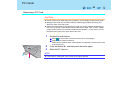
z Do not apply excessive force to the tray in the open position.
z Never insert foreign objects such as paper clips into the CD/DVD drive.
Doing so could cause it to malfunction.
z Do not place items other than discs on the tray.
While the CD/DVD drive is being accessed
z Do not open the CD/DVD drive or move the computer while the CD/DVD drive is being
accessed.
Doing so could cause the disc to shift position and this may damage the disc, or cause the
CD/DVD drive to malfunction.
CD/DVD Drive
36
In addition, after running an application involving access to a disc, do not open the CD/
DVD drive until after the application has been closed.
Cleaning
z We recommend cleaning the drive lens with an air puffer used for camera lenses.
(Do not use any spray-type of lens cleaning products.)
About Discs
z Do not use any discs that have become deformed, warped, or are not completely round.
Depending on the condition (record quality, a crack, dirt, modification, copy protection,
DVD recorder or disk maker used when creating the disc, etc.) of a disc, it may not be
possible to be read it correctly.
• The following discs can be used.
DVD-RAM*1
DVD-ROM
VIDEO CD
CD-R
VIDEO CD
*1
DVD-R
CD-RW
DVD-RW
DVD-VIDEO
CD-ROM
CD DIGITAL
AUDIO
Recordable
In the case of DVD-RAM, only non-cartridge discs or removable cartridge discs can be used.
When Using DVD Media
z To play DVD-Video or MPEG2 files, DVD playback software is required.
("WinDVD" is included in the Product Recovery DVD-ROM. For information on how to
install WinDVD: Î page 43 )
CD/DVD Drive
37
About Regions Setting
The DVD-Video has a region code that is fixed according to the region where it is sold. In
order to play a DVD-Video, the region code of the player software and of the drive must
match that of the DVD-Video.
Example:
For U.S.A. and Canada: "1"
For Europe: "2"
This drive's region code is not set at the time of shipment from the factory. Therefore,
operations will differ depending on the first DVD-Video played.
z In the case of a DVD-Video with a specific region code:
The drive will automatically be set with the same region code as the DVD-Video.
z In the case of any other DVD-Video:
[Confirm Region] appears. Select region code and select [OK]. Play now begins.
([Confirm Region] may not be displayed for some DVD-Videos. To confirm the current
region code and the number of settings remaining, right-click on the WinDVD screen and
select [Setup] - [Region].)
CAUTION
z The region code can be set a total of five times, including the initial setting. Proceed
very carefully, because after the fifth change has been made, the region code set last
is fixed and no further changes can be made, even if the operating system is reinstalled.
z Do not illegally change or alter the region code.
NOTE
z [Confirm Region] will also be displayed if a DVD-Video with one region code is
inserted into a drive for which another region code has already been set.
CD/DVD Drive
38
Information for the DVD-ROM & CD-R/RW Drive (Model with a DVD-ROM & CD-R/RW Drive)
z When using discs, read the description on the disc package.
When writing to CD-R/RW discs
z To write discs, writer software is required.
("B's Recorder" and "B's CLiP" are included in the “B’s Recorder GOLD/B’s CLiP” CDROM attached to this computer. For information on how to install B's Recorder and B's
CLiP: Î page 47)
z Be sure to use discs conforming to the proper write speeds.
CD-R write speed*1
600 KB/s (4X speed)
1200 KB/s (8X speed)
2400 KB/s (16X speed Max.)
3600 KB/s (24X speed Max.)
CD-RW write speed
600 KB/s (4X speed)
High-Speed CD-RW write speed
600 KB/s (4X speed)
1200 KB/s (8X speed)
1500 KB/s (10X speed)
*1
Depending on the disc, the writing speed may become slower.
z If the write operation is to involve a long period of time, be sure to connect the AC adaptor.
If the battery power runs low and the power of the computer is cut, the write operation
may end in failure.
z Depending on the disc, the quality of the write operation may not be so good. We
recommend using any of the following discs.
Recommended Discs:
• CD-R
HITACHI MAXELL, Ltd.
MITSUBISHI CHEMICAL Co., Ltd.
MITSUI CHEMICALS, Inc.
RICOH Co., Ltd.
TAIYOYUDEN Co., Ltd.
• CD-RW /High-Speed CD-RW
MITSUBISHI CHEMICAL Co., Ltd.
RICOH Co., Ltd.
CD/DVD Drive
39
Information for the DVD MULTI Drive (Model with a DVD MULTI Drive)
z When using discs, read the description on the disc package.
When writing to discs
z To write discs, writer software is required. ("B's Recorder" and "B's CLiP" are included in
the “B’s Recorder GOLD/B’s CLiP” CD-ROM attached to this computer. For information on
how to install B's Recorder and B's CLiP: Î page 47)
z Be sure to use discs conforming to the proper write speeds.
CD-R write speed*1
600 KB/s (4X speed)
1200 KB/s (8X speed)
2400 KB/s (16X speed Max.)
CD-RW write speed
600 KB/s (4X speed)
High-Speed CD-RW write speed
600 KB/s (4X speed)
1200 KB/s (8X speed)
DVD-R write speed
1,350 KB/s (1X speed)
DVD-RW write speed
1,350 KB/s (1X speed)
DVD-RAM write speed
2,700 KB/s (2X speed)
*1
Depending on the disc, the writing speed may become slower.
z If the write operation is to involve a long period of time, be sure to connect the AC adaptor.
If the battery power runs low and the power of the computer is cut, the write operation
may end in failure.
z Be sure to use discs that meet the following specifications.
• DVD-R for General Ver.2.0 (4.7 GB)
• DVD-R for General Ver.2.0/4X-SPEED DVD-R REVISION 1.0 (4.7 GB)
• DVD-RW Ver.1.1 (4.7 GB)
• DVD-RW Ver.1.1/2X-SPEED DVD-RW REVISION 1.0 (4.7 GB)
• DVD-RAM Ver.2.0 or Ver.2.1 (4.7 GB/9.4 GB)
z In the case of DVD-RAM, only non-cartridge discs or removable cartridge discs can be
used.
CD/DVD Drive
40
z Depending on the disc, the quality of the write operation may not be so good. We
recommend using any of the following discs.
Recommended Discs:
• CD-R
HITACHI MAXELL, Ltd.
MITSUBISHI CHEMICAL Co., Ltd.
MITSUI CHEMICALS, Inc.
RICOH Co., Ltd.
TAIYOYUDEN Co., Ltd.
• CD-RW / High-Speed CD-RW
MITSUBISHI CHEMICAL Co., Ltd.
RICOH Co., Ltd.
• DVD-R
Matsushita Electric Industrial Co., Ltd.
PIONEER VIDEO CORPORATION
TAIYO YUDEN Co., Ltd.
• DVD-RW
TDK Corporation
Victor Company of Japan, Limited
• DVD-RAM
Matsushita Electric Industrial Co., Ltd.
z Ultra-Speed CD-RW (US CD-RW) cannot be used.
To avoid damaging discs:
• Do not touch the data surface (the side opposite the side with the title printed on it) as it
can cause the disc to become dirty or scratched.
• Do not allow discs to become dirty or scratched.
• Do not place or store discs in locations exposed to heat, direct sunlight, humidity or
dust.
• Do not write on the surface of the disc with a ballpoint pen or other writing instrument
nor paste any paper to it.
• Do not drop, bend, or place heavy objects on top of discs.
• If the disc is brought from a cold into a warm environment, moisture may form on the
disc. Wipe this moisture off with a soft, dry, lint-free cloth before using the disc.
• Cleaning the disc using a disc cleaner is recommended once every 2 or 3 months.
CD/DVD Drive
41
Setting a Disc
CAUTION
z When inserting or removing a disc, be careful not to touch the lens of the drive.
1
Press the eject button (A) while the computer's power is on.
Slowly pull out the tray.
2
Insert/Remove a disc.
z Inserting
Place the disc with the label facing upward in the drive and push down the
center of the disc until it clicks in place.
z Removing
Hold down on the center spindle (B) and gently lift up on the edge of the disc.
3
Close the tray.
Do not press the eject button.
NOTE
z When using B’s Recorder or B’s CLiP: Î page 47
z To remove a disc when the computer is powered off, insert a pointed object (e.g., the
bent-out tip of a paper clip, or the tip of a ballpoint pen) into the emergency hole.
Pushing it completely to the end will free the tray so that it can be pulled out. (The
position of the emergency hole differs depending on the drive.)
CD/DVD Drive
42
z If the vibration of the CD/DVD drive is excessive, check to see if the disc is inserted
correctly, and check that the disc is in good condition. If the disc is good and inserted
correctly, set [CD/DVD Drive Speed] to [Low] in [Main] menu of the Setup Utility.
z For AutoPlay CDs:
• If an AutoPlay CD does not start after the computer resumes from the standby or
hibernation modes, remove the disc from the drive, then reinsert the disc again after
a 15 second wait.
• An AutoPlay CD may start during file access, depending on the status of the disc.
z When playing back movies from a disc, note that smooth playback may not be
possible in some cases.
Power-saving Mode
If the CD/DVD drive has not been accessed within 90 seconds, the drive motor will
automatically shut down to reduce the power consumption. When the CD/DVD drive is
accessed once again, the power of the drive motor is turned on. However, approximately 30
seconds are required until data is actually read from the disc.
WinDVD
43
WinDVD is a software application for DVD playback.
Here, you will find explanations and general information on the usage precautions and how to
access the online manual.
Refer to the online manual concerning the detailed use of the software application.
(Î page 46)
Installing WinDVD
CAUTION
z Close all other software application before running the Setup program for WinDVD for
added safety.
z Log on with the administrator authority.
A Set the Product Recovery DVD-ROM in the CD/DVD drive.
B Input [d:\windvd\setup.exe]*1 in [start] - [Run] and select [OK].
C Select [Next] at the Welcome Message.
D After reading the “License Agreement”*2, select [Yes] if you agree to the terms.
E Follow the on-screen instructions and install WinDVD.
*1
"d" is the drive letter of the CD/DVD drive. Change this to match the drive letter on your own
computer.
*2 Refer to the “LIMITED USE LICENSE AGREEMENT” on the Operating Instructions of the computer.
WinDVD
44
Running WinDVD
You can run WinDVD using either of the following procedures.
z Select [start] - [All Programs] - [InterVideo WinDVD] - [InterVideo WinDVD].
z Select
on the desktop.
Usage Precautions
z Do not enter the standby or hibernation mode, or switch the display by pressing Fn + F3
while WinDVD is running.
z Do not start WinDVD while the hard disk drive indicator
the computer was started up.
is blinking immediately after
z During video playback (while the CD/DVD drive status indicator
is on), do not perform
the following.
• Ejecting the disc
• Using other applications or the Command Prompt
• Changing the settings of the screen properties
z If you maximize the video display window, you can return to the original window size by
double-clicking over the images.
z To adjust the volume, use the WinDVD control panel.
• While WinDVD is running, the volume setting may return to the volume adjusted with the
WinDVD when you pause, fast-forward, fast-reverse or skip between chapters since
priority is given to the volume adjusted by WinDVD, even if the volume is adjusted using
Fn + F5 / F6 or the taskbar icon.
• After shutting down WinDVD, the volume and mute settings adjusted with the WinDVD
will return to the original settings.
z To have DVD video and MPEG files played back automatically on WinDVD, start up
Windows® Media Player, select [Tools] - [Options], and then remove the check mark from
[DVD Video] and [Movie file (mpeg)] in [File Types] on the screen shown at left.
z If you cannot play the disc contents smoothly
In the case of some operating environments or DVD videos, playback may not be smooth,
or audio may become distorted when using fast-forward ("time stretch").
A Right-click on the WinDVD screen, select [Setup] - [Video].
WinDVD
45
z
z
z
z
B Confirm that the check mark is added to [Use Hardware Decode Acceleration]
and [Use Hardware Color Acceleration].
• The display may flicker, depending on the disc. In this case, delete the check mark for
[Use Hardware Decode Acceleration] using step B described above.
In some cases, when the number of display colors is increased, a message appears and
the DVD cannot be played. If this happens, reduce the number of display colors.
Immediately after resuming from a pause, frame dropping may occur depending on the
operating environment or DVD video (images or sounds are disrupted).
In the Dualview or simultaneous (internal/external) display mode (Î page 57), there are
times when images or video are not displayed correctly.
If you have uninstalled WinDVD accidentally: Î page 43
NOTE
z Take steps to ensure that no other player software is allowed to coexist with WinDVD.
It may not be possible to play images properly if any player software other than
WinDVD is installed. There are some DVD-Videos available on the market that work
by installing their own player software when they are played. In the case of such a
DVD, be absolutely sure to abort the installation of the player software as soon as the
installation start screen appears. If the software is installed by mistake and the images
cannot be played properly, take the following action and see if it remedies the
situation.
• Specify WinDVD if the DVD’s player software settings enable WinDVD to be
specified for playing the DVD.
• Uninstall the DVD’s player software which has been installed.
(Refer to the DVD-Video’s instructions for the name of the player software which is
to be uninstalled.)
Uninstall the player software by selecting [start] - [Control Panel] - [Add or Remove
Programs].
WinDVD
46
How to Access the Online Manual
After starting WinDVD, you can access the Online Manual using either of the following
procedures.
z Select "?" of the WinDVD control panel.
z Right-click on the WinDVD screen and select [Help].
SUPPORT INFOMATION
z If WinDVD does not operate properly, we recommend carefully reading the
online help file first for problems with the operating environment or operations.
If you still cannot troubleshoot the problem, contact InterVideo, Inc.
URL:http://www.intervideo.com/
E-mail: [email protected]
About Playback of a DVD Created with the DVD Recorder, etc.
Playable DVD media: DVD-Video, DVD-RAM, DVD-R, DVD-RW
However, the following restrictions apply.
z In order to play DVD-R and DVD-RW, it must be finalized (a process that enables it to play
on other DVD players etc.). For information on the finalizing method used by your DVD
recorder, refer to its operating instructions.
z The following media cannot be played:
DVD-RW recorded in the VR format
z Depending on the DVD recorder or the manufacturer of the media used for creation, it
may not be playable.
z Media in which digital broadcasts have been recorded using copyright management
technologies such as CPPM (Content Protection for Prerecorded Media) or CPRM
(Content Protection for Recordable Media) cannot be played back.
B’s Recorder/B’s CLiP
47
"B's Recorder" and "B's CLiP" are CD/DVD recording software applications developed by
B.H.A Corporation.
Here, explanations are given on general information about B's Recorder and B's CLiP and
how to access the online manual. Refer to the online manual concerning the detailed use of
the software application. ( page 50)
Applicable Media
•
•
•
•
•
CD-R*1 (one-time recordable CD media)
CD-RW (rewritable CD media)
DVD-R*1*2 (one-time recordable DVD media)
DVD-RW*2 (rewritable DVD media)
DVD-RAM*2 (rewritable DVD media)
*1
Applicable only for B's Recorder. Cannot read from or write to CD-R disc and DVD-R disc using B's
CLiP.
*2
To write to these discs, DVD MULTI drive is required.
Refer to "Information for the DVD-ROM & CD-R/RW Drive" ( page 37) or "Information
for the DVD MULTI Drive" ( page 38) for information about recommended discs.
About Copies
When writing to discs, make sure that you are not infringing any copyrights.
It is illegal to copy audio CDs for non-personal use.
When backing up software, make sure that you are not infringing any software
copyrights for that product.
Before Installing B’s Recorder/B’s CLiP
Select [(d:)]*3 in [start] - [My Computer] with the right button, select [Properties] - [Recording],
then delete the check mark for [Enable CD recording on this drive].
Delete the check mark for [Enable CD recording on this drive] every time a new user is
added.
*3
“d” is the drive letter of the CD/DVD drive. Change this to match the drive letter on your own
computer.
B’s Recorder/B’s CLiP
48
Installing B’s Recorder/B’s CLiP
CAUTION
Close all other software application before running the Setup program for B’s
Recorder and B’s CLiP for added safety.
Log on with the administrator authority.
Take care not to lose the serial number.
A Set “B’s Recorder GOLD/B’s CLiP” CD-ROM in the CD/DVD drive.
[B.H.A Setup Launcher] screen will appear automatically (allow some time for
disc recognition). When the screen does not appear automatically, input
[d:\Setuputil.exe]*4 in [start] - [Run] and select [OK].
B Select [B’s Recorder GOLD BASIC] and follow the on-screen instructions.
During the course of the installation process, you will be asked to input a serial
number. Input the serial number marked on the sticker and the disc.
C Upon completion of the installation, select [Yes, I want to restart my computer
now], then select [Finish]. The computer will restart.
D Input [d:\Setuputil.exe]*4 in [start] - [Run] and select [OK].
[B.H.A Setup Launcher] screen will appear.
E Select [B’s CLiP5] and follow the on-screen instructions.
During the course of the installation process, you will be asked to input a serial
number. Input the serial number marked on the sticker and the disc.
F Upon completion of the installation, select [Yes, I want to restart my computer
now], then select [Finish]. The computer will restart.
*4
“d” is the drive letter of the CD/DVD drive. Change this to match the drive letter on your own
computer.
B’s Recorder/B’s CLiP
49
Running B’s Recorder/B’s CLiP
B’s Recorder
You can run B's Recorder/B's CLiP using either of the following procedures.
Select
on the desktop.
Select [start] - [All Programs] - [B.H.A] - [B's Recorder GOLD BASIC] - [B's Recorder
GOLD BASIC].
B’s CLiP
B's CLiP runs when the computer starts up, and
or
is displayed on the taskbar.
Usage Precautions
When formatting a disc with B's CLiP
• Select
or
with the right button and select [Format].
Do not format discs in any other way except B's CLiP.
When ejecting the disc while
is displayed on the taskbar
• Select
with the right button and select [Eject].
Do not eject discs in any other way except the one described above.
• If you cannot eject the disc even after attempting the operation described above, shut
down Windows and after the power is off, insert a pointed object (e.g., the bent-out tip of
a paper clip, or the tip of a ballpoint pen) into the emergency hole.
Be sure to shut down B's Recorder before logging off Windows.
Do not use the Fast User Switching function.
If this function is used,
or
will no longer be shown on the taskbar after the
switching is complete. If this happens, return to the original user without using the
Fast User Switching function, and then log on with the user you want to use.
B’s Recorder/B’s CLiP
50
How to Access the Online Manual
B’s Recorder
Select [start] - [All Programs] - [B.H.A] - [B's Recorder GOLD BASIC] - [DOC] - [User's
Manual].
B’s CLiP
Select [start] - [All Programs] - [B.H.A] - [B’s CLiP] - [User's Manual].
SUPPORT INFOMATION
If B’s Recorder and B’s CLiP do not operate properly, we recommend carefully reading
the online help file first for problems with the operating environment or operations.
If you still cannot troubleshoot the problem, contact B.H.A.
URL:http://www.bhacorp.com/
PC Cards
51
Your computer has two PC Card slots.
These slots conform to the PC Card Standard; therefore, communications or SCSI devices,
etc., may be utilized.
Type I (3.3 mm) or II (5.0 mm):
Two cards can be used simultaneously.
Type III (10.5 mm):
One card can be used only in the slot 1.
CAUTION
Check the PC Cards' specifications. Be sure the total operating current does not
exceed the specified limit. Damage may result otherwise.
Allowable Current: 3.3 V: 400 mA, 5 V: 400 mA
There are times when both a Type I card and a Type II card will not work at the same
time.
ZV card, SRAM card, FLASH ROM card (except for an ATA interface) and card
requiring 12V are not supported.
With the repeated insertion/removal of a PC Card, the computer may no longer
recognize the PC Card (depending on the type of card). In such cases, restart the
computer.
When inserting one more CardBus type card with one already inserted, after entering
either the standby or hibernation mode, the computer may not function properly.
If the computer freezes after resuming from the standby or hibernation mode, try
removing and then reinserting the PC Card. If this does not correct the problem,
restart the computer.
When the PC Card is connected, power consumption increases. Remove the PC Card
when not in use, especially when operating on battery power.
PC Cards
52
Inserting/Removing the PC Card
Inserting a PC Card
1
Simply slide the PC Card right-side-up until it snaps into place.
Refer to the operating instructions of each card on how to insert the card.
CAUTION
When using PC cards for connecting peripheral devices (SCSI, IEEE1394, etc.),
install using the following procedure (one example).
A Connect the peripheral device to the card.
B Turn the device on.
C Slide the card in until it snaps into place.
When inserting a card, do not force the card in if difficulty is encountered. Depending
on the shape of the card, a segment may remain protruding from the slot after
insertion. Do not try to force the card all the way in. You may damage the slot,
making it impossible to remove the card.
PC Cards
53
Removing a PC Card
CAUTION
Do not remove a PC Card while your computer is in the standby or hibernation mode.
When two PC Cards are inserted, perform the following procedure (from Step 1 to
Step 3 for each of the two cards).
Note that the operation of removing the PC Card may not be complete, depending on
the status of the PC Card or device connected to the PC Card, such as when a SCSI
card is used to connect an external hard disk to the computer. In such cases, turn off
the power from [start] menu, then remove the card.
1
2
3
Disable the card function.
A Select
on the taskbar, select the PC Card, then select [Stop].
B Follow the on-screen instructions.
(When the PC Card has been removed after the computer is turned off, this step
is not necessary.)
Press the button (B), and then press the button again.
Slide the PC Card out.
NOTE
If the button is sticking out, press it back to its original position.
RAM Module
54
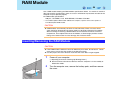
Use a RAM module meeting the RAM module specifications below. If a module is used that
does not meet the specifications, there are cases in which data may become unusable or the
computer may not operate properly.
z RAM module specifications:
200 pins, SO-DIMM, 3.3 V, DDR SDRAM, PC2100 or PC2700*1
*1
A PC2700-compliant RAM module added to this computer, operates at the same speed as a
PC2100-compliant RAM module.
CAUTION
z RAM modules are extremely sensitive to static electricity. There are cases where
static electricity generated by the human body has adversely affected such modules.
When inserting or removing a RAM module, do not touch the terminals or internal
components, insert objects other than the module, or allow foreign particles to enter.
Doing so has been known to cause damage, fire or electric shock.
Inserting/Removing the RAM Module
CAUTION
z If the RAM module is difficult to insert or difficult to press down, do not force it. Check
once more to ensure that the module is positioned correctly.
z Use the proper size screw driver to insure that the screw does not get stripped.
1
Power off your computer.
(⇒Operating Instructions "Starting Up/Shutting Down")
z Do not connect or disconnect devices while the computer is in the standby or
hibernation mode.
2
Turn the computer over, remove the battery pack, and then remove
the cover.
RAM Module
55
3
Insert/Remove RAM module.
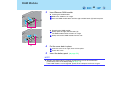
Inserting the RAM module
A Slide in the module at an angle.
B Press the RAM module down until the right and left hooks (A) lock into place.
Removing the RAM module
A Gently open the right and left hooks (A).
The RAM module will be raised at an angle.
B Gently remove the RAM module from the slot.
4
Put the cover back in place.
A Insert the cover at an angle, then fit it into place.
B Fasten the screw.
5
Insert the battery pack. (
page 34)
NOTE
Whether the RAM module is properly recognized or not can be confirmed in
[Information] menu of the Setup Utility ( page 79).
If the RAM module is not recognized, power off the computer and insert it again.
Port Replicator
56
Port Replicator
A port replicator is available as an option (CF-VEB501). This device eliminates the hassles of
having you connect/disconnect the various cables when carrying your computer around and
allows a variety of peripherals to be connected including a headphone or microphone, etc.
The port replicator connects to the expansion bus connector (A) on the back of your
computer.
For more detailed information, refer to the Operating Instructions of the port replicator.
External Display
57
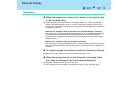
1
2
Power off your computer.
(⇒ Operating Instructions "Starting Up/Shutting Down")
Do not connect or disconnect devices while the computer is in standby or
hibernation mode.
Connect the external display.
Connect the external display to the external display port (A) on your computer.
3
Turn on the external display, then turn on your computer.
After Windows starts up, the screen is displayed on both the internal LCD and the
external display.
It is possible to change the setting to display only on the external display or on both
the internal LCD and the external display with Fn+F3.
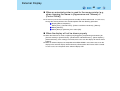
4
Set your external display.
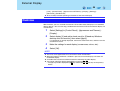
Select [start] - [Control Panel] - [Appearance and Themes] - [Display] - [Settings] [Advanced] - [Monitor] and make the monitor settings. When a monitor that does
not conform to the Plug & Play standards is connected, select [Properties] from
[Monitor], and then select [Driver] - [Update Driver] to update the driver.
NOTE
The display destination after resuming from hibernation mode or after restarting may
differ from the display destination before entering hibernation mode or before
restarting.
When changing the display destination after Windows has started, do not press any
keys or press the power switch until the display destination has changed completely.
When the display destination of the screen is switched using Fn+F3 after the
[Command Prompt] screen is set to "Full Screen", the display destination returns to
the destination before switching if an "Exit" is input and the [Command Prompt] screen
is closed. This can also happen if the "Full Screen" is canceled via an Alt+Enter
command. Press Fn+F3 again.
When the external display is used alone, set the number of colors, resolution, or
refresh rate to suit the external display. These settings are separate from when the
internal LCD is used alone or with an external display simultaneously.
When using simultaneous display with the internal LCD and an external display, some
videos, such as DVD video or MPEG, may not be played back smoothly.
If a picture is not displayed properly, lower the level of [Hardware acceleration] in the
following menu.
External Display
58
[start] - [Control Panel] - [Appearance and Themes] - [Display] - [Settings] [Advanced] - [Troubleshoot]
Also, carefully read the operating instructions of the external display.
Dualview
With Dualview, you can use both the internal LCD and the external display as an extended
display domain. You can also drag a window from the internal LCD to the external display. To
use Dualview;
1
Select [Settings] in [Control Panel] - [Appearance and Themes] [Display].
2
Select display [2] and add a check mark for [Extend my Windows
desktop onto this monitor], then select [Apply].
If a checkmark is already displayed, remove the checkmark once, and then turn the
checkmark back on.
3
4
Make the settings for each display (screen area, colors, etc.).
Select [OK].
NOTE
There are some applications that cannot be used in the Dualview.
When the button to maximize a window is pressed, one of the displays will show the
maximized display.
A window that has been maximized cannot be moved to the other display.
You cannot switch the display destination by pressing Fn+F3.
• The pop-up window displayed by Fn key combination is shown only on the primary
device.
External Display
59
Precautions
When the application running is not shown on the display, refer
to the following items.
Under the condition the application is in the external display, or after the application is
closed in the external display, there are cases the application will not be shown in the
display when executed the next time if the position of the extended display is changed or
the Dualview is closed.
When there is no display after the position of the extended display is changed:
The application running is being displayed at the position of the extended display before
the change. Return the position of the extended display to the condition before the
change. Move the application to the internal LCD, and then correct the position of the
extended display.
When there is no display when the Dualview is disabled:
The application running is being displayed in the external display. Set the Dualview again,
move the application from the external display to the internal LCD and then disable the
Dualview.
To prevent images from being burned onto the external display
Manually shut off the power to the external display when not in use.
When the display domain for the Dualview is changed, there
are cases the wallpaper and icons become displaced.
Wallpaper: Change the setting for the wallpaper.
Icons: Right-click on the desktop, and select [Arrange Icons By] - [Auto Arrange].
External Display
60
When an animated pointer is used for the mouse pointer (e.g.,
when changing the theme in [Appearance and Themes] of
[Control Panel])
An error may occur when resuming from the standby or hibernation mode. In such cases,
change the mouse pointer to the standard pointer with the following procedure.
A Display [Mouse Properties].
Select [start] - [Control Panel] - [Printers and Other Hardware] - [Mouse].
B Select [Pointers].
C Select [None] in [Scheme], then select [OK].
When the display will not be shown properly
When the Dualview is used, set [Never] for [Plugged in] and [Running on batteries] for
[Turn off monitor] in [Control Panel] - [Performance and Maintenance] - [Power Options] [Power Schemes]. If this setting is not made, there are cases the display will not be shown
properly.
When an external display not compatible with VESA DPMS is used, there are cases the
display of the external display will be adversely affected when the internal LCD is closed.
In such cases, turn the power of the external display OFF.
Printer
61
A printer can be connected to the parallel port (A) or the USB port ( page 62).
When a printer is connected to the parallel port:
Confirm whether or not the [Parallel Port] setting in the Setup Utility is optimal.(
81)
page
NOTE
You may need to install a driver for your printer. Follow the on-screen instructions and
refer to the operating instructions of the printer on how to install the driver.
1
Power off your computer.
(⇒ Operating Instructions "Starting Up/Shutting Down")
Do not connect or disconnect devices while the computer is in standby or
hibernation mode.
2
3
4
Connect the printer to your computer.
Turn on the printer, then turn on your computer.
Setting your printer.
Select [start] - [Printers and Faxes].
Find your printer's icon, double-click on it, then select [Printer] - [Set as Default
Printer].
If no icon is available, select [Add a printer] and follow the on-screen instructions.
USB Devices
62
Connecting/Removing USB devices
Connecting USB devices
1
Connect the USB device to the USB port (A) on your computer,
referring to the operating instructions of the USB device.
You may need to install drivers compatible with the operating system you are using
for your USB devices. Follow the on-screen instructions and refer to the operating
instructions for USB devices on how to install the driver.
NOTE
USB devices may be connected or removed without turning off the computer's power.
When a USB device is connected, there are cases the standby or hibernation function
will not operate in a normal manner due to the USB device. In addition, a USB device
may have to be removed temporarily and the computer restarted in cases where the
computer is unable to start up properly.
Some devices will not operate when connected to a USB HUB; these devices must be
connected directly to the USB port on your computer.
When a USB device is removed and then inserted,
may appear in the Device
Manager and the device may not be correctly recognized. If this happens, try
removing and connect the device once more.
When USB devices are connected, power consumption increases (Max. rated current
for per connector is 500 mA.). Remove USB devices when not in use, especially
when operating on battery power.
Removing USB devices
CAUTION
Do not remove a USB device while your computer is in the standby or hibernation
mode.
Save important data and close each application.
USB Devices
63
1
Disable the device functions.
A Select
on the taskbar and select the USB device, then select [Stop].
B Follow the on-screen instructions.
(This step is not necessary when the USB device has been removed after the
computer is turned off, if is not displayed, or if the device disconnected in step
A does not appear in the list.)
2
Remove the USB device.
IEEE 1394 Devices
64
A digital video camcorder or other IEEE 1394 standard device can be connected to the
computer.
Connecting IEEE 1394 devices
1
Turn on the computer (⇒Operating Instructions "Starting Up/Shutting Down")
and the IEEE 1394 device.
2
Connect the IEEE 1394 device to the IEEE 1394 interface connector
(A).
Refer to the instructions manual included with the IEEE 1394 devices.
NOTE
For more detailed information, refer to the operation manual of the IEEE 1394 device.
You may need to install drivers compatible with the OS you are using for your IEEE
1394 devices. Follow the on-screen instructions and refer to the operation manual for
IEEE 1394 devices on how to install the driver.
Removing IEEE 1394 devices
CAUTION
When an IEEE 1394 device is connected to the computer and the power for both the
device and the computer is on, do not power off the IEEE 1394 device.
1
Power off the computer (⇒Operating Instructions "Starting Up/Shutting
Down") and remove the cable from the IEEE 1394 interface connector
of the computer.
2
Power off the IEEE 1394 device and remove the cable.
Modem
65
Connecting the Internal Modem with a Telephone Jack
CAUTION
Do not use the PBX internal phone lines installed in company offices. Doing so may
lead to a fire or electric shock.
It is not possible to connect the modem to any of the following lines.
• Internal home phones
• Intercoms
Be sure to connect the modem telephone cable into the modem port, not into the LAN
port.
1
Connect the computer and the telephone jack (A) using a modem
telephone cable (included)(B).
Position the cable so that the tab (C) matches the port ( ), and insert the cable
until you hear a "click".
2
Change the settings as necessary.
A Select [Edit] in [start] - [Control Panel] - [Printers and Other Hardware] [Phone and Modem Options] - [Dialing Rules], then select the location from
which you will be dialing in [Country/region].
B Input the necessary information (items such as the area code, dialing rules,
etc.), select [OK], then select [OK].
NOTE
Do not enter either the standby or hibernation mode during communications.
To remove the cable, pull out while pressing down on the tab.
Ring Resume Function
With this function, if the telephone that is connected to the modem rings in the standby mode,
the power of the computer automatically switches ON.
This function is convenient when using automatic information receiving applications such as
a FAX application.
Modem
66
When using this function, it is necessary to run a software application able to maintain the
condition to receive telephone calls and to return the computer to the original condition after
a call. For further details, refer to the operating instructions provided with software
applications.
Enabling the Ring Resume Function
A Select [Device Manager] in [start] - [Control Panel] - [Performance and
Maintenance] - [System] - [Hardware] and then select the internal modem
from [Modems].
B Select [Power Management], add the check mark for [Allow this device to bring
the computer out of standby], then select [OK].
CAUTION
When using this function, it is recommended that the AC adaptor be connected to the
computer.
Concerning the setting for [System standby]*1
• Roughly consider the communication time and then set [System standby]. There
may be cases where the computer enters the standby mode after the time set for
[System standby] elapses even during communications, and cuts off the
communications.
• If [Never] is set, the computer will not enter the standby mode during
communications, but once the computer resumes, the power of the computer will
remain on while the user is absent.
When the Ring Resume function is being used, some time elapses before a
connection is established (equal to the time for the computer to resume). To allow the
computer to resume, set the "Call" to a larger value than a typical telephone call. If it is
not possible for the sending side to set a long "Call", set the "Number of rings until
answer" (with the software application that is able to maintain the condition to receive
telephone calls) to a small value.
*1
To display the setting for [System standby],
Select [start] - [Control Panel] - [Performance and Maintenance] - [Power Options] - [Power
Schemes].
Modem
67
NOTE
This function does not work when the computer is off or is in hibernation mode.
After operations are resumed from standby mode, the screen remains dark. The
former screen display will be restored when the keyboard or touch pad is touched.
The computer cannot resume if a telephone is connected to the line of a modem (e.g.,
a PC Card modem) other than the internal modem.
LAN
68
When using the computer as a network computer, some additional settings may have to be
made depending on the usage conditions. We recommend asking your system administrator
or the person in charge of the network.
Connecting LAN
CAUTION
Do not connect the modem telephone cable into the LAN port.
1
2
Power off your computer.
(⇒ Operating Instructions "Starting Up/Shutting Down")
Do not connect or disconnect devices while the computer is in standby or
hibernation mode.
Connect the cable.
Connect the LAN port (A) and the network system (server, HUB, etc.) using a LAN
cable.
3
Turn on the computer.
CAUTION
Do not use the standby or hibernation functions during communications (except when
the Wake up from LAN function is in use), as this may cause an error in data
transmission or reception. The timeout function may engage even during data
transmissions, causing the computer to automatically go into standby or hibernation
mode. When not using the Wake up from LAN function, we recommend disabling the
timeout function using the following menu.
[start] - [Control Panel] - [Performance and Maintenance] - [Power Options] - [Power
Schemes]
NOTE
If you are unable to connect to the network (when the indicator of your HUB unit does
not light):
LAN
69
A Display [Device Manager] screen.
Select [Device Manager] in [start] - [Control Panel] - [Performance and
Maintenance] - [System] - [Hardware].
B Select the network adaptor you are using from [Network adapters].
C Select [Advanced].
D Confirm the settings of each item.
Wake up from LAN
This is a function of the internal LAN to automatically power the computer on from a network
server when the computer is in the standby or hibernation mode. To use this function, it is
necessary to have a network environment that accommodates Wake up from LAN.
Enabling the Wake up from LAN Function
A Select [Device Manager] in [start] - [Control Panel] - [Performance and
Maintenance] - [System] - [Hardware].
B Select the internal network adaptor from [Network adapters].
C Select [Power Management], add the check mark for [Allow the computer to turn
off this device to save power] and [Allow this device to bring the computer out of
standby], then select [OK].
CAUTION
Be sure to connect the AC adaptor, and enable the supply of power.
NOTE
Even when a password is set in the Setup Utility and [Password on boot] is set to
[Enable], it is not necessary to input the password set in the Setup Utility when the
computer resumes from standby or hibernation mode.
The Wake up from LAN function will not operate under the following conditions:
• When the computer has been shut down.
• When the power switch is pressed over for four seconds or longer to turn off the
power (e.g., when the computer hangs).
LAN
70
• When the AC adaptor and battery pack are removed from the computer or
reattached to the computer.
• When the LAN cable is disconnected and reconnected.
After operations are resumed from standby mode, the screen remains dark. The
former screen display will be restored when the keyboard or touch pad is touched.
The computer may start up if accessed by another computer on the network.
The following procedure can be used to prevent startup due to unintentional access
by a computer.
A Select [start] - [Control Panel] - [Performance and Maintenance] - [System] [Hardware] - [Device Manager] - [Network adapters], then select the internal
network adaptor, and then select [Power Management].
B Add the check mark for [Only allow management stations to bring the computer
out of standby], then select [OK].
Wireless LAN
71
If you use a wireless LAN, you can use a network without cable connections.
CAUTION
Communication is performed through the wireless LAN antenna (A). Do not block the
antenna area with your hand or otherwise interfere with the passage of the radio
signals.
Do not use the Fast User Switching function. The wireless LAN cannot be used.
NOTE
The communication speeds and distances differ depending on the devices that
support the wireless LAN, the installation environment and other ambient conditions.
One characteristic of radio waves is that their transmission rate tends to drop as the
communication distance increases. It is recommended that the devices supporting
the wireless LAN be used in close vicinity to each other.
The rate may drop while a microwave oven is being used.
Precautions
Do not use wireless LAN on airplanes, in hospitals, or in other
locations where wireless LAN signals may affect the operation
of devices in the vicinity.
If you intend to use the computer in the environments described above, turn the wireless
LAN off using the following method:
A
B
C
D
Double-click
or
on the taskbar.
Select your wireless LAN adaptor and select [General].
Select [Off] for [Switch radio].
Select [OK].
The icon will turn to
.
Do not select [Disable] using
with the right button located on the taskbar.
Wireless LAN
72
To prevent theft of data or unauthorized access to the hard disk
via a wireless LAN (below).
If you plan to use wireless LAN functions, we recommend that you do so only after making
the appropriate security settings, such as for data encryption.
We recommend turning the wireless LAN off when it is not used
or out of range ( page 71).
If you leave the wireless LAN on, the battery's operating time is shortened.
The Settings
To use the wireless LAN, set the profile using the following procedure.
The settings will vary for different network environments depending on the network system
being used. For more details, ask your system administrator or the person in charge of the
network.
CAUTION
Set profiles for each user using the following procedure.
1
2
3
4
5
Double-click
6
Make necessary changes and select [Finish].
on the taskbar.
Select your wireless LAN adapter and select [General].
Select [On] for [Switch radio].
Select [Networks] and select [Add].
Enter the profile name and network name (SSID), and then make
other necessary changes, then select [Next].
For security reasons, we recommend that you enable the encryption (WEP).
If you enable WEP, enable encryption on the access point side as well.
Wireless LAN
73
(The setting described below is only an example. For the other settings, ask
your system administrator or the person in charge of the network.)
A Select [64-bit] or [128-bit] from [Encryption Level].
B Select [Use pass phrase] or [Use hex key], and enter the pass phrase or key.
In the case of ASCII character: [64-bit (5 characters)] [128-bit (13 characters)]
In the case of hexadecimal: [64-bit (10 digits)] [128-bit (26 digits)]
Set the same value on the computer side and the access point side.
When using an access point for which “128-bit” can be set (some access
points display “104-bit”), we recommend setting data encryption to “128-bit”
to prevent unauthorized decryption.
7
Select the profile you have set and select [Connect].
If the setting of the profile that is currently connected is changed, the new
setting will not be enabled until you select the profile and then select
[Connect].
8
Select [OK].
Check the Communication Status
Open the Intel PROSet using either of the following procedures.
Select [start] - [All Programs] - [Intel Network Adapters] - [Intel(R) PROSet for Wireless].
Select
or
on the taskbar.
For more information about how to use the Intel PROSet, refer to [Help] in the menu bar.
Wireless LAN
74
If the function fails to operate correctly
Read the operating instructions for the access point carefully and check the settings.
The access point fails to be displayed in [Available Networks]
Select [Networks], then select the profile you are using, and select [Advanced]. [Connect
to ad hoc networks only] may have been selected in [Connection preference]. In this
case, select [Connect to infrastructure and ad hoc networks].
This computer uses channels 1 through 11*1. Check the channel being used by the
access point.
Ask your system administrator or the person in charge of the network.
*1
In the case of wireless communications, the frequency band being used can be divided into
segments, so that different communications can be conducted on each band segment. A "Channel"
refers to the individual frequency bandwidth divisions.
The access point cannot be accessed
The network key setting may not conform to the access point.
Check the network key setting of the access point and, if necessary, set it again correctly.
Depending on the access point and settings, access may not be accepted unless the
computer's MAC address is registered beforehand. In this case, check the computer's
MAC address using the following procedure and register it according to the operating
instructions of the access point.
A Display [Command Prompt].
Select [start] - [All Programs] - [Accessories] - [Command Prompt].
B Input [ipconfig /all], and press Enter.
C Make a note of the 12-digit string of alphanumerics displayed on the wireless
LAN’s "Physical Address" line. Then input [exit], and press Enter.
The IP address of the access point is wrong
Following the operating instructions of the access point, set the IP address of the access
point again correctly.
Hard Disk Drive
75
To change your hard disk drive, contact Panasonic Technical Support.
Inserting/Removing the Hard Disk Drive
CAUTION
Be sure to back up all important data before changing the hard disk drive.
You can erase the data before changing the hard disk drive. (⇒ Operating Instructions "Hard Disk Data Erase Utility")
If [Hard Disk Lock] is set to [Enable] in the Setup Utility, change this to [Disable] before
changing the hard disk drive.
Be careful when changing the hard disk drive. The hard disk drive is extremely
sensitive to shock. In addition, static electricity could later affect some internal
components.
1
Power off your computer.
(⇒ Operating Instructions "Starting Up/Shutting Down")
Do not connect or disconnect devices while the computer is in standby or
hibernation mode.
Disconnect the AC adaptor, then turn your computer over.
2
3
Remove the battery pack. (
page 33)
Insert/Remove the hard disk drive.
Removing the hard disk drive
Slide the latch (A), and then without releasing it, slide and lift the cover (B) carefully.
The hard disk drive is attached behind the cover.
Hard Disk Drive
76
Inserting the hard disk drive
A Match the mark (C) on the cover to the body of the computer.
B Slide the cover back in place.
4
Insert the battery pack. (
page 34)
CAUTION
Be sure to insert the hard disk drive as illustrated.
Confirm that the latch lock is correctly in place. If you carry your computer without the
latch lock in place, the hard disk drive may fall out.
NOTE
Whether the hard disk is properly recognized or not can be confirmed in [Information]
menu of the Setup Utility ( page 79). If the hard disk is not recognized, power off
the computer and insert it again.
Setup Utility
77
The Setup Utility is a utility for setting the computer's operating environment (password
settings, startup drive selection, etc.). The following six menu items are available.
[Information], [Main], [Advanced], [Security], [Boot], [Exit]
Running the Setup Utility
1
2
Turn on or restart the computer.
Press F2 while [Panasonic] boot screen is displayed soon after the
computer begins the startup procedure.
If [Enter Password] is displayed, enter your password.
When the Setup Utility is started with Supervisor Password
You can register all items of the Setup Utility.
When the Setup Utility is started with User Password
You can not register [Advanced] menu and [Boot] menu.
On [Security] menu:
• [Set Supervisor Password] and [Hard Disk Lock] will not be displayed on
[Security] menu.
• [Password on boot], [Setup Utility Prompt], [Boot First Menu] and [User
Password Protection] will be displayed, but cannot be set.
• The User Password can be changed only when [User Password
Protection] has been set to [No Protection]. The User Password cannot be
deleted.
[Get Default Values] will not be displayed on [Exit] menu.
F9 does not work.
NOTE
When [Password on boot] in the Setup Utility is set to [Disable], the password is not
necessary when the computer is started up, but the password becomes necessary
when the Setup Utility is started up. This alternative makes it possible to prevent the
contents of the Setup Utility from being changed.
If you fail to press F2 at the right moment, the Setup Utility will not start up. In this
case, power off the computer and try again.
To close the Setup Utility, press Esc, select the exiting method in [Exit] menu, then
press Enter.
Setup Utility
78
Key Operations
F1
To display the corresponding "help" file.
Esc
To display [Exit] menu.
To move among the items.
To move among the menus.
F5 F6
To move among the values.
Enter
To display sub-menu of each item selected by or .
F9
To set default settings (except the password). (When starting up the Setup Utility with the
User Password, this key is not available.)
F10
To save the settings and exit.
NOTE
When setting date and time, Tab can be used to move the cursor.
Setup Utility
79
Information Menu
Language:
[English]
Model No.:
CF-xxxxxxxxx
Serial No.:
xxxxxxxxxx
CPU Type:
xxxxxxxxxxxxxxxxxxxxxxxxxxxxxxxx
CPU Speed:
x.xx GHz
BIOS:
Vx.xxLxx
Embedded Controller:
Vx.xxLxx
System Memory:
xxx MB
Video RAM:
xxx MB
Primary Master:
xx GB
Secondary Master:
CD/DVD Drive
Parameters
(Underline indicates settings at the time of factory shipment.)
Language
English
Japanese
Select the language for displaying the Setup Utility.
Setup Utility
80
Main Menu
System Date:
[xx/xx/xxxx]*1
System Time:
[xx:xx:xx]*2
Touch Pad:
[Enable]
Display:
[Simultaneous]
Display Expansion:
[Enable]
CD/DVD Drive Speed:
[High]
Environment:
[Auto]
Current Status:*3
Normal Temperature
*1
Date is shown in order of Month/Day/Year.
Time is shown in 24-hr. style.
*3 This item is displayed only when [Environment] is set to [Auto]. Depending on the battery status,
either "Normal Temperature" or "High Temperature" is displayed.
*2
Parameters
(Underline indicates settings at the time of factory shipment.)
Touch Pad
Disable
Enable
Display*4
External Monitor
Internal LCD
Simultaneous
Display Expansion
Disable
Enable
CD/DVD Drive Speed
High
Low
Environment
Normal Temperature
High Temperature
Auto
Setup Utility
81
*4
The display destination in cases where Windows is not running is set here. When an external
display is connected, the computer displays on both the internal LCD and the external display after
Windows starts up regardless of the [Display] setting.
Advanced Menu
Serial Port:
[Enable]
Parallel Port:
[Enable]
Mode:
[ECP]
Modem:
[Enable]
LAN:
[Enable]
Boot up from LAN:
Wireless LAN:
[Enable]
[Enable]
NOTE
[Advanced] menu cannot be changed when the Setup Utility is started up with the
User Password.
Parameters
(Underline indicates settings at the time of factory shipment.)
Serial Port
Disable
Enable
Parallel Port
Disable
Enable
Mode*1
Uni-directional
Bi-directional
EPP
ECP
Setup Utility
82
Modem
Disable
Enable
LAN
Disable
Enable
Boot up from LAN*2
Disable
Enable
Wireless LAN
Disable
Enable
*1
*2
This item is displayed only when [Parallel Port] is set to [Enable].
[Disable] is automatically set when [LAN] is set to [Disable]. This function works only for the internal
LAN. This does not work for a wireless LAN nor a LAN card.
Security Menu
Password on boot:
[Enable]
XSet Supervisor Password:
[Enter]
Setup Utility Prompt:
[Enable]
Boot First Menu:
[Enable]
Hard Disk Lock:
[Disable]
User Password Protection:
[No Protection]
XSet User Password:
[Enter]
Floppy Operation:
[Enable]
NOTE
When the Setup Utility is started up with the User Password;
• [Set Supervisor Password] and [Hard Disk Lock] will not be displayed.
• The User Password can be changed only when [User Password Protection] has
been set to [No Protection]. The User Password cannot be deleted.
Setup Utility
83
Parameters
(Underline indicates settings at the time of factory shipment.)
Password on boot
Disable
Enable
Set Supervisor Password
To the sub-menu
Setup Utility Prompt*3
Disable
Enable
Boot First Menu
Disable
Enable
Hard Disk Lock*4
Disable
Enable
User Password Protection
No Protection
Protected
Set User Password*4
To the sub-menu
Floppy Operation
Disable
Enable
*3
When [Setup Utility Prompt] is set to [Disable], the message "Press F2 Setup / F12 for LAN" is not
displayed on [Panasonic] boot screen. Even if the message is not displayed, F2 and F12 will work.
*4
Setting impossible when the Supervisor Password is not set.
Setup Utility
84
Boot Menu
T
Floppy Drive*1
Hard Disk Drive
CD/DVD Drive
LAN*2
*1
*2
This item is displayed even if [Floppy Operation] is set to [Disable].
This item is displayed even if [LAN] or [Boot up from LAN] is set to [Disable] on [Advanced] menu.
The default order is as follows:
[Floppy Drive] -> [Hard Disk Drive] -> [CD/DVD Drive] -> [LAN].
To move a device up by one in the order, select the device with and , and then press F6.
To move a device down by one in the order, select the device with and , and then press
F5.
NOTE
[Boot] menu cannot be changed when the Setup Utility is started up with the User
Password.
Boot Menu
The device for starting up the operating system can also be selected during computer
start-up. After the computer is turned on, and Esc is pressed at [Panasonic] boot
screen, [Boot Menu] (the device selection screen) will appear. When the setting of
[Boot] menu is changed, the selection screen display will also change. [Boot Menu] is
displayed only when [Boot First Menu] in [Security] menu is set to [Enable].
Setup Utility
85
Exit Menu
Save Values & Exit
Exit Without Saving Changes
Get Default Values*1
Load Previous Values
Save Current Values
Battery Recalibration
*1
This item is not displayed when starting up the Setup Utility with the User Password.
Parameters
Save Values & Exit
Exit the Setup Utility and save your changes
to CMOS.
Exit Without Saving Changes
Exit the Setup Utility without saving your
changes to CMOS.
Get Default Values
Set the Setup Utility to the default settings.
Load Previous Values
Load previous values from CMOS for all
Setup items.
Save Current Values
Save your changes to CMOS.
Battery Recalibration
To accurately display remaining battery
capacity, fully charge the battery pack, then
fully discharge it. ( page 32)
Technical Information
86
Network Connections and Communications Software
If the power saving function (standby or hibernation mode) activates while communications
software is being used, the network connection may be interrupted, or performance may be
adversely affected. If this happens, restart the computer.
Be sure to close the communications software before using the power saving function.
When using the computer in a network environment, we recommend that you set [System
standby] and [System hibernates] to [Never], using the following procedure:
Select [start] - [Control Panel] - [Performance and Maintenance] - [Power Options] - [Power
Schemes].
When Using the Files on the Retail Version of the Windows CDROM
The Windows files included in the Retail Version of the Windows CD-ROM for OS are
contained in the following folders:
c:\windows\docs, c:\windows\dotnetfx, c:\windows\i386, c:\windows\support,
c:\windows\valueadd
DMI Viewer
87
This computer conforms to the specifications of the Desktop Management Interface (DMI).
The DMI Viewer can be used when you want to know information on the internal systems this
computer supports, starting with the CPU and memory.
Running DMI Viewer
1
Select [DMI Viewer] from [start] - [All Programs] - [Panasonic].
The screen shown at left is displayed.
When you select an item, detailed information on that item will be displayed.
Saving information to a file
Displayed information can be saved to a text file (.txt). Run the DMI Viewer and display the
information you wish to save.
1
Select save method.
To save the item that is displayed
Select [Save Selected Data] from [File] menu.
To save all items
Select [Save All Data] from [File] menu.
2
Select the folder, input the file name, then select [Save].
Icon Enlarger
88
How to magnify the computer screen display
If the characters, icons, title bars, mouse cursor, or other items are too small and difficult to
see on the screen, use the "Icon Enlarger," and change the screen display by switching
among [Normal Size], [Large Size], and [Extra Large Size].
Characters on Internet screens*1 displayed on Internet Explorer, as well as characters*1 in
sent and received mail in Outlook Express and characters*1 in mail text boxes, change
according to the settings in the "Icon Enlarger."
In the default settings, [Normal Size] is set.
*1
Some characters in homepages and HTML e-mails may not be magnified.
NOTE
"Icon Enlarger" will not start up if the display resolution is set lower than 1024 x 768
dots.
When magnifying screen, a part of the menu or other screen elements may become
hidden. In this case, overlay the cursor to display pop-ups, scroll the screen, or use
other functions to display the hidden elements.
Close all applications other than "Icon Enlarger" when changing the screen display.
1
Select
on the desktop, or select [start] - [All Programs] -
[Panasonic] - [Icon Enlarger].
2
Select the display size as [Normal Size], [Large Size], or [Extra Large
Size].
3
Select [OK].
The screen will be displayed in the selected size.
List of Error Codes
89
When turning on the computer, if one of the following error codes or messages is displayed,
follow the instructions shown below.
If the problem persists, or if the error code or message displayed is not shown here, contact
Panasonic Technical Support.
Error Code/Message
0212: Keyboard error
Action
If an external keyboard or mouse is connected,
disconnect these devices.
0251: System CMOS checksum
bad - Default configuration used
An error has occurred in the memory that stores the
Setup Utility settings. This error occurs when the
memory content is changed through some inadvertent
operation by a program or other function.
Run the Setup Utility and load the default values,
then change the settings to the appropriate values as
needed. ( page 77)
If the problem persists, the internal clock battery may
need to be replaced. Contact Panasonic Technical
Support.
0271: Check date and time
settings
The data and time setting are incorrect.
Run the Setup Utility and set the date and time
correctly. ( page 80)
If the problem persists, the internal clock battery may
need to be replaced. Contact Panasonic Technical
Support.
0280: Previous boot incomplete Default configuration used
Startup has failed repeatedly, so the Setup Utility
settings have been returned to their default values, and
the computer has been restarted.
Run the Setup Utility and load the default values,
then change the settings to the appropriate values as
needed. ( page 77)
Press <F1> to resume, <F2> to
Setup
Write down the error details and press F2 to run the
Setup Utility. Confirm the settings, and change the
settings to the appropriate values as needed.
( page 77)
List of Error Codes
90
Error Code/Message
Operating System not found
Action
The OS is not properly installed on the floppy disk or the
hard disk that you are trying to boot from.
If the computer cannot be booted from the floppy
disk, check the floppy disk drive to ensure that the
disk is in fact bootable, and change it to another if
not.
If the computer cannot be booted from the hard disk,
confirm whether the hard disk is properly recognized
in [Information] menu of the Setup Utility.
If the hard disk is recognized, perform the
reinstallation procedure. If not, contact Panasonic
Technical Support.
Dealing with Problems (Advanced)
91
When a problem occurs, refer to this page. If a problem appears to be related to a software
application, read the software related manual. If you still cannot troubleshoot the problem,
contact Panasonic Technical Support. You can use the PC Information Viewer to check the
computer's usage status ( page 103).
Starting Up
The power indicator or battery
indicator is not lit
Check the cable connection for the AC adaptor.
Check to see if a fully charged battery is properly inserted.
Remove the battery pack and disconnect the AC adaptor, then connect them
again.
[Enter Password] is displayed
Input your Supervisor Password or User Password. If you have forgotten it,
contact Panasonic Technical Support.
POST Startup Error(s) is displayed
page 89
Windows startup, or an operation is
extremely slow
Press F9 in the Setup Utility ( page 77).
This will restore the Setup Utility's settings to their default values (except the
password settings). Then, the Setup Utility must be run once again for you to
input the appropriate operating environment settings.
(The processing speed depends on the application software used, so this
operation may not cause the processing speed to increase.)
Disable any resident software.
The date and time are incorrect
You can set the date and time using the following menu:
[start] - [Control Panel] - [Date, Time, Language, and Regional Options] - [Date
and Time]
If you continue to experience problems, the internal battery maintaining the
clock may need to be replaced. Contact Panasonic Technical Support.
When the computer is connected to a LAN, confirm the date and time of the
server.
This computer will not correctly recognize the date and time starting from the
year 2100 A.D.
Dealing with Problems (Advanced)
92
Starting Up
When resuming from the standby or
hibernation mode, [Enter Password]
does not appear even if a password
has been set in the Setup Utility
Even when a password has been set in the Setup Utility, [Enter Password] does
not appear when the computer resumes from the standby or hibernation mode.
If you want to use the security function when using the standby or hibernation
mode, use the Windows password as follows:
A Select the account to change in [start] - [Control Panel] - [User
Accounts] and set the password.
B Add the check mark for [Prompt for password when computer
resumes from standby] in [Control Panel] - [Performance and
Maintenance] - [Power Options] - [Advanced].
When “Remove disks or other media.
Press any key to restart” (or a similar
message) is displayed
This means a floppy disk that does not contain system startup information has
been left in the floppy disk drive. Remove the floppy disk, and press any key.
If the message still appears even after trying the above measure, this may be
an indication that some type of hard disk failure has occurred. Contact
Panasonic Technical Support.
When the administrator password is
forgotten
Set the password again in the following procedure.
If you have created a password reset disk (⇒ Operating Instructions "First-time
Operation"), a message is displayed when you fail to correctly enter the
password. Follow the message's instructions and set the password again by
using the password reset disk.
If you have not created a password reset disk, after reinstalling, setup Windows
and then set the password again.
Dealing with Problems (Advanced)
93
Starting Up
Press F9 in the Setup Utility. This will restore the Setup Utility's settings to their
default values (except the password settings).( page 77)
Try removing all peripheral devices.
Check a disk error using the following procedure.
A Display [Local Disk (C:) Properties].
Select [Local Disk(C:)] with the right button in [start] - [My
Computer], and select [Properties].
B Select [Tools] - [Check Now].
C Select [Start] after selecting required items in [Check disk options].
At startup, hold down F8 when [Panasonic] boot screen disappears*1, and
release your finger when the Windows Advanced Options Menu is displayed.
Start the computer in Safe Mode, and confirm the details of the error.
When the previous item is not the
cause
*1
When [Password on boot] is set to [Enable], [Enter Password] appears after the
[Panasonic] boot screen disappears. Hold down F8 soon after inputting the password
and pressing Enter.
Display
No display after powering on
When there is no display to an external display,
• Check your cable connection to the external display.
• Confirm your display is powered on.
• Check the settings for your external display.
The display destination may be set to the external display.
Try changing the display destination by pressing Fn+F3.
If you want to switch the display destination repeatedly by pressing Fn+F3,
make sure that the display destination has switched completely each time
before pressing Fn+F3 again.
When displaying only through an external display, if the computer is shut down
by using the standby or hibernation function, there will be no display on the LCD
unless the external display is connected when operations are resumed. In this
case, connect the external display or press Fn+F3.
Press Fn+F2 and adjust the brightness.
Dealing with Problems (Advanced)
94
Display
The power has not been turned off, but
after a certain period of time, there is
no display
Has the computer been set to the power-saving mode? To resume operation of
your computer from the condition the power of the display is off (for energy
conservation purposes), press any key unrelated to the direct triggering of a
selection, like Ctrl.
To save power, your computer may have automatically entered the standby
mode (power indicator blinks green) or hibernation mode (power indicator turns
off). In such cases, press the power switch.
When the battery pack is used, the
screen is darker than when the AC
adaptor is connected
Press Fn+F2 and adjust the brightness. Note, however, that when the
brightness is increased, the battery running time will become shorter.
Brightness can be set to separate levels for when the AC adaptor is connected
and when it is disconnected.
The cursor cannot be controlled
properly
If you are using an external mouse, ensure that the external mouse has been
connected correctly.
Restart the computer by using the keyboard.
(Press , U, and select [Restart] with R.)
If the computer does not respond to keyboard commands, read "No response"
( page 102).
An afterimage appears (e.g., green,
red, and blue dots remain on the
display) or there are dots not
displaying the correct colors
If an image is displayed for a prolonged period of time, an afterimage may
appear. This is not a malfunction. The afterimage will disappear when a
different screen is displayed.
High-precision and advanced technologies are necessary in the production of
color liquid crystal displays (color LCDs). Therefore, if 0.002% or less of the
picture elements either fail to light or remain constantly lit (that is, more than
99.998% of elements are functioning properly), no defect is considered to exist.
The screen becomes disordered
Changing the number of colors and resolution of the display may affect the
screen. Restart the computer.
When using Dualview, use the same display colors for the external display as
those used by the LCD.
When using Dualview, do not press Fn+F3 .
Restart your computer immediately after enabling or disabling Dualview.
The external display no longer
displays properly
When an external display not compatible with the power saving mode is used
with the computer, the display may not function correctly when the computer
enters the power saving mode. In such cases, turn off the power to the external
display.
Dealing with Problems (Advanced)
95
Display
When you want to display the fonts or
icons at a larger size
Change the size of the icons, etc. using “Icon Enlarger” ( page 88).
You can also change the settings as follows (for more details, refer to the
Windows Help).
A Select [start] - [Control Panel] - [Appearance and Themes] [Display] - [Appearance].
B Select the font size in [Font size], and select [Effects] and then add
the check mark for [Use large icons] to increase the icon size.
C Select [OK], then select [OK].
When a video such as an MPEG file or
a DVD video is being played with
WinDVD or Windows® Media Player,
the display destination cannot be
switched using Fn+F3
The display destination cannot be switched while a video such as an MPEG file
or a DVD video is playing.
Stop playing the video before switching the display destination.
An error occurs or the computer
freezes while using Dualview
If you use a 3D screen saver while in Dualview mode at a high resolution, an
error may occur or the computer may freeze. Under these conditions, do not
use a 3D screen saver.
When the screensaver is set, an error
will occur during a resume operation
When the computer automatically enters the standby or hibernation mode while
the screensaver is running, an error may occur during a resume operation. In
such cases, turn off the screensaver or try changing the pattern of the
screensaver.
Setup Utility
[Enter Password] is displayed
Enter the Supervisor Password or User Password. If you have forgotten it,
contact Panasonic Technical Support.
[Advanced] and [Boot] menu can not
be registered
Restart the Setup Utility with the Supervisor Password.
Some items in [Security] menu can not
be registered
Restart the Setup Utility with the Supervisor Password.
F9 does not work
Restart the Setup Utility with the Supervisor Password.
Shutting Down
Windows cannot be shut down or
restarted
If a USB device is connected, try removing it.
Dealing with Problems (Advanced)
96
Standby/Hibernation Function
Unable to enter standby or hibernation
mode
z If a USB device is connected to the computer (note: only for some USB
devices), remove the USB device temporarily. If the problem persists, restart
the computer.
z It may take one or two minutes to enter the standby or hibernation mode.
z The computer may not enter the standby mode while the computer is
communicating via the modem.
Unable to automatically enter standby
or hibernation mode
z If a peripheral is connected to the computer, disconnect the device.
z When the internal LCD is closed, the computer may not enter the system
standby or system hibernation mode. In order to activate the system standby or
system hibernation mode while using the computer with the internal LCD
closed, set the [Touch Pad] to [Disable] in [Main] menu of the Setup Utility.
The computer does not resume
z Did you disconnect the AC adaptor or the battery pack while the computer was
in standby mode?
If the computer's power supply is disconnected while the computer is in standby
mode, the existing data will be lost.
z Did you press the power switch and hold it for four seconds or more? If you
press the power switch and hold it for four seconds or more, the power will be
turned off forcibly. In this case, all unsaved data will be lost.
Battery Indicator
The red indicator lights
z The battery level is very low (the charge is approx. 9% or less).
Connect the AC adaptor. You can use the computer when the battery indicator
light is orange. If you do not have an AC adaptor, save your data and power off
your computer. After replacing the battery pack with a fully charged one, turn
your computer on.
The red indicator blinks
z Quickly save your data and power off your computer. Remove the battery pack
and disconnect the AC adaptor, then connect them again. If the problem
persists, contact Panasonic Technical Support. The battery pack or charging
circuit may be defective.
The green indicator blinks
z In high temperature mode, the battery pack is discharging to a level of 80%*1 in
normal temperature mode.(Î page 30) Do not remove the battery pack while
the battery indicator is blinking green.
*1
A level of 80% in normal tenperature mode is displayed as [100%] in high temperature
mode.
Dealing with Problems (Advanced)
97
Battery Indicator
The orange indicator blinks
Battery cannot be recharged temporarily because the internal temperature of
the battery pack is outside of the acceptable temperature range for recharging.
Once the allowable range requirement is satisfied, charging begins
automatically. Your computer can be used normally in this state.
Keyboard
Only numbers can be input
Check whether the indicator is on. If it is on, the computer is in ten-key
keyboard mode. To disable the ten-key mode, press NumLk.
Only capital letters are being input
Check whether the indicator is on. If it is on, the computer is in Caps Lock
mode. To disable the Caps Lock mode, press CapsLock.
How to input European characters (ß,
à, ç etc.), symbols or Euro currency
symbol is unclear
Select [start] - [All Programs] - [Accessories] - [System Tools] - [Character
Map].
Network
Unable to connect to a network
Confirm that either [Modem], [LAN] or [Wireless LAN] is set to [Enable] in the
Setup Utility.
When using the computer as a network computer, some additional settings may
have to be made depending on the usage conditions. We recommend asking
your system administrator or the person in charge of the network.
If the standby or hibernation mode is entered, the computer may have to be
restarted. Also, check whether these settings for network are competing with
other peripheral devices.
If the link lamp on the HUB unit is not on and the network cannot be accessed,
set the speed to match the HUB unit. ( page 68)
Dealing with Problems (Advanced)
98
Network
Unable to use wireless LAN
Confirm that [Wireless LAN] is set to [Enable] in the Setup Utility.
Confirm that
is displayed on the taskbar.
If
is not displayed on the taskbar, confirm that [On] is selected for [Switch
radio] in [Intel(R) PROSet] - [General]. ( page 72)
Confirm the setting of the IP address for the access point, following the
operating instructions for that access point.
Confirm whether the Intel(R) PROSet is installed using the following menu.
[start] - [Control Panel] - [Add or Remove Programs].
If it has not been installed, input [c:\util\drivers\wlan\proset\iSetup.exe] in [start]
- [Run] to install.
Connecting Peripherals
An error occurs while installing the
driver
When you install the driver for a PC Card or peripheral device, be sure to use a
driver that is compatible with the operating system. If you use an incompatible
driver, malfunction may occur. For information on drivers, contact the
manufacturer of the peripheral device you purchased.
Your peripheral does not work
Make sure a driver is installed.
Contact the manufacturer of the product.
When operation resumes from the standby or hibernation mode, devices such
as a mouse, modem or PC Cards may not function properly. In such cases,
you will need to restart your computer or reinitialize the individual devices.
When
is displayed in the Device Manager, try removing and inserting the
device once more. If the problem persists, restart the computer.
Depending on the device connected, the computer may not recognize when the
device is connected or disconnected, or the device may not operate properly.
The cursor does not move from mouse
operations
Check your mouse connection.
A driver which is compatible with the connected mouse must be installed.
If the device does not operate when the driver is installed:
In the Setup Utility, set [Touch Pad] to [Disable].
Dealing with Problems (Advanced)
99
Connecting Peripherals
A PC Card does not work
Make sure the card is properly inserted.
Confirm that the card conforms to the PC Card Standard.
Note that after a driver (PC Card driver on other) is installed, the computer must
be restarted.
Check that the proper port settings have been made.
Read the operating instructions for the PC Card. Or, you may need to call the
manufacturer of the PC Card.
Try removing/reinserting the PC Card by following the proper procedure.
( page 52)
Confirm that a driver for your operating system has been installed.
You do not know the available RAM
module
page 54
Cannot tell whether the RAM module
has been correctly installed
You can check whether the RAM module is recognized using [Information]
menu in the Setup Utility. If the RAM module is not recognized, turn the
computer off and reinsert the RAM module.
The RAM module has not been
recognized
Make sure the RAM module has been properly inserted.
Use the RAM module that supports the recommended specifications (
54).
The address map for IRQ, I/O port
address, etc. is unclear
The current address map can be displayed with the following procedure.
[start] - [Control Panel] - [Performance and Maintenance] - [System] [Hardware] - [Device Manager] - [View] - [Resources by type].
The device connected to the serial
port does not work
Check the connection.
Confirm that the device driver for the serial port works. Refer to the operating
instructions of the device.
Confirm that two mouse devices are not connected, one through the external
keyboard/mouse port of the port replicator and the other through the serial port.
Try setting [Touch Pad] to [Disable] in the Setup Utility.
Confirm that [Serial Port] has not been set to [Disable] in the Setup Utility.
Unable to print
Check the computer-printer connection.
Make sure the printer is on.
Make sure the printer is in the online state.
Make sure paper is in the printer tray and there is no paper jam.
Has the Setup Utility been used to set [Parallel Port] to [Enable].
Depending on the printer, EPP or ECP may not work at times.
Turn on the printer, connect it to the computer and then restart the computer.
page
Dealing with Problems (Advanced)
100
Connecting Peripherals
The following phenomena occur
The LAN transmission speed slows
down dramatically
Wireless LAN connection drops out
Poor performance when forwarding
data via a PC card (e.g., unstable
video images when writing videos
to a DV camera using an IEEE1394
PC card)
These phenomena may be consequences of performance losses that result
from CPU power-saving functions. Execute the following operations after
logging on with administrator authority.
A Input [c:\util\cpupower\setup.exe] in [start] - [Run], and select [OK].
Follow the on-screen instructions.
B Select [Performance] in [start] - [Panasonic] - [CPU Idle Setting] and
select [OK], then select [Yes].
The computer will be restarted automatically.
If these phenomena occur even with the above settings, select
[start] - [Control Panel] - [Performance and Maintenance] - [Power
Options] - [Power Schemes], select [Always On] from [Power
schemes], and select [OK].
• These operations will be helpful in easing the performance losses resulting
from CPU power saving functions, but will not be effective against the
phenomena resulting from other causes. (e.g., noise generated during
periods of exceptionally high load on the CPU, such as during video
playback).
• When these operations are performed, the battery running time will be
reduced to some extent. We thus recommend that when these phenomena
do not occur, you should select [Battery (Windows XP Standard)] in [CPU Idle
Setting], and return [Power schemes] in [Power Options] to [Portable/Laptop].
Disk Operations
Cannot read/write to a floppy disk
Has the floppy disk been correctly inserted?
Has the floppy disk been correctly formatted?
Has the Setup Utility been used to set [Floppy Operation] to [Enable]? (
82)
Your floppy disk content may be corrupted.
page
Unable to write to a floppy disk
Is the floppy disk write-protected?
How to format a floppy disk is unclear
Format the floppy disk using the following procedure.
Select [My Computer] in [start] and select [3 1/2 Floppy (A:)], then select [File]
from the menu and select [Format]. Confirm the disc capacity and the format
type, then select [Start] to begin the formatting.
Dealing with Problems (Advanced)
101
Disk Operations
Unable to read/write to the hard disk
Your drive or file may not have been properly set.
Check to see if the hard disk is full. If it is full, delete unnecessary files.
Your hard disk content may be corrupted. Contact Panasonic Technical
Support.
Trouble has occurred with the disc set
in the CD/DVD drive
You may need to clean the lens or disc.
• Cleaning the lens
page 36
• Cleaning the disc
page 40
The CD/DVD drive status indicator
or the access lamp on the CD/DVD
drive does not light
Is the disc set correctly?
Cannot play disc or read data from it
Is the disc bent, scratched, or dirty?
Cannot play music CD or DVD-Video
automatically after setting it in the CD/
DVD drive
Remove the disc and reinsert it. If the problem persists, run the application software and play.
A blue background appears on the
screen with the MPEG image
Did you open the CD/DVD drive or remove the MPEG disc while it was
operating?
Re-insert the MPEG disc and close the CD/DVD drive.
If the CD/DVD drive vibrates
excessively or is noisy
Is the disc bent or labeled?
Check to see if the disc is inserted correctly, and check that the disc is in good
condition. If the disc is good and inserted correctly, set [CD/DVD Drive Speed]
to [Low] in the Setup Utility. ( page 80)
Cannot eject disc
Is the computer powered on?
To remove a disc when the computer is powered off,
insert a pointed object (e.g., the bent-out tip of a paper
clip, or the tip of a pencil or ballpoint pen) into the
emergency hole (A). Pushing it completely to the end
will free the tray so that it can be pulled out. (The
position of the emergency hole differs depending on
the drive.)
The disc tray does not close
Did you touch the eject button when you close the tray?
When the previous item is not the
cause
Try testing another drive or media.
Dealing with Problems (Advanced)
102
Touch Pad
Unable to input using the touch pad
Has the Setup Utility been used to set [Touch Pad] to [Enable]? ( page 80)
When external mouse drivers are installed (e.g., IntelliMouse), the touch pad
may not be used.
Has the touch pad driver been properly installed?
Sound
The sound is not heard
Try changing the mute by pressing Fn+F4 or Fn+F6.
Fast User Switching Function
Some applications may not work
properly
When switching to a different user with the Fast User Switching function, the
following problems may occur.
• Some applications may not work properly.
• Key combination with Fn may not work.
• It may not be possible to set the settings of the display.
• The wireless LAN cannot be used.
• A serial mouse may not work.
• The B's CLiP icon will no longer be shown on the taskbar and B’s CLiP cannot
be used.
In this case, log off all users without using Fast User Switching function, and try
the operation once more. If the problem persists, restart the computer.
Others
No response
Press Ctrl+Shift+Esc to open Task Manager and close the software
application which is not responding.
After shutting down by pressing the power switch for more than four seconds,
press the power switch to power on and open the application again. If the
program no longer works normally, delete the program using the following
menu. Then reinstall the program.
[start] - [Control Panel] - [Add or Remove Programs]
When trying to play back video files
using Windows® Media Player, the
message [Codec required] appears,
and the file cannot be played back
Some video files use a Codec that is not installed as a standard. In these
cases, if you play back the video file after connecting to the Internet, the Codec
may be downloaded automatically, allowing you to play back the file.
Dealing with Problems (Advanced)
103
Others
The shortcut icon for the Windows®
Media Player is not displayed on the
desktop
Start up Windows® Media Player from [start] - [All Programs]. Also, you can
copy the icon from [All Programs] list to the desktop and use this icon to start
Windows® Media Player.
Two shortcut icons for the Windows®
Media Player are displayed on the
desktop
Did the user who first accepted the Windows® Media Player license agreement
have the administrator authority? Two icons will be displayed until someone
with the administrator authority accepts the license agreement, but either icon
can be used to start the program.
Check the Computer's Usage Status
You can use the PC Information Viewer to check the computer's usage status, and use this
information when calling Panasonic Technical Support for advice. (If you have not logged on
with the administrator authority, some information will be displayed as [Not Found].)
Running PC Information Viewer
A Select [start] - [All Programs] - [Panasonic] - [PC Information Viewer] - [PC
Information Viewer].
Click on the items to display detailed information for each item.
The [PC Information Viewer] screen is always displayed on the top of every
other screen.
Save information to a file
Displayed information can be saved to a text file(.txt).
A Run the PC Information Viewer and display the information you wish to save.
B Select [Save].
To save the item that is displayed.
Select [Save only the information displayed] and select [OK].
Some of the hidden information on the screen, which cannot be shown
without scrolling the screen, will be saved, too.
To save all items.
Select [Save all the information] and select [OK].
C Select the folder, input the file name, then select [Save].
Dealing with Problems (Advanced)
104
Save a copy of the screen to a file
You can save a copy of the screen currently being displayed to a file in bitmap format (.bmp).
A Display the screen you want to save.
B Press Ctrl+Alt+F8.
C When a message "The copy of the screen was saved..." is displayed, select
[OK].
[pcinfo.bmp] file will be saved in [My Documents] folder. If [pcinfo.bmp] file already
exists, it will be overwritten. (If [pcinfo.bmp] file is set as a "Read-only" or "Hidden"
file, the new file cannot be saved.)
NOTE
You can also save a copy of the screen to a file using the following procedure.
Select [start] - [All Programs] - [Panasonic] - [PC Information Viewer] - [Screen Copy].
At the time of purchase, the computer is set so that a copy of the screen can be saved
to a file by pressing Ctrl+Alt+F8. This setting can be changed using the following
procedure.
A Select [PC Information Viewer].
Select [start] - [All Programs] - [Panasonic] - [PC Information Viewer].
B Select [Screen Copy] with the right button, and select [Properties] - [Shortcut].
C Move the cursor to [Shortcut key], and press the key to be used for the shortcut.
Colors are saved in 256 colors.
When using Dualview
A copy of the screen displayed on the primary device will be saved.
105
Copyright
This manual is copyrighted by Matsushita Electric Industrial Co., Ltd. with all rights
reserved. No part of this manual may be reproduced in any form without the prior written
permission of Matsushita Electric Industrial Co., Ltd. No patent liability is assumed with
respect to the use of the information contained herein.
© 2004 Matsushita Electric Industrial Co., Ltd. All Rights Reserved.
Disclaimer
Computer specifications and manuals are subject to change without notice. Matsushita
Electric Industrial Co., Ltd. assumes no liability for damage incurred directly or indirectly
from errors, omissions or discrepancies between the computer and the manuals.
Trademarks
• Microsoft, Windows, the Windows logo and IntelliMouse are registered trademarks of
Microsoft Corporation of the United States and/or other countries.
• Intel, Pentium and PROSet are either registered trademarks or trademarks of Intel
Corporation.
• Adobe® and Acrobat® are either registered trademarks or trademarks of Adobe
Systems Incorporated in the United States and/or other countries.
• WinDVD™ is a trademark of InterVideo, Inc.
• Panasonic is a registered trademark of Matsushita Electric Industrial Co., Ltd.
PCE0147A_XP