1
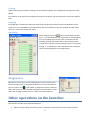
Viewing While monitoring, the monitor readings are continuously updated. The configuration settings can be still edited. The contents of the monitor menu depend entirely on the device. See the device user manual for explanations. Stopping Since Mekuwin continuously reads new values from the device, the other functions of Mekuwin can become slow, so it is advisable to stop the Monitor when not needed. To stop, just collapse the Mon menu with the – button next to the text ”Mon”. Simulating Some readings may have buttons next to them. By clicking ”L”, a Lock command is sent to the device, usually making it to stop updating that reading. Then a new value can be manually entered. The device will use the simulated value instead of the real value. The normal operation is returned by clicking ”F” or Free button. The exact effects of the Lock and Free commands depend on the target device. Diagnostics Most devices have some kind of self-diagnostics and can detect some faults in themselves or in the attached devices. To view if the device reports any faults, click in the toolbar. A diagnostics section is opened above the menu tree. Each possible message is associated with a ”lamp”. When the message is active (there is a fault), the lamp will be red. Other operations on the launcher The launcher contains some advanced functions: Monitor comms: When connecting, opens a window for monitoring the serial communications. 5