1
CMSImport PRO User manual
8.4.7
Version 1.1
End result
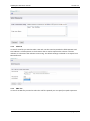
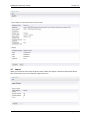
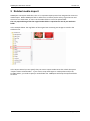
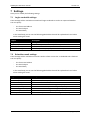
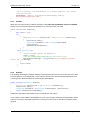
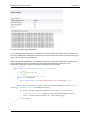
When we will build the dll and drop it into the bin folder of the Umbraco install we will see the
“AdventureWorks ProductCategory” in the pulldown list of possible datasources and when we select
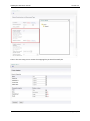
the AdventureWorks ProductCategory DataAdapter we will see the following screen:
We can provide a Connection string and click next to continue the import process the normal way.
8.5
Create a DataAdapter for Products.
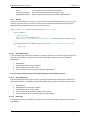
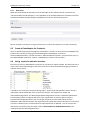
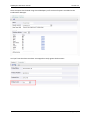
Since we will be importing both Categories and Products we want to have a Custom DataAdapter for
products also. Do this by copying the ProductCategories DataAdapter and name it
AdventureWorksProducts, rename the alias to “AdventureWorks Products” and replace the query in
the UpdateAdapter method to “SELECT * FROM SalesLT.Product order by Name”
8.6
Using events to maintain structure
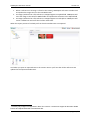
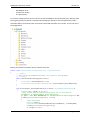
Now that we have our DataAdapters ready we can use them to import the data. But when we take a
closer look at the ProductCategory data we see that it uses the ParentProductCategoryID column to
maintain the structure.
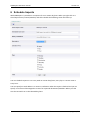
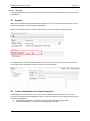
It would be nice to keep the structure during import. Events make that possible. Once a record is
imported the RecordImported event is fired. This will pass the document as sender and
ImportedEventArguments. The RecordImportedEventArguments contains a hashtable called Items.
This hastable contains a readonly reference to the orginal data. So even we did not map the
ParentProductCatagoryID column, we can still get the parent ID. This comes handy because
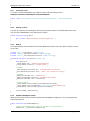
CMSImport adds relations between the original imported data and Umbraco documents. Internally it
uses this to determine if a record needs to be imported ad new or updated. You can retrieve this
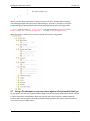
information yourself by using the helper method ContentRelation.GetRelatedDocument. This
method accepts the following parameters:
© 2010 Soeteman Software
page 31 / 39