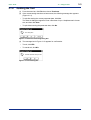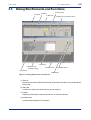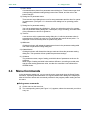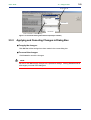
1
<Toc> <Ind>
10-6
< 10. Setting Program Patterns >
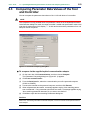
10.2.3 Uploading from the Controller
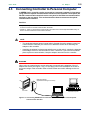
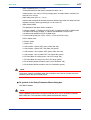
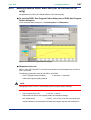
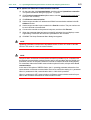
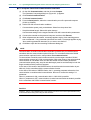
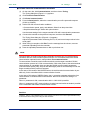
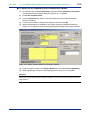
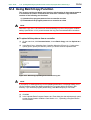
● To upload via the supplied optical communication adapter
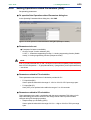
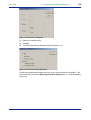
(1) On the menu bar, click Communication then choose Upload from Controller.
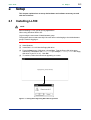
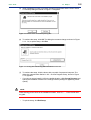
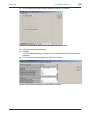
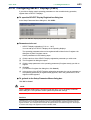
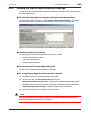
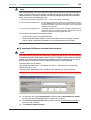
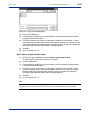
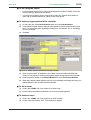
The Uploads Program Pattern dialog box (Figure 10.2.2) opens.
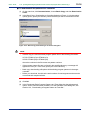
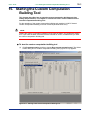
Figure 10.2.2 Uploads Program Pattern Dialog Box
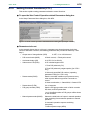
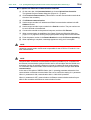
(2) Click Front communication (this means to use the communication port at the front of
the controller).
(3) From the Serial port list, select the communication port of the personal computer from
COM1 to COM16.
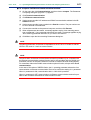
(4) Connect the controller to the personal computer, and then click OK.
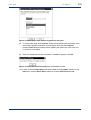
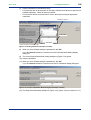
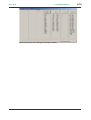
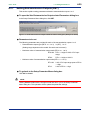
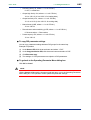
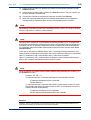
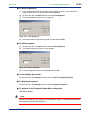
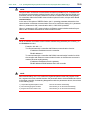
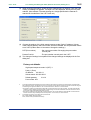
(5) When communication is established, the Pattern Check and Selection dialog box
(Figure 10.2.3) appears, showing the program pattern setting status of the controller.
IM 05G01B12-01E
5th Edition : 2005.03.25-00