1
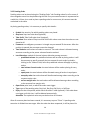
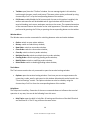
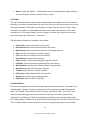
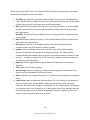
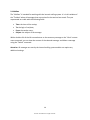
address/server address]:[port number]". For example, "192.168.0.1:443", where "192.168.0.1" is the server address, and "443" is the port number; SMTP login: mail server login; SMTP password: authorization password; From: e-mail address from which messages will be sent; To: e-mail address to which messages will be sent. Attention: Only one e-mail address may be specified for either of the fields "From" and "To". Several e-mails given with or without separators will not be accepted. "Test" sends a test message using the settings specified to test their workability. If it has been tested successfully, the "OK" button must be pressed to apply these settings. If the test is unsuccessful, it is recommended to check all settings and resend the test message. Events Notifications of system events can be set up in the terminal (not to be confused with alerts). It is a very convenient tool for informing about changes in the terminal status. Notifications can be set up in this tab. For this to be done, the "Enable" option must be enabled first. A table containing the list of system events and corresponding actions will then become active. System events are: Connect: connection to the server. Notification of successful connection to the server; Disconnect: no connection to the server. Notification of interrupted connection to the server; Email Notify: notifying about an incoming mail. If this notification has been triggered, it is recommended to check the "Toolbox > Mailbox" window; Timeout: a certain time range is predefined for performing trade operations. If this range has been exceeded for some reason, the operation will not be performed, and this will trigger a notification; OK: trade operation has been successfully performed. No errors occurred during performing of this operation; News: news has been received. If this notification has triggered, it is recommended to check the "Toolbox > News" window; Requote: price changed during preparation of a trade operation. To disable any of the notifications, double-click on its name or icon with the left mouse button. Double-clicking again will reactivate it. After the notification has been triggered, the file specified in the "Action" field of the corresponding event will run. Double-clicking on the file 8 © 2010 - 2013 HotForex. All rights reserved.