1
LightConverse User Manual
4.8 Full Processing Mode Hot-Keys
4.8.1 Keyboard
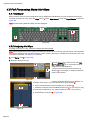
Many functions of the Full Processing Mode can be assigned to individual keys of your keyboard ("Hot-Keys").
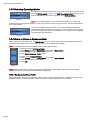
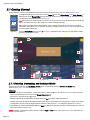
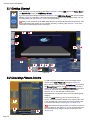
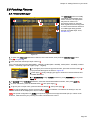
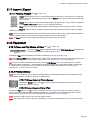
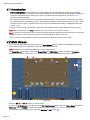
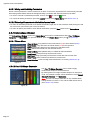
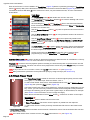
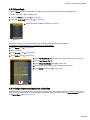
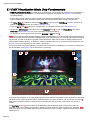
To assign a function to a key, press the Keys button [1] in the Main Screen to open the Keys Window as shown in
Figure 88.
Note: Full Processing Mode Hot-Keys are User-Assigned.
1
8
2
Figure 88
4.8.2 Assigning Hot-Keys
To assign a function to a key, follow the example procedure below:
Note: This example shows how to assign a saved Preset Scene file to a Hot-Key (Load to Scene). The procedure
is similar for assigning other functions (Actions, Load to Track, Load Group, Load Show, Flash Preset). (For more
information on Actions, see Section 4.8.5 below):
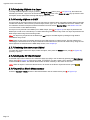
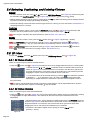
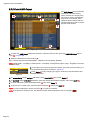
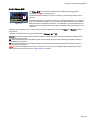
1. Press Setup (see [2] in Figure 88).
2. Select the desired Hot-Key.
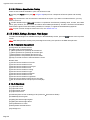
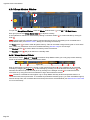
3. Press Browse [3] to select a line in the HotKey Functions List (up to 12 functions may be
assigned to an individual key).
4
3
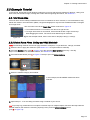
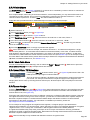
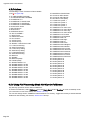
4. Select a function from the function pop-up
window [4]. For example, to assign a Preset-file,
press Load to Scene.
7
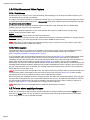
Figure 89
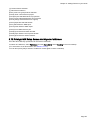
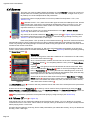
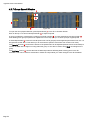
5. Select a file from the file pop-up window. For
example, select Scene 1 from the Preset-file pop-up window [5].
5
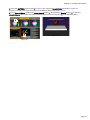
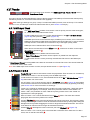
6. Press Load Preset-file in the Preset-file pop-up window [6].
7. If desired, press the Clone to all Banks button see [7] in Figure 89). to copy
the Hot-Key to all Banks (1-12). (See Keys Bank, Section 4.8.3 below.)
8. Press Setup to end (see [2] in Figure 88).
6
Figure 90
Page 54