1
2.8.
29
USERS
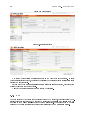
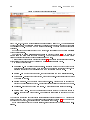
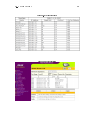
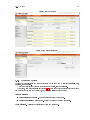
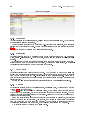
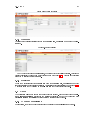
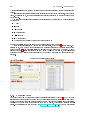
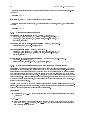
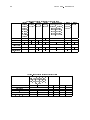
Figure 2.33: User list
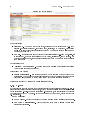
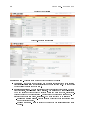
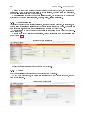
username and password (twice for verication) are entered. The user account type
permissions are then selected.
Everything is conrmed by clicking the Create button. The system will then display the list
The
and
of users, showing any changes.
2.8.4 Changing settings
Permission changes for a particular user's account may only be carried out by a user with Administrator privileges. Preferences may be set by the user in the User preferences .
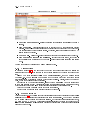
To make changes to a user account, select the Users item from the Management menu. The
list of users will be displayed(Figure 2.33).
Select the Manage option and click on the Settings link for the appropriate user.
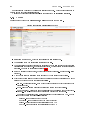
The same form appears as for Adding a User (Figure 2.32 on the preceding page), but
without the option to set the username and password . Once the desired changes have been
made conrm using the Apply Changes button.
The system will conrm the action and display the list of users.
2.8.5 Changing password
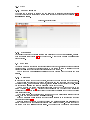
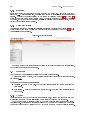
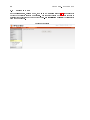
User preferences (Figure 2.31 on the facing
User preferences item from the Management , PreferSelect Change Password then enter the old password once, followed by the new
A user may change their own password in their
page). To change password select the
ences menu.
password twice.
Administrator 's account.
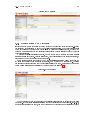
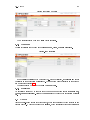
Management , Users menu, select Manage (Figure 2.33). For the appropriate user, click on the Password link and enter the new password twice. Click the Set Password
If a user's password is forgotten, it may be changed from an
Through the
button to conrm.
2.8.6 Removing
Administrator .
To remove a user account select the Users item from the Management menu (Figure 2.33).
Select the Manage item and click the Remove link for the appropriate user account. The
A user account may only be removed by an
removal must then be conrmed.
Following conrmation the list of users is displayed(Figure 2.33) and a message conrming the
account's removal.