1
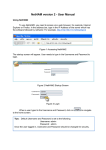
Figure 2: The main MegaQA window. Machine Configuration Each machine to be tested must be configured using the MegaQA software. There are several things that must be configured for each machine: Data directory – This is the root directory where all data files for the machine will be stored. The images acquired during each test session should be stored in individual subdirectories beneath the specified data directory. Each session’s images must, as a minimum, be stored in their own individual directory. Baseline directory – This is the directory where the baseline images are stored. Baseline files – Specify which files in the baseline directory correspond to which images. SDD offset – Specify the offset between the Epid detector plane and the nominal Epid position (in cm). This is necessary to accommodate different imager position calibration schemes that may be used. If the imager position is calibrated such that the nominal position corresponds to the position of the imager detector layer, this offset is 0. The minimum and maximum allowed values for each individual test. All of this information is stored in the machine Excel workbook. The test specifications are stored in the sheet called “Tolerances” and must be set directly from within Excel. All other configuration information is stored in the sheet called “File Details”. The information on the “File Details” sheet can be set directly from within Excel if desired or, if missing, will be prompted for automatically by the MegaQA software when the “File Configuration” button is clicked. The automatic process is recommended and is explained below. When a machine is selected in the “Machine” drop-down menu and the “File Configuration” button is clicked to start the test, the appropriate Excel workbook is opened and the information in the “File Details” sheet is read. Each piece of missing information will be prompted for. If the data directory is not specified in the “File Details” sheet, a window will appear as in Figure 3. If the baseline data directory is not specified in the “File Details” sheet, a window will appear as in Figure 4. If the baseline files have not been set, a window will appear as in Figure 5. This window is