1
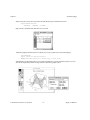
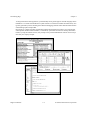
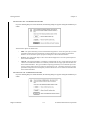
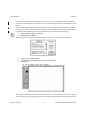
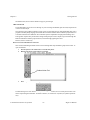
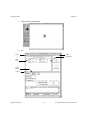
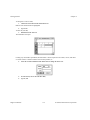
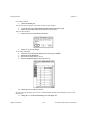
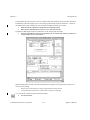
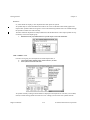
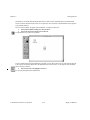
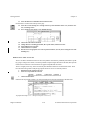
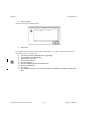
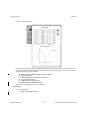
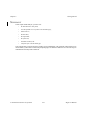
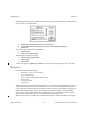
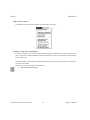
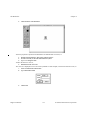
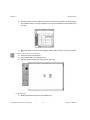
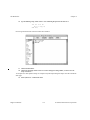
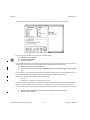
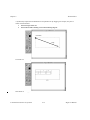
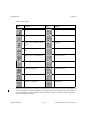
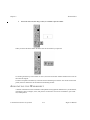
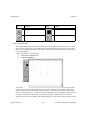
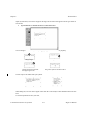
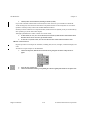
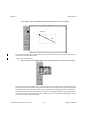
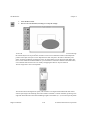
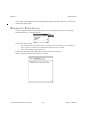
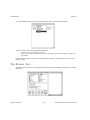
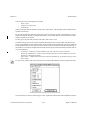
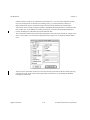
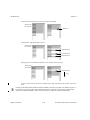
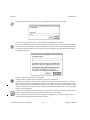
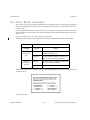
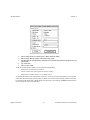
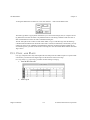
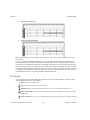
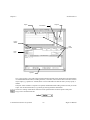
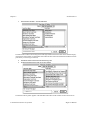
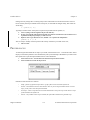
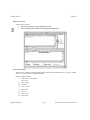
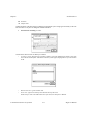
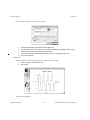
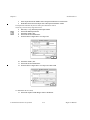
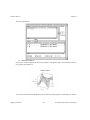
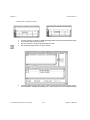
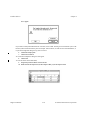
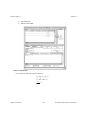
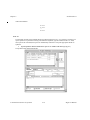
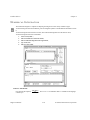
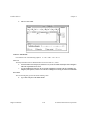
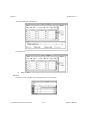
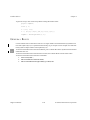
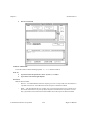
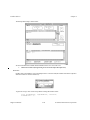
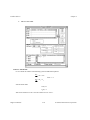
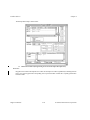
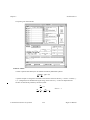
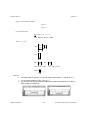
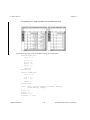
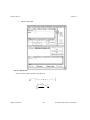
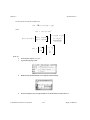
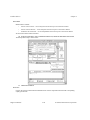
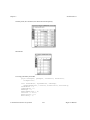
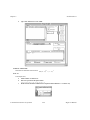
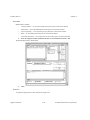
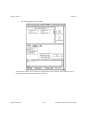
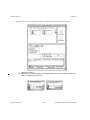
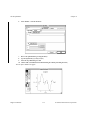
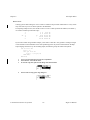
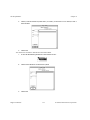
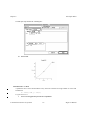
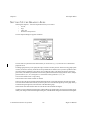
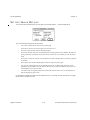
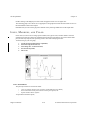
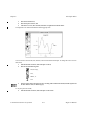
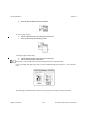
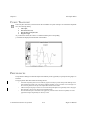
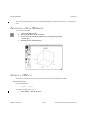
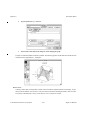
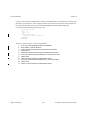
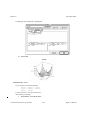
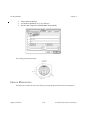
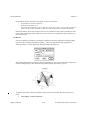
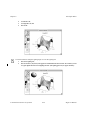
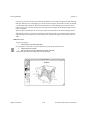
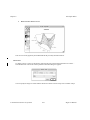
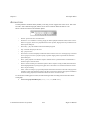
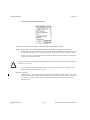
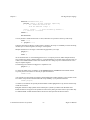
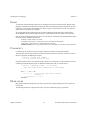
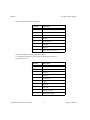
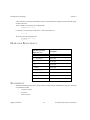
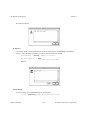
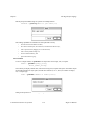
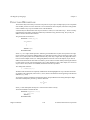
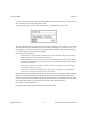
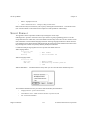
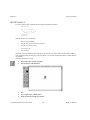
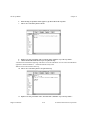
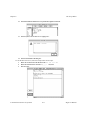
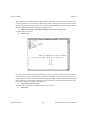
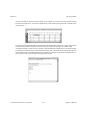
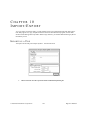
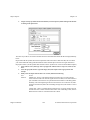
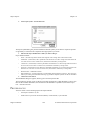
Import /Export 2. Chapter 10 Select Export Symbol… from the File menu. The Export Symbol dialog box presents information about the symbol you are about to export and provides an opportunity to select the form of output file most appropriate to your needs. 3. Pull down the Export Method menu to make your choice of file type. Export methods include: • TEXT—(text and script) data are stored on the target file with a carriage return at the end of each line. • Tabbed Text—(numeric data) a tab is placed after each element of a row and a carriage return at the end of the row. In the case of a scalar or column vector, each element is followed by a carriage return. • Comma Text—(numeric data) a comma is placed after each element of a row and a carriage return at the end of the row. In the case of a scalar or column vector, each element is followed by a carriage return • Space Text—(numeric data) a space character is placed after each element of a row and a carriage return at the end of the row. In the case of a scalar or column vector, each element is followed by a carriage return • Macintosh PICT—standard PICT format • HiQ Notebook Doc—(any data) a HiQ file is created and the selected symbol(s) written to it. This is the equivalent of your creating a new Worksheet and using Copy and Paste to duplicate symbols onto the new Worksheet. 4. Click on the execute button. The standard file dialog box appears, allowing you to name and place the file. The export facility operates on just one file at a time unless the target file is a HiQ Worksheet. To move more than one file to another Worksheet, select the files from the Worksheet or Symbol List, then select Export File… from the File menu. PR E F E R E N C E S You have control over the following import and export attributes: • Decimal places (default is 18); and • default numeric export format: tab delimited (default), comma delimited, or space delimited. HiQ User Manual 10-4 National Instruments Corporation