1
www.cimon.com
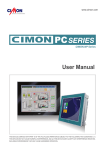
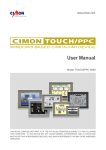
User Manual
HP07CD iMX35 Version
THIS DEVICE COMPLIES WITH PART 15 OF THE FCC RULES OPERATION IS SUBJECT TO THE FOLLOWING
TWO CONDITIONS : (1) THIS DEVICE MAY NOT CAUSE HARMFUL INTERFERENCE, AND (2) THIS DEVICE
MUST ACCEPT ANY INTERFERENCE RECEIVED, INCLUDING INTERFERENCE THAT MAY CAUSE UNDESIRED
OPERATION.
MEMO
Caution
To use this product correctly, it is absolutely required to read
the product description before use.
1. For your safety and the safe operation of this product, please read this
manual before using the product. The manual is subject to change
without notice.
2. Please review the product specifications in this manual to determine
the suitability of this product for its intended use.
3. For your safety only qualified persons should perform electrical and
wiring attchments to this product.
FCC RF
INTERFERENCE STATEMENT
This equipment has been tested and found to comply with the limits for a Class A digital device,
pursuant to part 15 of the FCC Rules. These limits are designed to provide reasonable protection
against harmful interference when the equipment is operated in a commercial environment. This
equipment generates, uses, and can radiate radio frequency energy and, if not installed and used in
accordance with the instruction manual, may cause harmful interference to radio communications.
Operation of this equipment in a residential area is likely to cause harmful interference in which case
the user will be required to correct the interference at his own expense.
Essential Safety Precautions
CIMON-Xpanel Installation book
WARNING
Installation
The Ultimate All-In-One Solution
Please do not dissemble or modify the Hybrid Xpanel. It will void the
Warranty and may cause a high voltage electric shock.
The most advanced micro PLC is seamlessly integrated into the
incredible HMI with vivid and sharp display
This version of the Hybrid Xpanel is not rated for flammable environments. Do not use this Xpanel around flammable gases. It may cause an
explosion.
Wiring
To prevent an electric shock, confirm that the power supply is turnedoff before making any connection to the Hybrid Xpanel.
Do not use power beyond the specified voltage range of the Hybrid
Xpanel. Doing so may cause a fire or an electric shock.
CONTENTS
03
General Safety Precautions
05
Package Contents
06
1. Dimensions
07
2. Interfaces
08
3. Installation
13
4. Wiring and Power Supply Caution
14
5. Grounding Caution
15
6. Specification
16
7. PLC CPU Manual
18
8. Project Download
22
Products Warranty
34
The Hybrid Xpanel uses a lithium battery to back up the internal clock.
Do not replace this battery yourself because it may cause an explosion.
If the battery needs to be replaced, please contact your local service
center.
Essential Safety Precautions
02 CIMON-Xpanel Hybrid
Maintenance
Essential Safety Precautions
Total Solution For Industrial Automation 03
Essential Safety Precautions
CIMON-Xpanel Installation book
CAUTIONS
Wiring
Field Ground (FG) wires must be run individually from each unit to the
master grounding terminal. DO NOT daisy chain the FG wires between
devices.
Correctly wire the Xpanel, be sure that the rated voltage and terminal
layout are within the designated range. If the voltage supplied differs from
the rated voltage, or incorrect wiring or grounding is performed, it may
cause a fire or unit malfunction and it will void the warranty.
Use only the designated torque to tighten terminal block screws of the
Xpanel. If these screws are not tightened firmly, it may cause a short
circuit, fire or Xpanel malfunction.
Be careful that the metal filings and wiring debris do not fall into the
Xpanel, they can cause a fire, Xpanel malfunction or incorrect operation.
Maintenance
The LCD contains a powerful irritant and if for any reason the panel
is damaged and this liquid contacts any part of your body, be sure to
wash that area with running water for 15 minutes. If any of this liquid
enters your eye, flush your eye for 15 minutes with running water and
contact a physician.
Unit Disposal
CAUTIONS
Do not strike the touch panel with a hard or pointed object, or press on the touch
panel with too much force, since it may damage the touch panel or the display.
Do not install the Hybrid Xpanel where the ambient temperature can exceed
the allowed range. Doing so may cause the Xpanel to malfunction or shorten its
operation life.
Do not restrict or limit the ventilation holes in the Hybrid Xpanel.
Do not store the Hybrid Xpanel in an environment that exceeds the allowed range.
Do not Use the Hybrid Xpanel in areas where large, sudden temperature changes
can occur. These changes can cause condensation to form inside the unit,
possibly causing the unit to malfunction.
Do not allow water, liquids, metal or charged particles to enter inside the Xpanel,
since they can cause either an Hybrid Xpanel malfunction or an electrical shock.
Do not store or use the Hybrid Xpanel in direct sunlight, or in excessively dusty
or dirty enveronments.
Do not store or use the Hybrid Xpanel where strong jolting or excessive vibration
can occur.
Do not store or use the Hybrid Xpanel where chemicals (such as organic
solvents, etc.) and acids can evaporate, or where chemicals and acids are
present in the air.
Do not use paint thinner or organic solvents to clean the Hybrid Xpanel.
Do not store or operate the LCD display in areas receiving direct sunlight, since
the sun's UV rays may cause the LCD display's quality to deteriorate.
If you store the Hybrid Xpanel in areas where the temperature is lower than
allowed level, the liquid of the LCD will congeal and the LCD can be damage.
Conversely, if the storage area's temperature becomes higher than the allowed
level, the liquid of the LCD will become isotropic, causing irreversible damage to
the LCD. Therefore, be sure to store the panel only in areas where temperatures
are within those specified in this manual.
After turning the Hybrid Xpanel OFF, be sure to wait a few seconds before turning
it ON again. If the Hybrid Xpanel started too soon, it may not start up correctly.
Due to the possibility of unexpected accidents, you must back up the project data
of the Hybrid Xpanel regularly.
04 CIMON-Xpanel Hybrid
Total Solution For Industrial Automation 05
General Safety Precautions
When this unit is disposed of, it should be done so according to your
country’s regulation for similar types of industrial waste.
General Safety Precautions
Package Contents
1. Dimensions
CIMON-Xpanel Installation book
The following items are contained in the package of the Hybrid Xpanel. Before using
the Hybrid Xpanel, please confirm that all items listed here are present.
Unit : mm
•HP07
▪ Xpanel Unit
▪ Power Plug
▪ Fastener
▪ 9P Connector (PLC)
▪ Installation Guide
This unit has been carefully packed, with special attention to quality. However,
should you find anything damaged or missing, please contact your local Xpanel
distributor immediately.
▪ The image above can be different from the real product.
Dimensions
06 CIMON-Xpanel Hybrid
Total Solution For Industrial Automation 07
2. Interfaces
CIMON-Xpanel Installation book
1) HMI COM Port
COM1: RS-232C/422/485
•This interface is used to connect the Hybrid Xpanel to the host(PLC), via an RS-232C or
RS-422/485 cable.
Connector
Pin No. Name
1
2
3
4
5
6
7
8
9
SDA
RD
TD
RDA
SG
SDB
RTS
CTS
RDB
Description
Send Data A
Receive Data
Transmit Data
Receive Data A
Signal Ground
Send Data B
Request To Send
Clear To Send
Receive Data B
Port
COM1
COM1
COM1
COM1
COM1
COM1
COM1
COM1
COM1
• If you connect the Hybrid Xpanel to the host via an RS-485 cable (2wire), you must
connect SDA and SDB lines.
• The RS-485 of the Hybrid Xpanel runs under auto toggle mode.
• To reduce the risk of damaging the RS-422 circuit, be sure to connect the SG terminal.
• You can select only one serial communication among RS232C, RS-422 and RS-485.
Those 3 communications do not work simultaneously.
2) PLC COM Port
• It is COM1 Port for PLC CPU and supports either RS232 or RS485 according to option
select. It does not support both RS232 and RS485 at the same time.
• In case of RS232, Pin out is specified as shown below.
Connector
Pin No. Name
Description
Port
1
TD
Transmit Data
COM1
2
RD
Receive Data
COM1
3
SG
Signal Ground
COM1
Description
Port
• In case of RS485, Pin out is specified as shown below.
Connector
Pin No. Name
1
SDA
Send Data A
COM1
2
SDB
Send Data B
COM1
3
SG
Signal Ground
COM1
3) HMI & PLC communication interface
• Both HMI board (COM2) and PLC CPU board (COM2) are connected inside
through RS-232.
Dimensions
08 CIMON-Xpanel Hybrid
Total Solution For Industrial Automation 09
2. Interfaces
CIMON-Xpanel Installation book
4) Ethernet
•This interface complies with the IEEE802.3 for Ethernet (10BaseT/100BaseTX).
RJ45 Connector
RJ45 Jack
Crossover Cable : Host → Host
Cable
No.
Color
Color
No.
1 Orange/W Orange/W 1
2
Orange
Orange
2
3 Green/W Green/W
3
4
Blue
Blue
4
5
Blue/W
Blue/W
5
6
Green
Green
6
7 Brown/W Brown/W 7
8
Brown
Brown
8
Port
Direct Cable : Host → HUB
Cable
No.
Color
Color
No.
1 Orange/W Orange/W
1
2
Orange
Orange
2
3
Green/W
Green/W
3
4
Blue
Blue
4
5
Blue/W
Blue/W
5
6
Green
Green
6
7
Brown/W
Brown/W
7
8
Brown
Brown
8
Port
Interfaces
10 CIMON-Xpanel Hybrid
Total Solution For Industrial Automation 11
3. Installation
4. Wiring and Power Supply Caution
CIMON-Xpanel Installation book
WARNING
Unit : mm
•HP07
• Create a Panel Cut and insert the Xpanel into the panel from the front.
1. To avoid an electric shock, when connecting the Hybrid Xpanel power cord
terminals to the power terminal block, confirm that the Hybrid Xpanel power
supply is completely turned OFF, via a breaker, or similar unit.
2. Since there is no power switch on the Hybrid Xpanel unit, be sure to attach a
breaker-type switch to its power cord.
• When the FG terminals is connected, be sure the wire is grounded.
Not grounding the Hybrid Xpanel unit will result in excess RF noise
and the possibility of shock if there is an equipment failure.
▪ Please pay special attention to the following instructions when connecting
the power cord terminals to the Hybrid Xpanel unit.
1. If the power supply voltage exceeds the GP's specified range, connect a voltage
transformer and re-attach the screws.
• Attach the Installation Fasteners from inside the panel Insert each the hook of
faster into slot and tighten it with a screwdriver.
2. Between the line and the ground, be sure to use a low noise power supply. If
there is still an excessive amount of noise, connect a noise reducing transformer.
3. The power supply cord should not be bundled with or kept close to main circuit
lines (high voltage, high current), or input/output signal lines.
4. Connect a surge absorber to handle power surges.
5. Reduce noise, make the power cord as short as possible.
Wiring & Power Supply Caution
• Tightening the screws with too much force can damage the case of
the Hybrid Xpanel.
• The necessary torque is 0.678~0.813lbf*ft (0.5~0.6 N•m)
• Depending on the thickness of installation panel, the number of
installation fasteners used may need to be increased to provide the
desired level of moisture resistance.
12 CIMON-Xpanel Hybrid
Total Solution For Industrial Automation 13
5. Grounding Caution
6. Specification
CIMON-Xpanel Installation book
1. When grounding to the rear face FG terminal of the Hybrid Xpanel, (on the
Power Input Terminal Block), be sure to create an exclusive ground.
2. Inside the Hybrid Xpanel unit, the SG(Signal Ground) and FG(Frame Ground)
terminals are connected to each other.
3. When connecting an external device to the Hybrid Xpanel with the SG terminal,
ensure that no short-circuit loop is created when you setup the system.
■ PLC CPU Part
Items
Specifications
Power
DC 12-24V / 10W (In case of maximum expansion)
Program control method
Cyclic execution of stored program, Time Driven Interrupt
I/O control method
Indirect method, Directed by program instruction
Program language
LD(Ladder Diagram), IL(Instruction List), SFC(Sequential Function Chart)
Data processing method
Instructions
6. Specification
Model
HP07CD-AER
HP07CD-DER
HP07CD-ANR
HP07CD-DNR
HP07CD-AES
HP07CD-DES
LCD size
7 inch wide
LCD Type
TFT Color
Colors
65K Colors
Resolution
WVGA 800X480
Backlight
LED
400 cd/m2
4 wire resistive
Memory
128M Byte DDR2
Storage
128M Byte SLC NAND FLASH
SD Card
1 SD slot
None
COM2(HMI)
Run, Stop, Remote Run, Remote Stop
K address by (Latch) parameter
Total program
None
1 USB device
None
Periodic
Interrupts
Maximum 16 scan program (Minimum period : 10ms)
Special
PID Control, HSC, Positioning, I/O Input Filter
Communication
Serial, Ethernet, MODBUS/RTU Master, MODBUS TCP, High Speed Link
Restart
1 port
1 port
Scan, Subroutine, Cold/Hot Start initialization, Periodic Interrupts
X
1 port
-A:AC100-240V / -D:DC24V
8W
OS
Windows CE 6.0
Dimension(mm)
185 X 127 X 80.5
Panel Cut(mm)
177 X 119
None
Data
memory
SFC, FBD (Function Block Diagram : under development)
Detects delay of scan time, memory, I/O, Battery, Power supply
Cold, Hot Restart
Maximum expansion
None
128
Scan
Self-diagnosis function
10/100 BaseT
Power Consumption
14 CIMON-Xpanel Hybrid
Operation mode
Back-up method
Total
program
(Max.128)
RS232(Internal)
None
Tool Port
Rated Voltage
384 points
RS485
USB Host
Audio
15K Step
Maximum I/O points
RS-232(Internal)
10/100 BaseT
300 ns/Step
1 CPU module + maximum 11expansion modules
1024 points (X0000 - X063F)
Y
1024 points (X0000 - X063F)
M
8192 points (M0000 - M511F)
L
4096 points (L0000 - L255F)
K
4096 points (K0000 - K255F)
F
2048 points (F0000 - F127F)
T
512 points (T0000 - T0511)
C
512 points (C0000 - C0511)
S
100 states x 100 set (00.00 - 99.99)
D
10000 words (D0000 - D9999)
Z
1024 words (Call Stack : Z0000 - Z0063, Z1000 - Z1063)
R
16 points (Index)
Total Solution For Industrial Automation 15
Specification
Ethernet
HP07CD-ANS
HP07CD-DNS
1 SD slot
RS232
COM2(PLC)
389 Instruction
Program capacity
RS-232C/422/485
COM1(PLC)
Application
Etc.
Luminance
Touch Panel
COM1(HMI)
55 Instruction
Processing speed
(Sequence)
■ HMI Part
32 bit
Sequence
6. Specification
CIMON-Xpanel Installation book
■ XPANEL Environmental Specification
Items
Specifications
High Speed Counter
20Kpps, 2 Phase 2Ch.(in case of operating 2Ch simultaneously 10kpps)
1Phase pulse Input + Direction signal
PID
32 Channels, Auto-Tuning
RTC
Communication channel
Battery (CR2032 Backup)
Built-in : USB Loader (for CICON program), RS232C 1CH.
Etc.
Option : RS485 1Ch or RS232 1Ch
Real number operation, Online edit
■ PLC CPU Board I/O Specification
Items
Relay Output
Rated I/O
Voltage
AC 220V / DC 24V
Rated I/O
Current
1 point 2A / COM 5A
On V/A
DC 19V / 3mA
Off V/A
DC 6V / 3mA
Response time
10ms or less
Operation
indicator
Input ON, LED ON
Insulation
method
Relay Insulation
Input method
DC 8points (SINK/SRC)
Output method
Relay 8points
Item
Description
Permitted Voltage
DC 24V or AC100-240V
Ambient Temperature
0℃~60℃
Storage Temperature
-10℃~60℃
Ambient Humidity
10%RH~90%RH(Non-condensing, wet bulb temperature: 39℃ max.)
Storage Humidity
10%RH~90%RH(Non-condensing, wet bulb temperature: 39℃ max.)
Air Pressure Vibration
Resistance
800hPa ~ 1114hPa(Up to 2000m/6,500ft)
(Availment altitude)
Dust
0.1mg/m3 or less
Pollution Degree
Less than equal to Pollution degree 2
Corrosive gases
Free from corrosive gases
Vibration Resistance
IEC61131-2 Compliant
Occasional Vibration
10Hz to 75Hz 0.075mm, 57Hz to 150Hz 9.8m/s2
Continuous Vibration
10Hz to 75Hz 0.075mm, 57Hz to 150Hz 4.9m/s2
X,Y,Z directions for 10 cycle (80min.)
Noise resistance
±2kV, 1uS
Electrostatic Discharge
Immunity
Contact Discharge 4kV (IEC61000-4-2)
Air Discharge 8kV
Specification
Circuit Diagram
16 CIMON-Xpanel Hybrid
Total Solution For Industrial Automation 17
7. PLC CPU Manual
CIMON-Xpanel Installation book
1. Device & Address
2. Names of Part and Mode Change
• Device
- Input : X
- Sub Relay : M
- Timer : T
- Data Device : D
- Link Relay : L
- Special Relay : F
- Output : Y
- Sub Data Device : @D
- Keep Relay : K - Step control Relay : S
- Counter : C
- Index register : R
• Device Address
- Bit Data: [Device] + [Card No.] + [Bit No.]
Device : X, Y, M, K, L, F, Card No. : 10Dec(Decimal). 3 Characters
Bit No. : 16Hex. 1 Character
Ex) X0100 → 10Dec. (word) + 16Hex(Last Bit)
: [10th Address and 0th bit]
- Word Data: [Device] + [Card No.]
Device : D, Z, T, C, Card No. : 10Dec. 5Characters
Ex) D0100 -> 10Dec. (Word) : [100th word Address]
- Timer, Counter Output: [Device] + [Bit No.]
Device : T. C, Bit No. : 10Dec. 4Characters
Ex) T0100 -> 10Dec. (Word) : [T 100th Bit Address]
- Step Controller I/O: [Device]+[Card No.]+[.]+[ Step No.]
Device : S
Card No. : 10Dec. 2Characters, Step No. : 10Dec. 2Characters
Ex) Sxx.xx -> xx is 10Dec. (0~99)
Device : X, Y, M, K, L, F, Card No. : 10Dec. 3Characters
Ex) X010 -> 10Dec. (Word), [X 10th Address]
18 CIMON-Xpanel Hybrid
• If EAA module (CM-HP-EAA) is installed, slot number is assigned to EAA
module. If Dummy (CM-HP-DM) is installed, slot number is assigned after
Dummy module. The maximum expansion modules are 2 modules (Without
EAA or Dummy module).
• Mode Switch
RUN MODE
STOP MODE
• Operation mode is changed by mode switch.
• The mode can be changed through CICON but when power reset, RUN/
STOP mode is decided through switch position.
Total Solution For Industrial Automation 19
PLC CPU Manual
- assign Bit Device to Word: [Device] + [Card No.] + [0]
• There are two types of PLC CPU module.
RS232 type and RS485 type : The above picture is RS232 type.
7. PLC CPU Manual
CIMON-Xpanel Installation book
3. Features of CPU
3. CPU I/O Pin Map
► Built-in Functions
- PID Control
It operates 32LOOP PID without PID module.
- RTC
It reads time from RTC and save it in F device address.
- I/O reservation.
It scans module at designated slot.
It refers to reservation function which writes a program without I/O
change in case of expansion, damage or replacement.
- Online Edit
Program can be edited while Run mode.
► Features
- SD/MMC Built-in.
Scan program or firmware can be upgraded by SD memory card.
(Stop mode → Power off → Insert SD card → Run → Stop → Run → Stop
: firmware will be upgrade automatically.)
- 20Kpps High Speed Counter (2Channel) Built-in.
2PH.2/4Multi. Input mode possible, Voltage input type (Open collector)
- Max.3 communications can work simultaneously.
(Ethernet, RS232, RS485)
CIMON HMI, MODBUS RTU/TCP, Protocol program(user protocol),
Loader protocol support, Remote access & up/down load support.
- Data reserved in case of Power cut
Built-in Flash memory enabling permanent backup of program without
any seperate battery.
20 CIMON-Xpanel Hybrid
• Use PLC only in the environment specified in PLC manual or general standard
of data sheet.
• Do not let any metallic foreign materials inside the products which may cause
electric shock, fire or abnormal operation.
• Do not touch or install the module when PLC power is on.
• Do not disassemble or remodel the module.
• When F3.4(Special relay address for battery error) is on, change the battery.
Total Solution For Industrial Automation 21
PLC CPU Manual
- Abundant memory (10K Step)
6) Safety Instructions
8. Project Download
CIMON-Xpanel Installation book
1. Download a Project From a PC to Xpanel using a USB Cable
(1) Requirements for Downloading
A USB-Mini(B) type cable is required. To use a USB cable, Xpanel must be
synchronized with the PC. Either ActiveSync or the Mobile Device Center must
be used for synchronization, depending on the version of Windows being used.
USB Cable Type
Environment
USB-Mini(B)
Requirement
Windows XP
ActiveSync
Windows
Vista/Win7/Win8
32 Bit : Mobile Device Center 32bit
64 Bit : Mobile Device Center 64bit
► ActiveSync and Mobile Device Center can be downloaded from Microsoft.
(www.microsoft.com)
USB
PC
XPANEL
(2) Connecting To Xpanel from Windows XP
B. Download ActiveSync, from Microsoft and install it.
C. After installing ActiveSync, connect a USB cable to Xpanel.
Select No in the New Hardware Search Wizard.
22 CIMON-Xpanel Hybrid
D. Default Installation Path for the Driver
Ver 2.31 : C\Xpanel\USB_Driver\XT04SyncDrv\
Ver 2.30 or earlier : C\ProgramFiles\Xpanel\USB_Driver\XT04SyncDrv\
Total Solution For Industrial Automation 23
Project Download
A. Install the latest XpanelDesigner
(available from the CIMON web site).
8. Project Download
CIMON-Xpanel Installation book
2. Download a Project From XpanelDesigner to Xpanel By USB Cable
(1) Select a ConnectionType
Go to the Menu tab, and select [Online]→[Setup Link]→[USB].
F. Installation is Complete
(3) Connecting to Xpanel from Window 7
(2) Convert To a Runtime Project
For USB, select [Online]→[Download To Xpanel]. When the Converting
To Runtime Project dialog appears, click on YES.
A. Install the latest XpanelDesigner
(available from the CIMON web site).
B. Download the Mobile Device Center, from Microsoft and install it.
C. After installation, connect a USB cable to Xpanel.
D. With an Internet connection, the Device Manager will
synchronize with Xpanel automatically (Internet access is required).
E. Installation is complete.
(3) Download a Project from XpanelDesigner (PC) To Xpanel.
A. First Time Download
Project Download
< Windows Mobile Device Center>
24 CIMON-Xpanel Hybrid
Total Solution For Industrial Automation 25
8. Project Download
CIMON-Xpanel Installation book
- For the initial download, the download dialog box will appear,
as shown above.
- RunTime Project Size
Display the size of the project download in Bytes.
Model
Max. Project Size
Built in Flash Size
XT04CD/XT07CD/
HP07CD/XT08CD
Up to 80 MB
128 MB
XT10CD/XT12CD/
XT15CD
Up to 50 MB
128 MB
3. Download Project By Ethernet
Projects can also be downloaded to Xpanel by Ethernet (the Xpanel Ethernet
option required). The Ethernet Loader
(a built-in program) is used for downloading by Ethernet.
The Ethernet Loader must be running throughout the download process. If
the Ethernet Loader is forced to quit, the download will be interrupted. You will
then have to either run the Ethernet Loader again, or restart Xpanel.
(1) Setting the Xpanel IP address
A. Using an Ethernet Loader
a. Terminate the Xpanel Application Program (Active Project)
If you touch the three corners of the Xpanel display in the order shown
below, the Xpanel Config Dialog box will appear. Click on Exit to shut
down the Xpanel Application Program and bring up the Desktop.
B. Checking the Ethernet Loader
The Ethernet Loader should always be running. If the Ethernet Loader
is forced to quit, the download will be interrupted. if this happens, the
Ethernet Loader must be started again. To do this, go to [My Device] →
[Xpanel], and click on “Eldr.exe”.
C. Apply the IP setting To Xpanel.
Enter the Xpanel IP address, Subnet Mask and Gate Way then click
on Apply this new setting to restart Xpanel (the modified setting will be
applied only after restarting).
Project Download
26 CIMON-Xpanel Hybrid
Total Solution For Industrial Automation 27
8. Project Download
CIMON-Xpanel Installation book
B.Using Xpanel Config
a. Open the Xpanel Config Dialog box
If you touch the three corners of the Xpanel display in the order shown
below, the Xpanel Config Dialog box will appear. Click on Comm Config
to bring up the IP setting dialog box.
(2) Download a Project From XpanelDesigner By EthernetA.
Using an Ethernet Loader
A. Select a Connection Type
Select [Online] → [Setup Link]→[Ethernet].
B. Select and Search for Xpanel
Click on Select Xpanel to bring up the list of Xpanel IPs currently
connected to the PC(by Ethernet). Select the desired Xpanel IP and
click on OK.
b. Communication Setup
Select Ethernet from the Drop-Down menu. Enter the IP address for
Xpanel and click on OK to execute a System Shutdown. After the System
Shutdown, the modified IP setting will be applied to Xpanel.
28 CIMON-Xpanel Hybrid
Total Solution For Industrial Automation 29
Project Download
C. Download To Xpanel
Select [Online] → [Download To Xpanel].
The project is converted to an Editing Project, and the rest of the
download procedure is the same as it is for Download by USB Cable.
8. Project Download
CIMON-Xpanel Installation book
B. Select the Target USB/SD/MMC Device
Enter the location of the target USB/SD/MMC device; it must be in the Root
Folder (Directory). Xpanel cannot recognize Subfolders (Subdirectories).
Click on OK to download the project to Xpanel.
(See Download by USB Cable for the detailed information about downloading)
4. Download a Project To Xpanel using USB/SD/MMC
(1) Preparing for USB/SD/MMC
(2) Download a project to a USB/SD/MMC Device.
C. Writing a project to a USB/SD/MMC Device
A. Download a project into USB/SD/MMC memory.
Select [Online] → [Copy Project to Removable Memory]. Convert the
project to a Runtime Project.
Project Download
30 CIMON-Xpanel Hybrid
Total Solution For Industrial Automation 31
8. Project Download
CIMON-Xpanel Installation book
D. Plug the Portable Memory Device into Xpanel.
E. Close Xpanel Application Program
If you touch the three corners of the Xpanel display in the order shown below,
the Xpanel Config Dialog box will appear. Click on Exit to shut down the Xpanel
Application Program and bring up the Windows CE Desktop.
F. Writing a Project into Xpanel by Ethernet Loader
On the Windows CE Desktop, the Ethernet Loader will normally be running.
The Ethernet Loader supports not only project Up/downloading via Ethernet,
but also project Up/downloading via Removable Storage Device.
Select [Removable Storage → Xpanel] on the Ethernet Loader.
Project Download
32 CIMON-Xpanel Hybrid
Total Solution For Industrial Automation 33
Products Warranty
Products Warranty
CIMON-Xpanel Installation book
January 2014
All Cimon products including hardware, software, and firmware
(collectively called “Products”) carry a one-year warranty against
defects in materials and workmanship beginning from the date of
product receipt from seller or its appointed distributor. If a product
proves defective in materials and workmanship within one year from
the date of purchase, we will replace or repair it. Products returned
under warranty after 30 days may be replaced with refurbished
or remanufactured goods at Cimon’s discretion. Cimon makes
no representation or warranty, express or implied, that the operation
of the Products will be uninterrupted or error free, or that the functions
contained therein will meet or satisfy buyer’s intended use or
requirements. Repaired or replaced Products provided as a result of
this warranty are warranted for a period of six (6) months from the
shipment to buyer or the remainder of the original warranty term
for that particular product, whichever is longer. Cimon’s standard
policy is that all customers are responsible for freight charges to Cimon
when returning products under the warranty return policy.
34 CIMON-Xpanel Hybrid
To minimize the risk of potential safety problems, you should follow all
applicable local and national codes that regulate the installation and
operation of your equipment. These codes vary from area to are and
usually change with time. It is your responsibility to determine which
codes should be followed, and to verify that the equipment, installation
and operation is in compliance with the latest revision of these codes.
CIMON SOFTWARE AND HARDWARE (COLLECTIVELY REFFERED
TO AS, “PRODUCTS”) LICENSE DISCLAIMER AND LIMITATION OF
WARRANTIES
YOUR USE OF ANY CIMON PRODUCTS AND CONTENT ACCESSIBLE
THROUGH THE PRODUCTS IS ENTIRELY AT YOUR OWN RISK. EXCEPT
AS DESCRIBED IN THIS AGREEMENT, THE PRODUCTS ARE PROVIDED
"AS IS." TO THE MAXIMUM EXTENT PERMITTED BY APPLICABLE
LAW, CIMON, ITS AFFILIATES, AND ITS THIRD PARTY SERVICE OR
DATA PROVIDERS, LICENSORS, DISTRIBUTORS OR SUPPLIERS
(COLLECTIVELY REFERRED TO AS, "SUPPLIERS") DISCLAIM ALL
WARRANTIES, EXPRESS OR IMPLIED, INCLUDING ANY WARRANTY
THAT THE PRODUCTS ARE FIT FOR A PARTICULAR PURPOSE, TITLE,
MERCHANTABILITY, DATA LOSS, NON-INTERFERENCE WITH OR NONINFRINGEMENT OF ANY INTELLECTUAL PROPERTY RIGHTS, OR THE
ACCURACY, RELIABILITY, QUALITY OR CONTENT IN OR LINKED TO THE
PRODUCTS.
Total Solution For Industrial Automation 35
Products Warranty
This warranty will be void if Products date codes or serial numbers
are removed or defaced. Warranties do not apply to products that
have been subjected to abnormal use, abnormal conditions, improper
storage, exposure to moisture or dampness, unauthorized modifications,
unauthorized repair, misuse, neglect, accident, alteration, improper
installation or other acts which are not the fault of Cimon, including
damage caused in shipping. Our warranty also does not apply to any
product that has been damaged by external causes such as fire, flood,
sand, dirt, lightning, acts of God, battery leakage, theft, blown fuses,
improper use of any electrical source or connection to product not
recommended in writing for interconnection by Cimon.
In no event will Cimon be liable, whether in contract, tort or under any
other legal theory, for lost profits or revenues, loss of use or similar
economic loss, for any indirect, special, incidental, consequential,
punitive or similar damages arising out of or in connection with any
products including non-conforming products, or for any third party claims
against you relating to the products, even if we have been advised of the
possibility of such claim. In no event will our monetary liability in respect of
any product exceed the purchase price that you paid for it.
Products Warranty
CIMON-Xpanel Installation book
CIMON AND ITS AFFILIATES AND SUPPLIERS DO NOT WARRANT
THAT THE PRODUCTS ARE SECURE, FREE FROM BUGS, VIRUSES,
INTERRUPTION, ERRORS, THEFT OR DESTRUCTION. FURTHER,
CIMON DOES NOT WARRANT ACCESS TO THE INTERNET OR TO ANY
OTHER SERVICE, CONTENT OR DATA TRANSMITTED THROUGH THE
PRODUCTS. IF THE EXCLUSIONS FOR IMPLIED WARRANTIES DO NOT
APPLY TO YOU, ANY IMPLIED WARRANTIES ARE LIMITED TO 60 DAYS
FROM THE DATE OF PURCHASE OR DELIVERY OF THE PRODUCTS,
Revision History
Version
V1.0
Date
2014-03-24
Content
New version
Page
-
WHICHEVER IS SOONER.
EQUIPMENT DAMAGE OR SERIOUS INJURY TO PERSONNEL
INCLUDING DEATH CAN RESULT FROM THE FAILURE TO FOLLOW ALL
APPLICABLE CODES AND STANDARDS INCLUDING ENGINEERING
STANDARDS. CIMON DOES NOT ASSUME ANY RESPONSIBILITY FOR
YOUR PRODUCT DESIGN, INSTALLATION OR OPERATION.
CIMON LTD AND ITS AFFILIATES AND SUPPLIERS DISCLAIM ANY
REP-RESENTATIONS OR WARRANTIES THAT YOUR USE OF THE
PRODUCTS WILL SATISFY OR ENSURE COMPLIANCE WITH ANY
LEGAL OBLIGATIONS OR LAWS OR REGULATIONS.
Products Warranty
LIMITATION OF LIABILITY AND INDEMNITY. TO THE MAXIMUM EXTENT
PERMITTED BY APPLICABLE LAW, THE ENTIRE LIABILITY OF CIMON,
AND ITS AFFILIATES AND SUPPLIERS FOR ALL MATTERS OR CLAIMS
RELATING TO THIS AGREEMENT SHALL BE LIMITED TO THE AMOUNT
YOU PAID FOR THE PRODUCTS DURING THE TWELVE (12) MONTHS
PRIOR TO SUCH CLAIM.
THE STATUTE OF LIMITATIONS FOR FILING A CLAIM SHALL BE LIMITED
TO THE SHORTER OF TWELVE MONTHS, OR THE SHORTEST PERIOD
ALLOWED UNDER APPLICABLE LAW.
36 CIMON-Xpanel Hybrid
Total Solution For Industrial Automation 37
CIMON CO.,LTD.
H.Q Address : 5F KDT B/D, #48, Beolmal-ro, Bundang-gu,Seongnam-si, GyeongGi-do,
Korea, 463-836
Tel : +82-31-778-3071
Homepage : www.cimon.com
USA : 3699 Wilshire Blvd suite 1250 Los Angeles CA90010
Tel : 213 384-8703
Homepage : www.cimon.com
BXP13018
Version:1.0
Revision Date : Mar, 2014