1
DHS Systems, LLC
TM 95236-00
0006
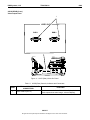
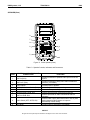
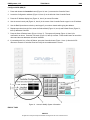
6. To identify which Video Source will be displayed in each of the four quadrants, locate and press one of the
Video Source INPUTS button (Figure 7, Item 4). The button will appear darkened to indicate it is selected.
7. Press the center of the window (Figure 7, Item 3) in the video display area corresponding to the desired
location of the video output.
8. The label of the INPUT source is displayed in the bottom left (Figure 7, Item 5) of the corresponding window
and the video feed shows in the window.
9. Repeat steps six through eight for each display window.
Not all video monitors operate at the same screen resolution. Choose the best Output Resolution for the display
devices connected to the video output of the AVCS:
10. Locate and press the Output Resolution button (Figure 7, Item 6) to set the AVCS video output resolution.
The button will appear darkened to indicate it is selected.
11. To view a video input full screen on the connected display device, press and hold the desired video window
for 3 seconds.
12. To exit from full-screen mode, touch the video screen.
END OF TASK
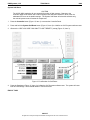
Composite Video Scaling
NOTE
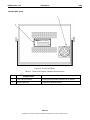
The Scaler page allows the user to set the scaled resolution of the connected low resolution
signals from the composite video inputs.
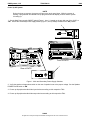
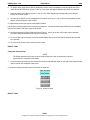
1. Locate and press the button for the resolution that will provide the best signal for the main video monitor being
used to monitor the composite video inputs.
2. Select the desired resolution button until button is darkened.
Figure 8. Scaler Controls.
END OF TASK
0006-7
No rights are conveyed except as indicated in the legend on the cover of this document.