1
SETTINGS
If you have trouble completing any of the settings listed here, please make
sure to refer to the Troubleshooting section.
MT PLAYER SETTINGS
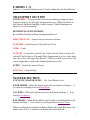
The first time you use your nanoKONTROL in MT Player, you may be
prompted to setup the nanoKONTROL’s ports. For both prompts, you
should select your nanoKONTROL. However, if you bypass those prompts,
you can access the settings by right-clicking on MT Player and selecting
MIDI Settings.
1. From the Port Name menu, select “IN: nanoKONTROL 1
SLIDER/KNOB”.
2. From the MIDI In port menu, select your nanoKONTROL’s SLIDER
port and click OK.
3. Go back into MIDI Settings.
4. From the Port Name menu, select “OUT: nanoKONTROL 1
CTRL”.
5. From the MIDI Out port menu, select your nanoKONTROL’s CTRL
PORT and click OK.
6. Click the Restart button.
You can learn more about MT Player in the MT Player section.
LIVE SETTINGS
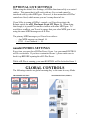
The following settings will be found in Preferences on the MIDI/Sync tab.
IMPORTANT NOTE: When you first install MT Player, Live will
automatically turn on its Track switches. Before completing the steps
below, turn off all the Track switches related to MT Player.
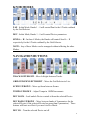
1. Turn off all of the switches/settings related to your nanoKONTROL.
2. Select nLII Plus as a Control Surface.
3. Select From MT Player 1 as the Input and To MT Player 1 as the
Output.
4. For Takeover Mode, select whichever setting is comfortable for you.
1