1
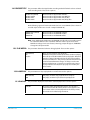
the media, "N/A" appears in the clip area of the UI, "Loading" appears in the clip area
of the UI but does not eventually load a clip, or hitting the record button with all
settings correctly configured for the Ki Pro Mini does not result in a recording.
“WARNING Name in Use” appears if the clipname specified in the naming parameters
already exists on the CF card. This also happens when take 999 is reached and no
more take numbers are available. Ki Pro Mini will refuse to overwrite the clip; you will
have to delete the clip or select a new name.
“WARNING Non VFR Format” appears if you choose VFR for 1.1 Record Type but no VFR
data is detected on the video input.
“WARNING No Clip Name” appears if you attempt to record in gang mode usinga nonexistent custom clip name.
“WARNING No Video Input” appears if you attempt to record and there is no video
detected at the video input.
“WARNING Genlock Missing” appears if you choose “Input” for 6.1 Genlock and you
attempt to play a clip and no genlock is detected on the selected input.
"WARNING Genlock Mismatch" appears if 6.1 Genlock has been set to INPUT but the
signal detected on the selected genlock input is incompatible with the video format
on the selected video input.
"WARNING 2 Channel Format" appears if the number of channels selected in 2.3 Audio
Channels is eight, but the selected audio input only supports two channels. Only SDI
supports eight channels.
"WARNING Invalid Selection" appears if conflicting configuration settings are made.
"WARNING Non VFR Format" appears if 1.1 Record type is set to VFR (variable frame rate),
but the video to record is not a valid VFR type. This can happen because the video
format on the selected video input doesn't support or isn't carrying VFR ancillary
data, or the video signal generator is enabled in 41.2 VIDEO SG.
"WARNING Please Reboot" appears if media was removed without the use of the slot
button and the Ki Pro cannot continue operating and must be rebooted.
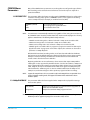
MEDIA menus
As the name implies, these menus display choices are all related to media storage, the
type of encoding, and how Ki Pro Mini behaves when recording and playing back. There
are also menus for naming reels, clips and takes.
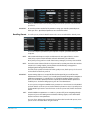
Media Menu
Parameters
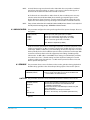
12.1 Media State This parameter applies to using the Ki Pro Mini to transfer data. For normal video
operation, select Record-Play. For data transfer using an Ethernet LAN, choose Data-LAN.
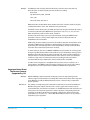
The Data Media State allows valid media to be copied to or from the Ki Pro Mini. Valid
media files for copy to Ki Pro Mini are the following:
• QuickTime files that are full raster (720x486, 720x576, 1280x720 or 1920x1080)
• QuickTime files that are encoded as:
Apple ProRes 422
Apple ProRes 422 (Proxy)
KiPro Mini v4.2
43
www.aja.com