1
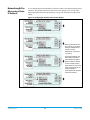
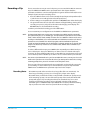
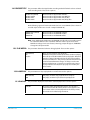
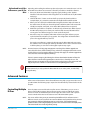
Figure 30. Playlist Order
To reorder clips within a list, just click and drag them. You will notice that the clip is
selected because the filmstrip icon will appear and you will know that a reorder is
happening when you see the green highlight appear.
IMPORTANT:
A clip cannot be moved to the last position of the playlist. To move a clip to the last position in
the playlist, move it to the next to last position in the list and move the last clip in the list
above it.
You may create multiple playlists. Playlists are stored as a simple file on the Ki Pro media
alongside the clips.
Playback of a Playlist If you want to play a playlist you have created, first select Play Media>Playlist in the
Media menu parameters. (Note: depending on whether you have been reviewing clips,
you may first be prompted to "Press Stop" prior to entering the Media page to make
Playlist selections; if this prompt appears, you will be led to the Transport page where
you can depress stop and then enter the Media page.)
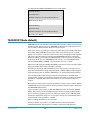
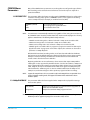
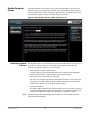
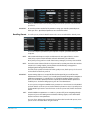
Figure 31. Media Page
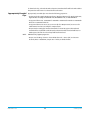
Select a playlist from the Playlist parameter in the Media menu. Once a playlist is
selected, you will noticed that a double arrow indication will appear next to the selected
list in the Playlists portion of the web UI. If you go to the Transport portion of the web UI,
you will now notice that the playlist is cued up, ready for playback of the first clip in the
list. If you want to navigate within your list, you may use the fast forward and rewind
buttons or the select up/down buttons. You can loop playback of a list using the Media
menu parameters as well.
KiPro Mini v4.2
84
www.aja.com